Templates
Start notes with your headings, tags and properties already in place, fill in placeholders like the date, and make templates of your own.
A template is a note you start other notes from: the headings you always write, the tags and properties you always add, and placeholders such as {{ date }} that Terra fills in when you use it. Terra comes with a few, and you can make your own from scratch or from any note.
Templates belong to the Library. Click Templates in the sidebar to see them all.
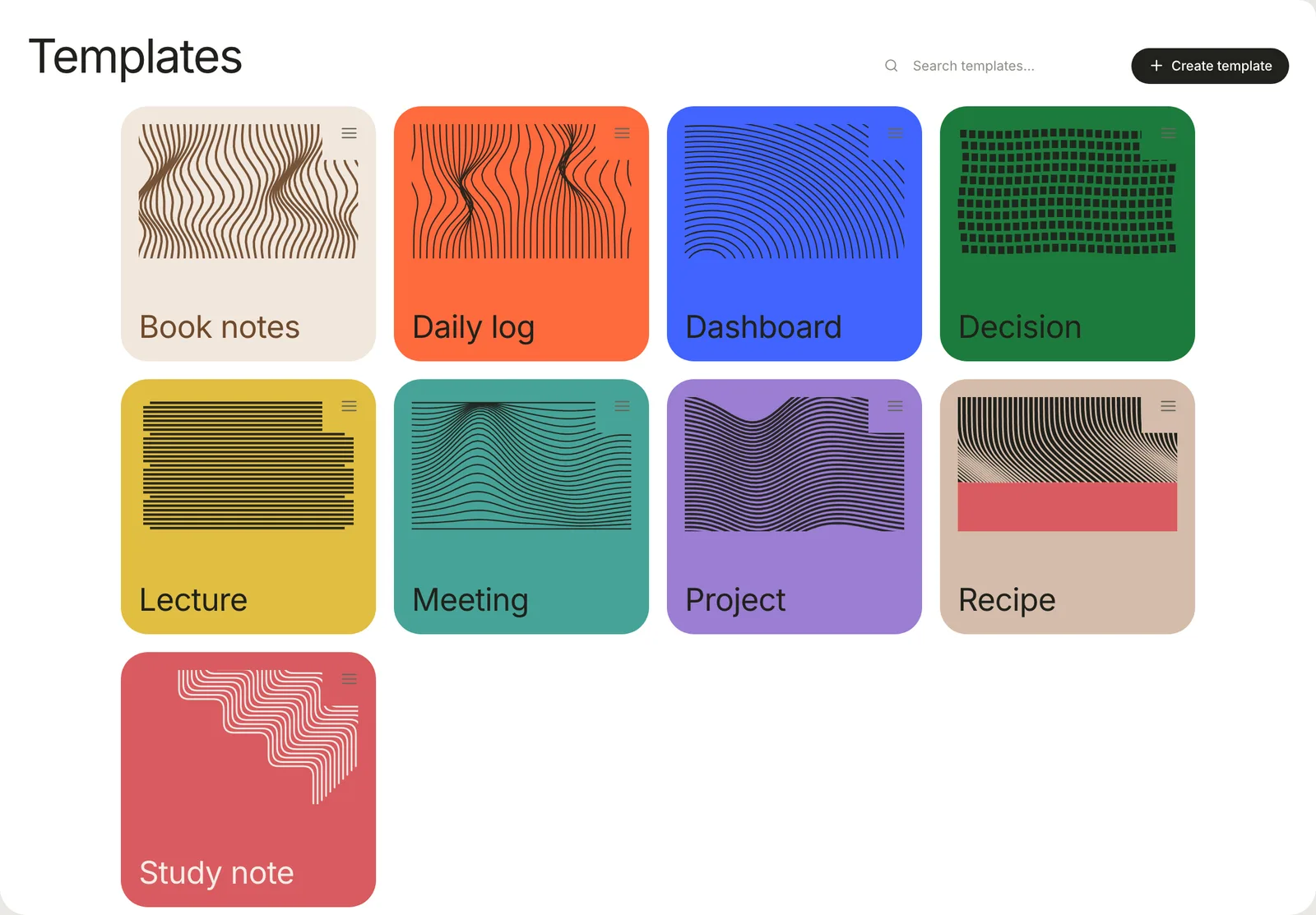
Start a note from a template
- Choose File › New from Template… (⇧⌘N), or click New… in the toolbar and choose New from template….
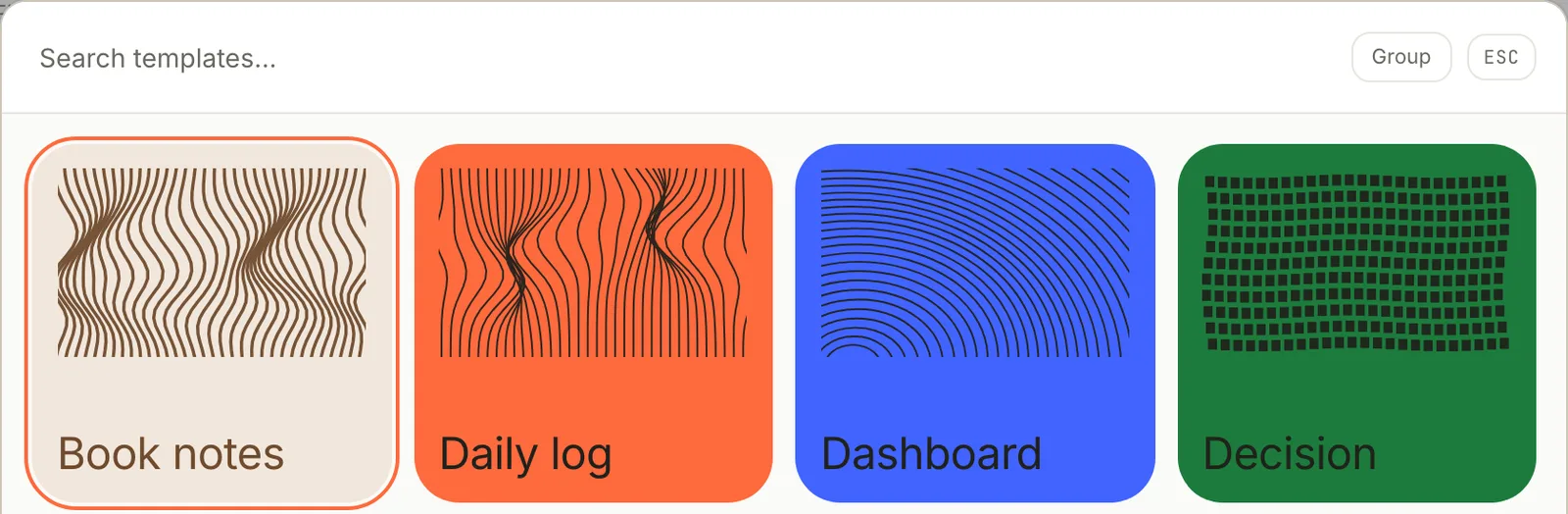
- Click a template. To find one, type in Search templates…, or use the arrow keys and Return. Group sorts the cards by category.
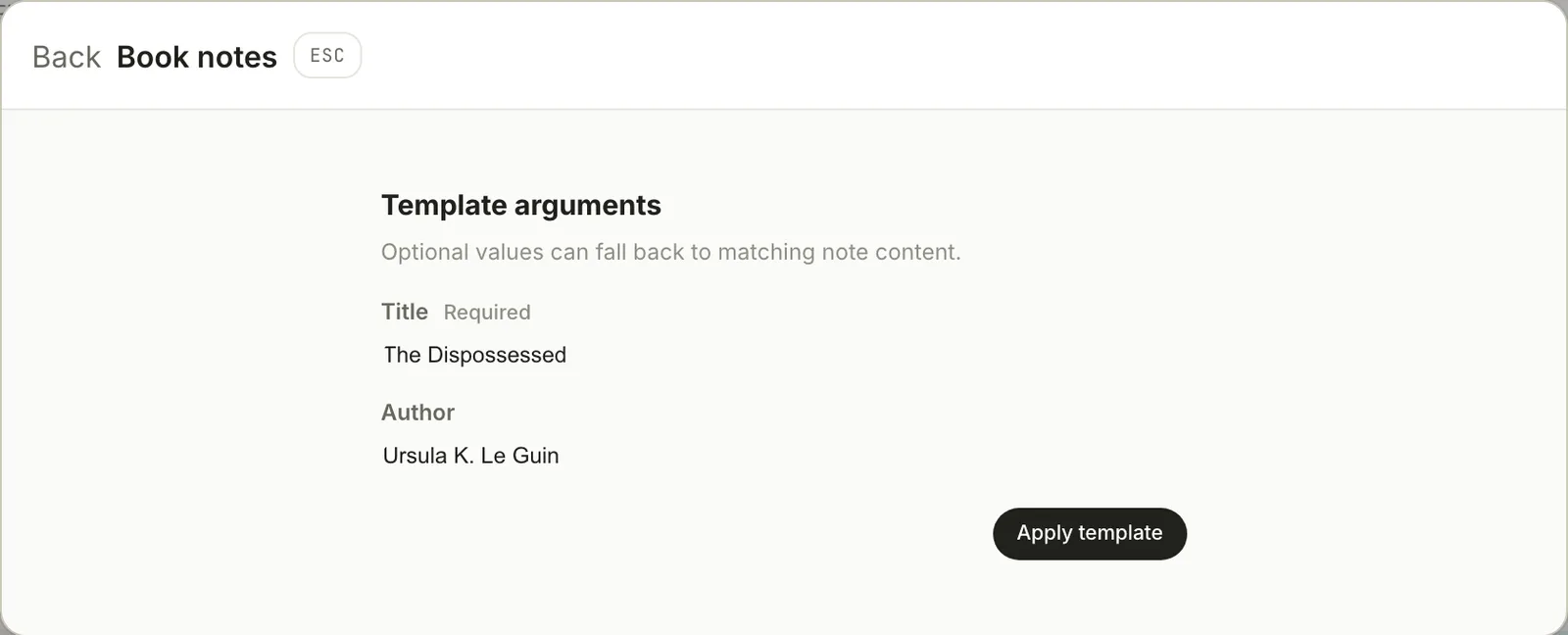
- If the template asks for values, fill in Template arguments and click Apply template. A field marked Required must be filled in first.
- The new note opens.
Where the note goes depends on where you started:
| Started from | The note goes in |
|---|---|
| File › New from Template… | The folder of the note you have open, or the top of the Library |
| New… › New from template… | Inbox |
| Right-click a folder in the sidebar › New from template… | That folder |
| Right-click a database in the sidebar › New from template… | The database's folder, if it collects one folder; otherwise Inbox |
If the template asks for a value named title, that becomes the note's title; otherwise the note is named after the template, so a note from Meeting starts out called "Meeting". Click the title to rename it.
Make a template
To start from scratch:
- Click Templates in the sidebar, then Create template.
- Type a Name. Path, the template's file name, fills itself in; add a folder to it, such as
reading/book-notes, to keep templates in folders. Description, Category and Aliases (other names to search by, separated by commas) are optional. - Click Create. The template starts as a heading,
# {{title}}, and{{cursor}}. - Click the menu button (≡) in the corner of the template's card and choose Edit template to write the rest.
To turn a note you've already written into a template, right-click it in the note list and choose Save as template…. Type a file name in Slug or path, click Next, then type a Template name and click Save. The template keeps the note's text and properties, except its id, created and updated.
Placeholders
Anything in double braces is filled in when the note is made. Spaces inside the braces are optional.
| Write | You get |
|---|---|
{{ title }} | The new note's title |
{{ date }} | Today's date: 2026-10-16 |
{{ time }} | The time: 14:30 |
{{ datetime }} | Both: 2026-10-16T14:30 |
{{ "now" | date:"dddd, MMMM D, YYYY" }} | Today in your own format: Friday, October 16, 2026 |
{{ folder }} | The folder the note is made in |
{{ file }} | The note's file name, such as the-dispossessed |
{{ uuid }} | A new unique ID |
{{ cursor }} | Nothing. It marks where you'll start writing. |
{{ author }} | The value of a template property named author |
The date format is made of these codes, shown here for Friday, March 6, 2026 at 14:30. Put other words in square brackets, as in "D MMM [at] h:mm A".
| Code | Gives | Code | Gives |
|---|---|---|---|
YYYY | 2026 | D, DD, Do | 6, 06, 6th |
M, MM | 3, 03 | ddd, dddd | Fri, Friday |
MMM, MMMM | Mar, March | HH:mm, h:mm A | 14:30, 2:30 PM |
To include text only when a value is filled in, wrap it in {% if %} and {% endif %}; {% else %} gives the alternative:
{% if author %}By {{ author }}. {% endif %}Started {{ date }}.
If a template has a mistake, Edit template marks it, and using the template shows a message such as This template has an error on line 3: with what's wrong.
Ask for values: template properties
A template can declare template properties: named values that fill its placeholders, separate from the properties a note shows under its title. Edit them in the Properties panel of Edit template. Click + (Add template property), fill in its fields, then click Save properties.
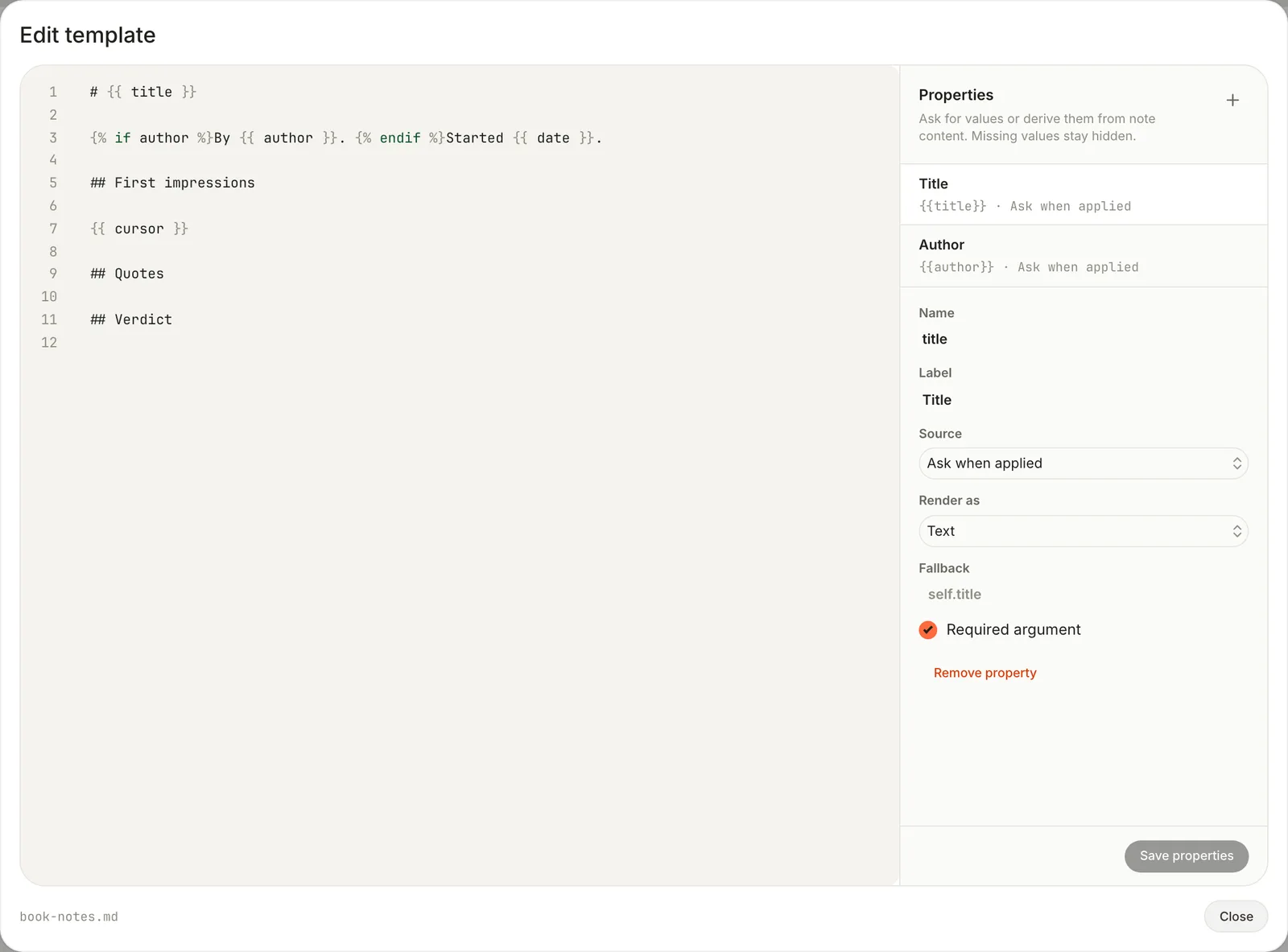
| Field | What it does |
|---|---|
| Name | The placeholder it fills: author fills {{ author }} |
| Label | What Terra calls it when asking |
| Source | Where the value comes from: see below |
| Render as | How it's written: Text as it is, Link as a Markdown link, Callout as a Sprout titled with the label, Numbered section as a heading over a numbered list, Centered image |
| Fallback | What to use when it's empty: another property, or self.title for the note's title |
| Required argument | The note can't be made until it's filled in |
| Source | The value comes from |
|---|---|
| Ask when applied | You, under Template arguments, when you start a note |
| Note property | A property of the note being tidied, under the property's name or one of the Names to try |
| Body section | A section of that note whose heading matches one of the Section words |
| First image | That note's first image |
Note property, Body section and First image read an existing note, so they fill in only when Terra tidies a capture into the template (see below). When you start a new note, only Ask when applied values and fallbacks are filled, and an empty property leaves nothing behind.
Here is the Book notes template's file, .terra/templates/notes/book-notes.md in the Library folder:
---
title: Book notes
description: One page per book, from first impressions to a verdict.
category: Reading
tags:
- books
template:
  properties:
  - name: title
    label: Title
    source: argument
    render: text
    required: true
  - name: author
    label: Author
    source: argument
    render: text
---
# {{ title }}

{% if author %}By {{ author }}. {% endif %}Started {{ date }}.

## First impressions

{{ cursor }}

## Quotes

## Verdict
With the arguments in the screenshot above, it makes this note (with its id, created and updated left out here):
---
title: The Dispossessed
tags:
- books
category: Reading
description: One page per book, from first impressions to a verdict.
---
# The Dispossessed

By Ursula K. Le Guin. Started 2026-10-16.

## First impressions

## Quotes

## Verdict
Everything else in the template's frontmatter is copied into the note, tags included, except title, type and the template: block. That means a template's own description and category land in each note too, and a note's type has to be set by hand.
Templates in captures
Quick capture can shape a capture with a template: choose one under Template in the Quick capture card and switch Enrich on. Terra fills the template from what you captured (an AI model writes the Body section parts), adds the template's tags, and appends the result to the note. See Capture and classify.
Starter templates
Terra adds these to a Library the first time it opens one that has no templates.
| Template | What's in it |
|---|---|
| Daily log | Today's date as a heading, then Wins, Blockers and Tomorrow |
| Dashboard | Four database blocks to point at your data: a count, a chart, a table and a board. See Dashboards. |
| Decision | Date, a Proposed status, Context, Options considered, Decision, Rationale and Follow-ups |
| Lecture | A source link, Summary and Highlights, filled in from a capture |
| Meeting | Date and time, Attendees, Agenda, Discussion, Decisions and Action items |
| Project | Start date, an Active status, Goals, Milestones, Risks and Links |
| Recipe | A picture, a source link, Ingredients and Directions, filled in from a capture |
| Study note | Source, date, Key concepts, Important details, Examples, Questions, Summary and Related |
They're yours to change or delete. If you delete every template, Terra adds the starter set again the next time you open the Library.
Edit or delete a template
On the Templates page, click the menu button (≡) in the corner of a template's card:
- Edit template opens the template's text, with the Properties panel beside it. Changes save as you type; click Close when you're done.
- Edit details changes its name, description, category and aliases.
- Change cover picks the card's pattern or a photo.
- Delete asks Delete Book notes? Click Delete. This can't be undone, and version history doesn't cover templates.
Edit template shows the template's text, not its frontmatter. To change the properties a template copies into notes, edit its file in another app, or save a new template from a note that has the properties you want.
Below your own templates, Connectors and imports lists the templates Terra uses for notes it makes for you, such as Saved article for pages saved from the web and Granola meeting for meetings from Granola. Edit template changes them, and Reset to default appears once you have.
Troubleshooting
The caret doesn't start where {{ cursor }} was
Terra removes {{ cursor }} but doesn't move the caret there yet. Click where you want to write.
Inserting a template with /template adds one plain paragraph
Adding a template to a note you've already started doesn't work yet: the template's Markdown arrives as one paragraph of plain text. Start a new note from the template instead.
New notes in a folder ignore its default template
Set default template… on a folder's right-click menu is saved, but New note doesn't use it yet. Terra Agent does when it makes notes in that folder. Right-click the folder and choose New from template… instead.
Related
- Properties: the fields a template can set up for each note.
- Capture and classify: tidy captures into a template.
- Dashboards: build on the Dashboard template.
- Meeting notes: a guide to running meetings from a template.
Was this guide helpful?