Search syntax
Every operator and filter the search window understands, with an example of each, plus the rules for dates, patterns and the errors you might see.
Everything on this page works in the search window: press ⇧⌘F, or click Search in the toolbar. For a guided tour that builds these up one step at a time, read Find anything in your Library.
The examples use a Library where meeting notes live in meetings, project notes in projects, and notes carry tags such as #launch and an owner property.
How a search is read
- Spaces mean and.
pricing decisionfinds notes that contain both words, anywhere in the note. ORmeans either. It must be in capitals; a lowercaseoris searched as a word. And binds tighter thanOR, soa b OR c dmeans (a and b) or (c and d). Use parentheses to say otherwise.- Words match from their start, in the title, the text and the tag names.
budgfinds "budget";portdoesn't find "report". Capitals and accents are ignored. - A word followed by a colon is a filter. Only the names under Filters, plus
line:andsection:, work. Anything else, such asowner:, shows an error instead of results. - Filter names ignore capitals (
TAG:launchworks), but most filter values don't: see the notes on each filter. - Quote values that contain spaces:
tag:"reading list",path:"Client work/**". - Half-typed searches are forgiven. A missing
)is fine, and a danglingORis ignored. A stray)ends the search: everything after it is ignored.
Operators
| Type this | What it finds | Example |
|---|---|---|
word | Notes with a word that starts with this, in the title, text or tags | budg |
word word | Notes that contain every word, in any order | pricing decision |
"exact phrase" | The words together, in this order. Inside quotes, "" stands for a quote mark. | "launch date" |
a OR b | Notes that match either side | pricing OR budget |
-something | Leaves out notes that match. Works before a word, phrase, filter, group, pattern or property. | -draft, -tag:draft, -"to do", -(press OR podcast), -[owner] |
( … ) | Groups parts together | (tag:press OR tag:launch) review |
[key] | Notes that have this property set to anything | [owner] |
[key:value] | Notes whose property equals the value, or whose list property contains it | [owner:Theo], [venues:icml], [done:true] |
line:(a b) | Notes where every term appears on one line | line:(proofs late) |
section:(a b) | Notes where every term appears under one heading | section:(decision pricing) |
/pattern/ | Notes whose title or text matches a regular expression | /launch (date|day)/ |
Put the minus right against what it excludes: -draft, not - draft. A hyphen inside a word, as in well-known, is part of the word.
Properties in brackets. The property name is case-sensitive and must be spelled as it is in your notes; only top-level properties work. The value ignores capitals but must match the whole value, so [owner:Theo] doesn't find "Theo Grant". Quotes around the value are optional. Checkbox properties take true or false.
Lines and sections. Both need the parentheses; line:proofs on its own is an error. Quote a phrase to keep it together: line:("launch date" october). A section starts at any heading and runs until the next heading of any level, and the text before the first heading counts as a section of its own.
Filters
| Filter | What it finds | Example |
|---|---|---|
tag:name | Notes with exactly this tag, set in the note's properties or written as #tag in its text. Case-sensitive; leave out the #. Nested tags aren't included, so tag:projects doesn't find projects/terra. Repeat it to require several. tags: works too. | tag:launch tag:press |
type:name | Notes of this type. Case-sensitive. Repeating it finds notes of any of the types. | type:meeting type:project |
status:name | Notes whose status is this value. Case-sensitive. If you repeat it, only the last one counts. | status:active |
path:Folder/** | Every note in a folder and its subfolders. Ignores capitals. ** is the only wildcard, and it has to come last; path:** matches every note. | path:meetings/** |
path:folder/file.md | One note, by its exact path in the Library. Case-sensitive. path:meetings on its own only matches a note whose path is exactly meetings. | path:inbox/launch-email-draft.md |
title:"Exact title" | The note with exactly this title. Case-sensitive. | title:"Pricing review" |
before:YYYY-MM-DD | Notes last edited before that day. The day itself isn't included. | before:2026-07-01 |
after:YYYY-MM-DD | Notes last edited after that day. The day itself isn't included. | after:2026-06-30 |
source:kind | Notes by where they came from: link (web pages you've saved), import, reference or manual. | source:link |
is:reference | Notes with bibliographic details, such as papers you cite. reference is the only value is: accepts. | is:reference |
format:kind | Notes that hold a file of this format. JPEG images are jpeg, not jpg. | format:pdf, format:epub, format:xlsx |
id:value | The note with this id, the 26-character code in its id property. Handy when you've copied an id from a note's file. | id: then the id |
Date ranges are in the next section. Plain words only search titles, text and tag names, never other properties; to match a property, use brackets.
Dates
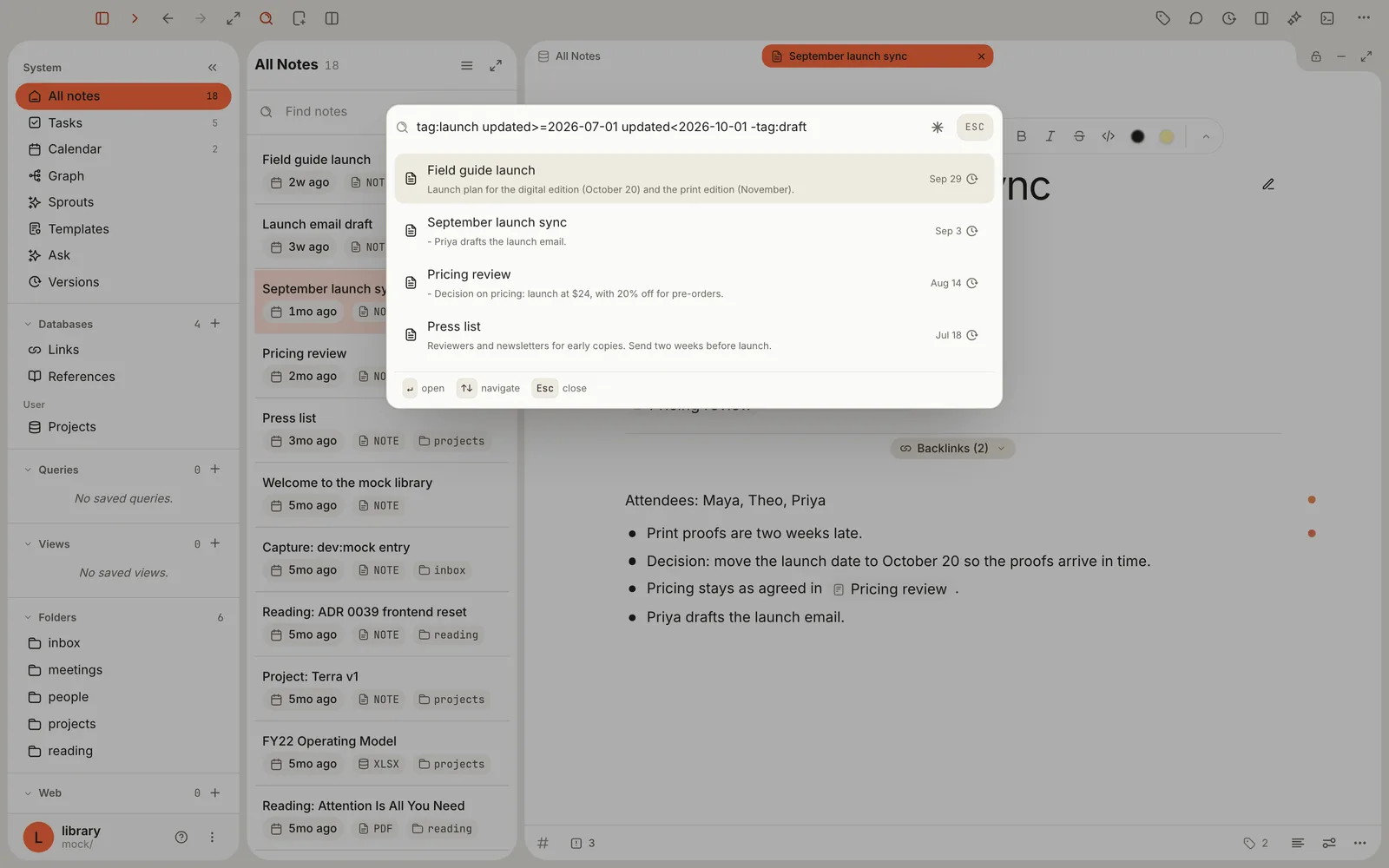
created and updated take a comparison and a date. before: and after: are shorthands for updated.
| Type this | Finds notes | Example |
|---|---|---|
updated>D | edited after day D (from the next day on) | updated>2026-09-30 |
updated>=D | edited on day D or later | updated>=2026-07-01 |
updated<D | edited before day D | updated<2026-10-01 |
updated<=D | edited on day D or earlier | updated<=2026-09-30 |
created>=D, and the others | created on or after D, and so on | created>=2026-10-01 |
before:D | the same as updated<D | before:2026-07-01 |
after:D | the same as updated>D | after:2026-06-30 |
>=and<=are two characters each: a>or<followed by=.- Write dates as
YYYY-MM-DD, with four-digit years and two-digit months and days, or as a full timestamp such as2026-10-01T09:00:00Z. Relative dates liketodayorlast weekaren't understood. - For one day, combine two comparisons:
updated>=2026-09-03 updated<=2026-09-03. An equals sign (updated=2026-09-03) matches almost nothing. - Days run from midnight to midnight UTC, so a note edited late in the evening, in time zones behind UTC, can count toward the next day.
created:andupdated:with a colon aren't filters; they show unknown field.
Regular expressions
There are two ways to use a pattern:
- Put it between slashes anywhere in a search:
tag:launch /\$\d+/finds launch notes that mention a dollar amount. - Turn on the Regex switch (the asterisk at the right end of the search box) and type the pattern without slashes. The whole box becomes one pattern. With the switch on, results are ranked by keyword only, matches by meaning are left out, and Help and canvas results don't appear.
Rules:
- A pattern is matched against the note's title, then its text, ignoring capitals. Tags and properties aren't searched. Put
(?-i)at the start to make it case-sensitive. ^and$match the start and end of everything searched, which begins with the title:/^pricing/finds notes whose title starts with "pricing". Put(?m)at the start to match the start or end of any line instead.- Patterns use the syntax most tools share:
.,\d,\w,\b,[abc],(a|b),*,+,?,{2,4}. Look-arounds and back-references aren't available. - Between slashes, the closing
/is required; write\/for a slash inside the pattern. Without a closing slash, the text is searched as an ordinary word. - With slashes, a pattern can match inside words, which plain words can't:
/port/finds "report".
Errors you might see
When Terra can't read a search, a red line appears above the results instead. Some of these show briefly while you're still typing, such as an unclosed quote or a half-written date, and go away once the search is complete.
| Message | What causes it | What to do |
|---|---|---|
invalid query: unknown field: owner | A word followed by a colon that isn't a filter. Pasted web addresses cause it too (https:), and so do created: and updated: with a colon. | For your own properties use brackets: [owner:Theo]. Put web addresses in quotes. For dates, use updated>=…. |
invalid query: unterminated quoted phrase | A " with no closing quote | Close the quote. |
invalid query: bad date in range filter: 2026-7-1 | A date that isn't YYYY-MM-DD, or one you haven't finished typing | Use four digits for the year and two each for the month and day. |
invalid query: range op only supported on created/updated, got: size | >, < or = after something other than created or updated, as in size>3 or x=1 | Remove it, or put the text in quotes to search for it. |
invalid query: shallow path glob `path:meetings/*` not supported in v1.1; use `**` for recursive match | A single * in path: | Use /**, which includes subfolders. |
invalid query: path glob `meetings/**/notes` must end in `/**` | ** anywhere but the end | Search the outer folder, or add a word to narrow it. |
invalid query: bad regex /…/: … | A pattern Terra can't read; the rest of the message says what's wrong | Fix the pattern, or escape the character it complains about with \. |
When a search fails, the whole list empties, including Help and canvas results, until you fix it.
Not supported
ANDandNOTas words. Spaces already mean and, and-means not; typingANDorNOTsearches for those words.- Comparing other properties:
[rating>3]isn't a comparison. It's quietly searched as plain words. - Relative dates such as
todayorlast week. - Matching inside a word without a pattern: use
/port/. - Including nested tags under a parent tag: search each nested tag by its full name, such as
tag:"projects/terra". - Saving a search or seeing past searches. The window remembers only your last search, until you quit.
What's next
- Find anything in your Library — the guided version, with Go to file and the command palette.
- Keyboard shortcuts — every key, including the ones for search.
- Glossary — the Terra words used on this page.
Was this guide helpful?