Terra Documentation.
Here you will find step-by-step guides for how to build inside terra.
Start here
1Get started with TerraInstall Terra, open a Library, then write, format, link, tag and find your first notes. About fifteen minutes from download to a working Library.8 min2Find your way aroundA map of the Terra window, from the toolbar, sidebar and note list to tabs, split panes, peeks, drawers, the shelf, Zen mode and the terminal.9 min3Bring in your notes from another appMove your notes into Terra from Obsidian, Notion, Bear, Evernote, Roam, a Markdown folder or a reference manager, or open an existing folder as it is.8 min4Sync and back up your LibraryYour notes are ordinary files, so any backup or sync tool works. Use Time Machine, a cloud folder or Terra's Versions, and know what each covers.8 min
Learn the basics
Files and foldersFiles and foldersEvery note is a Markdown file and every folder is a real folder in your Library. Create, rename, move, duplicate, delete and restore them.Writing and formattingBasic formattingThe Markdown you type in Terra for headings, bold and italic, highlights, links, images, quotes, lists, to-dos and code, with the shortcut for each.Writing and formattingSproutsColoured blocks that hold other blocks, like tips, warnings and decisions, with their own properties, and every one in your Library on a single board.Writing and formattingLinks and backlinksLink notes with wiki-links, point at one paragraph with a block link, add web links, and see every note that links back to the one you're in.Writing and formattingPropertiesStructured fields at the top of a note, like a status or a start date, saved as YAML frontmatter that databases can sort, filter and group.Writing and formattingTagsLabel notes with #tags in the text or in the tags property, nest and colour them, and find every note that carries one.DatabasesDatabasesA database is a live collection of the notes that match its conditions. Each note is a row, its properties are the columns, and nothing is copied.Tasks and calendarTasksA task is a checkbox line in any note. Terra gathers every task into Tasks, a board where you set due dates, change status and track progress.
Popular guides
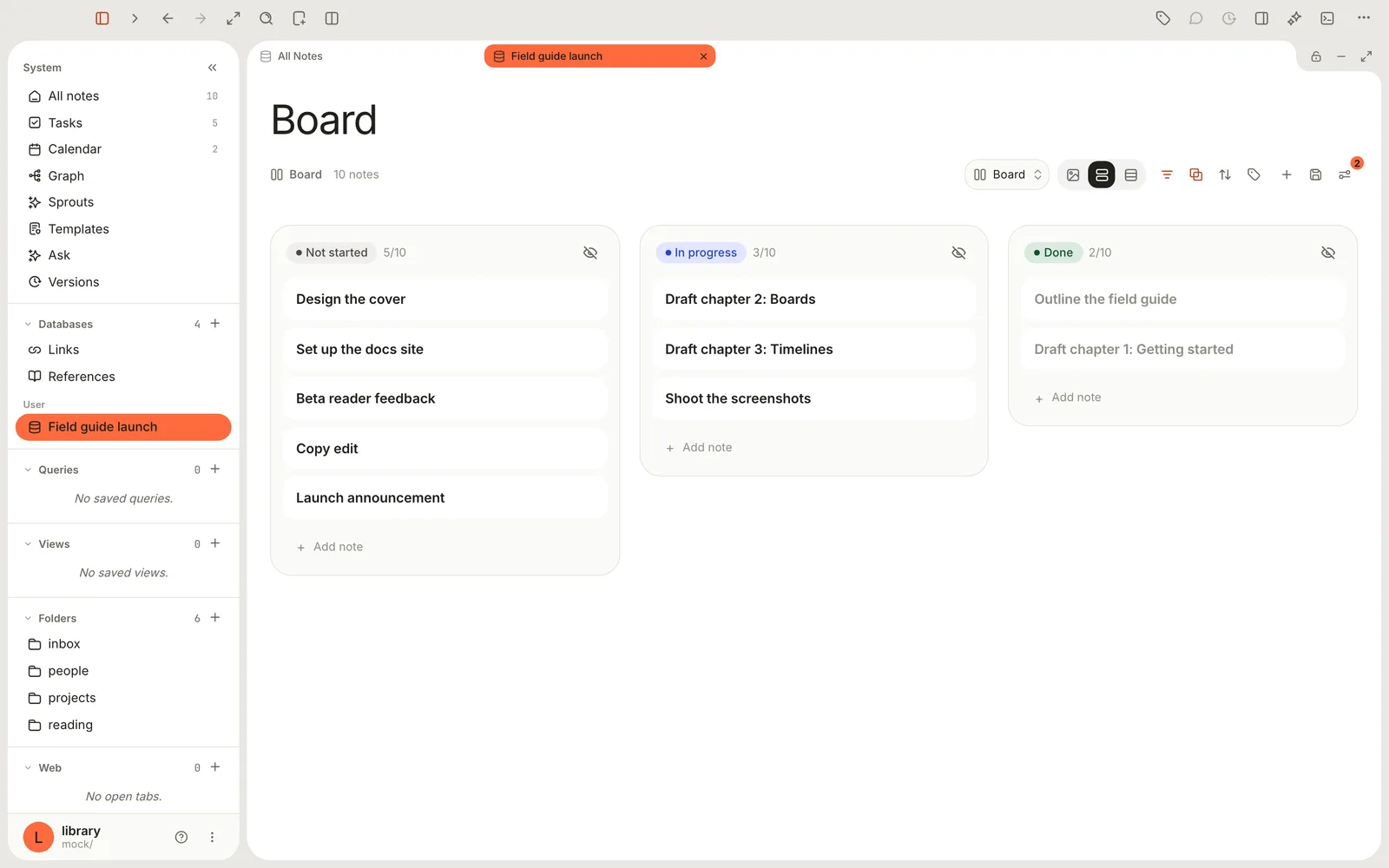 Run a project with boards, timelines and burndownsTrack a project's work as notes, then see it as a kanban board, a Gantt-style timeline, progress charts and a dashboard — plus an honest recipe for a burndown.15 min read
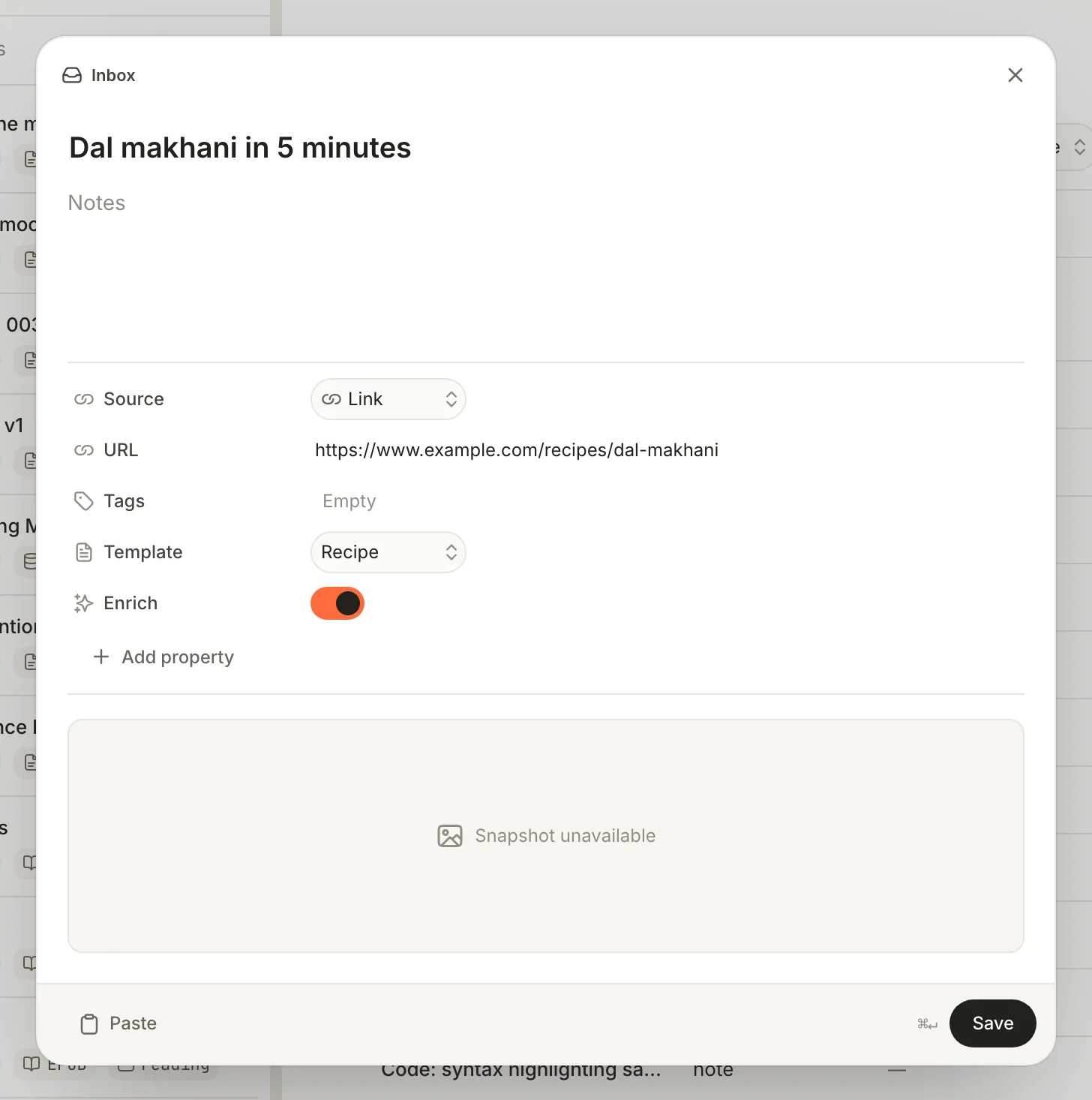 Capture anything, and let Terra sort it for youGrab thoughts, links and messages from any app with Quick capture, then let enrichment tidy them into a template and the Jev classifier fill in your own categories.14 min read
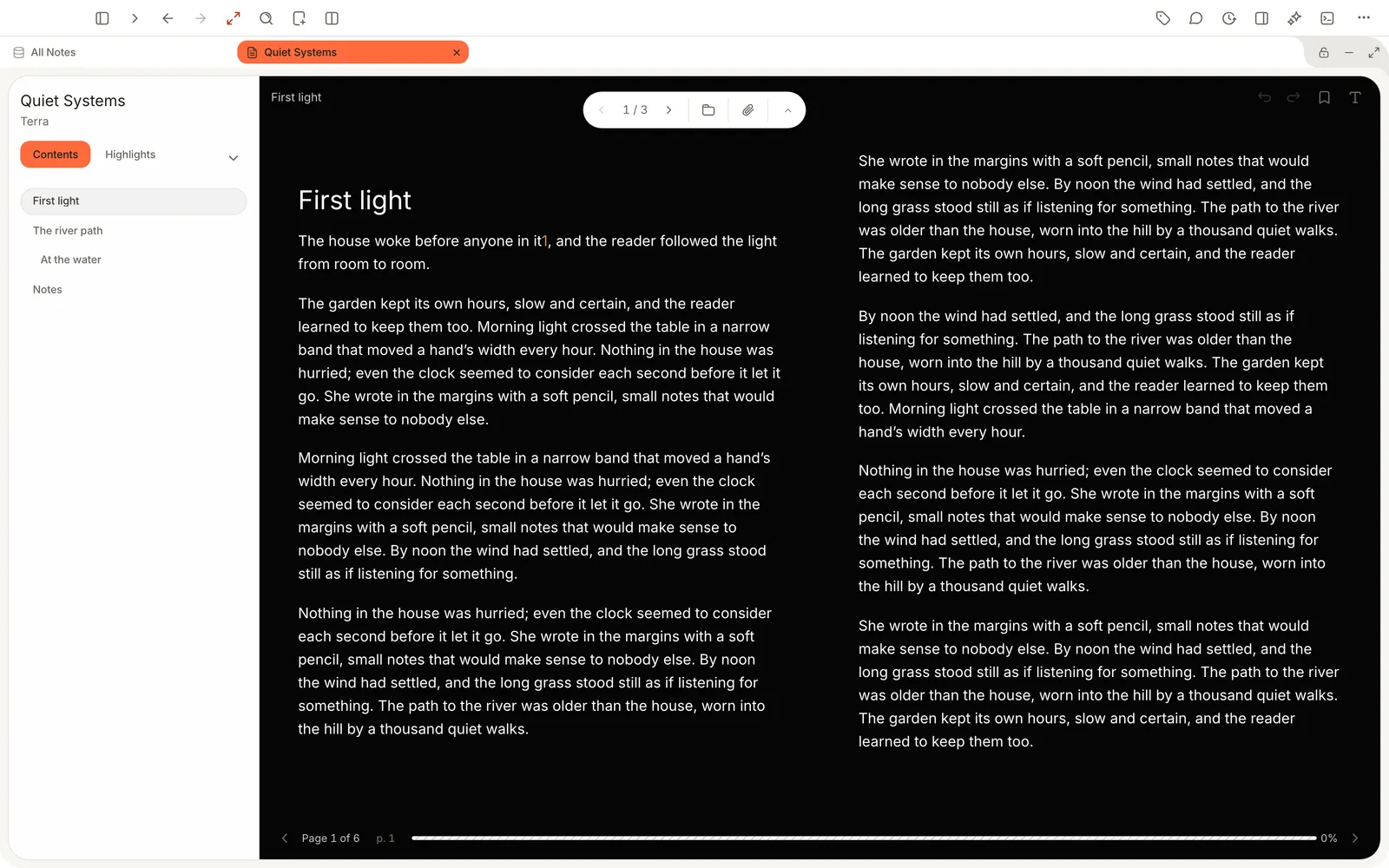 Read comfortably in the e-readerAdd EPUBs, PDFs and images to your Library, then read with your own theme, font and layout. Terra remembers your place in every book.12 min read
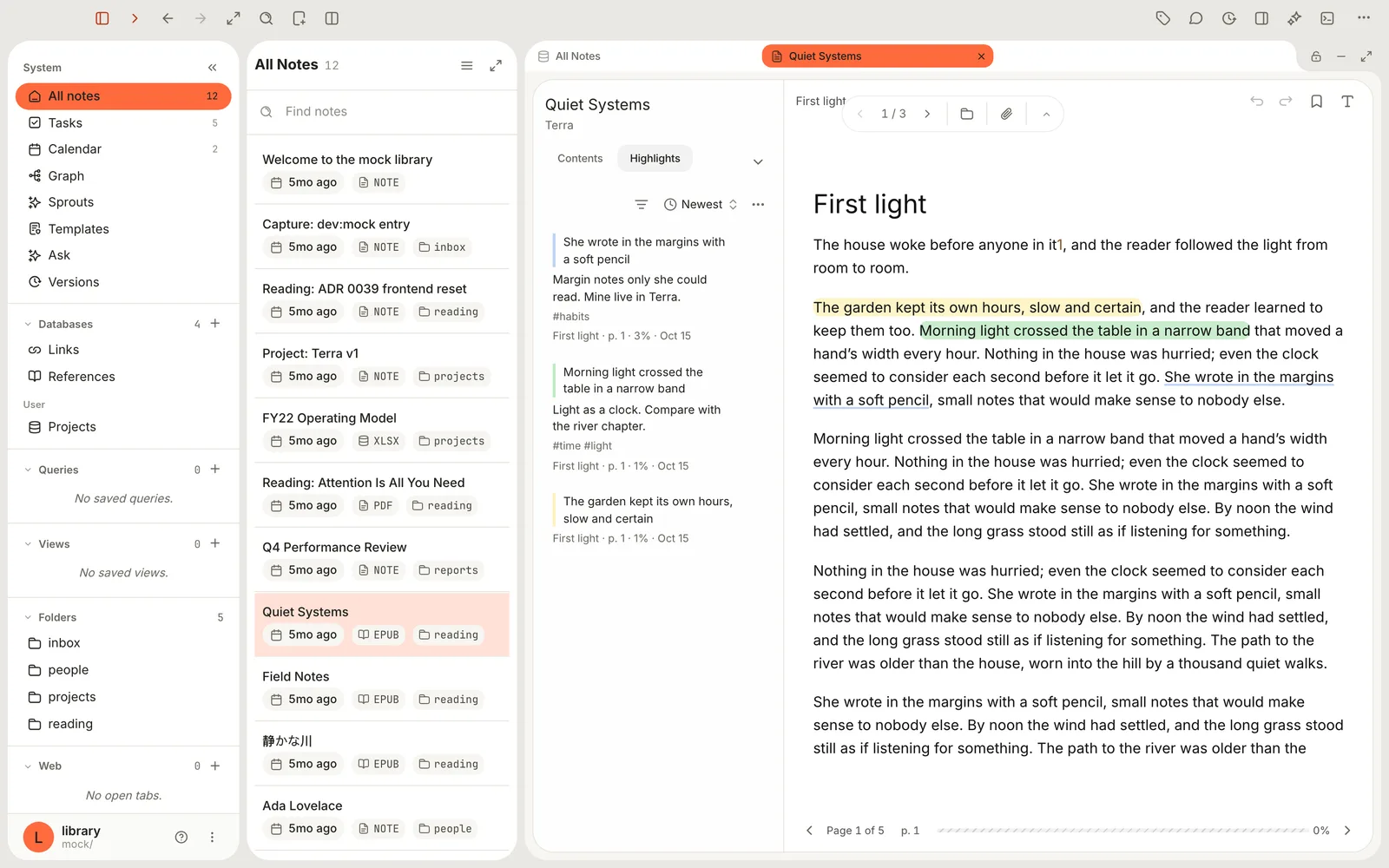 Highlight, annotate and keep every markHighlight books in six colours, add notes and tags, find any passage again in seconds and export it all to a note. Your annotations live in a plain file beside the book.13 min read
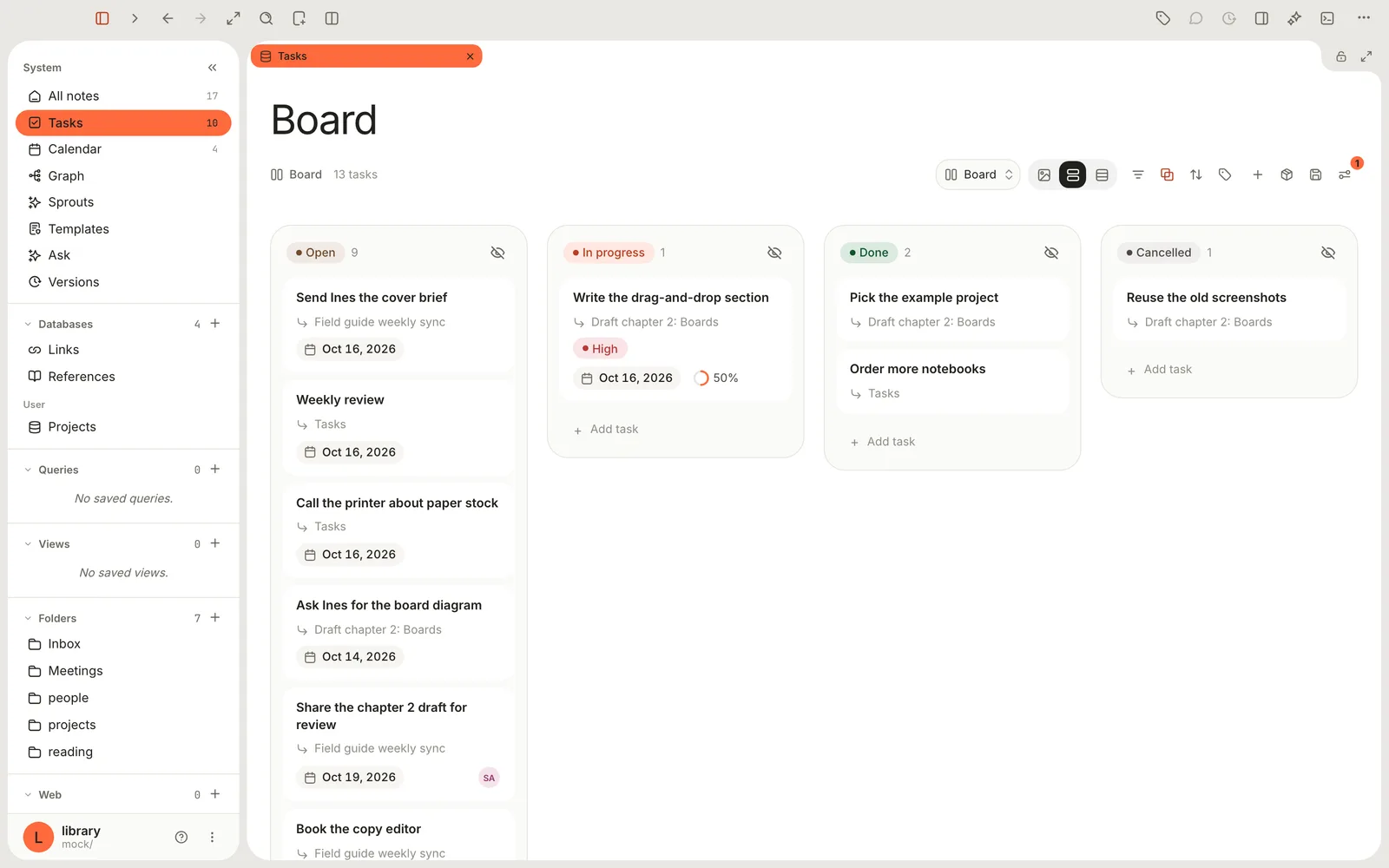 Run your week with tasks and the calendarA weekly routine in Terra: capture tasks in your notes, triage them on one board, plan the week on the Calendar and close it out on Friday.11 min read
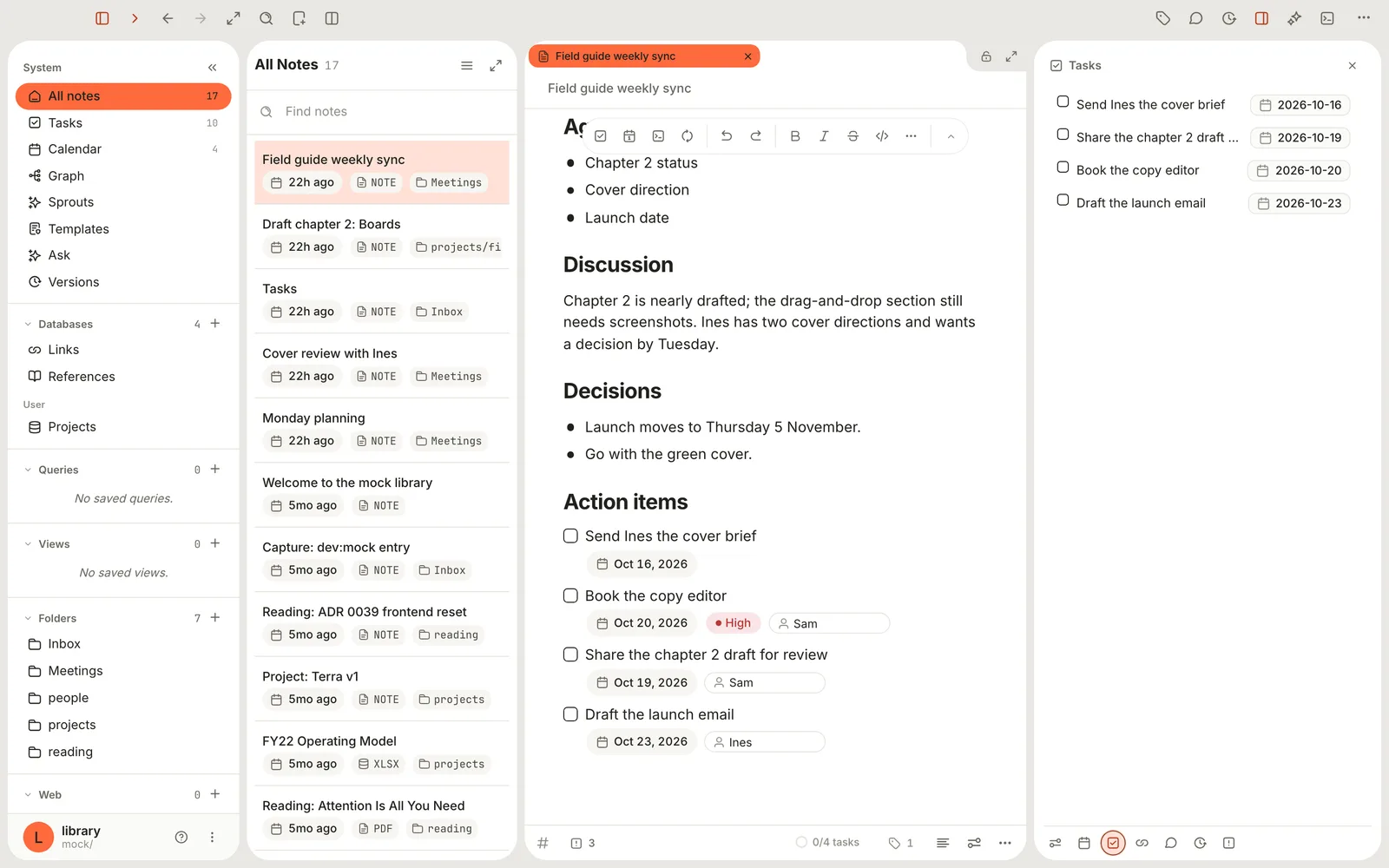 Take meeting notes that turn into tasksStart meetings from the Meeting template, write action items with owners and dates, and follow them up on the Tasks board and the Calendar.10 min read
Quick answers
2 answersGet startedOpen a library and see what's new.10 answersWorkspace basicsPanes, tabs, the command bar, the toolbar and search.14 answersWrite and formatBlocks, tables, images, math, callouts and tabs.5 answersLink and citeLinks between notes, tags, citations and references.3 answersTemplates and codeStart notes from templates, and run Python and R.10 answersOrganize your libraryFolders, properties, tags, favorites and the trash.9 answersBuild databasesEvery folder is a database: views, layouts and queries.3 answersTasks and calendarTasks in your notes, repeats, and everything by date.4 answersRead and capturePDFs, books, images and the web.3 answersCanvas and sheetsSpreadsheets, canvas boards and a note's connections.3 answersAIChat with your library, on the model you choose.2 answersConnectors and importBring in meetings, and notes from other apps.5 answersSettings, sync and versionsThemes, fonts, shortcuts, git sync and version history.
Files and folders
- LibrariesA Library is a folder on your Mac that Terra treats as one workspace. Open, create and switch Libraries, and see what each one keeps.
- Files and foldersEvery note is a Markdown file and every folder is a real folder in your Library. Create, rename, move, duplicate, delete and restore them.
- File formatsWhich files Terra opens and how: Markdown notes, PDFs, EPUB books, images, spreadsheets, web pages, and anything else as an attachment.
- How notes are storedEvery note is a plain Markdown file with a short YAML header. See what Terra writes, where attachments and sidecars go, and what's safe to edit elsewhere.
Writing and formatting
- Basic formattingThe Markdown you type in Terra for headings, bold and italic, highlights, links, images, quotes, lists, to-dos and code, with the shortcut for each.
- Advanced formattingTables that add themselves up, math, code you can run, Mermaid diagrams, embeds, columns, tabs, toggles, comments and dates, plus everything in the slash menu.
- SproutsColoured blocks that hold other blocks, like tips, warnings and decisions, with their own properties, and every one in your Library on a single board.
- Links and backlinksLink notes with wiki-links, point at one paragraph with a block link, add web links, and see every note that links back to the one you're in.
- PropertiesStructured fields at the top of a note, like a status or a start date, saved as YAML frontmatter that databases can sort, filter and group.
- TagsLabel notes with #tags in the text or in the tags property, nest and colour them, and find every note that carries one.
- TemplatesStart notes with your headings, tags and properties already in place, fill in placeholders like the date, and make templates of your own.
Databases
- DatabasesA database is a live collection of the notes that match its conditions. Each note is a row, its properties are the columns, and nothing is copied.
- Views and layoutsA view is a saved way to look at a database, with its own layout, filters, sort, grouping and visible properties. Terra has twelve layouts.
- Filter, sort and groupNarrow a view to the notes you need, put them in order, and group them into sections or board columns. Every filter test, by property type.
- Formulas and relationsComputed properties for your databases. Formulas calculate a value for each note, threads link notes to other notes, and gathers roll values up across a thread.
- QueriesAsk your Library questions in SQL. Write a read-only SELECT over Terra's public views, see the answer as a table, a sheet or a chart, and save it.
Tasks and calendar
Reading and research
- The e-readerAdd EPUBs, PDFs and images to your Library, then read with your own theme, font and layout. Terra remembers your place in every book.
- Highlights and annotationsHighlight books in six colours, add notes and tags, find any passage again in seconds and export it all to a note. Your annotations live in a plain file beside the book.
- Research libraryGather papers, books, PDFs and web pages as notes, cite them as you write with a reference list that builds itself, and see who cites what.
Capture and AI
- Capture and classifyGrab thoughts, links and messages from any app with Quick capture, then let enrichment tidy them into a template and the Jev classifier fill in your own categories.
- Ask your LibraryAsk questions in plain language and get answers that cite your notes. Let the assistant write for you, with every edit reviewable.
Workspace
- SearchTrack down a decision, a phrase or a whole quarter's notes. Learn the three ways to look, build precise searches and get answers from ⌘K.
- Canvas and mind mapsBrainstorm on an endless canvas with sticky notes, shapes, arrows and mind maps beside your real notes, then turn the best ideas into notes.
- Customize TerraChoose light or dark, a theme and fonts, put your own buttons on the toolbar and your own keys on commands, tidy the sidebar, and give one note its own page.
Guides
- Run a projectTrack a project's work as notes, then see it as a kanban board, a Gantt-style timeline, progress charts and a dashboard — plus an honest recipe for a burndown.
- Run your weekA weekly routine in Terra: capture tasks in your notes, triage them on one board, plan the week on the Calendar and close it out on Friday.
- Meeting notesStart meetings from the Meeting template, write action items with owners and dates, and follow them up on the Tasks board and the Calendar.
- DashboardsPut live views of your databases on one page: big numbers with a trend, charts, boards and tables for a project, a reading list or a habit.
Reference
- Keyboard shortcutsEvery default shortcut in Terra, grouped the way Settings › Hotkeys groups them, and how to change, reset or remove one.
- Search syntaxEvery operator and filter the search window understands, with an example of each, plus the rules for dates, patterns and the errors you might see.
- Task syntaxExactly what Terra reads as a task: list markers, status characters, the ::: property list, dates, priorities and repeat rules, with examples.
- GlossaryThe words Terra uses, from Agent to Zen mode, each explained in a sentence or two with a link to the page that covers it.
Still stuck?
Search every guide from here, or open Help in Terra’s menu bar to read them without leaving your notes. If something still doesn’t make sense, write to us.