Properties
Structured fields at the top of a note, like a status or a start date, saved as YAML frontmatter that databases can sort, filter and group.
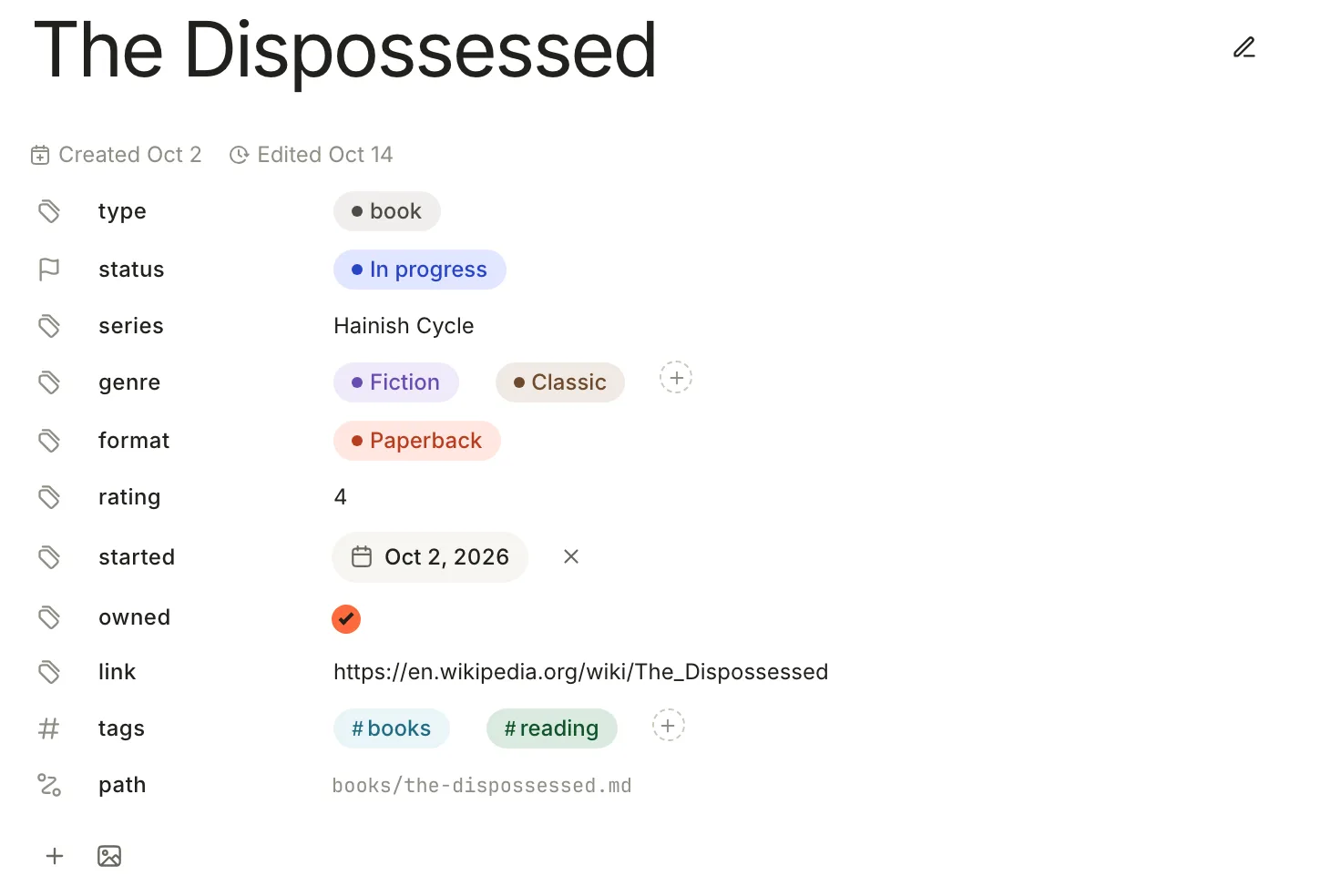
Properties are the facts about a note that you'll want to sort and filter by: how far you've got with a book, when you started it, what format you own it in. They sit under the note's title, one per row, and Terra saves them at the top of the Markdown file as YAML frontmatter, where other apps can read them too.
A property's name and type belong to the whole Library: once status is a Status property, it's one on every note. That's what lets a database sort, filter and group notes by it.
Add a property
- Under the note's title, click + (Add property) below the last row.
- Click New property, type a name in Property name, then click a type. To reuse a property the Library already has, click Existing property and pick it instead.
- The new row appears with no value. Click it to fill it in.
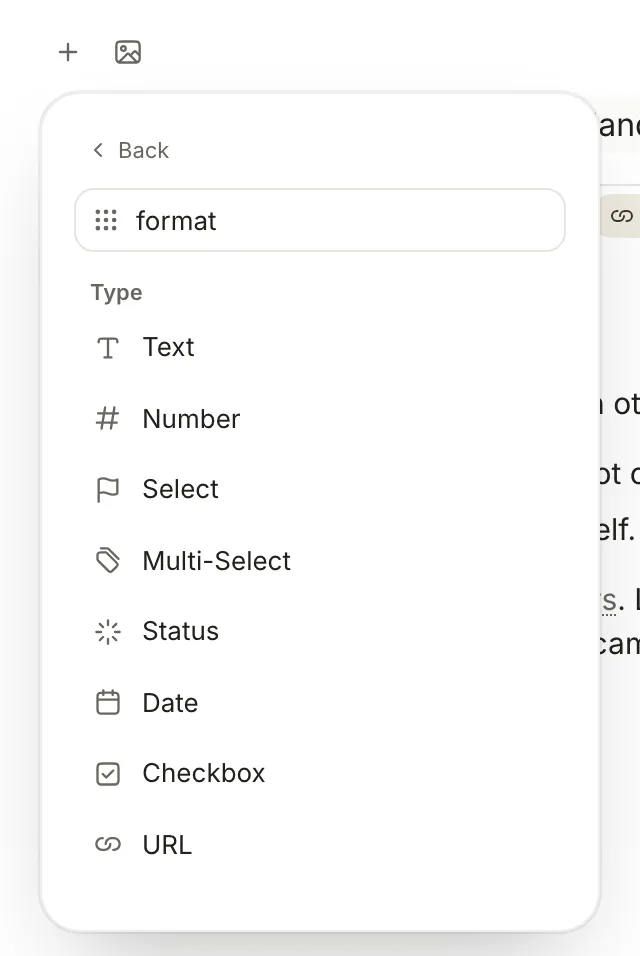
Names are saved in lowercase, so Format becomes format. If the Library already has a property with that name, Terra says 'format' already exists; add it with Existing property instead.
Edit a value
Click a value to change it. Text, numbers and web addresses are edited in place and saved when you click away or press Tab. A date opens a calendar, and a checkbox ticks on and off.
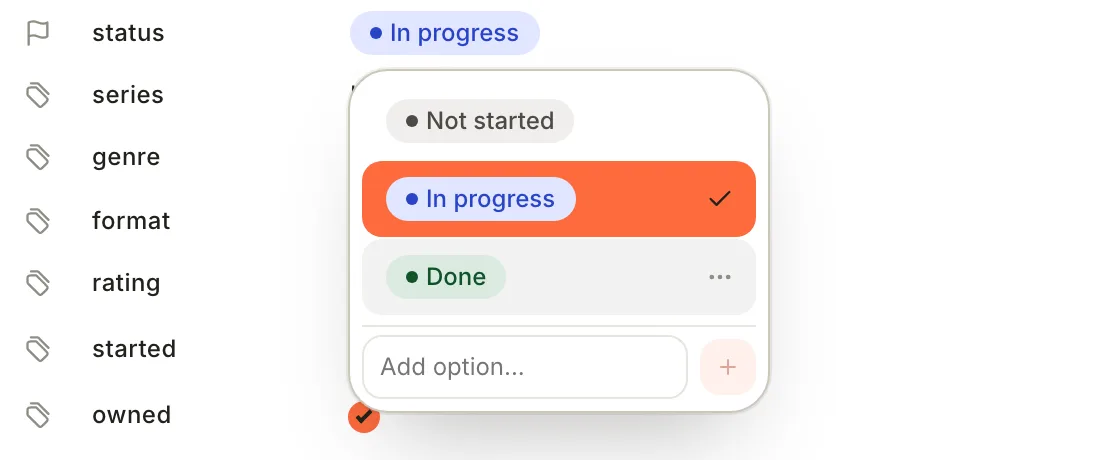
Select, Multi-Select and Status values open a list of their options:
- Click an option to choose it. In a Multi-Select, click + to add another and × on a pill to remove it.
- To make a new option, type it in Add option... and press Return.
- Point at an option and click ⋯ for Rename option..., Merge into..., Change color, Change icon and Delete option. Renaming or merging changes the value in every note that uses it; Terra says how many notes first and asks you to confirm a merge.
- A value that isn't one of the options, such as one typed into the file by hand, appears outlined under Not an option yet. Rename it to make it an option, or merge it into one.
Property types
| Type | What it holds | In the file |
|---|---|---|
| Text | Any text | series: Hainish Cycle |
| Number | A number | rating: 4 |
| Select | One option from a list | format: paperback |
| Multi-Select | Several options from a list | a list, one option per line |
| Status | One option, in a group: To do, In progress or Done | status: In progress |
| Date | A day, or a day and a time | started: 2026-10-02, or 2026-10-02T19:30 with a time |
| Checkbox | Yes or no | owned: true or owned: false |
| URL | A web address | link: https://en.wikipedia.org/wiki/The_Dispossessed |
| An email address. Terra won't save one that doesn't look like an address. | email: priya@example.com | |
| Phone | A phone number, checked the same way | phone: +1 503 555 0142 |
| Unique ID | A number Terra hands out, shown with a prefix such as BOOK-12. You can't edit it. | ref: 12 |
| Files & media | Files you attach with Add or by dropping them on the row | a list of file paths |
| Button | A button that runs actions on the note when you click it | no value |
| Location | An address | bought_at: Powell's Books, Portland |
A new Status property starts with three options: Not started in To do, In progress in In progress and Done in Done. Add your own to any group in the Property Manager.
Here is the note from the screenshot as Terra saves it:
---
id: 01K7B3X9M2QF8T4N6V0WYZ5R01
title: The Dispossessed
type: book
created: 2026-10-02T19:12:44Z
updated: 2026-10-14T08:03:10Z
tags:
- books
- reading
format: paperback
genre:
- fiction
- classic
link: https://en.wikipedia.org/wiki/The_Dispossessed
owned: true
rating: 4
series: Hainish Cycle
started: 2026-10-02
status: In progress
---
Select, Multi-Select and Status save an option's id rather than its label. An option you add from a note gets an id in lowercase with hyphens, so Paperback is saved as paperback and Science fiction as science-fiction; the three starting Status options are saved by name. When you type a value into the file yourself, either the name or the id works, in any capitals.
Unique IDs are handed out the first time a note appears in a database view that shows the property. Set the prefix, a Button's label and actions, a date's time format and a number's decimal places in the Properties panel.
Hide, reorder and remove
Point at a row to see a grip on its left and an eye on its right.
- Reorder: drag the grip. The order is the same on every note.
- Hide: click the eye. The property is hidden under every note's title, not only this one, and notes keep their values. A link below the rows, such as 1 hidden — show, brings hidden ones back into view.
- Remove from one note: emptying a value leaves the row in place, shown as Empty. To take a property off a single note, delete its line in the file (see Edit properties in the file). There's no menu command for this yet.
Right-click a row for the rest: Edit property name, Open in Property Manager, Change data type, Hide property, Duplicate property, Edit value, Change icon…, Pin to top, Delete property and Show hidden fields…. The last row, path, shows where the note's file is; it isn't a property and isn't saved in the file.
Change a property's settings
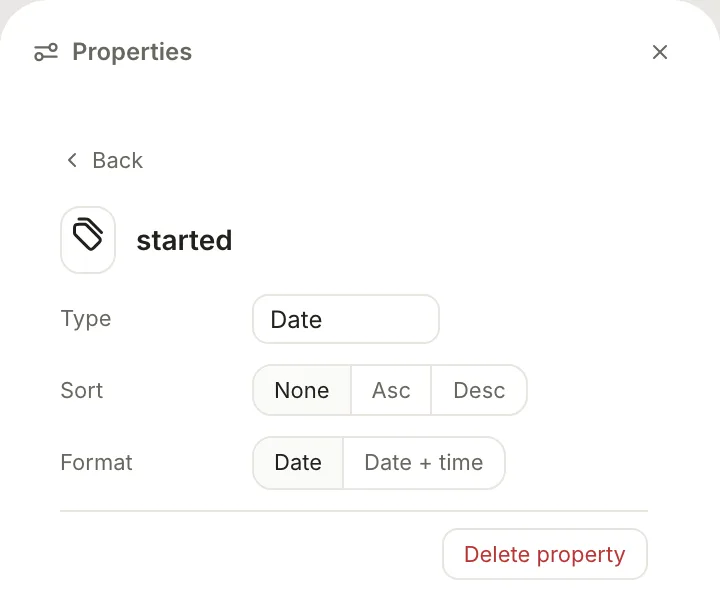
Some types have settings of their own. Click Properties in the toolbar (⌘R), then Show Properties at the bottom of the panel that opens. Click a property's name in the panel to see its settings:
- Type and Sort, for every property
- Format for a Date: Date or Date + time
- Decimal places for a Number: Auto, or 0 to 3
- Prefix for a Unique ID, such as
BOOK- - Label and Actions for a Button: Set property, Add tags, Remove tags, Create linked note or Open URL, run in order
- Options for a Select or Multi-Select, and one list per group for a Status
Manage properties for the whole Library
The Property Manager lists every property in the Library with its type and the databases that show it. Open it with Tools › Property Manager…, or right-click a property row and choose Open in Property Manager.
Select a property to edit it on the right:
- Type. Terra asks Change property type? first, because values that don't fit the new type may be blanked. Click Change type to go ahead.
- Color, and the Options of a Select or Multi-Select. A Status lists its options under To do, In progress and Done; click + to add one to a group.
- Description: a sentence on what the property is for.
- Auto-classify (Select and Multi-select only) lets captures fill the property in for you. See Capture and classify.
- Show in note properties: switch it off to hide the property under every note's title.
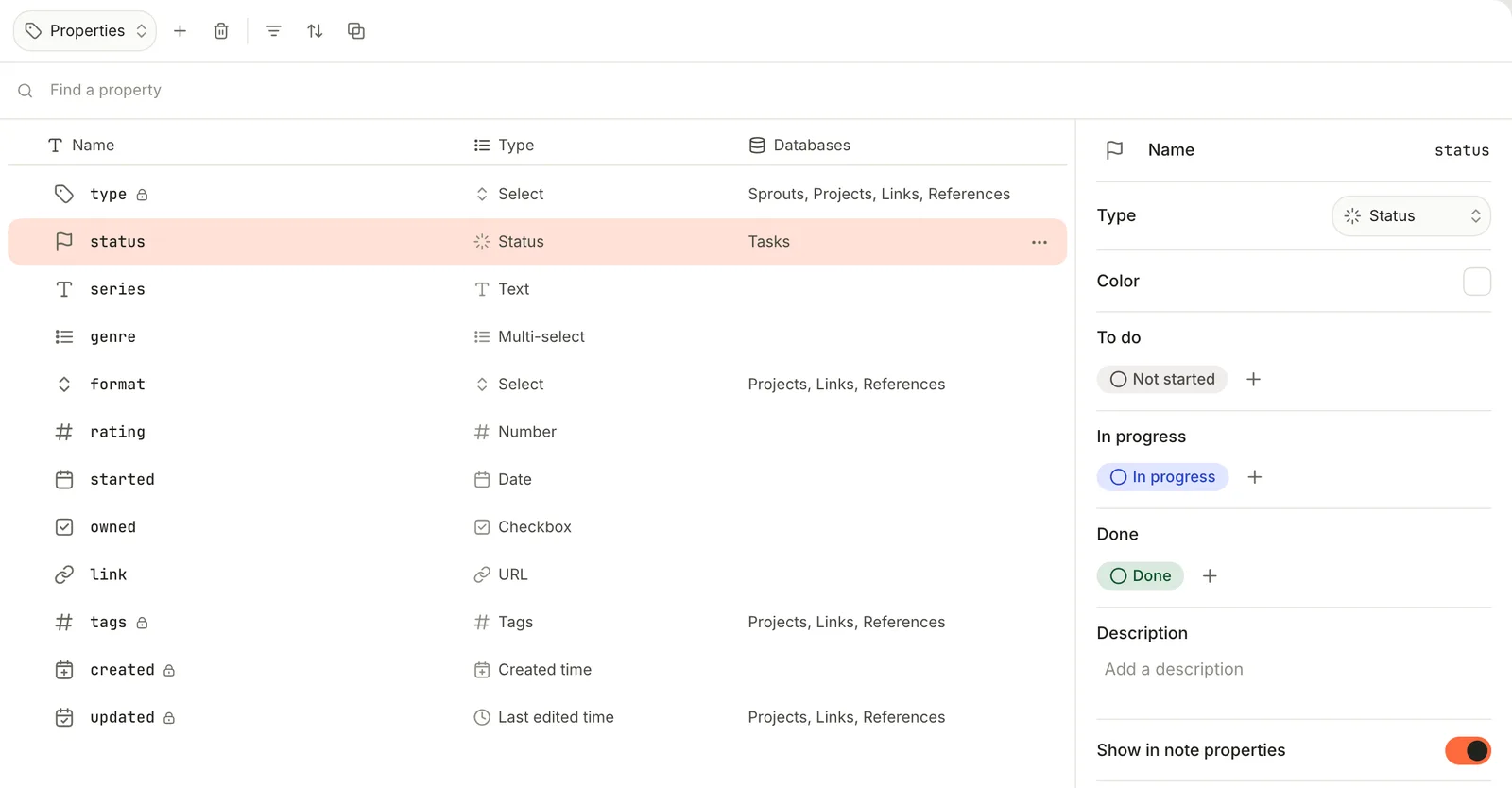
The switcher at the top left moves between Properties, Types (the values of the type property, such as book, and what their cards show) and Tags, the Tag Manager. Next to it are New property, Delete property, and buttons to filter, sort and group the list.
Properties in databases
Properties become a database's columns, filters and sorts, and a board can group its cards by one. A Status property makes a natural board: one column per option.
In a database table, the + at the end of the header row adds a property: New property and Existing property as above, plus, in databases you made yourself, Computed properties (Formula, Thread, Gather and Person) whose values the database works out. New property also offers Created time and Last edited time under Timestamp. See Databases, Filter, sort and group and Formulas, threads and gathers.
Properties Terra writes for you
Some keys in the frontmatter are Terra's own. You'll see them in the file but not all of them as rows.
| Key | What it is | How to change it |
|---|---|---|
id | The note's permanent ID | Never change it. |
title | The note's title | Click the title. Editing title: in the file doesn't rename the file or update links to it. |
type | What the note is, such as book | The type row |
created, updated | When the note was made and last changed, shown as Created and Edited under the title | Terra keeps these itself. |
tags | The note's tags | The tags row |
cover | The banner image | Banner image under the properties |
source | Where a captured note came from | Set by captures |
icon | The note's icon | Right-click the title › Change icon |
relations | The note's threads to other notes | A Thread property in a database |
Notes you save as references also get citation fields such as doi and citation_key; see Research library.
Edit properties in the file
Editing the frontmatter yourself is the quickest way to change several values at once, and the only way to remove a property from one note.
- Point at the icon to the right of the note's title and click Markdown source.
- Edit the lines between the two
---lines. Each property is its name, a colon, a space and the value; a list puts each item on its own line, starting with-. - Switch back to Edit. Changes in Markdown source are saved 600 milliseconds after you stop typing, and Terra tidies the frontmatter into its own order as it saves.
- A name Terra hasn't seen before becomes a Text property when you next open the note. Change its type with right-click › Change data type. Three names start with a type of their own:
authoris a Multi-select,datea Date andurla URL. - Write checkboxes as
trueandfalse, and dates as2026-10-02. - If a value doesn't fit its property's type, such as
rating: fourfor a Number, the file keeps it but the row shows it as empty. - If the YAML can't be read, Terra shows Not saved: and the reason, and keeps your text so you can fix it.
Troubleshooting
I renamed a property and the old name came back
Renaming a property changes its name in the Library, and when you rename it under a note's title, copies that note's value to the new name. The files still hold the old name, so the old property comes back the next time you open a note that has it. To rename it everywhere, change the key in each note's frontmatter.
Related
- Databases: put properties to work as columns, boards and filters.
- Tags: the
tagsproperty, and tags written in the text. - Templates: start notes with properties already in place.
- How Terra stores your notes: what else is in the file.
Was this guide helpful?