Task syntax
Exactly what Terra reads as a task: list markers, status characters, the ::: property list, dates, priorities and repeat rules, with examples.
Every task in Terra is one line of Markdown in a note. This page lists exactly what Terra reads on that line and what it writes back when you change a task in the app. A task line has three parts:
- [ ] Title of the task ::: key=value key=value
A list marker and a status in brackets, then the title, then, optionally, a space, three colons and a space (:::) followed by the task's properties.
How a line is read
- It must be a bulleted list item. The line starts with
-,*or+, then at least one space, then the brackets. Indent it as much as you like. - Indented under another task, it's a subtask. Nest as deep as you need.
- The space after
]is optional.- [ ]Call Anais a task. - Everything before the last
:::is the title, colons and all. - The properties are
key=valuepairs separated by spaces, after the last:::. - One bad pair spoils the list. If any pair has no
=, no value, or a value with a space in it, Terra reads the whole tail as part of the title and the task has no properties. There's no error message. - Indented lines straight under a task (not tasks themselves, no blank line between) are its description, which Edit task shows.
These are never tasks:
| Line | Why |
|---|---|
1. [ ] Call Ana | Numbered list items aren't tasks. |
A checkbox inside a ``` or ~~~ code block | Code blocks are ignored. |
- [[Launch plan]] | A wiki-link, not a status. |
- [docs](https://example.com) and - [docs][1] | Links. |
-[ ] Call Ana | No space after the -. |
- [] Call Ana, - [ x] Call Ana, - [later] Call Ana | Empty brackets, a space mixed with other characters, more than four characters. |
Status markers
| Marker | Status |
|---|---|
[ ] | Open |
[/] | In progress |
[x] or [X] | Done |
[-] | Cancelled |
Any other 1 to 4 characters, such as [?] or [wip] | A custom status. Give it a name and colour in Settings › Editor › Task statuses. |
A custom marker uses plain keyboard characters (letters, digits, punctuation), with no spaces, tabs or brackets. A marker you haven't set up in Task statuses still makes a task; it just goes by the marker itself until you name it.
Properties
Keys are lowercase and spelled exactly as below. Any other key becomes a custom property of that name, so Due= is not a due date.
| Key | Value | Example | Notes |
|---|---|---|---|
due | A date | due=2026-10-20, due=2026-10-20T14:30 | Puts the task on the Calendar. Overdue the day after. |
start | A date | start=2026-10-19 | When work should begin. |
priority | high, med or low | priority=high | Shown as High, Medium, Low. Terra's menus write these three; other words are kept as written, but the Calendar's priority buttons don't recognise them. |
project | Text | project=field-guide | |
category | Text | category=admin | |
assignee | Text | assignee=Sam | Shows as a person on board cards. |
tags | Names separated by commas | tags=launch,press | Tags the task, not its note. A leading # is dropped; names use letters, digits, -, _ and /. No pill in the note; filter with Tags in Tasks. |
repeat | A rule | repeat=weekly | Needs due=, unless you add repeat-on=completion. |
until, count, repeat-on | See repeating tasks | until=2026-12-31 | Only mean something next to repeat=. |
id | Your own id, no spaces | id=launch-email | Fixes the task's identity, for blocks and blocked-by. |
blocks, blocked-by | Ids separated by commas | blocked-by=launch-email | Terra reads and keeps these, but nothing in the app shows them yet. |
| Anything else | Text | effort=2 | A custom property, shown as a pill under the task. |
A value is everything after the first = up to the next space.
Dates
due, start and until take the same forms:
| Write | Means |
|---|---|
2026-10-20 | That day, all day |
2026-10-20T14:30 | That day at 14:30, on a 24-hour clock |
2026-10-20T14:30:00 | The same, with seconds |
2026-10-20T14:30:00Z, 2026-10-20T14:30:00+02:00 | 14:30 on that day. The time zone part is ignored. |
Use a four-digit year and two-digit months, days and hours. Terra doesn't understand 20/10/2026, Oct 20, today, next friday, 2:30pm or a space instead of the T. A due date it can't read is kept on the line, but the task has no due date.
Repeating tasks
Add repeat= to a task with a due date. When you finish it on the board, in Edit task, on the Calendar or in the Tasks drawer, Terra adds the next copy. Ticking the checkbox in the note doesn't.
| Rule | The next copy is due | Example |
|---|---|---|
daily | The next day | repeat=daily |
weekly | A week later | repeat=weekly |
weekly: and days | On the next listed day: mon, tue, wed, thu, fri, sat, sun | repeat=weekly:mon,wed,fri |
monthly | The same day next month, or that month's last day | repeat=monthly |
monthly: and a day | That day of next month, 1 to 31 | repeat=monthly:15 |
yearly | The same date next year | repeat=yearly |
every: and a number with d, w, m or y | Every so many days, weeks, months or years | repeat=every:2w, repeat=every:3m |
| Add | What it does | Example |
|---|---|---|
until= | No copies due after this date. | until=2026-12-31 |
count= | How many times in all, this one included. Each copy counts down; at count=1 the series ends. | count=12 |
repeat-on=completion | Count from the day you finish, not from the due date. Works without due=. | repeat-on=completion |
When a task repeats, Terra changes its status, then inserts a new open line directly under it with the same title and properties, the next due= and one less count=. The new due date is a day without a time, even if the old one had a time. Subtasks aren't copied, and because the new line goes in above them, the old subtasks end up under the new copy. repeat-on=completion takes "the day you finish" from the UTC calendar, so late in the evening in the Americas it can count from tomorrow.
What Terra writes when you edit a task
Changing a task anywhere in the app rewrites only its line, or the lines next to it, in its note.
| You | Terra writes |
|---|---|
| Change the status (board, Edit task, Calendar, drawer, checkbox) | Only the character between the brackets |
| Set a property | Replaces that key=value, or adds it at the end of the list, adding ::: if the line had none |
| Remove a property | Deletes it, and the ::: too when nothing is left |
| Pick a date | 2026-10-20, or 2026-10-20T14:30 with a time |
| Pick a priority | high, med or low |
| Drag a task to another day on the Calendar | A new due=, keeping the time if it had one |
| Add a subtask in Edit task | - [ ] Text on a new line two spaces deeper, above any existing subtasks |
| Add a description in Edit task | Lines two spaces deeper, straight under the task |
| Click Add task on the board | - [ ] Text at the end of Inbox/tasks.md, or the note you picked, with the column's status |
| Move task to note | Moves the line, its subtasks and description under a ## Tasks heading in the other note |
Examples
A meeting's action items:
## Action items

- [ ] Send Ines the cover brief ::: due=2026-10-16
- [ ] Book the copy editor ::: due=2026-10-20 priority=high assignee=Sam
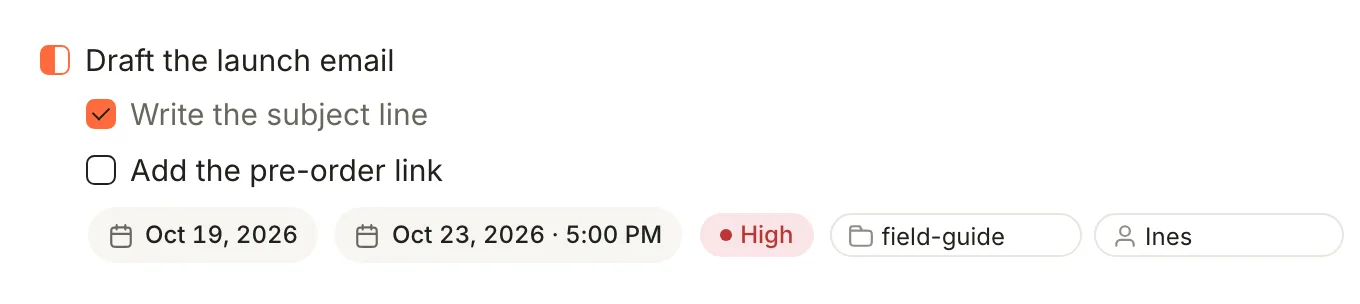
Everything at once, as in the screenshot at the top:
- [/] Draft the launch email ::: start=2026-10-19 due=2026-10-23T17:00 priority=high project=field-guide assignee=Ines tags=launch
  - [x] Write the subject line
  - [ ] Add the pre-order link
Chores that come back:
- [ ] Weekly review ::: due=2026-10-16 repeat=weekly
- [ ] Pay the studio rent ::: due=2026-11-01 repeat=monthly:1 count=12
- [ ] Water the plants ::: repeat=every:3d repeat-on=completion
A custom status and a custom property:
- [?] Check the print proofs ::: assignee=Ines effort=2
Lines that don't do what they look like:
1. [ ] Order the flowers
- [ ] Book the venue ::: assignee=Sam Lee due=2026-10-20
- [ ] Call the printer due:2026-10-20
The first isn't a task. The second is, but Sam Lee has a space, so its whole property list is read as title. The third has no :::, so due:2026-10-20 is just words.
Coming from Obsidian
Terra's four markers are the ones the Obsidian Tasks plugin uses, but Terra only reads properties after :::. It doesn't read the Tasks plugin's emoji dates (📅 2026-10-20, 🔁 every week) or Dataview fields ([due:: 2026-10-20]); they stay as text in the title. Rewrite them as ::: due=2026-10-20 repeat=weekly.
Not supported
- Relative dates such as
todayortomorrow, and 12-hour times. - Spaces inside a value.
- Tasks in numbered lists.
- Showing
blocksandblocked-byanywhere in the app. - Setting a repeat rule from a menu. Type it on the line.
Related
- Tasks — the board, Edit task and the Tasks drawer.
- Calendar — where
due=puts a task. - Search syntax — the other little language in Terra.
- Glossary — the Terra words used on this page.
Was this guide helpful?