Queries
Ask your Library questions in SQL. Write a read-only SELECT over Terra's public views, see the answer as a table, a sheet or a chart, and save it.
A query asks your Library a question in SQL: how many notes have each status, which notes nobody links to, how much work each person has open. Terra keeps an index of your notes in a small SQLite database, and a query reads it through a few public views. Queries only read; they can't change a note. For questions you can answer with conditions, a database is simpler; reach for a query when you need counts, sums, joins or a chart over time.
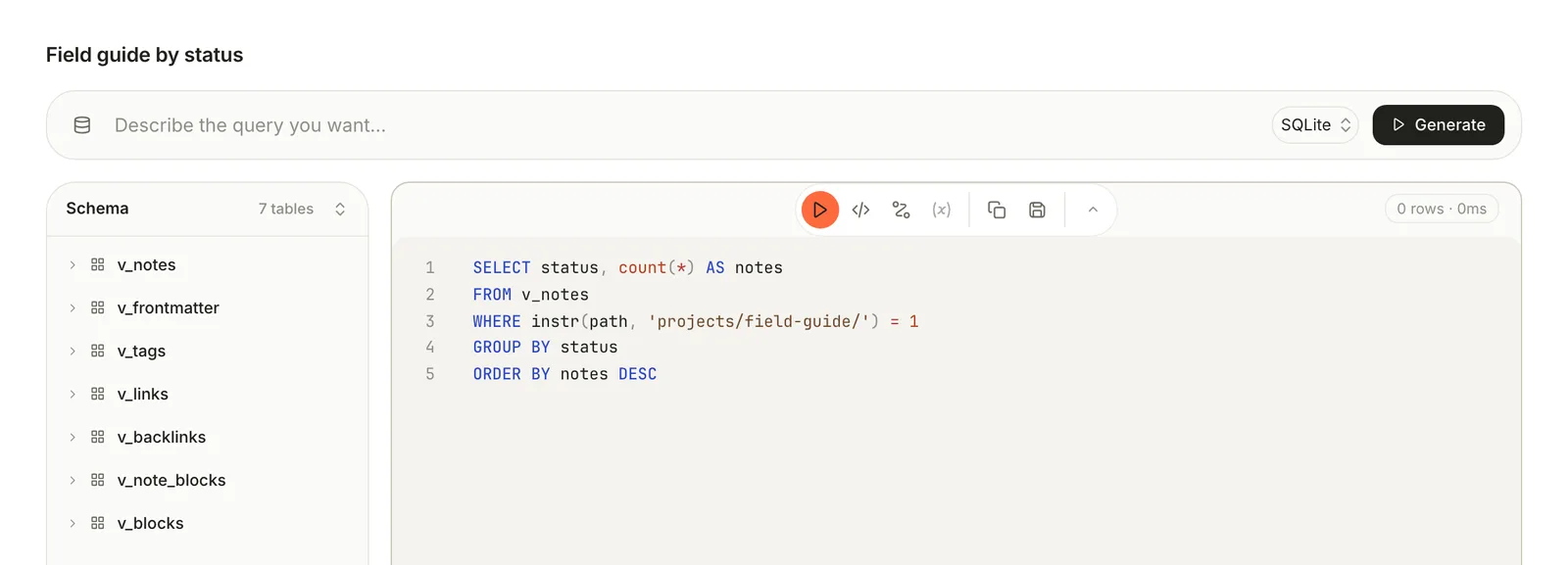
Write and run a query
- Choose File › New Query, or click + (New query) beside Queries in the sidebar.
- Type a name over Untitled query.
- Write a
SELECTin the editor. The Schema list shows the views and their columns; click a view to see its columns. - Press ⌘Return, or click Run query in the tools above the editor.
SELECT status, count(*) AS notes
FROM v_notes
WHERE instr(path, 'projects/field-guide/') = 1
GROUP BY status
ORDER BY notes DESC
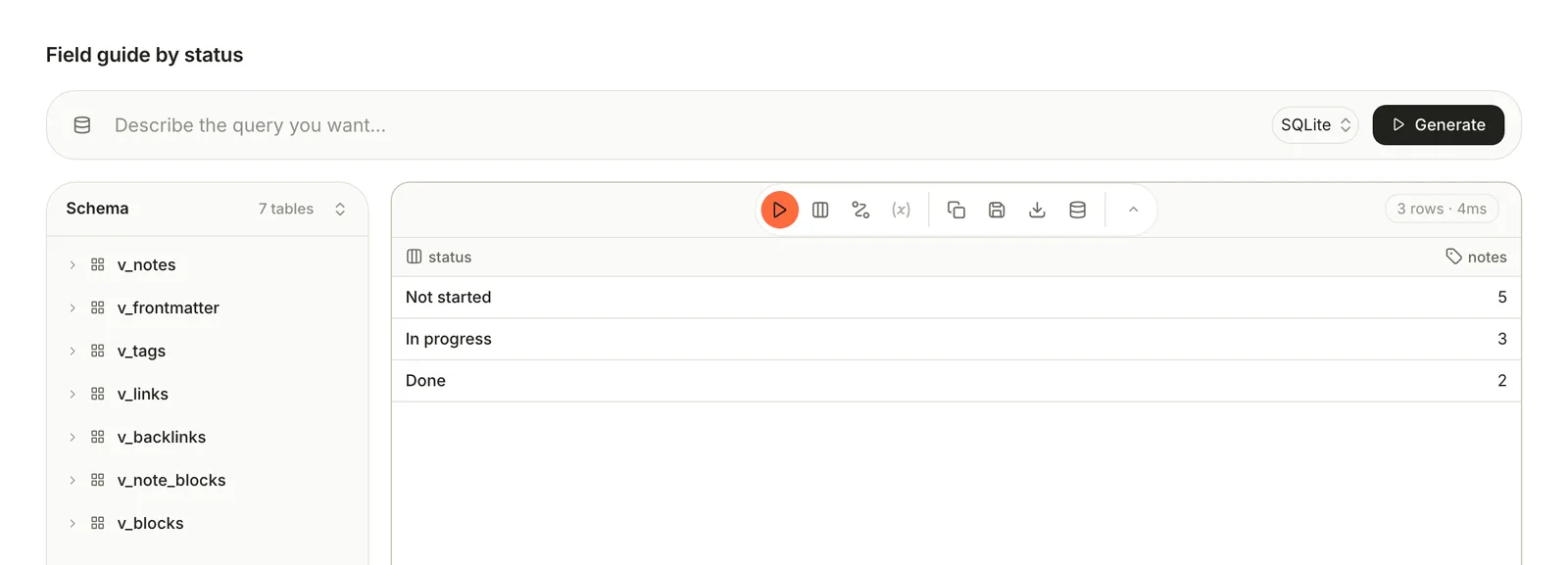
Tools › Run Query runs the query in the focused pane. If a result has an id, note_id or note column, click a row to open that note.
To have the SQL written for you, describe what you want in Describe the query you want… and click Generate, or press ⌘Return in that line. It needs an AI provider (see Ask your Library), sends only the list of views and columns, and checks the statement before it reaches the editor. Read it before you run it. Queries are always SQLite; the dialect menu beside Generate doesn't change that.
What you can read
| View | One row per | Columns |
|---|---|---|
v_notes | Note | id, path, title, type, status, created, updated, word_count, has_sidecar |
v_frontmatter | Property on a note | note_id, key, value_text, value_number, value_bool, value_json |
v_tags | Tag on a note, written in its properties or as #tag in its text | note_id, tag |
v_links | Link from a note | src_id, dst_id, dst_raw, resolved |
v_backlinks | Link into a note | note_id, source_id, source_title |
v_note_blocks | Kind of block in a note's Sidecar, such as its highlights, with a count | note_id, block_type, block_count |
v_blocks | Block in a note: heading, paragraph, list item, Sprout… | note_id, block_id, anchor, parent_id, kind, level, callout_kind, title, ordinal, text, char_start, char_end, child_count |
createdandupdatedare timestamps such as2026-10-16T09:00:00Z; wrap them indate()to group by day.- In
v_frontmatter, text and dates are invalue_text, numbers invalue_number, checkboxes invalue_bool(1 or 0), and lists such as tags invalue_json. word_countis always 0 for now.- In
v_blocks,kindisheading,paragraph,callout,list,listItem,quote,codeBlock,table,embed,imageorhr. For a Sprout,callout_kindholds its kind, such astip.
The rules
A query is one SQLite SELECT, optionally starting with WITH. Everything else is refused before it runs:
- Only the views above. Notes' own files and Terra's other tables are out of reach.
- One statement, with no
INSERT,UPDATE,DELETE,CREATEorPRAGMA. - Functions from this list only:
| Kind | Allowed |
|---|---|
| Text | lower, upper, length, substr, substring, trim, ltrim, rtrim, replace, instr, printf, format, quote, char, unicode, hex |
| Numbers and totals | abs, round, ceil, ceiling, floor, min, max, sum, avg, count, total, group_concat, coalesce, nullif, ifnull, iif, cast |
| Dates | date, time, datetime, julianday, strftime, unixepoch |
| JSON | json, json_array, json_array_length, json_extract, json_insert, json_object, json_patch, json_quote, json_remove, json_replace, json_set, json_type, json_valid |
| Rankings | row_number, rank, dense_rank, ntile, lag, lead, first_value, last_value, cume_dist, percent_rank, nth_value |
| Other | typeof, likelihood, likely, unlikely |
LIKE and GLOB count as functions and aren't on the list, so they fail with an error such as not authorized to use function: like. Match text with instr() instead:
SELECT id, title
FROM v_notes
WHERE instr(lower(title), 'pricing') > 0
A query in the Query surface stops after 3 seconds and returns at most 10,000 rows.
See the results as a table, sheet or chart
Click View: Results in the tools and choose Query (the SQL), Results, Sheet or Chart.
- Sheet opens the results as a spreadsheet, with Save sheet to Library and Download sheet as XLSX.
- Chart draws a Line, Bar, Area, Scatter or Heatmap chart. It starts with the first text column across and the first number column up; change them with Chart settings (the gear). Cumulative turns each value into a running total, which is how you draw a burndown: see Chart a burndown.
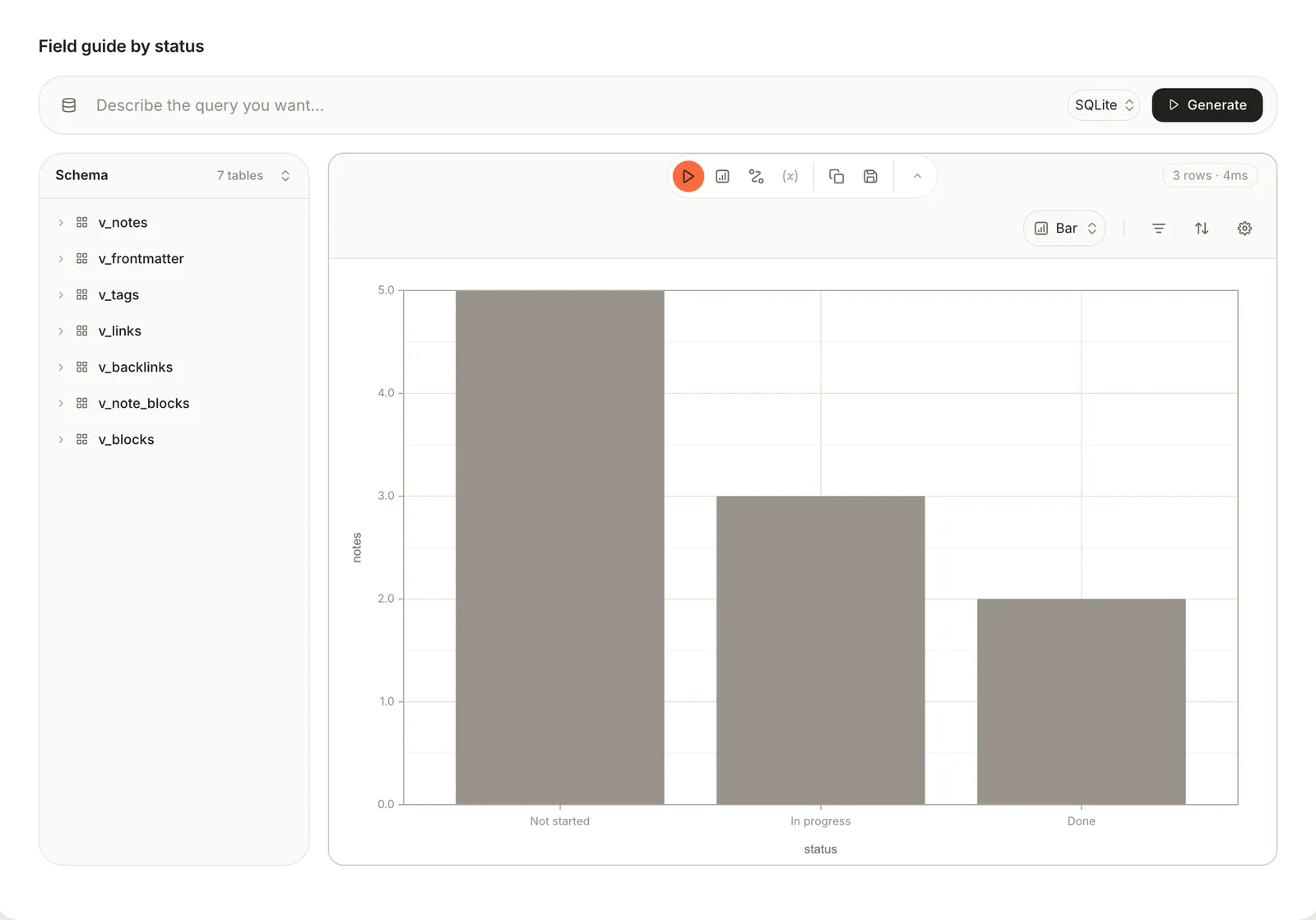
The chart's type and settings aren't saved with the query yet, so set them again after you reopen it.
Save and reuse queries
Click Save query in the tools. Terra checks the statement first, then lists the query under Queries in the sidebar and stores it in your Library as .terra/queries/<id>.json. To rename it, change the name at the top and save again. The sidebar can change a query's icon and copy its id, but can't rename or delete it yet.
The other tools:
| Tool | What it does |
|---|---|
| Copy SQL | Copies the statement |
| Export results as Markdown | Copies the results as a Markdown table, ready to paste into a note |
| Open as Database | Makes a database of the notes the query found, named Query: plus the query's name. Save the query first; the results need an id or note_id column. |
| Steps | Splits a long query into steps. A new step starts as SELECT * FROM {{prev}}; {{prev}} is the step before, and {{step:<id>}} any earlier one. |
| Variables | Values you can change without editing the SQL. Click Add variable, give it a name, a type and a Value, and write :name in the SQL. |
Open as Database captures the notes as they are now; the database doesn't follow the query afterwards. A live query in a note isn't possible yet: export the results, or embed the database. Every variable you add must appear in the SQL, or the run stops with Invalid parameter name.
Make a database from SQL
A database can collect its notes with SQL instead of conditions, and stays live. Open the database's View preferences, choose the Database tab, and switch Match by to SQL (the <> button). Write a SELECT that returns an id or note_id column:
SELECT n.id
FROM v_notes n
JOIN v_tags t ON t.note_id = n.id
WHERE t.tag = 'field-guide'
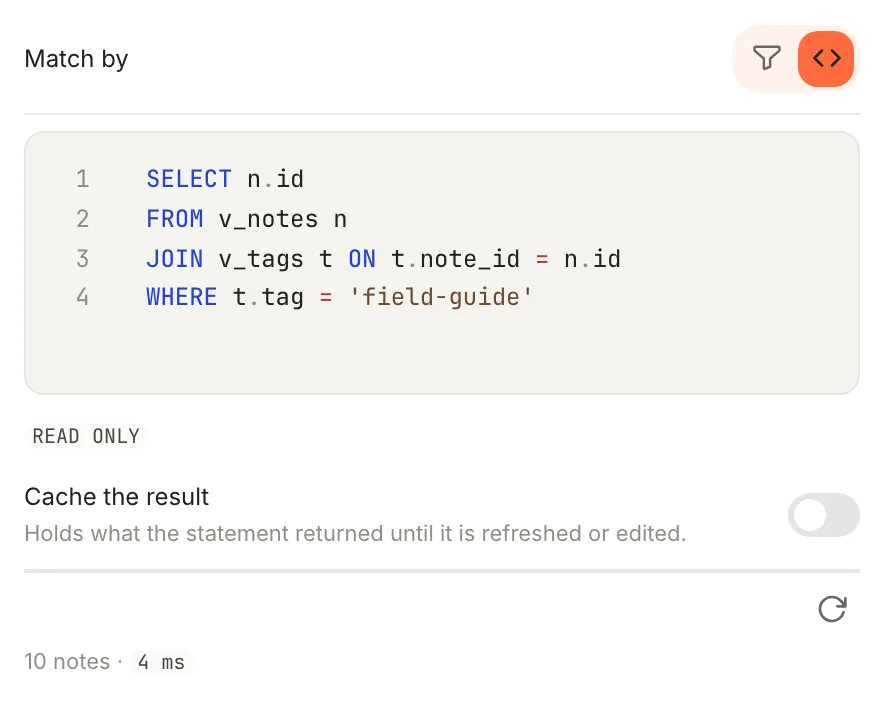
Any other columns the statement returns show up as columns in the database. The same rules apply, with a 5-second limit. Turn on Cache the result to keep the last answer until you click Refresh now or edit the statement, which helps when the line under it says the query is slow.
Examples
Notes edited this month, newest first:
SELECT id, title, updated
FROM v_notes
WHERE updated >= date('now', 'start of month')
ORDER BY updated DESC
The 20 most used tags:
SELECT tag, count(*) AS notes
FROM v_tags
GROUP BY tag
ORDER BY notes DESC
LIMIT 20
Notes nothing links to:
SELECT n.id, n.title
FROM v_notes n
WHERE NOT EXISTS (SELECT 1 FROM v_backlinks b WHERE b.note_id = n.id)
Open effort per owner, from three properties:
SELECT o.value_text AS owner, sum(e.value_number) AS effort
FROM v_frontmatter o
JOIN v_frontmatter e ON e.note_id = o.note_id AND e.key = 'effort'
JOIN v_frontmatter s ON s.note_id = o.note_id AND s.key = 'status'
WHERE o.key = 'owner' AND s.value_text != 'Done'
GROUP BY owner
Sprouts by kind:
SELECT callout_kind, count(*) AS sprouts
FROM v_blocks
WHERE kind = 'callout'
GROUP BY callout_kind
Related
- Databases — live collections built from conditions, or from SQL.
- Run a project — a burndown chart from a query.
- Search syntax — find notes without writing SQL.
- Build a personal dashboard — counts and charts on one page.
Was this guide helpful?