Databases
A database is a live collection of the notes that match its conditions. Each note is a row, its properties are the columns, and nothing is copied.
In Terra, a database is a set of conditions, such as "every note in projects/field-guide" or "every note tagged #recipe", and the live list of notes that match them. Each note is a row and its properties are the columns. Nothing is copied: edit a cell and you've edited the note; move a note out of the folder and it leaves the database. A note belongs to every database whose conditions it matches.
If you know Obsidian Bases, it's the same idea. Unlike a Notion database, the rows aren't stored inside the database: they're ordinary Markdown notes in your folders. For a worked example, see Run a project.
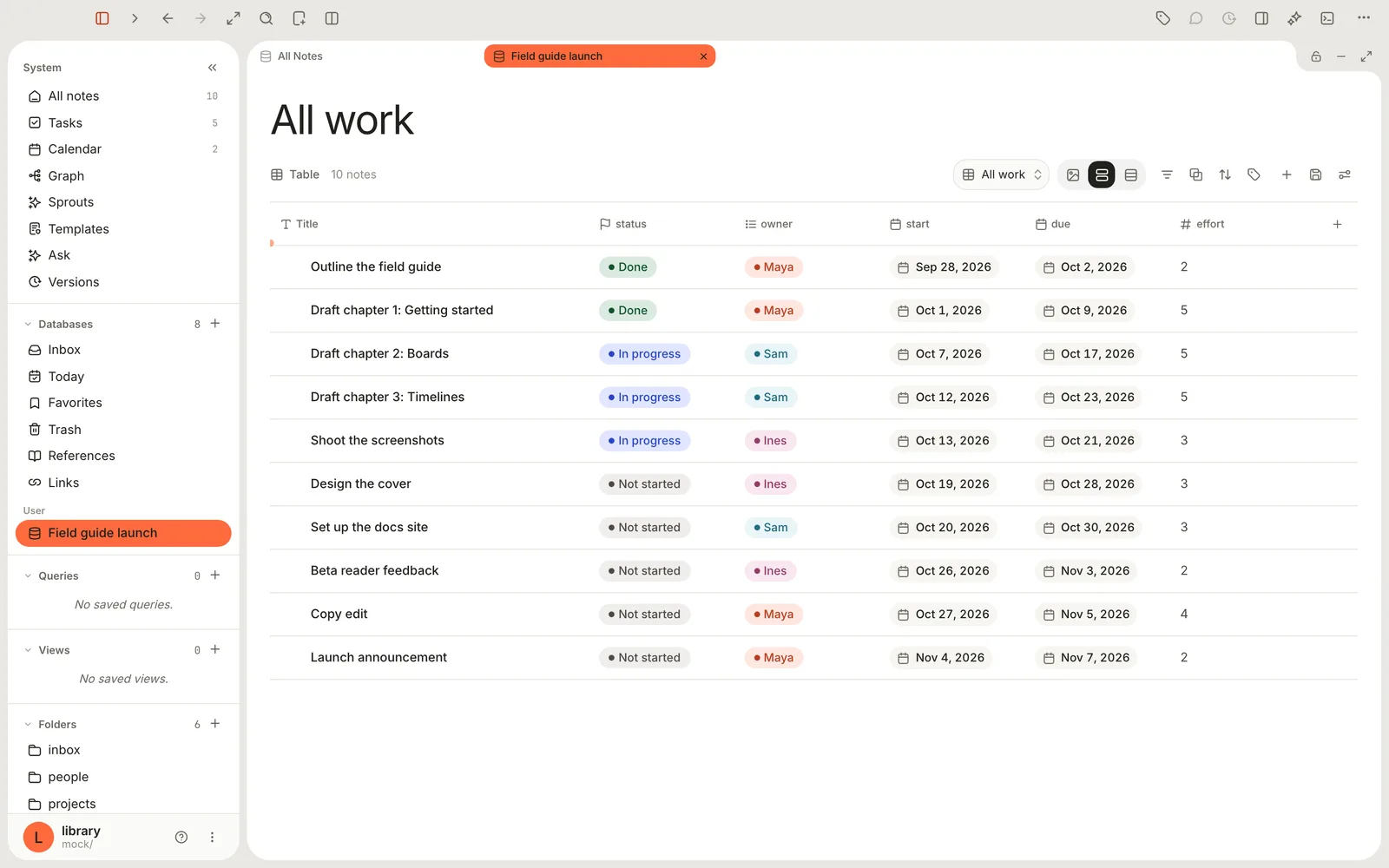
How a database works
| Part | What it is | Where you change it |
|---|---|---|
| Conditions | The rule for which notes belong: a folder, a tag, a property value and so on | View preferences › Database |
| Rows | The notes that match, kept up to date as your notes change | In the notes themselves |
| Columns | The notes' properties, plus any computed properties you add | The table header, or a note's properties |
| Views | Saved ways to look at the rows: a table, a board, a calendar, a chart | The view menu in the database's header |
A database you make is one small file, .terra/databases/<id>.json in your Library, holding its name, conditions and views. Your notes stay where they are. Conditions skip notes in the Trash; only Trash shows those.
Built-in databases
Every Library comes with these. You can give each one its own views, pin it to the rail or change its icon, but you can't rename or delete it. To tidy the sidebar, right-click one and choose Hide; Hidden in the same menu brings it back.
| Database | Sidebar section | What it collects |
|---|---|---|
| All notes | System | Every note in the Library |
| Tasks | System | Every checkbox task in your notes, as a board by status. Its rows are tasks, not notes. See Tasks. |
| Calendar | System | Notes placed on a calendar by date, with task due dates and events from connected calendars. See Calendar. |
| Sprouts | System | Every Sprout in your notes, as a board grouped by kind |
| Inbox | Databases | Notes in the Inbox folder, where new notes and captures land |
| Today | Databases | Notes edited today |
| Favorites | Databases | Notes tagged #favorite |
| Trash | Databases | Deleted notes, waiting in the Trash folder |
| References | Databases | Notes with bibliographic details, such as the papers and books you cite |
| Links | Databases | Web pages you've saved |
Graph in the System section is a view of All notes. Templates and Ask sit there too, but they aren't databases. Today starts its day at midnight UTC, so west of Greenwich it turns over during your evening.
Folders, tags and options open as databases
Click a folder under Folders and it opens as a database of the notes in that folder and its subfolders, with saved views like any other: a folder can be a board or a calendar. Two more things open the same way:
- A #tag in a note: click it to open its tag page, every note with that tag.
- An option of a select or status property: in Tools › Property Manager…, click the option and choose Open database to see every note that has it.
You can't change what these collect, and computed properties need a database you made.
Make a database
- In the sidebar, point at Databases and click + (New database).
- Type a name.
- Click + (Add condition) and build a condition from a field, a test and a value, such as Folder · starts with ·
projects/field-guide. - Add more conditions if you need them. Once there are two, click the And beside them to switch to Or or Not. Click { } (Add group) for a nested set.
- Click Save, or press Return in the name field.
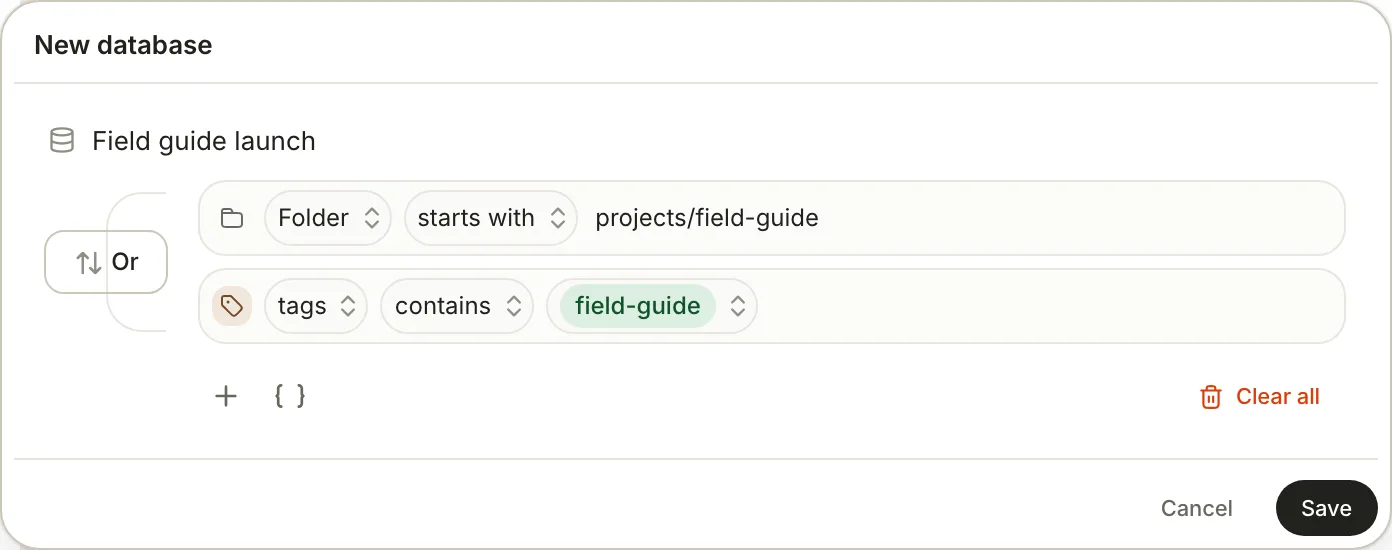
The database opens as a table with View preferences beside it, ready for its first view, and it's listed under Databases › User. A database with no conditions collects every note.
File › New Database and New… › New database in the toolbar skip the popover. They make a database called Untitled that collects every note; rename it from the sidebar and add conditions on its Database tab.
Conditions can use Title, Status, Tags, Folder, Type, Source, Updated, Created, every property in your Library, and Note Body, the text of the note. The tests depend on the field's type; Filter, sort and group lists them. Good to know:
- Tests ignore capitals.
- A note's Folder is the folder that holds it, such as
projects/field-guide. is matches that folder only; starts with takes in its subfolders too. Notes at the top of the Library have no folder. - Note Body reads every note's text, so it's the slowest test. Terra reads at most 5,000 notes for it.
Change what a database collects
Open the database, click View preferences at the right end of its header, and choose the Database tab.
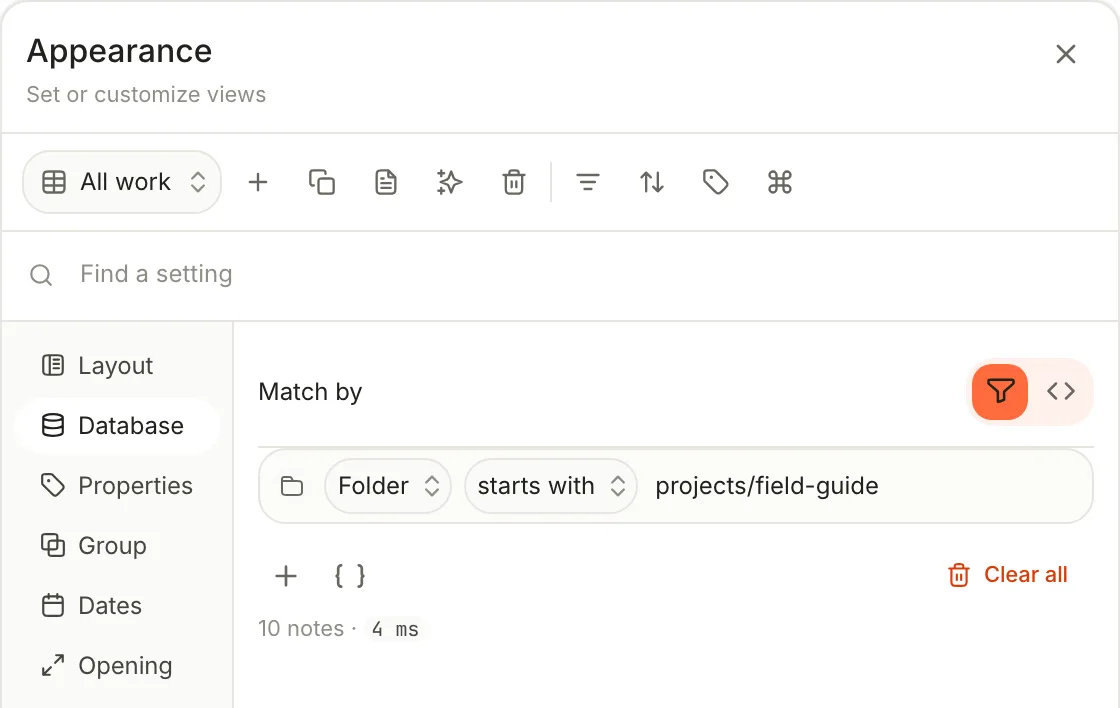
- Match by switches between Filter, the conditions, and SQL, a
SELECTstatement that picks the notes. See Queries. - Changes save themselves after a moment. They aren't part of Save view.
- These conditions decide which notes belong. A view's Filters only hide rows in that one view; see Filter, sort and group.
The Database tab appears only on databases you made. Built-ins and folders keep their fixed rules.
Child databases
Some built-ins can hold databases of their own: a narrower slice that opens like its parent and keeps its own views.
- Right-click Tasks, Calendar or Sprouts under System, or Links or References under Databases.
- Choose the first item: New task database, New calendar database, New sprout database, New link database or New reference database.
- Type a Database name and click Create. The new database sits under its parent in the sidebar.
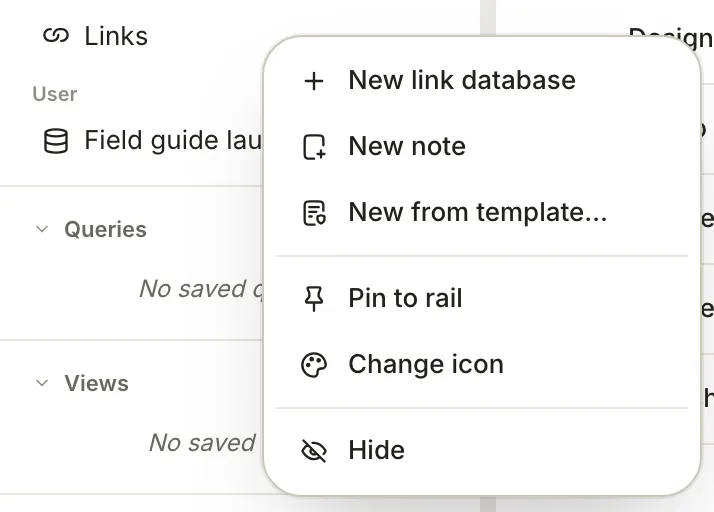
- A child of Calendar, Links or References starts with all of its parent's notes. Narrow it with conditions on its Database tab: a To read child of Links that keeps pages tagged #to-read, for example.
- A child of Tasks or Sprouts opens as a board. Pick the notes it reads with Sources in its header. See Tasks.
- Children go one level deep, and databases you make can't have children.
Favorites works differently. Right-click it and choose New favorites collection for a hand-picked list instead of a rule, then add notes from a note's right-click Favorite menu. Collections can hold collections.
Add a note to a database
To add a note you already have, give it what the database collects: move it into the folder, add the tag or set the property. It appears straight away.
To start a new note from a database:
- Point at a database you made in the sidebar and click New note here, or right-click it and choose New note.
- On a Board view, click + Add note at the foot of a column. The note takes that column's value.
| Starting from | The new note goes to |
|---|---|
| A folder | That folder |
| A database you made | Your Inbox folder, with the column's value if you used a board |
Rename or delete a database
Right-click a database you made and choose Rename (type the new Database name, then click Rename) or Delete. Deleting asks first and reminds you: "Notes are kept; only the database is removed." Deleting a database's last view deletes the database too, with an Undo in the message that follows. Built-ins can only be hidden.
Put a database in a note
A database can sit inside any note, such as a weekly review, a project page or a dashboard, and it stays live there.
- On an empty line, type
/databaseand press Return. - In Insert database, pick a database, or click New database to make one.
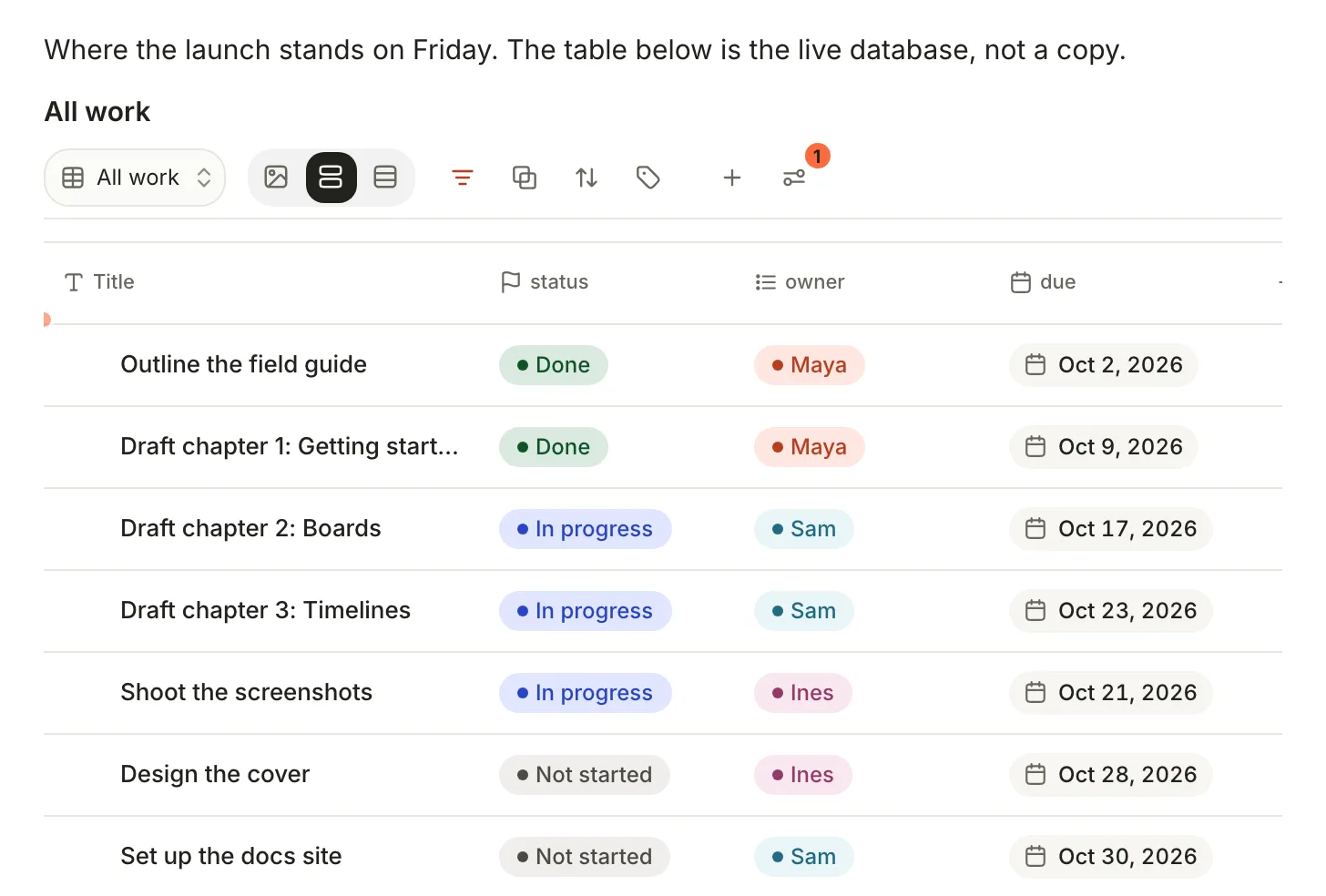
The block is the database, not a copy: change a status in it and the note changes; change the view's filters or sorting and the database's view changes too. In the note's file, the block is one line that points at the database by its id:
Where the launch stands on Friday. The table below is the live database, not a copy.

<!-- terra:inline-db eyJkYXRhYmFzZUlkIjoiMDFKUThaQjRLMk03WDlUM1I1VjZXOFkwQzEiLCJtb2RlIjoibGlua2VkIiwidmlld092ZXJyaWRlIjpudWxsfQ== -->
Other Markdown apps, Obsidian included, show nothing for that comment. If the database is deleted, the block reads Database not found with Pick another and Remove.
Related
- Views and layouts — tables, boards, calendars, timelines and charts of the same notes.
- Filter, sort and group — every test, sort and grouping a view can use.
- Properties — the values that become a database's columns.
- Run a project with boards, timelines and burndowns — a database built end to end.
Was this guide helpful?