Find your way around
A map of the Terra window, from the toolbar, sidebar and note list to tabs, split panes, peeks, drawers, the shelf, Zen mode and the terminal.
Terra works in one window. Generally: a sidebar for getting around, a list of files, and one or more panes for the files you're working on. This page discusses each suface explicitly.
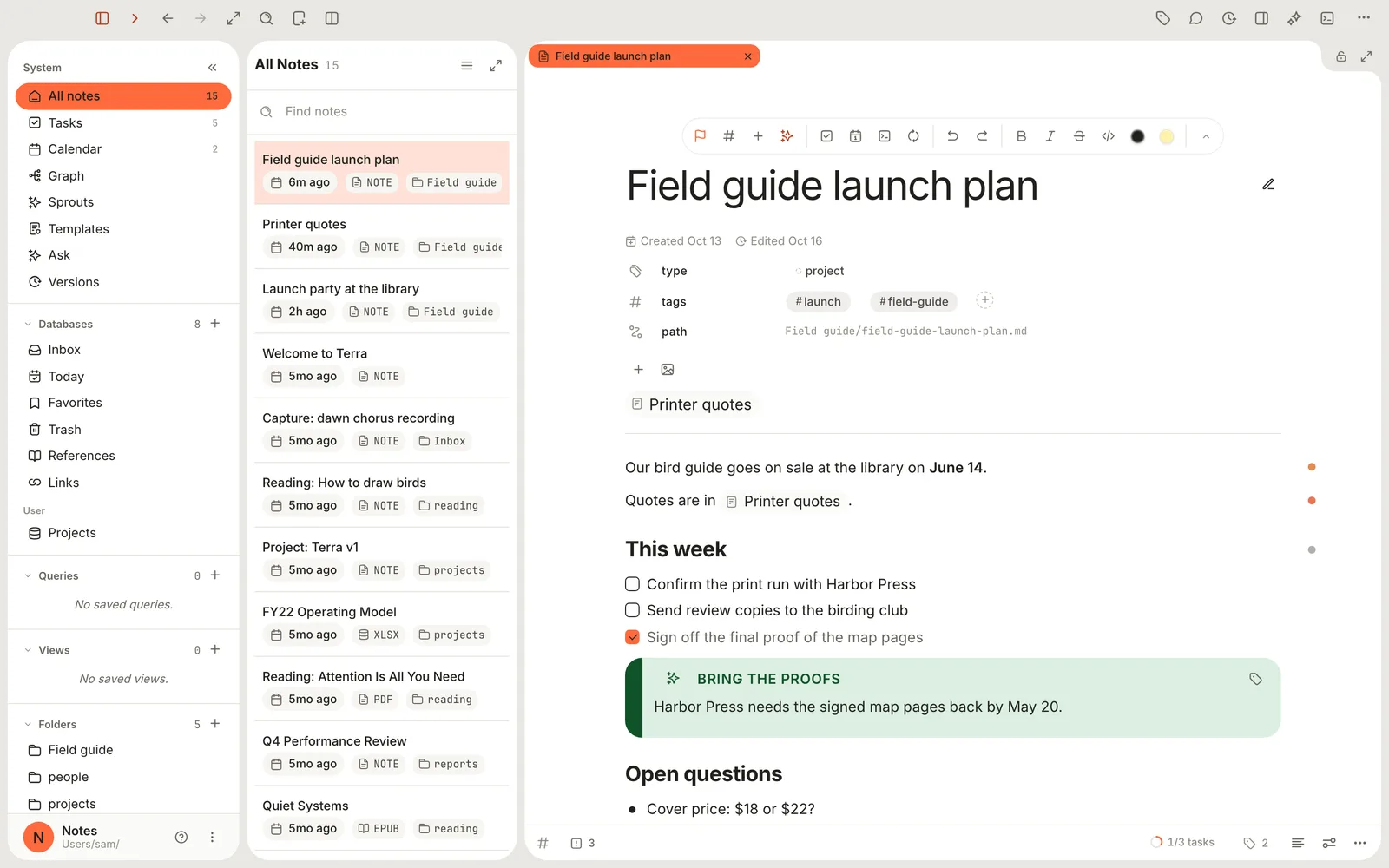
| Surfacce | Where | Description |
|---|---|---|
| Toolbar | Across the top | Shortcuts and commands |
| Sidebar | Left | Views, databases, saved layouts and folders |
| File list | Beside the sidebar | The files in whatever you picked in the sidebar |
| Panes | The rest | The files, databases and pages you have open |
Toolbar
The toolbar holds window-wide buttons. Hover over one to see its name and shortcut. The default Terra window contains from the left: Sidebar, Database drawer (the note list), Back, Forward, Zen mode, Search, New… and Split. With more than one pane open, Split allows the user to arange their panes by preference, such as Side by side or 60 / 40. On the right: Manager, Comments, Versions, Properties, AI conversations and Terminal. The ⋯ button contains everything that does not fit.
To add, remove or rearrange buttons, right-click any of them and choose Customize toolbar…. See Customizing Terra.
Sidebar
The sidebar is your libraries launcher
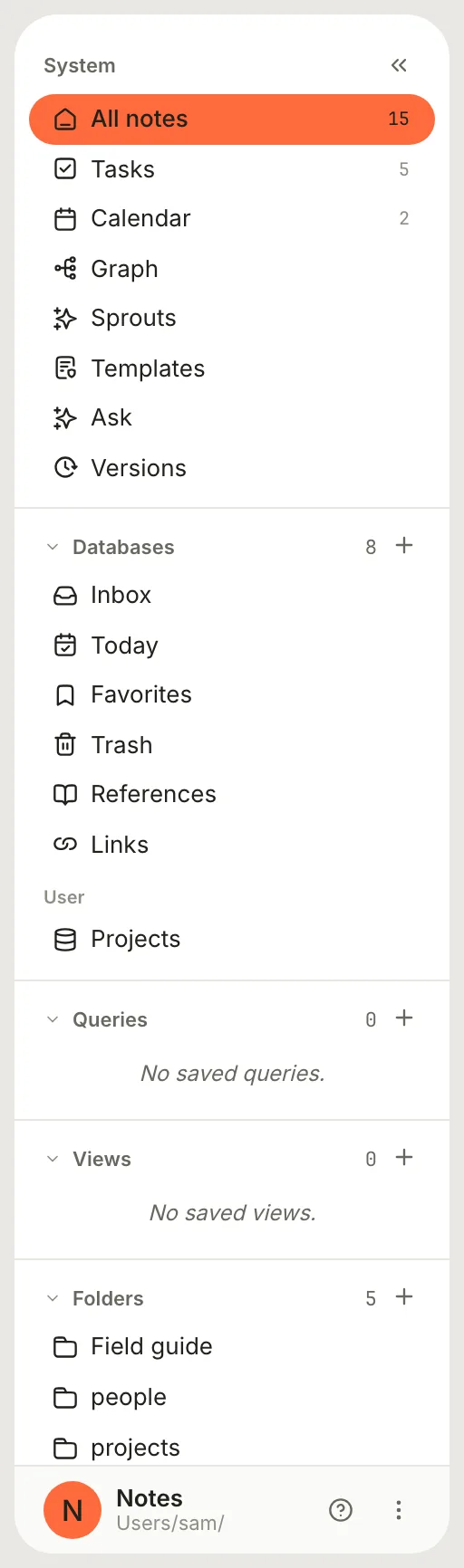
| Section | What's in it |
|---|---|
| System | All notes, Tasks, Calendar, Graph, Sprouts, Templates, Ask and Versions |
| Databases | Built-in collections (Inbox, Today, Favorites, Trash, References, Links), then your own databases under User |
| Canvases | Your free-form canvases. It appears once you have one. |
| Queries | Saved queries |
| Views | Saved arrangements of panes. Not the same as a database's views. |
| Folders | The real folders inside your Library folder |
| Web | Web pages open in Terra |
The + in each section creates something in it, such as a database, a saved layout or a folder. Right-click a section's name for Collapse all and Expand all, or right-click a row for more, such as Pin to rail.
At the bottom are the Library's name and folder, a ? button for Help, and the ⋮ Library menu, with Switch library…, Open in Finder, Library settings… and Copy library path.
Hide the sidebar with ⌘B. A slim rail replaces it with All notes, Tasks, Calendar and everything you've pinned. In a narrow window, Terra folds the sidebar into the rail on its own.
File list
The file list shows the files from whatever you picked in the sidebar: all notes, a folder, a tag or one of your databases. Click a note to open it in the pane. Hold ⌘ as you click to open it in a new tab.
- Type in Find notes to filter the list.
- Click ☰ (More explorer controls) for Filter, Sort, Group, Properties, the row density and Reset view.
- Drag a note onto a folder in the sidebar to move it there, or onto the edge of a pane to open it beside what's there.
The list steps aside for views that fill the window, such as Tasks and Calendar. Show or hide it any time with Database drawer in the toolbar.
Panes and tabs
A pane is a tile in the main part of the window. Each one holds tabs: notes, databases, web pages, Help.
When a pane already shows something, clicking a note in the sidebar or the note list opens it in a new tab. Clicking a link inside a note opens it in place. Right-click a tab for Close, Close Others, Close Left, Close Right, Close All, Pin Tab and, for notes, Duplicate. Pinned tabs stay put when you close the others. ⇧⌘T reopens the last tab you closed.
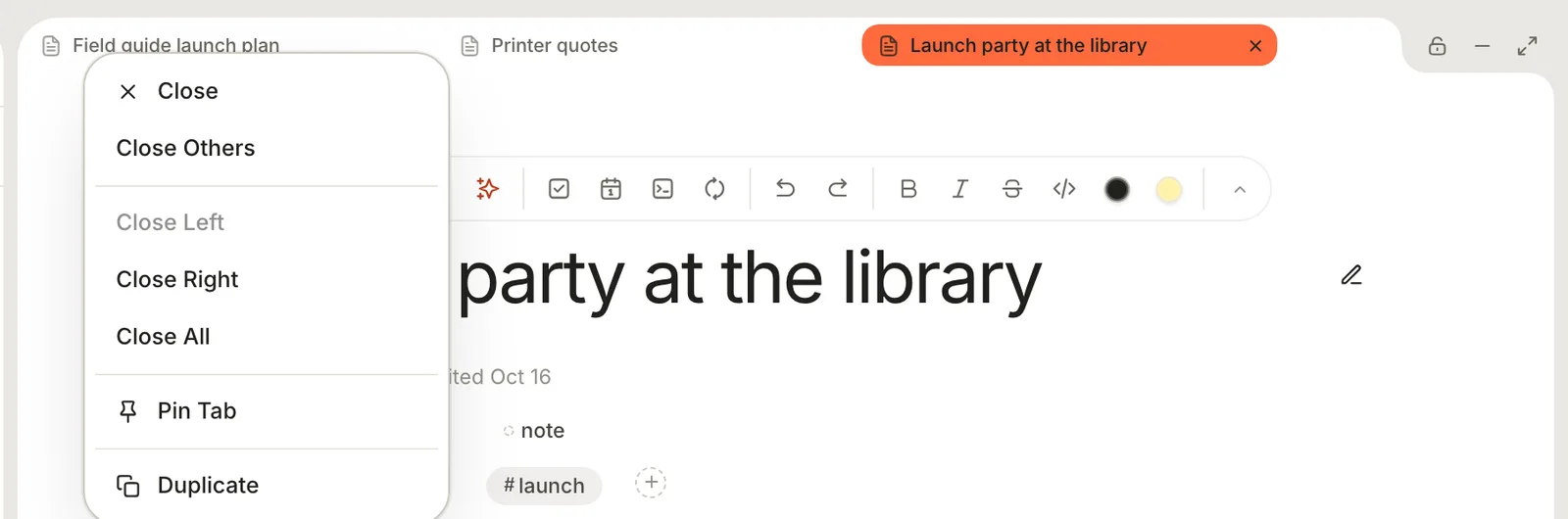
At the right end of each pane's row of tabs are three buttons: Lock pane keeps it in place when you change the layout, Minimize to shelf parks it at the bottom of the window, and Maximize pane gives it the whole window until you press Esc.
Split panes
Work on two to four things side by side.
- Click Split in the toolbar, or press ⌘\. A second pane opens to the right.
- Or drag a note, or a tab, onto the edge of a pane and drop it on Split.
- Pick a layout from the toolbar: Side by side, 60 / 40 or Stacked for two panes, Three columns or Main + two for three, 2 × 2 for four.
- Drag the line between two panes to resize them. Hold ⇧ to snap to thirds, or double-click it to make them equal.
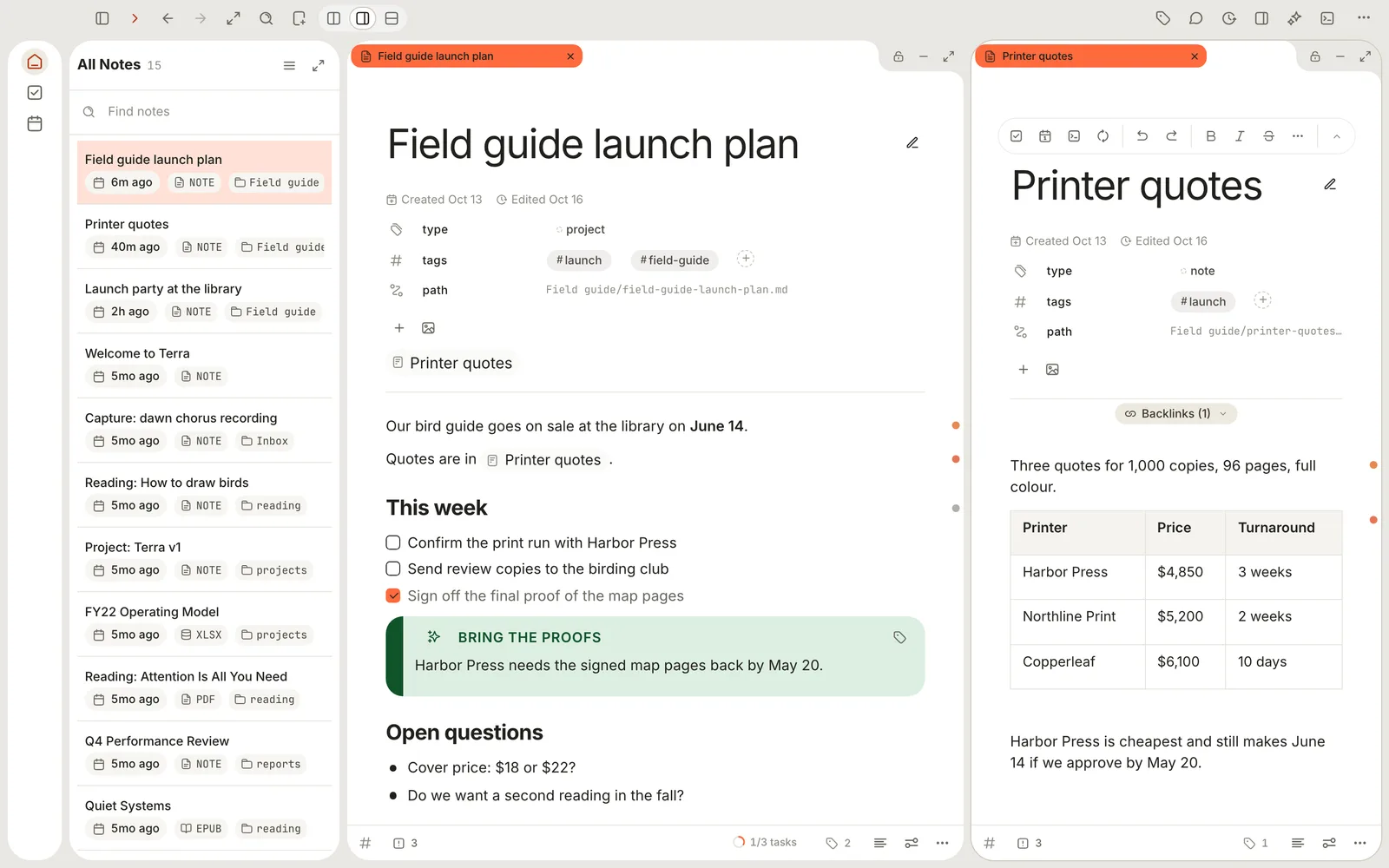
A window holds up to four panes. To keep an arrangement, click + in the sidebar's Views section, type a View name, click Next, then Save. Clicking the view later brings the panes back. See Views and layouts for the views inside a database, which are a different thing.
Peek
A peek shows a note over the pane you're in, without leaving your place. Clicking a row in a database opens it in a peek, docked on the right.
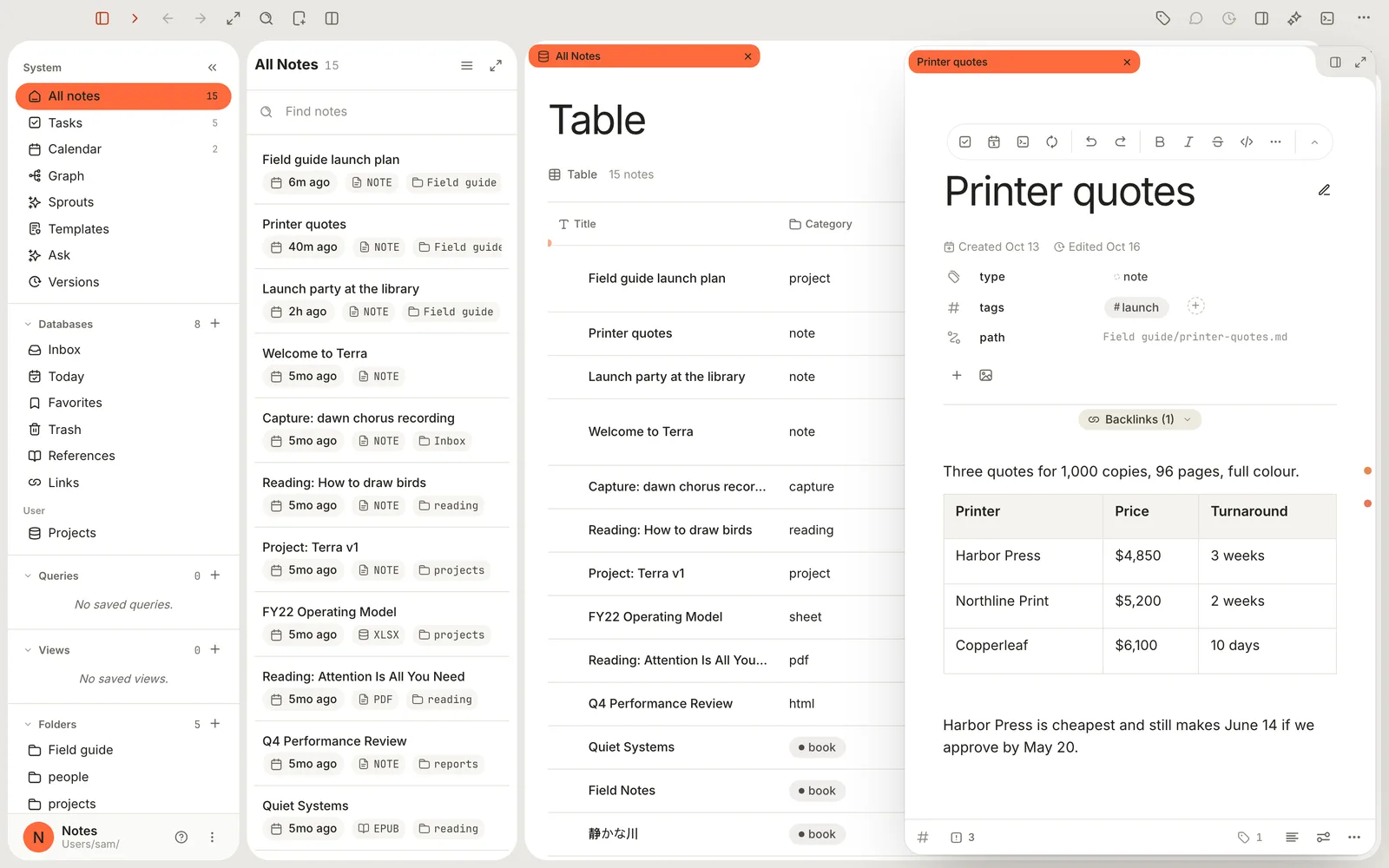
- Click the position button at the peek's top right to choose Dock left, Dock right, Center, Bottom sheet or Open in split. You can also drag the peek by its header.
- Maximize pane turns the peek into a pane of its own.
- Press ⌃⇧Jor⌃⇧K for the next or previous row.
- Press Esc, or click ×, to close it. Up to four peeks can be open at once.
A database view can open notes in a pane or full page instead: change Open notes in its settings. See Databases.
Drawers
The panel on the right holds information about the open note. Click Properties in the toolbar, or press ⌘R, to show or hide it.
Buttons along the bottom of the panel turn its sections on and off: Properties, Calendar, Tasks, References, Comments, Versions and Diagnostics. Beside Tasks and Calendar, the panel offers Calendar, Tasks and Filter instead. The Comments and Versions buttons in the toolbar open those sections directly.
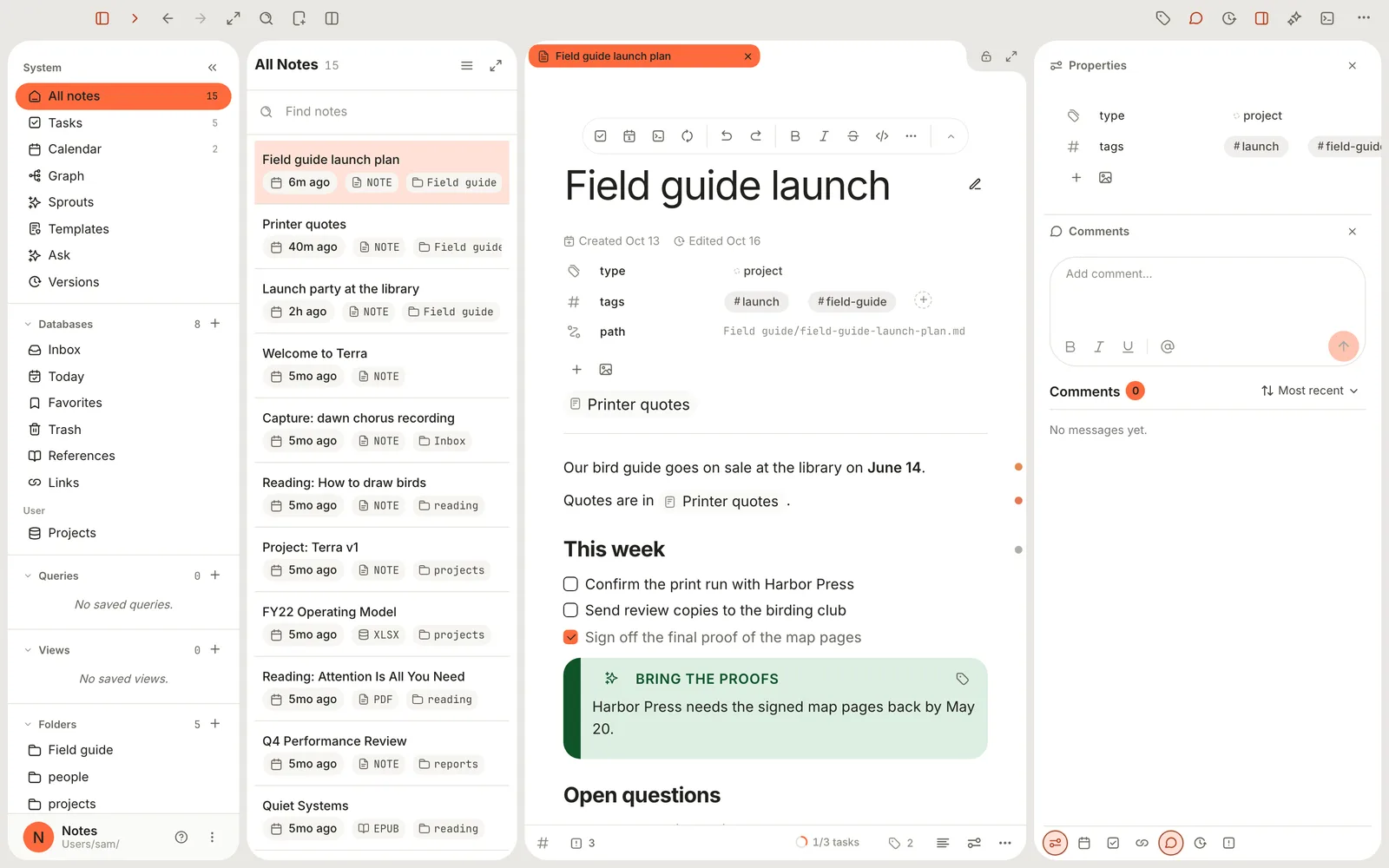
AI conversations in the toolbar opens a separate drawer for chatting with the assistant. See Ask your Library.
Shelf
The shelf is a strip at the foot of the window for panes you've set aside. Click Minimize to shelf in a pane's header to park it there. Click it on the shelf to bring it back, or drag it onto a pane. The last pane in the window can't be minimized.

Zen mode
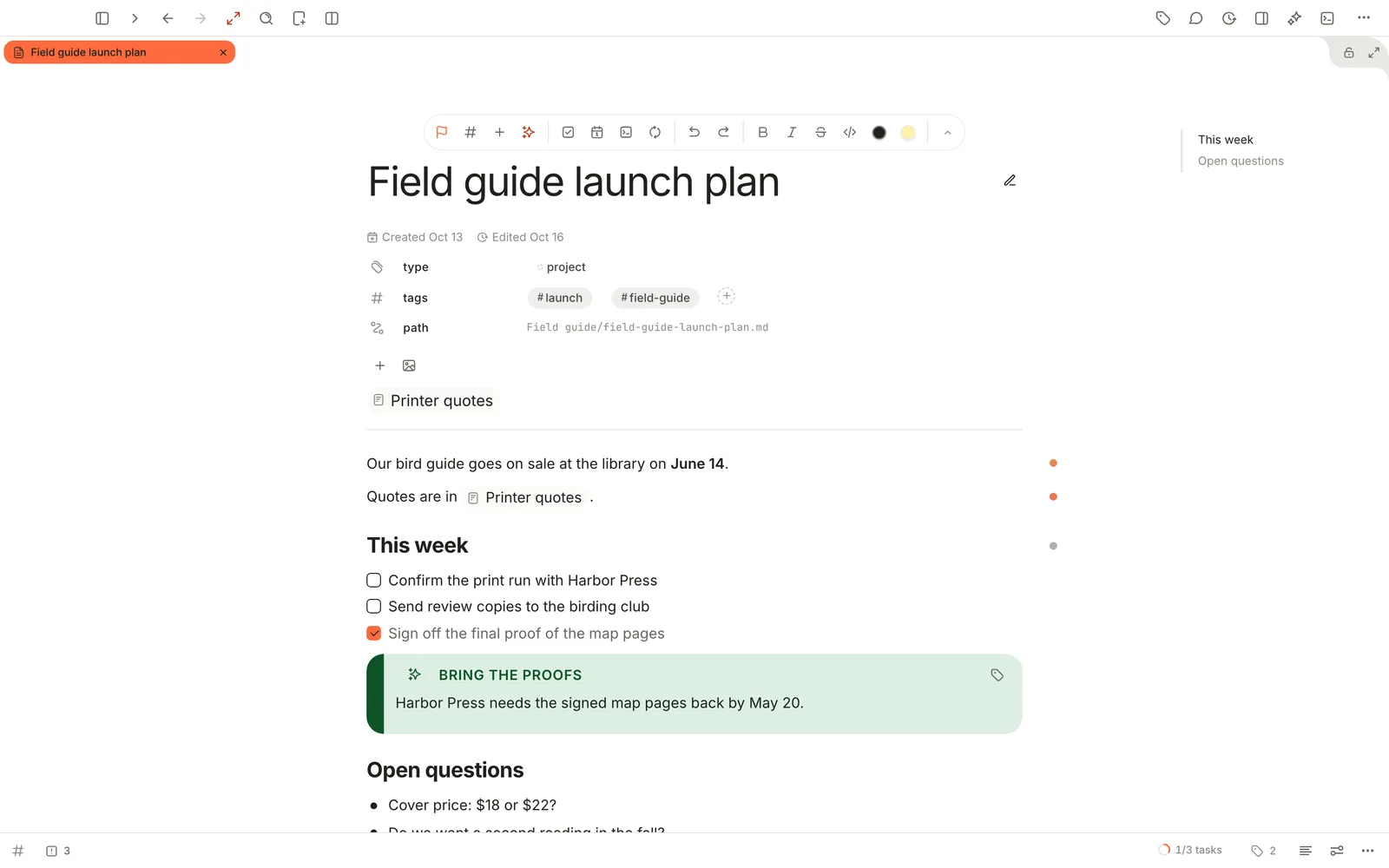
Zen mode clears everything but your panes. Press ⌥⌘Z, click Zen mode in the toolbar, or right-click an empty part of the window and choose Zen mode. The sidebar, rail, note list, Properties and AI conversations all close. Do the same again to leave: the sidebar and the note list come back.
Terminal
Terra has a terminal for running commands in your Library's folder. Press ⌘J, or click Terminal in the toolbar, and the panel opens under your panes. Click Open a terminal. macOS asks Open this exact terminal?; click Allow.
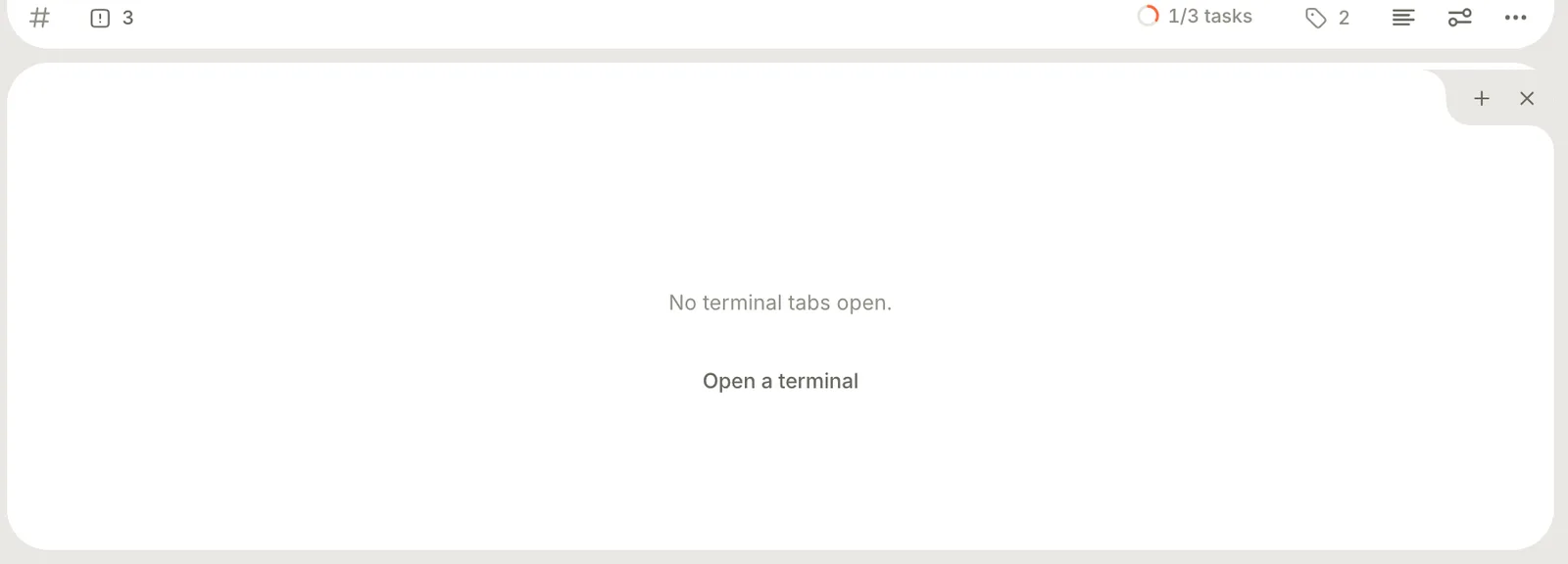
Use + for more terminal tabs, and × (Close terminal panel) to put it away. If you never use it, switch Terminal off in Settings › Features.
Command palette
The command palette runs any command by name. Press ⌘Kor⇧⌘P and start typing. It lists commands with their shortcuts, notes whose titles match, and answers from Terra's Help. Commands that can't run right now appear dimmed, with the reason underneath.
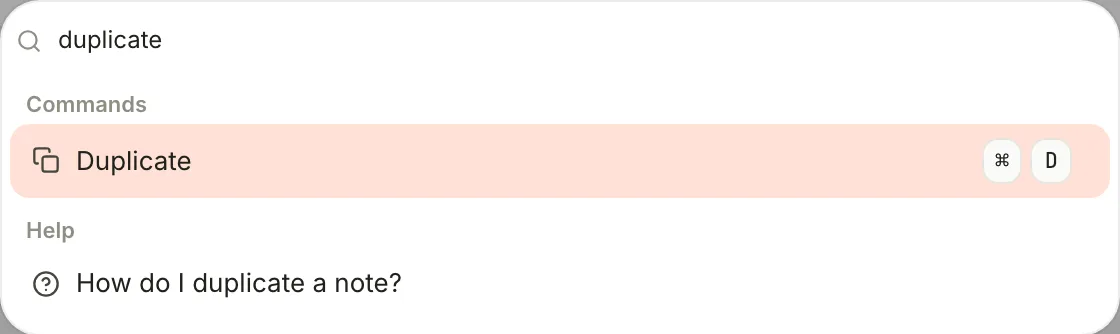
To open a note by name, ⌘P (Go to file) is quicker. To search inside notes, press ⇧⌘F; see Find anything in your Library.
Settings
Press ⌘, or choose Terra › Settings…. Settings is grouped down the left: Workspace (Account, General), App (Appearance), Library (Editor, Hotkeys, Toolbar, Privacy, AI, Search, Capture, Database, Files, Canvas, Import, Features) and System (Open With, Code, Lint, Integrations, Advanced). Settings in the Library group, and most of Appearance, belong to the Library that's open. Most changes take effect straight away; the Toolbar pane is the exception, with its own Apply button.
Help
- The Help menu has Search Help…, Keyboard Shortcuts and What's New.
- The ? at the bottom of the sidebar opens the same: Full changelog, Keyboard shortcuts and Documentation.
- Type a question into the command palette, such as how do I split a pane?, to see answers from Help.
Help opens as a tab, so you can keep it beside your work.
Related
- Get started with Terra: your first notes, step by step.
- Keyboard shortcuts: every key for the parts of the window on this page.
- Make Terra yours: themes, fonts and your own toolbar.
- Glossary: the Terra words used here.
Was this guide helpful?