Libraries
A Library is a folder on your Mac that Terra treats as one workspace. Open, create and switch Libraries, and see what each one keeps.
A Library is a folder on your Mac that Terra treats as one workspace: your notes, folders and files, plus Terra's own settings, databases and templates for them. Any folder can be a Library, including one you already keep notes in. Obsidian calls the same idea a vault. Terra shows one Library at a time and remembers the ones you've used, so switching takes a keystroke.
Open or create a Library
The first time you start Terra, it asks for a Library.
- Click Choose folder.
- In the folder picker that opens, titled Choose a Terra library folder, pick a folder:
- For a new Library, create an empty folder with the picker's New Folder button and select it.
- To use notes you already have, select the folder they're in, such as an Obsidian vault. Terra works with the files where they are; nothing is moved or converted.
- Click Open. The Library opens on All notes.

From then on, Terra reopens the Library you used last each time it starts.
What a new Library contains
The first time Terra opens a folder, it adds a few things and leaves your files alone:
| Item | What it's for |
|---|---|
Inbox/ | Where new notes and captures go |
Themes/default.css | A starting point for a theme of your own |
.terra/ | Terra's hidden folder: the search index, plus this Library's settings, databases and templates |
.terra-library.toml | A one-line marker recording which version of Terra's file layout the Library uses |
Terra also adds eight templates — Daily log, Meeting, Study note, Project, Decision, Recipe, Lecture and Dashboard — unless the Library already has templates of its own. There are no sample notes. A Trash folder appears the first time you delete something. How Terra stores your notes goes through each file.
Notes you already had stay exactly as they are. A Markdown file without Terra's properties shows its file name as the title and the file's own dates; Terra adds the properties the first time you edit the note.
Switch Libraries
Press ⌘O or choose File › Open Library…. Your recent Libraries are listed, most recent first, with a check beside the one that's open.
- Click a Library to switch to it. To filter the list, type part of its name.
- Choose Open other… to pick a folder that isn't listed.
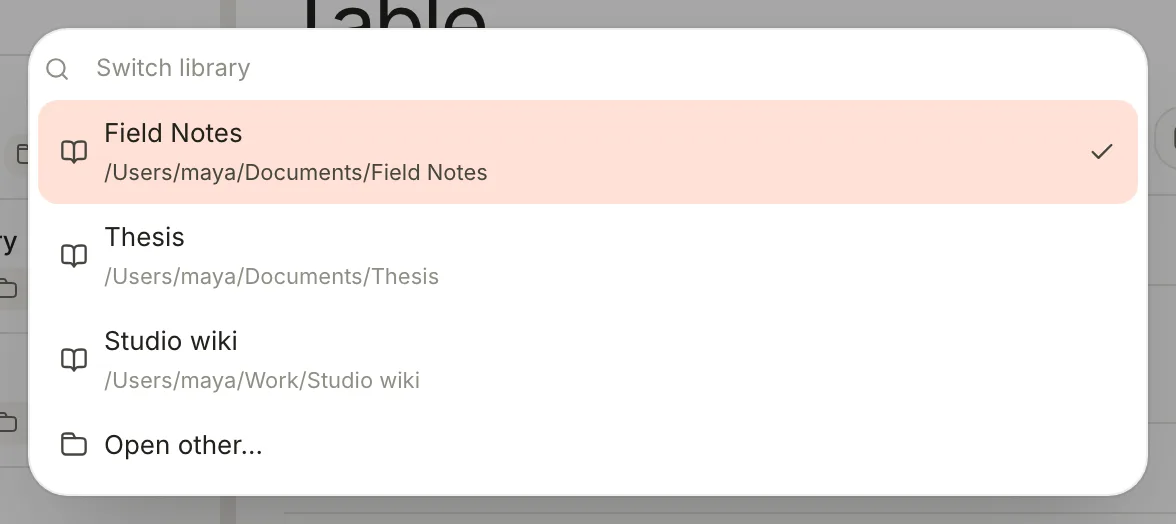
The Library you choose replaces the current one in the same window. The list holds your last ten Libraries.
The Library menu
Click ⋯ (Library menu) beside the Library's name at the bottom of the sidebar.
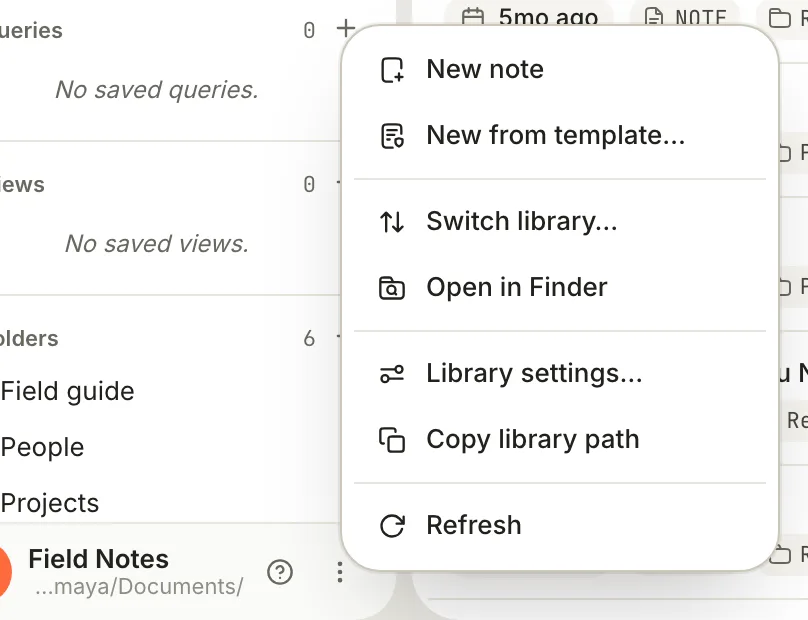
| Item | What it does |
|---|---|
| New note, New from template… | Start a note in Inbox |
| Switch library… | Open the list of recent Libraries |
| Open in Finder | Show the Library folder in Finder |
| Library settings… | Open Settings |
| Copy library path | Copy the folder's full path, such as /Users/maya/Documents/Field Notes |
| Refresh | Read the folder again, if a change made outside Terra hasn't appeared yet |
Library settings and app settings
Most settings belong to the Library. They're saved inside it, in .terra/preferences.toml, so they go wherever the folder goes and each Library can be set up differently. In Settings (⌘,) that means every pane listed under Library, plus:
- the theme, interface style and fonts in Appearance
- Display name and the logo in General, which change how the Library is labelled at the foot of the sidebar without renaming its folder
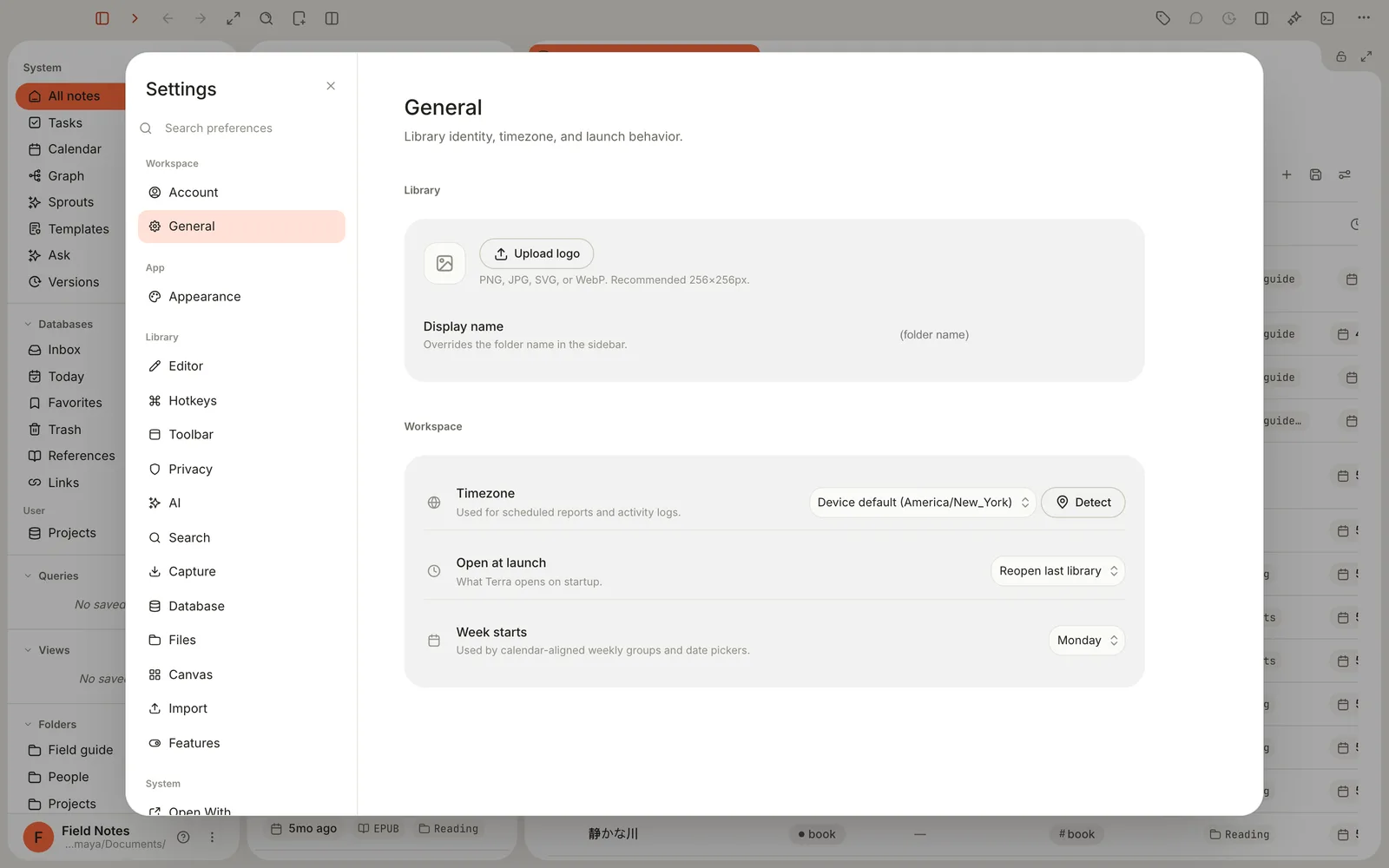
A few things belong to Terra on this Mac and apply to every Library:
- Light, Dark or System in Appearance
- Timezone, Open at launch and Week starts in General
- the sidebar's arrangement: pins, hidden rows, collapsed sections and any order you've dragged rows into
Terra also remembers each Library's pane layout and Back/Forward history on this Mac. AI provider keys are kept in your Mac's Keychain, never in the Library.
Open at launch offers Reopen last library (the default), Show the library picker and Do nothing. For now, the last two both start Terra on the Open a library screen.
Use more than one Library
Separate Libraries suit notes that don't belong together, such as your own notes and a client's wiki. Each has its own folders, settings, databases, templates, toolbar, hotkeys and theme, and search covers only the Library that's open. Switch between them with ⌘O.
Move or rename a Library
A Library is a folder, so you move or rename it in Finder like any other folder. It's simplest to do while the Library isn't open: switch to another one or quit Terra first. Then press ⌘O, choose Open other… and pick the folder in its new place.
Everything inside the folder comes along: notes, attachments, settings, databases and templates. What Terra keeps on this Mac by the folder's location starts afresh: the pane layout and Back/Forward history. AI providers also need connecting again; see Ask your Library.
If Terra starts and can't find the last Library, because it was moved or its drive is disconnected, it shows the Open a library screen with library path no longer exists and the old path. Click Choose folder and pick the folder again.
When a Library opens read-only
If a Library was last opened by a newer version of Terra, an older version opens it read-only so it can't damage anything, and shows This Library was last edited by a newer Terra. Update to edit. You can still read and search. Update Terra to edit again.
Related
- Files and folders — working with what's inside a Library.
- How Terra stores your notes — every file and hidden folder, explained.
- Sync and back up your Library — keep a copy somewhere safe.
- Bring in your notes from another app — import, or open an existing folder.
Was this guide helpful?