Accepted file formats
Which files Terra opens and how: Markdown notes, PDFs, EPUB books, images, spreadsheets, web pages, and anything else as an attachment.
Notes in Terra are Markdown files, but a Library can hold other files too. When you add a PDF, a book, an image, a spreadsheet or a saved web page, Terra copies it into the Library and gives it a note of its own, so it turns up in lists, search and databases like any note and opens in a viewer made for it. Anything else is kept as an attachment, with a note that links to it.
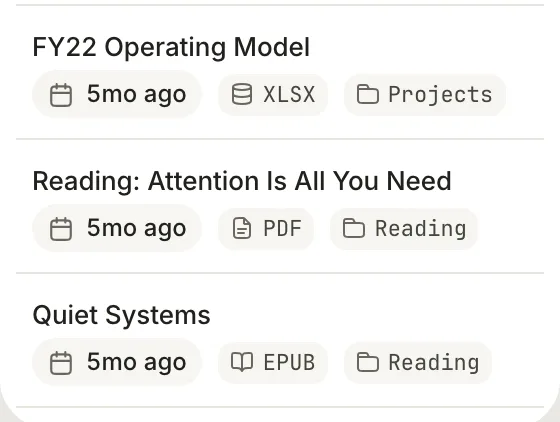
What Terra does with each format
| Extension | What it becomes | Where it opens |
|---|---|---|
.md | A note | The editor |
.pdf | A PDF, with its own note | The PDF viewer. Highlights are saved into the PDF itself; see Annotate and keep every mark. |
.epub | A book, with its own note | The e-reader. Your highlights and place are kept beside the book, which is never changed. |
.png, .jpg, .jpeg, .gif, .webp, .svg, .heic, .avif | An image, with its own note | The image viewer, which fits the picture to the window |
.bmp | An image, with its own note | The editor, with the picture as the note's cover |
.xlsx, .csv | A spreadsheet, with its own note | The spreadsheet view. Changes you make there are saved back to the file. |
.html, .htm | A web page or report, with its own note | A page view inside Terra. Scripts in the page stay off until you click Enable scripts. |
| Anything else | An attachment, with a note that links to it | The note |
Only .md files are read as notes. Files ending in .markdown or .txt aren't, so if they hold Markdown or plain text, rename them to end in .md.
Ways to add a file
Drag it into Terra from Finder. This works for every format in the table; see Add files from Finder. Before adding files that have no viewer, Terra lists them so you can check:
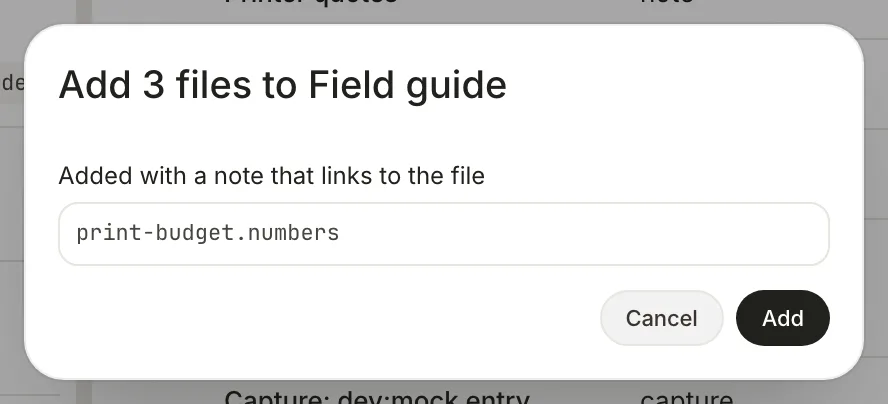
Dropping a PDF, an image and a Numbers file onto a folder. The Numbers file has no viewer, so it gets a note that links to it. Copy it into the Library folder with Finder. Markdown files appear as notes straight away. PDFs, images, spreadsheets and web pages get their notes the next time you open the Library, with a message such as Adopted 3 loose files. Books and other files aren't picked up this way; drag them into Terra instead.
Paste or drop it into a note to attach it to that note. Images appear in the text; other files become a link. They're stored in the note's
attachmentsfolder (see How Terra stores your notes).Import a whole collection from another app (below).
Terra always copies: the file you dragged from stays where it was.
Limits
- Files over 256 MB are skipped when you drop them, and hidden files (names starting with a dot) are left out.
- Books protected with DRM can't be opened; Terra shows Encrypted EPUB instead.
- A web page larger than 8 MB isn't shown inside Terra. It says Report too large to preview; use Reveal in Finder to open it in another app.
Formats you can import
Importing converts notes from another app into Markdown notes in your Library. Bring in your notes from another app walks through it.
| From | What Terra reads |
|---|---|
| Obsidian | The vault folder |
| Notion | A .zip export |
| Bear | A .bear2bk backup |
| Evernote | An .enex export |
| Roam Research | A .json export |
| Apple Notes | A folder of Markdown files and images exported from Apple Notes |
| Plain Markdown | A folder of .md files |
| Zotero, Mendeley and other reference managers | A BibTeX (.bib), RIS (.ris) or CSL-JSON (.json) export |
Related
- Files and folders — where added files go, and how to move them.
- How Terra stores your notes — notes, attachments and sidecars on disk.
- Read in the e-reader — books, PDFs and images in Terra.
- Bring in your notes from another app — importing step by step.
Was this guide helpful?