Basic formatting syntax
The Markdown you type in Terra for headings, bold and italic, highlights, links, images, quotes, lists, to-dos and code, with the shortcut for each.
Every Terra note is a Markdown file, so its formatting is plain text that any app can open. This page covers the basics: what you type, what you get, and the shortcut for each. In the editor, type the syntax and Terra formats it as you go, or use the shortcuts and the editor toolbar. To see or edit the raw text, switch the note to Markdown source with the switcher beside its title. Tables, math, diagrams, embeds and the rest are in Advanced formatting.
| Style | Syntax | Example | Shortcut |
|---|---|---|---|
| Bold | ** ** or __ __ | **May 20** | ⌘B |
| Italic | * * or _ _ | *Harbor Press* | ⌘I |
| Bold and italic | *** *** | ***Never*** | |
| Strikethrough | ~~ ~~ | ~~800~~ | ⇧⌘S |
| Highlight | == == | ==trail names== | ⇧⌘H |
| Inline code | ` ` | `valley-map.png` | ⌘E |
| Heading | # to ###### | ## This week | ⌥⌘1 to ⌥⌘3 |
| Link | [text](address) | [Harbor Press](https://harborpress.example) | ⌘K with text selected |
| Note link | [[ ]] | [[Printer quotes]] | Type @ |
| Image |  |  | |
| Quote | > | > Small enough for a pocket | ⇧⌘B |
| Bulleted list | - | - Book the projector | ⌥⌘5 |
| Numbered list | 1. | 1. Approve the proof | ⌥⌘6 |
| To-do | - [ ] | - [ ] Book the projector | ⌥⌘4, or type [] |
| Divider | --- | --- | |
| Code block | ``` | ```python | ⌥⌘8 |
Paragraphs and line breaks
Press Return to start a new paragraph. In the file, a blank line separates paragraphs. For a line break inside a paragraph, press ⇧Return: Terra saves it as a backslash at the end of the line.
Saturday June 14, 2 pm.\
Community room, second floor.

Coffee, a short slideshow and a signing table.
Saturday June 14, 2 pm.
Community room, second floor.
Coffee, a short slideshow and a signing table.
- A single line break inside a paragraph joins the two lines, as standard Markdown does. Obsidian shows it as a new line.
- Two spaces at the end of a line also make a line break; Terra saves them as a backslash.
- Extra blank lines between paragraphs are dropped when Terra saves.
Headings
Type one to six # signs and a space at the start of a line.
# Field guide launch
## This week
### Printing
#### Paper stock
##### Cover
###### Spine
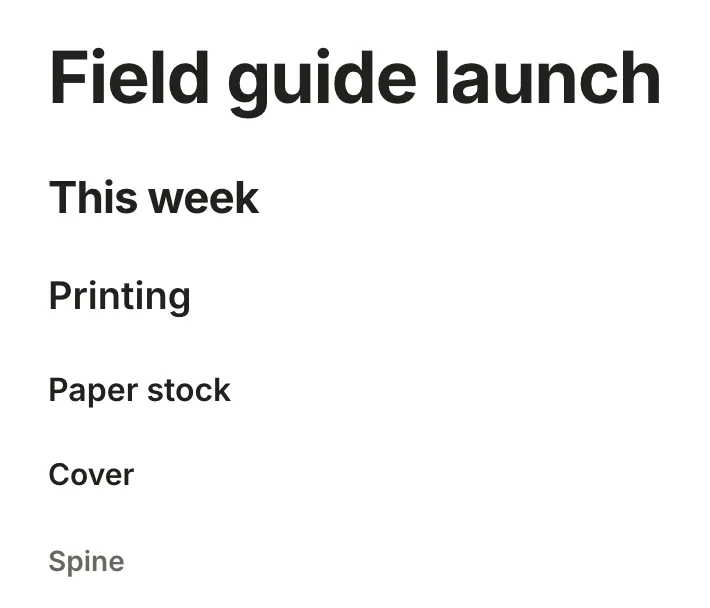
Shortcut: ⌥⌘1 to ⌥⌘3 turn the block into Heading 1 to 3, and ⌥⌘0 turns it back into text. The slash menu has Heading 1 to Heading 3 (/h2).
- The note's title is already its top heading, so start the body at
##. Terra's lint flags#headings in the body. - Without the space, #launch is a tag, not a heading.
- Underlined headings (a line of
===or---under the text) are read, and saved as#headings.
Bold, italics and highlights
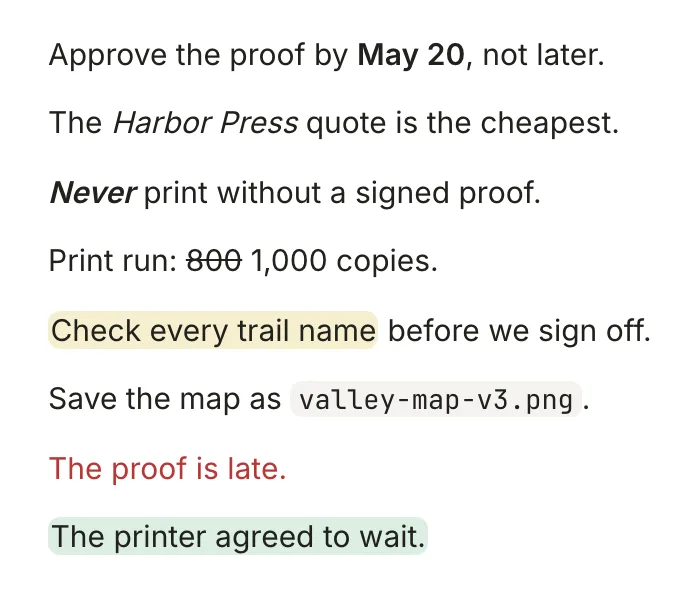
Approve the proof by **May 20**, not later.

The *Harbor Press* quote is the cheapest.

***Never*** print without a signed proof.

Print run: ~~800~~ 1,000 copies.

==Check every trail name== before we sign off.

Save the map as `valley-map-v3.png`.
- Bold: ⌘B with text selected, or type
**text**. Terra saves__text__as**text**. - Italic: ⌘I, or type
*text*or_text_. Terra saves both as*text*. - Bold and italic:
***text***in Markdown source; in the editor, press ⌘B and ⌘I. - Strikethrough: ⇧⌘S, or type
~~text~~. - Highlight: ⇧⌘H, or type
==text==. - Inline code: ⌘E, or type
`text`. Markdown inside it stays as typed.
The editor toolbar has Bold, Italic, Strikethrough and Inline code buttons too. Markdown has no underline: ⌘U underlines text on screen, but Terra can't save it, so the underline is gone once the note saves.
Colour
The toolbar's Text color and Highlight buttons colour text, or the background behind it, with your theme's colours. Choose None to clear it. Markdown has no colour either, so Terra saves an HTML tag:
<span style="color: var(--terra-color-accent-3-strong)">The proof is late.</span>

<mark style="background-color: var(--terra-color-accent-7-soft)">The printer agreed to wait.</mark>
Links
Link to a web page with [text](address), or type a web address followed by a space. To link text you've already written, select it, press ⌘K and enter the address. Click a link to open it in Terra; ⌥-click opens it in your web browser.
Link to another note with its title in double brackets, and add | and some text to show that text instead. In the editor, type @, a few letters of the title and press Return: Terra writes the link for you. Typing [[ and the brackets by hand doesn't make a working link in this version.
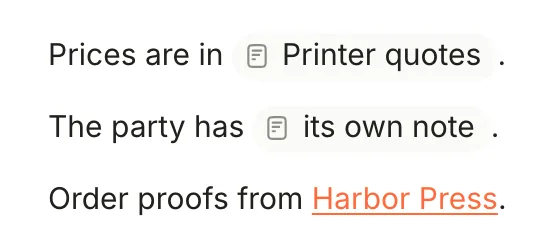
Prices are in [[Printer quotes]].

The party has [[Launch party at the library|its own note]].

Order proofs from [Harbor Press](https://harborpress.example).
Links to headings and single paragraphs, backlinks and renaming are in Links and backlinks.
Images

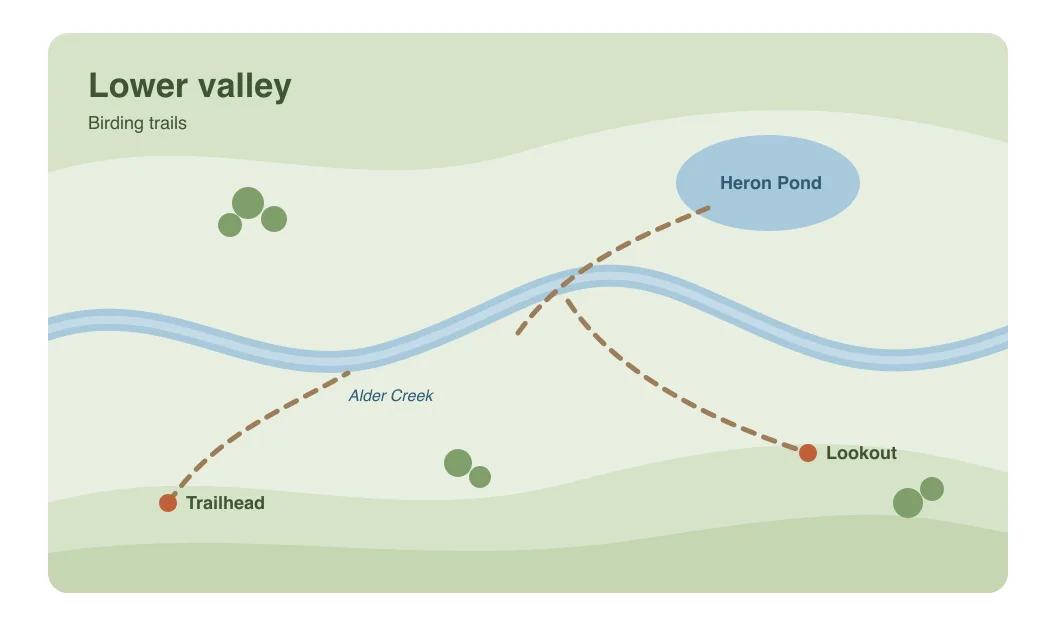
An image is !, alt text in brackets and the file's path in parentheses. A | and a number after the alt text set the width in pixels; |480x300 sets the height too.
- Add one: type
/imageto open Insert image (Library, Upload or Link), or paste or drag an image into the note. Terra copies it into anattachmentsfolder next to the note. - Images from the web show Load image and the site's name until you click, so a note never contacts a website on its own.
Resizing and note covers are in Advanced formatting.
Quotes
Type > and a space at the start of a line, or press ⇧⌘B.
> Small enough for a coat pocket,
> which is the whole point.
Small enough for a coat pocket, which is the whole point.
For a coloured box with a title, use a Sprout.
Lists
Bulleted lists
Type -, * or + and a space, or press ⌥⌘5.
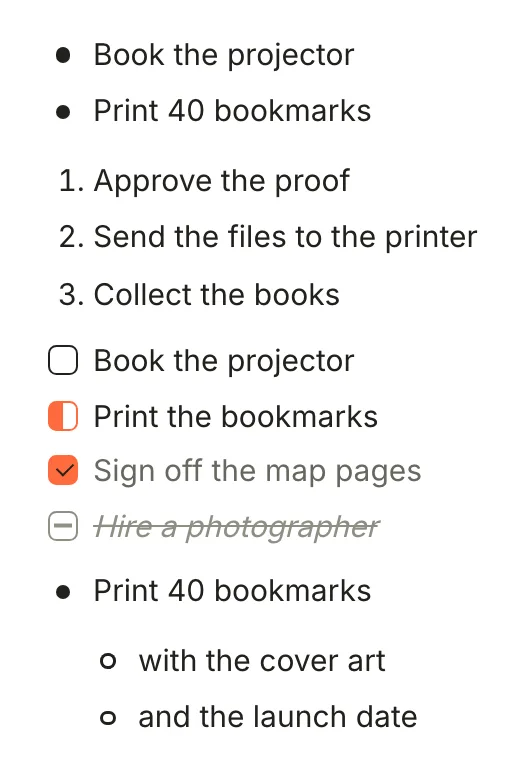
- Book the projector
- Print 40 bookmarks
Terra saves new lists with *. A list that already uses - or + keeps its marker.
Numbered lists
Type a number, then . and a space, or press ⌥⌘6. The list starts at the number you type.
1. Approve the proof
2. Send the files to the printer
3. Collect the books
To-dos
Type [] or [ ] and a space at the start of a line, or press ⌥⌘4. (Typing - [ ] gives you a bullet that holds the brackets.)
- [ ] Book the projector
- [/] Print the bookmarks
- [x] Sign off the map pages
- [-] Hire a photographer
Click the box to step through open, in progress, done and cancelled, or press ⌘Return to check or uncheck the to-do you're in. Every to-do also shows up in Tasks; dates and other fields are in Task syntax.
Nested lists
Press Tab to nest an item under the one above, and ⇧Tab to bring it back. In Markdown, indent it: Terra uses two spaces under a bullet and three under a number.
- Print 40 bookmarks
  - with the cover art
  - and the launch date
Horizontal rule
Type --- at the start of a line; it turns into a rule as you type the third dash. *** or ___ followed by a space work too, and so does /divider.
Launch day

---

After the launch
Launch day
After the launch
In Markdown, keep a blank line above ---. Directly under a line of text, it turns that line into a heading.
Code
Wrap text in backticks for inline code, or press ⌘E.
Save the map as `valley-map-v3.png`.
Save the map as valley-map-v3.png.
For a code block, type three backticks, a language if you like, then a space or Return. ⌥⌘8 and /code work too. To leave the block, press ⇧Returnor⌘Return.
```python
copies = 1000
print(f"{copies} copies")
```
copies = 1000
print(f"{copies} copies")
Code indented by four spaces is read too, and saved as a fenced block. Languages, line numbers and running code are in Advanced formatting.
Escaping
To show a Markdown character as itself, put a backslash before it in Markdown source. In the editor you don't need to: type the character, and Terra adds the backslash when it saves.
Print run: 2 \* 500 copies, in \*full\* colour.

\# Not a heading

1\. Not a list item
Print run: 2 * 500 copies, in *full* colour.
# Not a heading
1. Not a list item
A backslash doesn't stop a tag or a note link: \#launch is still a tag. To show those as text, put them in inline code: `#launch`.
Not supported
- Footnotes.
[^1]shows as plain text, and Terra escapes it when it saves. - Obsidian comments.
%% … %%shows as text. Terra's comments sit beside the note: see Advanced formatting. - HTML. Tags such as
<b>or<br>show as text, apart from the colour tags Terra writes itself. - Underline. Markdown can't store it.
Related
- Advanced formatting: tables, math, code, diagrams, embeds, columns and the slash menu.
- Sprouts: coloured blocks with a title, properties and attachments.
- Links and backlinks: note links in depth.
- Keyboard shortcuts: every key in one place.
Was this guide helpful?