Capture anything, and let Terra sort it for you
Grab thoughts, links and messages from any app with Quick capture, then let enrichment tidy them into a template and the Jev classifier fill in your own categories.
Good ideas arrive at bad times — in the middle of a meeting, three tabs deep in a recipe site, while a video plays. The trick is to catch them in two seconds and sort them later. The trouble is that "later" rarely comes, and the pile grows.
Terra splits the job in two. Quick capture catches anything — a thought, a link, an email, a chat message — from any app and drops it into your Inbox. Then, if you want, enrichment does the sorting: it tidies the capture into a template (a recipe gets Ingredients and Directions), and a classifier model called Jev files it into categories you define, like Indian, Italian or Weeknight. Your databases pick it up from there.
This guide uses a recipe collection as the running example, because it shows every part of the pipeline. The same setup works for articles by topic, papers by method, or support requests by product.
How it fits together
Here's what happens when you save a capture with enrichment on:
- The capture is saved, immediately. Terra writes a note into your
Inboxfolder before anything else happens. Whatever comes next, your capture is safe. - Terra gathers context. For a web link, it reads the page. For a video link (YouTube, Instagram, TikTok, Vimeo and others), it fetches the captions, or transcribes short videos on your Mac.
- The enrichment model tidies it. If you picked a template, a language model fills in the template's sections — the ingredients list, the numbered directions — from the page, and Terra adds them to the note.
- Jev classifies it. For each property you've marked Auto-classify, Jev picks from the options you defined. Confident picks are written into the note; less certain ones appear as suggestions for you to accept or dismiss.
- Your databases do the filing. A database that shows "recipes where cuisine is Indian" picks the note up the moment the value lands.
Two things the classifier never does: it doesn't move notes out of the Inbox, and it doesn't invent categories. It only chooses among options you created, for properties you've opted in.
| Who | Does what | Set it in |
|---|---|---|
| You | Capture, pick a template, switch Enrich on | The Quick capture card |
| The enrichment model | Fills the template's sections | Settings › AI › Capture › Enrichment |
| Jev, the classifier | Picks values for Auto-classify properties | Settings › AI › Capture › Classifier |
| Your databases | Show the note wherever its values belong | A database's filter |
Step 1Capture your first thought
From any app, press ⌃⌥⌘N. (Or, in Terra, choose File › Quick Capture….) Terra comes to the front with the Quick capture card, with the cursor in Title.
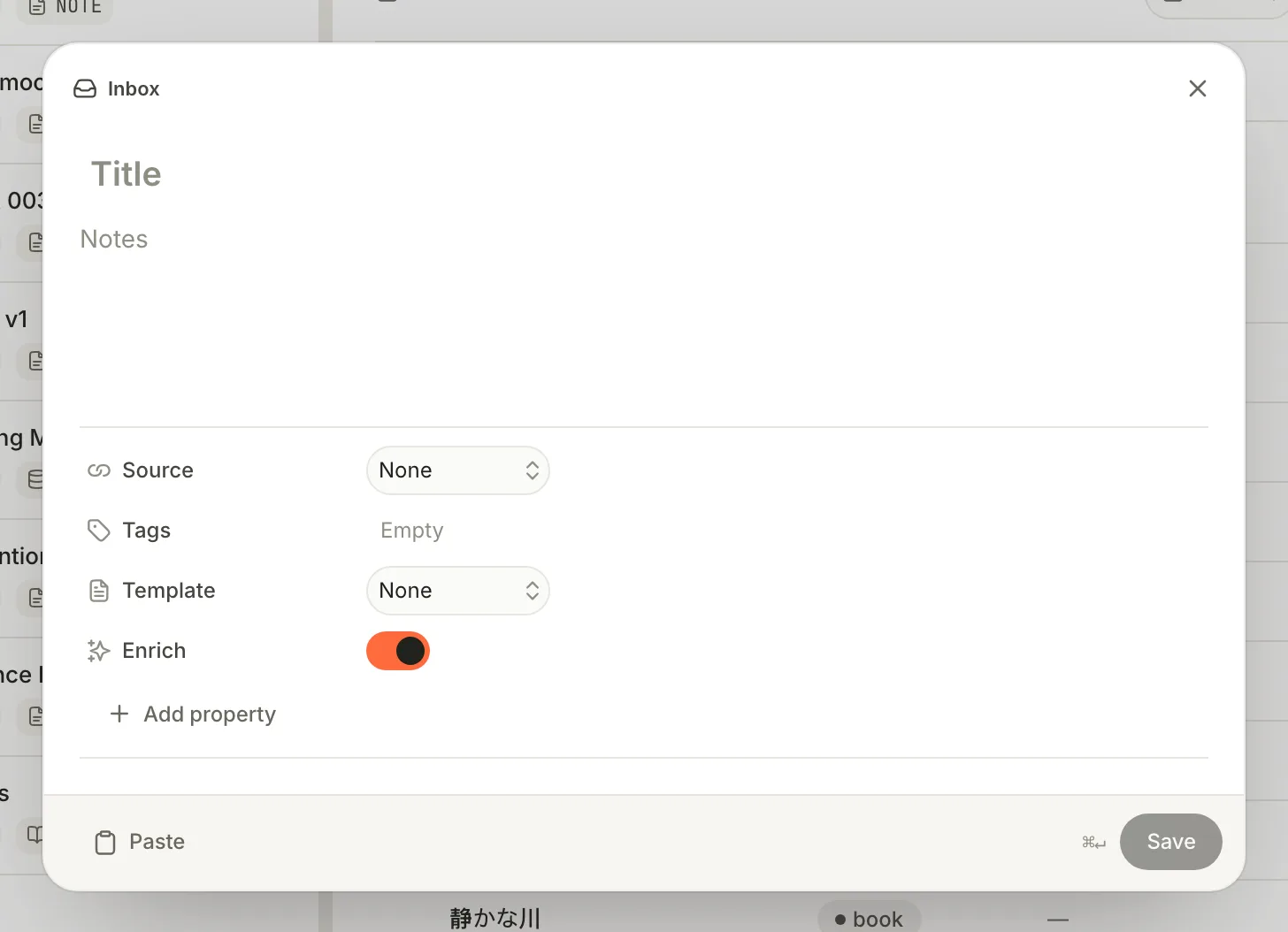
Quick capture. Type a title or some notes — that's all a capture needs. Type a Title, some Notes, or both.
Add Tags if you like, separated by commas.
Press ⌘Return, or click Save. The card closes and Terra confirms: Captured "…" to Inbox.
Your capture is now a note in the Inbox folder. Find it under Folders › Inbox in the sidebar.
Step 2Capture a link, an email or a message
The Source row says where the thing came from, and adds the right fields.
- Copy the link in your browser.
- Open Quick capture and click Paste at the bottom left. Terra fills URL and switches Source to Link. (A Slack message link switches it to Message instead.)
- Give it a Title — Dal makhani in 5 minutes.
- Click Save.
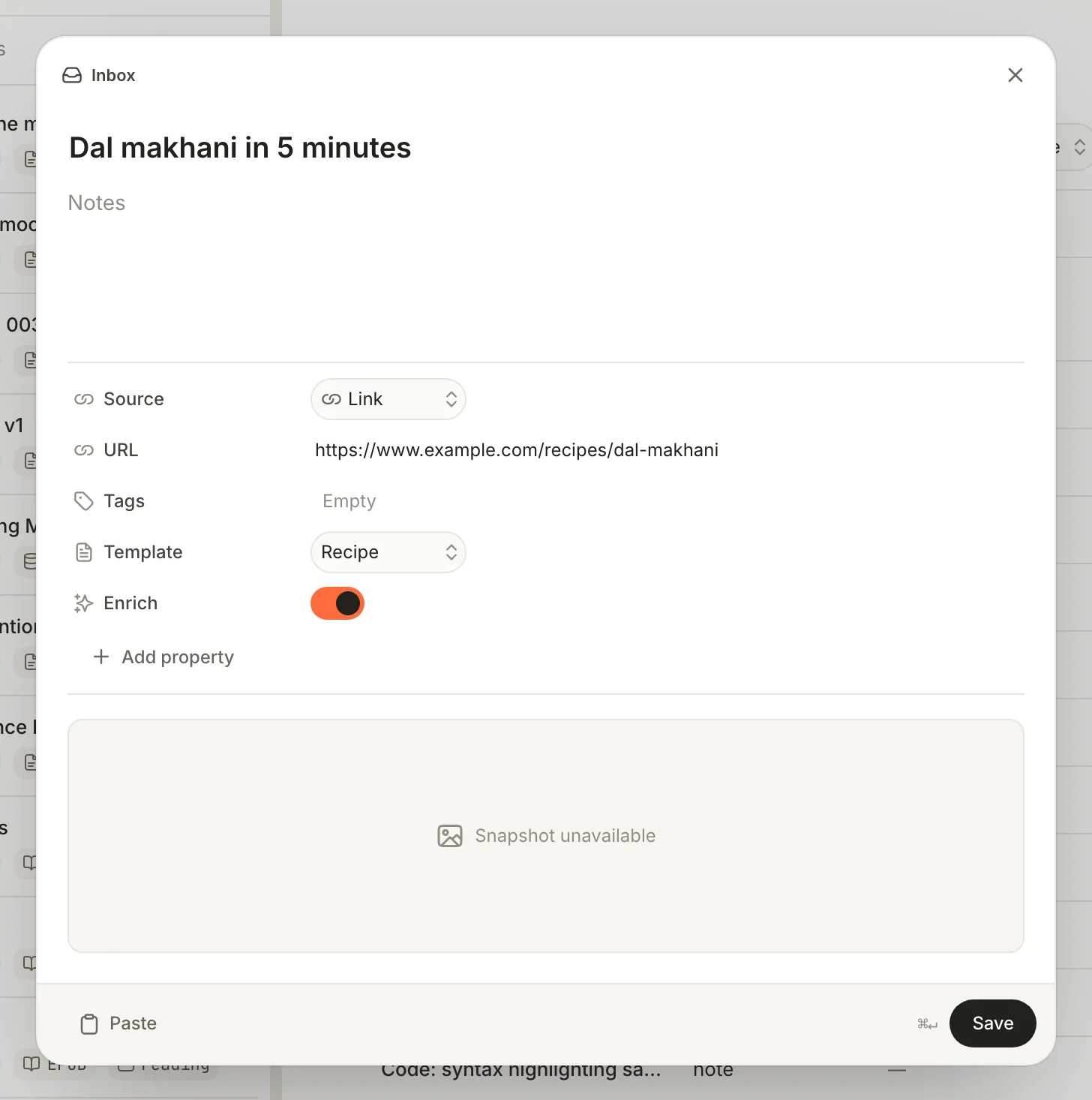
You can also set the source by hand: click Source and choose Link, Email or Message.
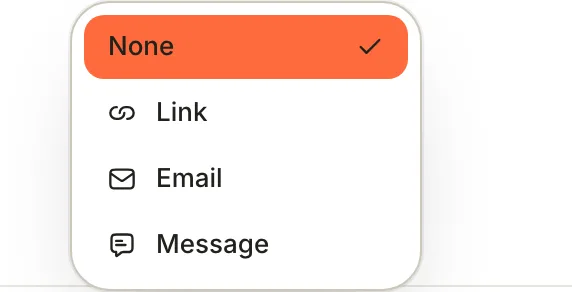
- Email adds a From field — who sent it.
- Message adds From and Conversation — say, the channel name.
- Add property adds any field of your own, such as Rating.
Every capture with a URL also appears in the built-in Links database.
Step 3Turn on enrichment
Enrichment is off until you set it up. You'll choose two models — one to tidy, one to classify — and a budget.
Open Settings (⌘,) and click AI under Library.
Make sure you have the providers you need under Providers. For the full experience, connect OpenRouter (it runs Jev) plus the provider you want for tidying — it can be OpenRouter too. Connecting a provider takes a minute.
Scroll to the Capture section and turn on Enrich captures. This switches Enrich on by default in every new capture.
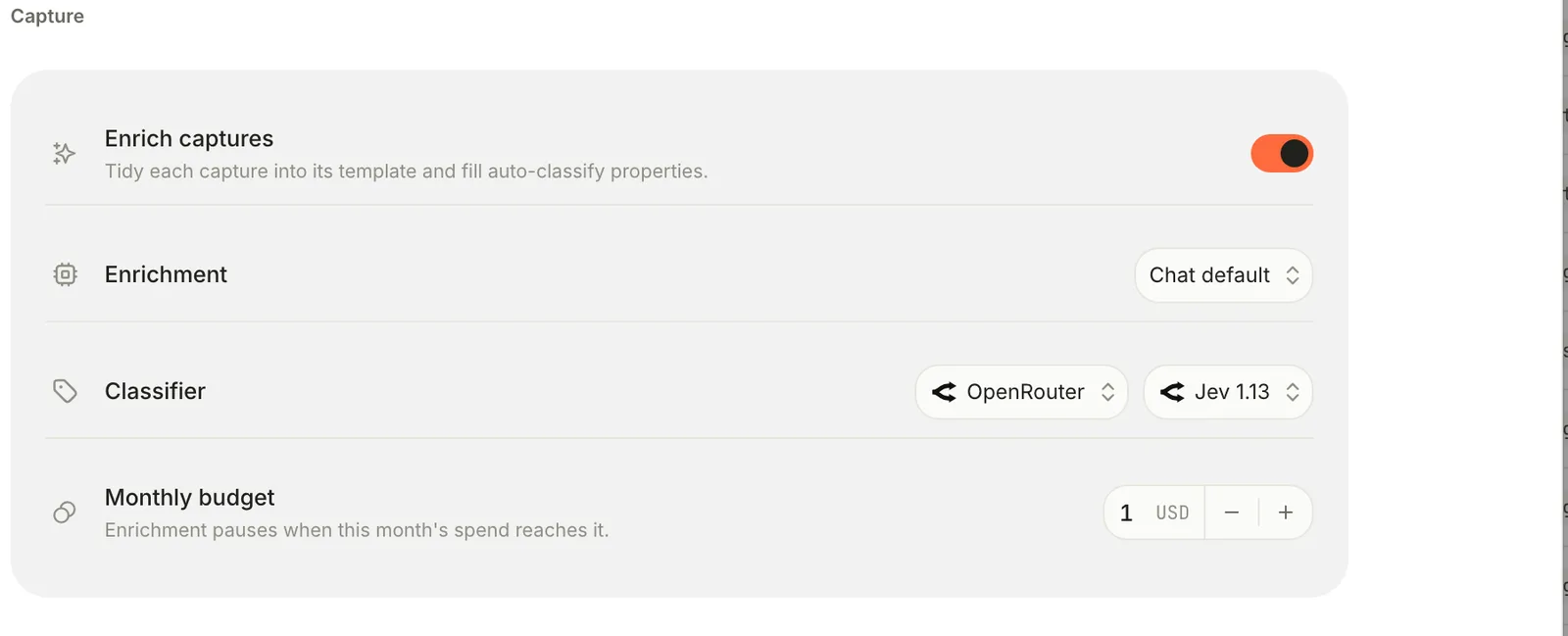
The Capture section of Settings › AI. Enrichment tidies; Classifier sorts; Monthly budget caps the spend. In Enrichment, choose a provider — for example Claude or OpenRouter — and then choose a Model. Pick both explicitly rather than leaving Chat default.
In Classifier, leave OpenRouter and Jev 1.13 selected. Click the model name to see newer Jev versions when they're available.
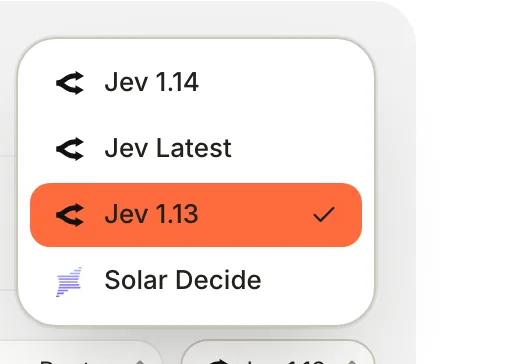
Classifier models come from OpenRouter's catalogue of decision models. Set a Monthly budget in US dollars. Enrichment stops for the rest of the month when spending reaches it.
Changes save as you make them.
Step 4Teach the classifier your categories
The classifier only works on properties you've opted in, and only chooses among their options. The better you describe them, the better it chooses.
- Choose Tools › Property Manager…. The Property manager opens with your Properties.
- Click + (New property). Name it
cuisineand set Type to Multi-select — a dish can be Indian and a Weeknight meal at once. (Use Select when exactly one value fits.) - Under Options, click + to add each option: Indian, Italian, Mexican, Weeknight.
- In Description, write the question the classifier should answer: Which cuisine does this dish come from?
- Turn on Auto-classify. Three more settings appear:
- Apply at confidence — picks scoring at least this much are written automatically; lower ones become suggestions. Start at 80 %.
- Most values (multi-select only) — the most options it may pick. 2 suits cuisine.
- Option meanings — one line per option saying what belongs there.
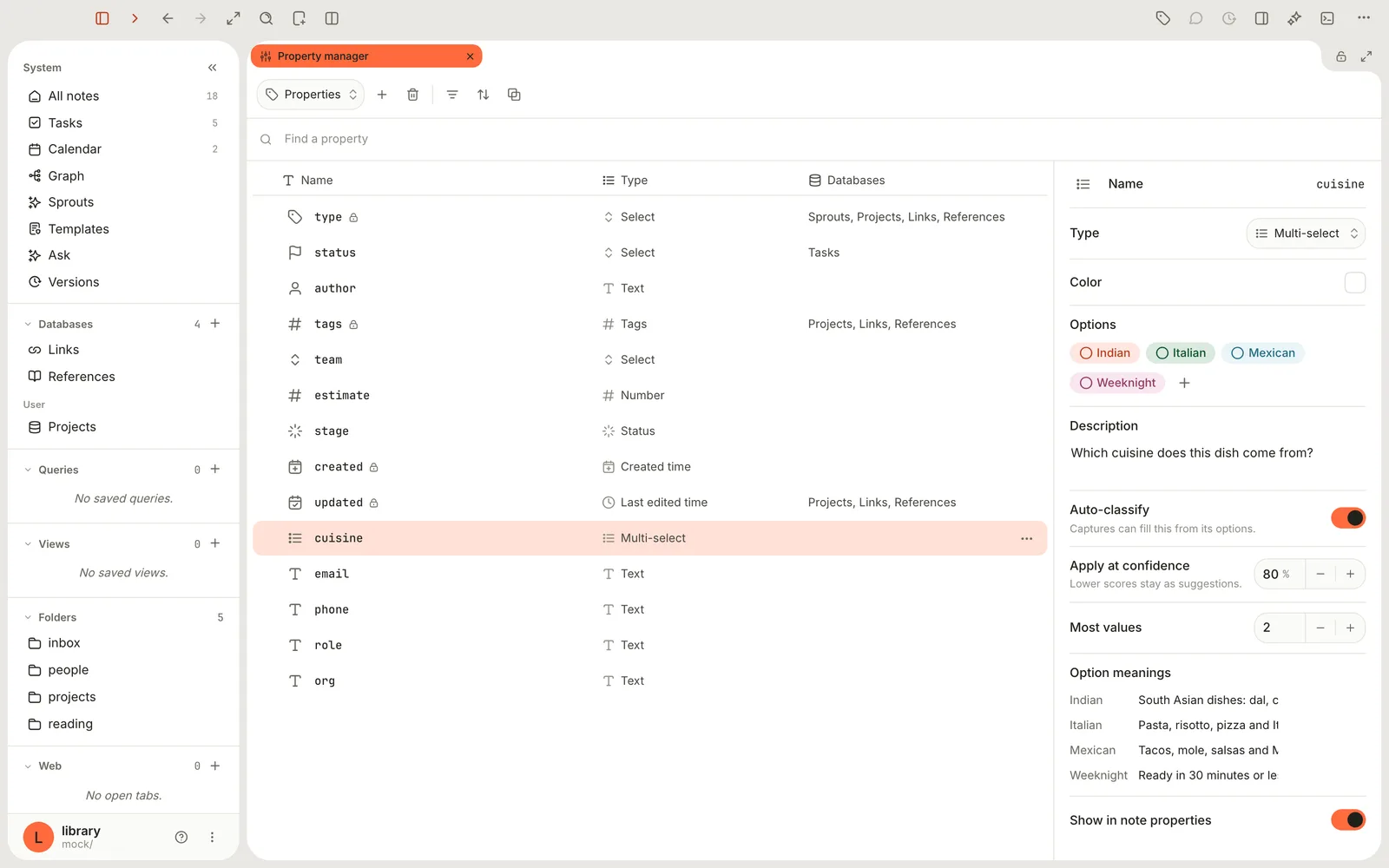
Write option meanings the way you'd brief a new assistant: South Asian dishes: dal, curry, biryani, dosa works better than Indian food, and Ready in 30 minutes or less turns a vague Weeknight into a rule.
Step 5Capture with a template and Enrich
Now put it together.
Copy a recipe link and press ⌃⌥⌘N.
Click Paste, and add a Title if the page title isn't what you want.
Click Template (it says None) and choose Recipe.
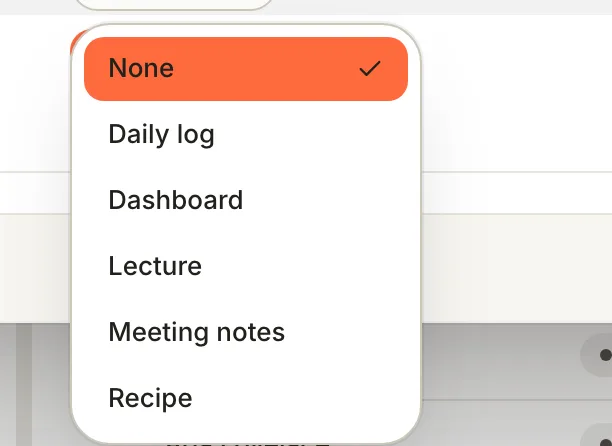
Any of your note templates can shape a capture. Templates only apply when Enrich is on. Check that Enrich is on, then press ⌘Return.
The capture is saved at once. Enrichment then runs in the background — there's no progress bar, and it can take a little while for long pages or videos. When it's done, the note has changed:
---
title: Dal makhani in 5 minutes
nav: Capture and classify
type: link
tags:
- recipe
source:
  kind: link
  url: https://www.example.com/recipes/dal-makhani
cuisine:
- indian
---
# Dal makhani in 5 minutes

[Dal makhani in 5 minutes](https://www.example.com/recipes/dal-makhani)

> [!note] Ingredients
> - 1 cup black lentils
> - …

## Directions
1. …
2. …
The template's sections are added after anything you wrote, the template's tags (here recipe) are merged into the note's tags, and cuisine holds Jev's confident pick. If something goes wrong, Terra shows Couldn't enrich capture: and the reason — and your capture is still there, exactly as you saved it.
What exactly gets sent, and where?
To tidy: the title and the capture's text (plus the page or transcript Terra fetched) go to your Enrichment provider. To classify: the title and text, with your property descriptions and option meanings, go to OpenRouter for Jev. Your other notes, properties and tags aren't sent. Video transcription happens on your Mac using macOS speech recognition, and downloaded audio is deleted afterwards.
Step 6Review what the classifier decided
Open the note from your Inbox.
Look at the properties under the title:
- Values shown normally were confident enough to be applied.
- Faded values are suggestions. Point at one to see Suggested — click to apply.
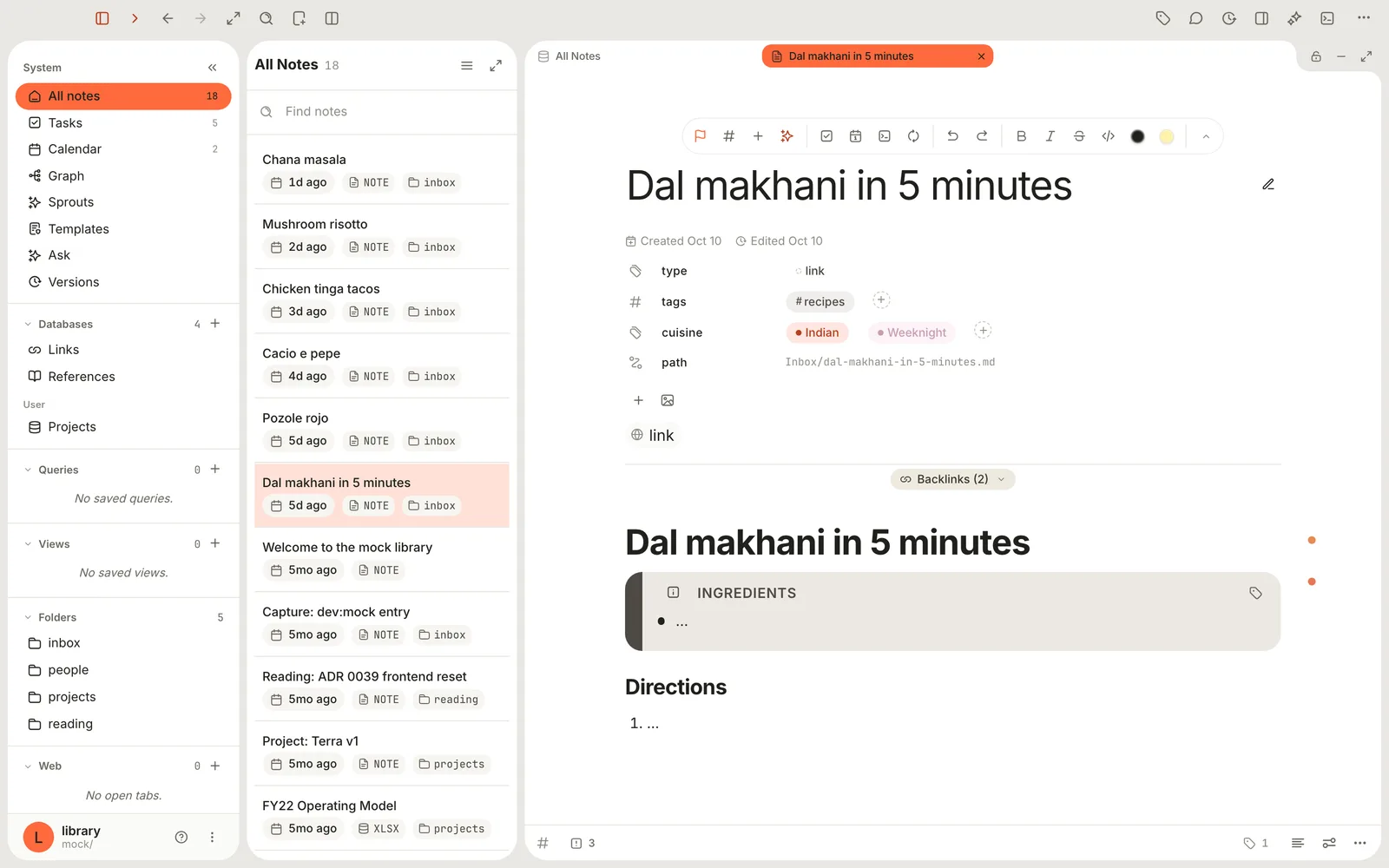
Indian scored above the threshold and was applied; Weeknight is a suggestion waiting for you. Click a suggestion to apply it, or point at it and click × (Dismiss suggestion) to turn it down.
Change or clear any applied value the way you'd edit any property.
Suggestions appear on the note's own page, not in tables or boards. There's no single undo for enrichment: delete any added sections in the editor, and change values by hand.
Step 7Let databases do the filing
Captures stay in your Inbox folder; "filed" means the right databases show them. Build one view for each way you'll want to browse:
- Create a database — sidebar Databases › +, name it Recipes, add the condition tags · contains ·
recipe, and click Save. - Add a Board view and set Show boards as to
cuisine.
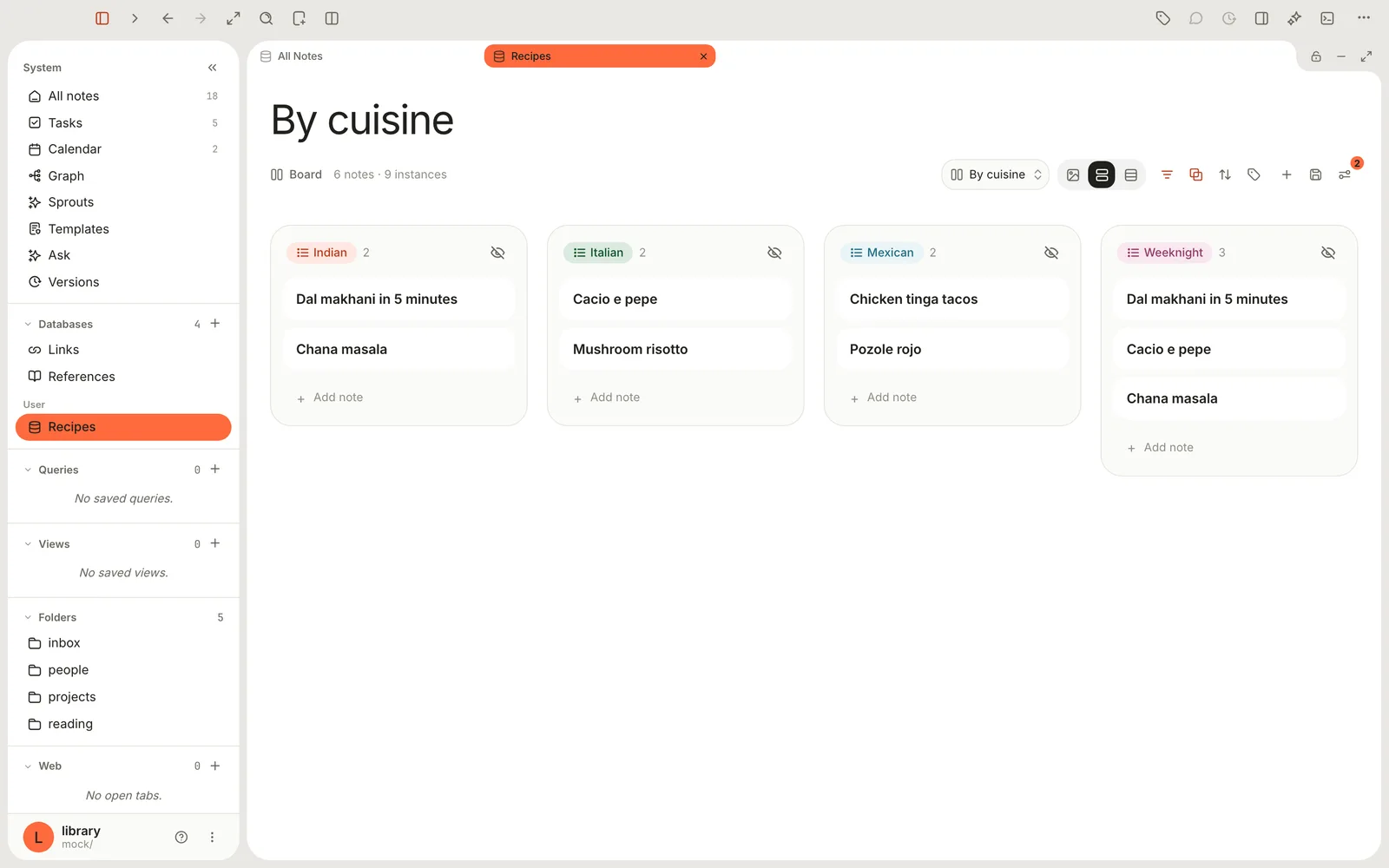
Every new recipe you capture appears in the right column as soon as Jev has classified it. Prefer tidy folders too? Use the note's Note actions menu (⋯ at the bottom of the note) › Move note to move it out of the Inbox once you've reviewed it. Run a project with boards, timelines and burndowns covers databases and views in depth.
Step 8Sort the notes you already have
The classifier can also go back through notes you captured before you set it up.
- Open the database whose notes you want to sort and click View preferences (the settings icon at the right of its header).
- In the panel, click Classify notes (the sparkle icon).
- Terra estimates the job — how many notes, which properties, and roughly what it will cost. Click Classify.
- Review the list of proposed changes. Untick any you don't want, then click Apply. Terra confirms with Classified N notes.
What it costs
Enrichment calls paid models, so Terra keeps a running total for each Library and stops at your Monthly budget:
- Spending is counted per calendar month (UTC) and resets on the 1st.
- When the budget is reached, enrichment stops for that capture with a message, and the capture itself is still saved. Captures made after that aren't enriched until next month or until you raise the budget — and raising it doesn't re-run the ones you missed.
- A budget of
0turns enrichment calls off entirely. - Classifying is very cheap. Tidying costs more, depending on the model you chose and how long the page or transcript is — long videos and big articles cost the most.
Features you might have missed
Transcripts of videos, without a template
Capture a YouTube, Instagram, TikTok or Vimeo link with Enrich on and no template, and Terra adds the post's caption and a timestamped transcript under a Source heading. Captions come from the site; short videos without captions (up to 20 minutes) are transcribed on your Mac. The first time, macOS asks for permission to use speech recognition.
Templates without paying for AI
Pick a template that has nothing for a model to fill — like Meeting or Daily log — with Enrich on, and Terra simply appends the template's sections and tags. If no property has Auto-classify on, no model is called at all.
Keep the whole page with Save to Terra
Terra has its own browser. Choose View › New Webpage, open the page, then click Page options (next to the address bar) › Save to Terra. Terra saves the article's text as Markdown, plus a picture of the page, into your Inbox.
Add a paper or book by its DOI or ISBN
Click New… in the toolbar, choose Add reference, paste a DOI or ISBN and click Look up. Terra creates a reference note with authors, date and publisher, ready to cite. See Build a research library.
Paste as note
Right-click an empty part of the window and choose Paste as note to turn whatever's on your clipboard into a new Inbox note.
Share from Safari
In release builds of Terra, the macOS Share menu has a Terra item. It opens Quick capture filled in with the page's title and address; nothing is saved until you click Save.
A capture button and an in-app shortcut
Add a Quick capture button to the toolbar with Customize toolbar… (right-click any toolbar button). To open the card with a different shortcut while you're in Terra, set one for Quick capture in Settings › Hotkeys, under Global.
Troubleshooting
Nothing is ever applied — everything arrives as a suggestion
The classifier is running without OpenRouter. Check that OpenRouter is connected under Settings › AI › Providers and that Classifier is set to OpenRouter with a Jev model. Also check Apply at confidence isn't set too high.
"Couldn't enrich capture: enrichment model unavailable"
The tidying model can't be reached. In Settings › AI › Capture, set Enrichment to a connected provider and pick a Model — Chat default may point at a model you haven't set up.
"Monthly enrichment budget reached"
You've hit the cap for this month. Raise Monthly budget in Settings › AI, in the Capture section (the message may say "Settings → Capture" — it's moved). Captures that weren't enriched stay as they were.
I picked a template but nothing was added
Templates only apply when Enrich is on in the card. Check the switch before saving.
The page's text isn't in my note
Enrichment reads the page to fill in your template, but doesn't paste the article in. To keep the full text, use Save to Terra in Terra's browser.
The capture shortcut doesn't work
Terra has to be running, and another app may already use ⌃⌥⌘N. You can still use File › Quick Capture…. To change the global shortcut, quit Terra, open ~/Library/Application Support/Terra/preferences.toml in a text editor and change global_hotkey under [capture] (for example "ctrl+option+cmd+j"), then reopen Terra.
What's next
- Templates — design the templates your captures fill in.
- Run a project with boards, timelines and burndowns — build the databases that do the filing.
- Get answers from your own notes — ask questions across everything you've captured.
Was this guide helpful?