How Terra stores your notes
Every note is a plain Markdown file with a short YAML header. See what Terra writes, where attachments and sidecars go, and what's safe to edit elsewhere.
Terra keeps your notes as plain text files that any editor can open. Each note is a Markdown file (.md) with a short header of properties at the top, written in YAML, the same frontmatter format Obsidian and many other tools use. Nothing is locked inside a database: if you stopped using Terra tomorrow, your notes would still be ordinary files in ordinary folders.
A note, as a file
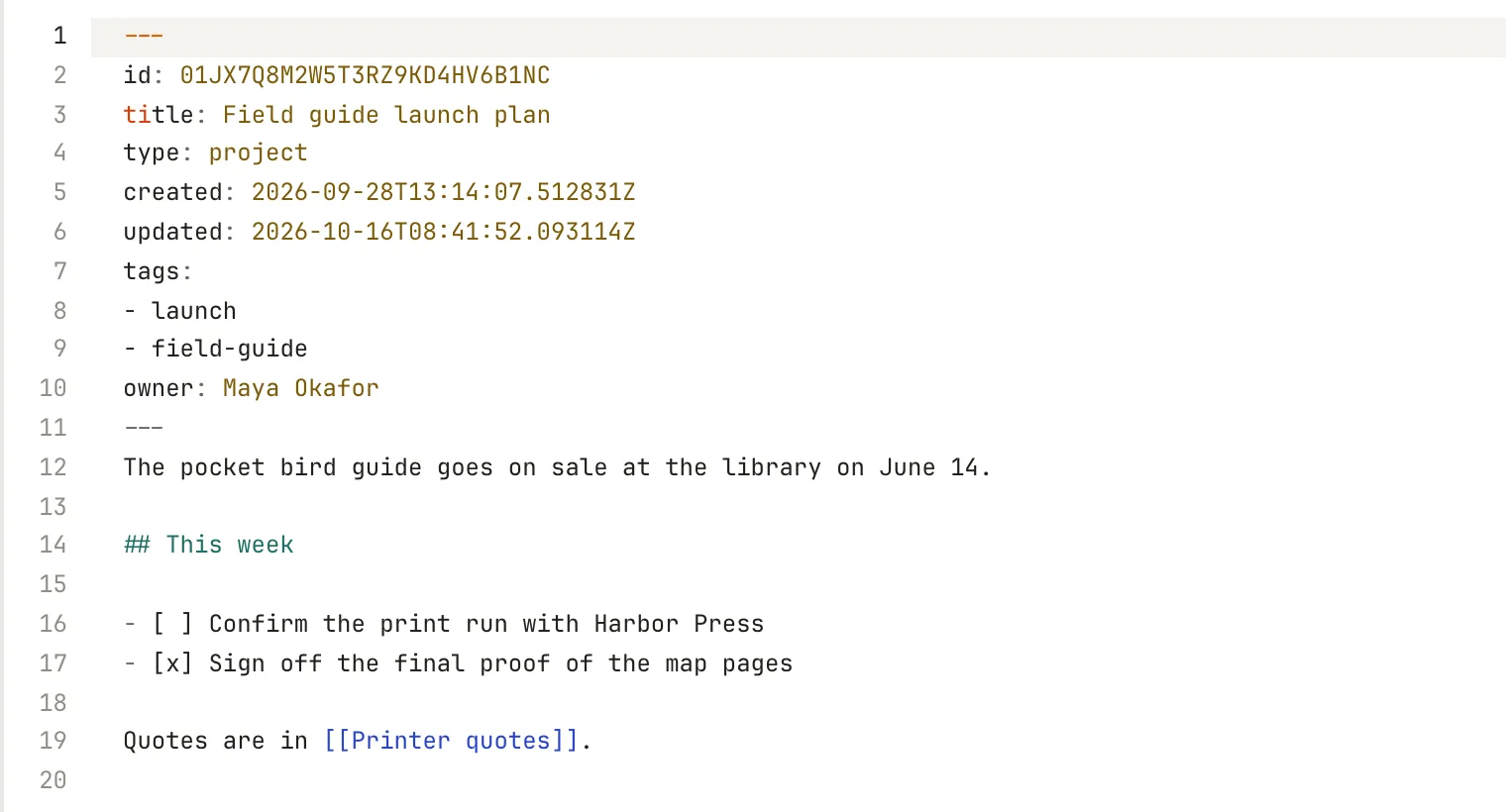
This is the complete file for a note called Field guide launch plan, saved as Field guide/field-guide-launch-plan.md in the Library:
---
id: 01JX7Q8M2W5T3RZ9KD4HV6B1NC
title: Field guide launch plan
type: project
created: 2026-09-28T13:14:07.512831Z
updated: 2026-10-16T08:41:52.093114Z
tags:
- launch
- field-guide
owner: Maya Okafor
---
The pocket bird guide goes on sale at the library on June 14.

## This week

- [ ] Confirm the print run with Harbor Press
- [x] Sign off the final proof of the map pages

Quotes are in [[Printer quotes]].
In Terra, the header becomes the properties under the title, and the rest is the note:
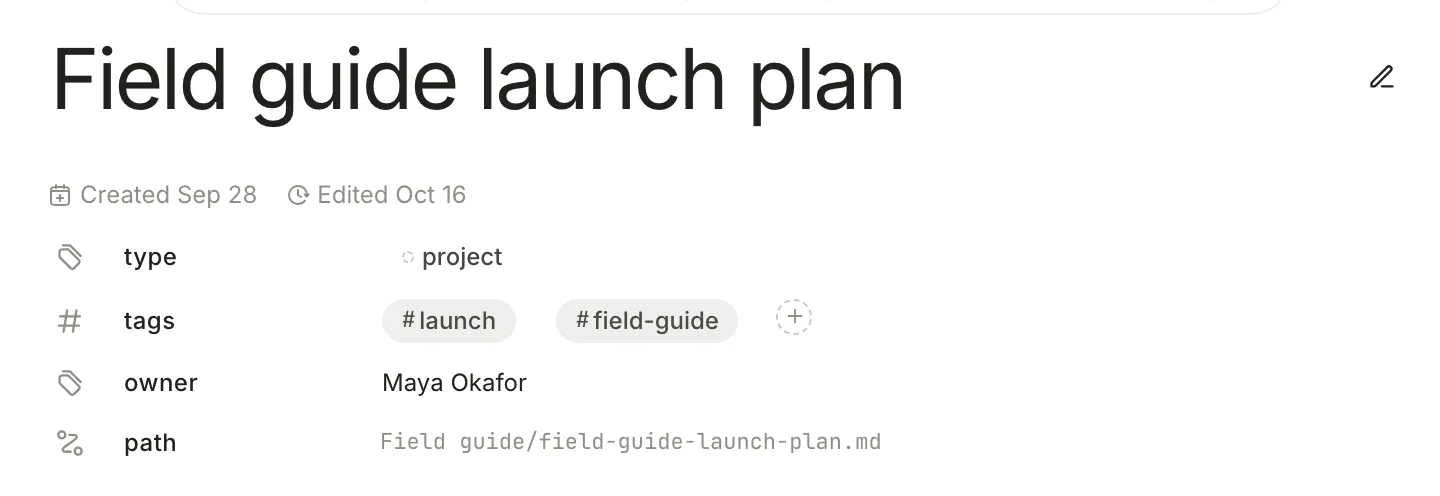
| Line | What it is |
|---|---|
--- | Starts and ends the header. Everything after the second --- is the note's text. |
id | A permanent identifier Terra gives each note. It stays the same when you rename or move the note, so databases, favorites collections and the note's sidecar can keep track of it. Leave it alone. |
title | The title, exactly as you typed it. The file name is a simplified copy. |
type | What kind of note this is, if you've set one. See Properties. |
created, updated | When the note was made and last changed, in UTC. Terra keeps these up to date. |
tags | The note's tags, one per line. |
owner | Any property of your own. Yours come after Terra's, in alphabetical order. |
The text is standard Markdown; Formatting syntax covers it, and links to other notes are written [[Title]]. To see a note's file without leaving Terra, point at the mode icon to the right of the title (a pencil while you're editing) and choose Markdown source. You can edit the file there too, header included.
Where the pieces live
A Library holds your folders and notes, plus a few things Terra adds:
Field Notes/                      ← the Library
├── Field guide/
│   ├── field-guide-launch-plan.md
│   ├── printer-quotes.md
│   ├── printer-quotes.terra.json ← a sidecar
│   └── attachments/
│       └── printer-quotes/
│           └── harbor-press-proof.png
├── Inbox/                        ← new notes
├── Trash/                        ← deleted notes
├── Themes/
│   └── default.css
├── .terra/                       ← hidden: Terra's data
└── .terra-library.toml           ← hidden: format marker
Attachments. Images and files you paste or drag into a note are copied into an attachments folder beside it, in a subfolder named after the note's file. The note points at them with a relative path such as attachments/printer-quotes/harbor-press-proof.png. When you move or duplicate the note in Terra, its attachments go too.
Files with their own note. A PDF, book, spreadsheet or image you add to the Library gets a note of its own beside it, which holds its title and your notes about it. The note records the file in its header as attachment, with an attachment_hash so Terra can find the file again if it's moved. Accepted file formats lists them.
Sidecars. Some things don't fit in Markdown: a book's highlights and reading position, a table's formulas, comments, a cover's framing, a Sprout's properties, the results of code you've run. Terra keeps those in a sidecar, a JSON file next to the note with the same name and the ending .terra.json. Most notes don't have one. Annotate and keep every mark shows a sidecar from the inside.
A few Terra-only blocks, such as side-by-side columns or a database inside a note, are written into the Markdown as HTML comments, for example <!-- terra:columns -->. Markdown apps that hide HTML comments skip them and show the text around them.
The hidden .terra folder
Each Library has a .terra folder of Terra's own data. Finder hides it; press ⇧⌘. in a Finder window to see it.
| Item | What it holds |
|---|---|
index.sqlite | The search index: a cache built from your notes, rebuilt when needed |
preferences.toml | This Library's settings |
databases/, database-views/ | Your databases, favorites collections and their saved views |
templates/notes/ | Your templates |
property_types.toml | Property definitions: types, options and colours |
views/ | Saved pane layouts, the sidebar's Views |
conversations/ | Your chats with Terra Agent |
library.json | The Library's own identifier |
You'll also find smaller files and caches that come and go. The .terra folder isn't only a cache: your databases, templates and settings live there, so back it up with the rest of the Library.
What Terra changes when it saves
Terra saves a note's whole file in one consistent style each time the note changes. Your words stay the same; the punctuation around them can be tidied:
_italic_becomes*italic*, and__bold__becomes**bold**.- Headings underlined with
===or---become#headings, and every divider becomes---. - Indented code becomes a fenced code block.
- Bullet lists you make in Terra use
*; lists already in the file keep their-,*or+. Task lists use- [ ]. - Table column alignment (
:---:) is dropped. - Characters Markdown would misread, such as a lone
*or[, get a backslash in front. - The header is written in Terra's order:
id,title,type,created,updated,tags, then your own properties alphabetically.
HTML typed into a note shows as plain text rather than being drawn. Terra writes a note's file when the note changes, through your edits or something that changes many notes at once such as renaming a tag, and now and then to correct its created or updated date.
Editing outside Terra
Your notes are yours to open with anything. Terra watches the Library folder and picks up changes as they happen.
- Safe: creating, editing, renaming, moving and deleting
.mdfiles and folders with Finder, another editor or a script. A Markdown file without a header still appears, titled after its file name. - Keep a note's pieces together: if you move or rename a note in Finder, move or rename its
.terra.jsonsidecar and itsattachmentssubfolder the same way. Terra pairs them by name. - Don't duplicate a note by copying its file: the copy has the same
id, and Terra shows only one of the two. Use Duplicate in Terra, which gives the copy a new one. - Leave
idalone, and let Terra managecreatedandupdated. If you change them by hand, Terra may set them back; for instance,createdcan't be later than the day the file was made. - Leave
.terrato Terra. Back it up with your Library, but change settings, databases and templates in the app.
Related
- Files and folders — create, move and delete notes from Terra.
- Properties — everything the header can hold.
- Annotate and keep every mark — sidecars in depth.
- Sync and back up your Library — keep a copy of all of this.
Was this guide helpful?