Filter, sort and group
Narrow a view to the notes you need, put them in order, and group them into sections or board columns. Every filter test, by property type.
Filters, sorts and groups belong to a view. They decide which of a database's notes the view shows, in what order and under which headings, without touching the notes or what the database collects. Every view keeps its own, so a This week view can hide what an Everything view shows.
Filter a view
- Click Filters in the database's header. The Filter popover opens.
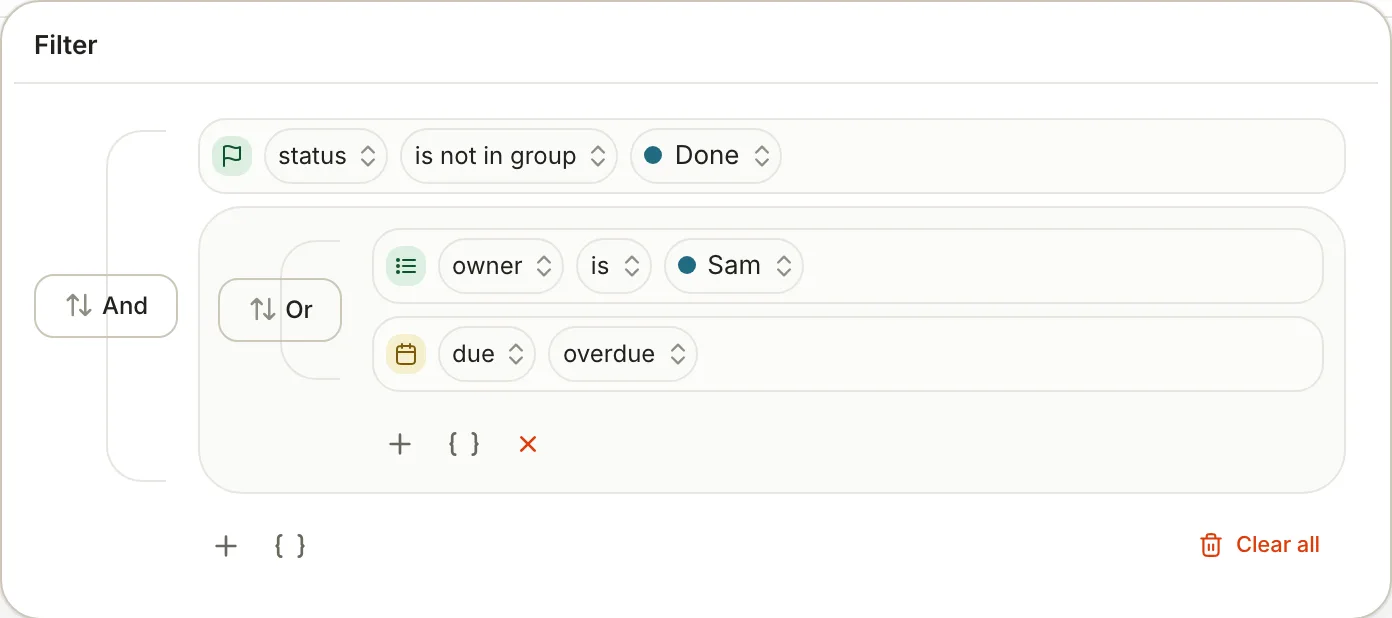
- Click + (Add condition) and set the field, the test and the value: status · is not in group · Done.
- Add more conditions. Once there are two, click the And beside them to cycle it to Or or Not.
- For a mix, click { } (Add group) and build a set of conditions inside it with its own And, Or or Not. A group can hold one more level, a subgroup.
| Joined by | A note is shown when |
|---|---|
| And | Every condition in the group matches |
| Or | At least one condition matches |
| Not | None of the conditions match |
Drag a condition by its handle to move it, click its trash to remove it, or click Clear all to start again. With the panel closed, filters save to the view as you change them, and the Filters button's label counts them: Filters · 3 active. Inside View preferences, the same builder edits a draft until you click Save view.
A view's filters only hide rows. To change which notes belong to the database, edit its conditions on the Database tab: see Databases. The conditions there use the same tests.
Tests by property type
The tests on offer depend on the property's type. Text tests ignore capitals.
| Property type | Tests |
|---|---|
| Text, Title, Folder, Type, Note Body | is, is not, contains, starts with, is empty, is not empty |
| Number, Unique ID | =, ≠, >, <, >=, <= |
| Select | is, is not, is any of, is empty, is not empty |
| Multi-select | is any of, is all of, is empty, is not empty |
| Status | is, is not, is in group, is not in group, is empty, is not empty |
| Tags | contains, is any of, is empty, is not empty |
| Date, Created time, Last edited time, Created, Updated | is, is within, before, after, is empty, is not empty |
A date property named due | All the date tests, plus overdue |
| Checkbox | is, with Checked or Unchecked |
| URL, Email, Phone, Source | is, contains, starts with, is empty, is not empty |
| Location | is, is not, contains, starts with, is empty, is not empty |
| Files & media | contains, is empty, is not empty |
What the less obvious ones do:
- is not also matches notes where the property is empty. To leave those out, add is not empty.
- contains matches part of a value, so tags · contains ·
bookfinds #bookshelf too. For one exact tag, use is any of with a single tag. - is in group and is not in group test a status's group, To do, In progress or Done, rather than its option.
statusis not in group Done keeps working when you rename or add options. - is within takes Today, Past 7 days (today and the six days before) or This month.
- before and after leave out the day itself. For a date value, pick a day, or click Today to use whatever today is when the view opens.
- overdue matches a
duedate before today on a note whose status is anything but Done, Cancelled, Completed or Closed, so a finished option called Shipped still counts as open. Notes with no status are never overdue.
Sort a view
Sort by in the header sorts by one field. Pick the field, then Ascending or Descending; pick the same field again to flip the direction, or None to stop sorting.
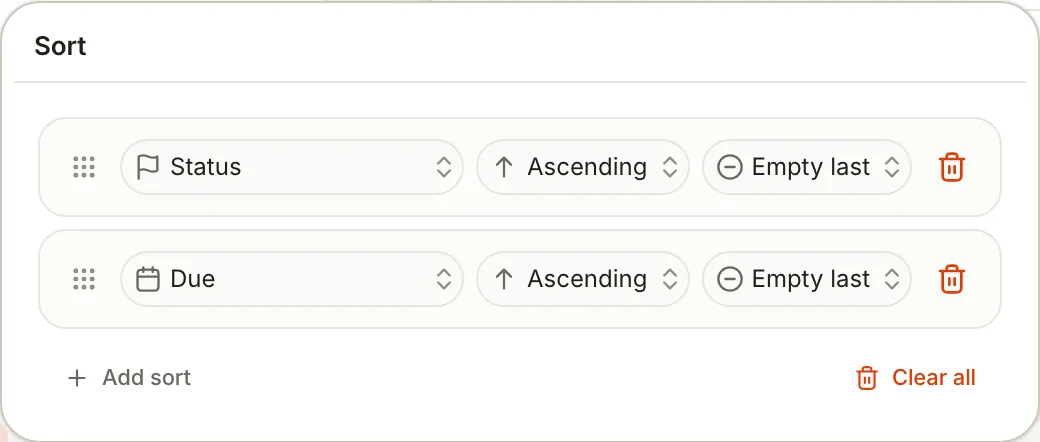
For several sort keys, open View preferences and click Sort in its top row:
- Click Add sort for each key.
- For each rule, choose the field, Ascending or Descending, and Empty first or Empty last for notes without a value.
- Drag the rules by their handles: the first rule wins, the next breaks ties.
- Click Save view.
How values sort:
- Numbers sort as numbers and come before text. Text ignores capitals.
- A Status property sorts by its groups, To do, then In progress, then Done, and by the order of its options within each group.
- In a grouped view, the grouping field is always the first sort key, and its direction orders the groups.
- On a board, dragging a card up or down its column saves a hand-made order. The sort then shows Manual.
With no rules, the Sort popover says "Notes keep database order."
Group a view
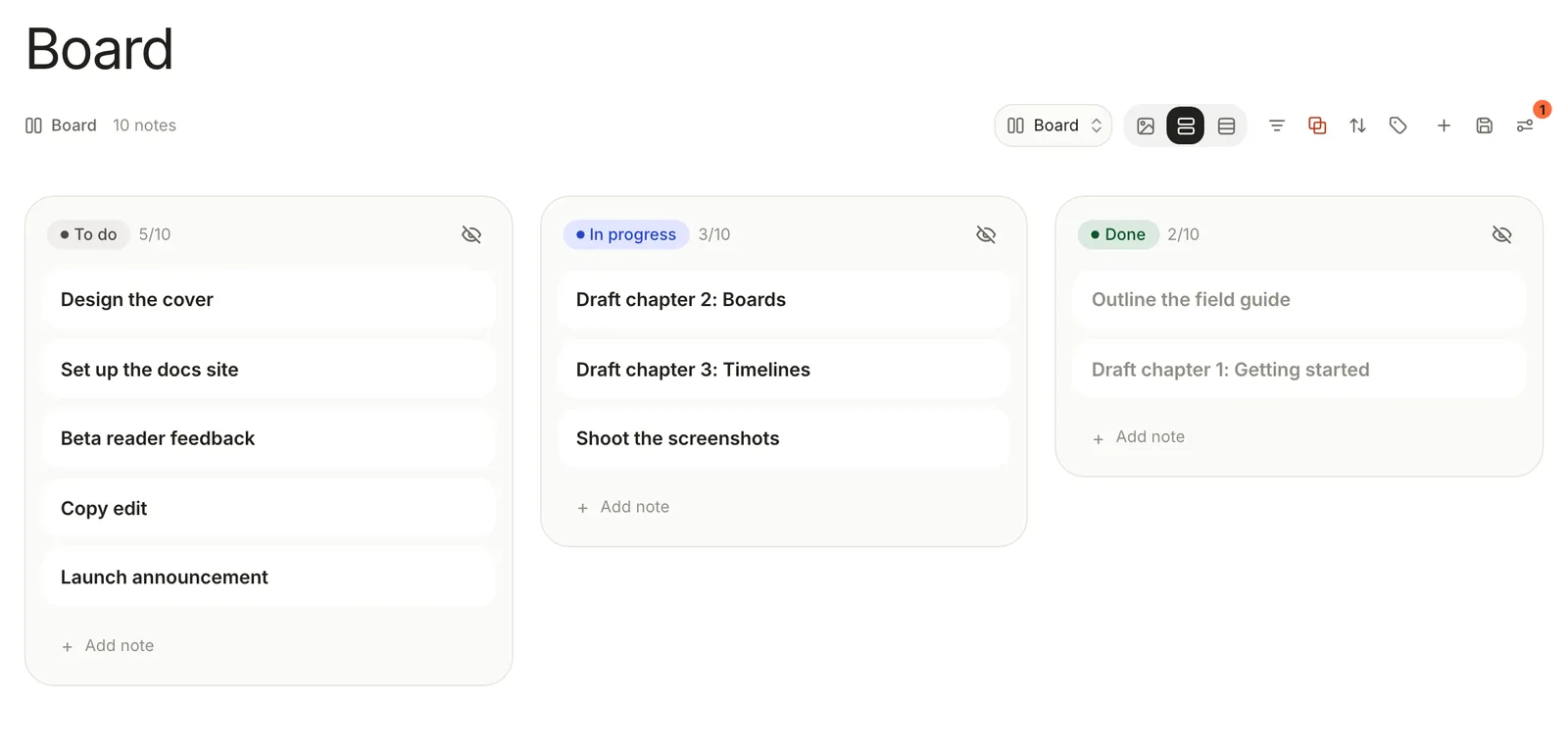
Click Group by in the header and pick a field. On a board the button reads Show boards as, and the field you pick makes the columns.
- Group by offers None, Folder, Type, Tag, Updated and Created, then your properties.
- Show boards as lists your properties only. Add group at the bottom creates or adds a property to group by.
- A note with several values, such as tags, appears under each of them.
- Notes without a value gather under No value, or No plus the property's name on a board.
- Click the eye in a group's header to hide the group. View preferences › Group › Hidden groups shows how many notes are hidden and Restore brings them back.
The Group tab in View preferences has the rest:
| Setting | What it does |
|---|---|
| Primary group | The field to group by, the same as the header button |
| Primary period | For a date: Day, Week, Month, Quarter or Year |
| Group status by | For a Status property: Option gives one group per option; Group gives three, To do, In progress and Done |
| Subgroup, Subgroup period | A second level of grouping inside each group |
| Show empty groups | Keeps groups that have no notes |
| Hidden groups | Brings back groups you hid |
Date groups have relative names, such as This week or Last week, until you set Date labels to Absolute on the Dates tab.
Show or hide properties
Click Properties in the header (it shows how many are visible, as in Properties · 6 visible). Tick a property to show it and untick it to hide it; drag to change the order. In a table these are the columns; on boards, lists, cards and feeds they're the details on each card. Manage properties at the bottom opens the Property Manager.
Find a note in a database
There's no search box inside a view. To find one note quickly, use Find notes at the top of the note list beside the sidebar (click Database drawer in the toolbar if the list is hidden). It narrows the list to notes whose title, or a property the list shows, contains what you type. To search the whole Library, with filters like path: and [status:Done], see Search syntax.
Related
- Databases — conditions that decide which notes belong.
- Views and layouts — boards, calendars and the View preferences panel.
- Properties — the types behind each set of tests.
- Search syntax — filters for the search window.
Was this guide helpful?