Tasks
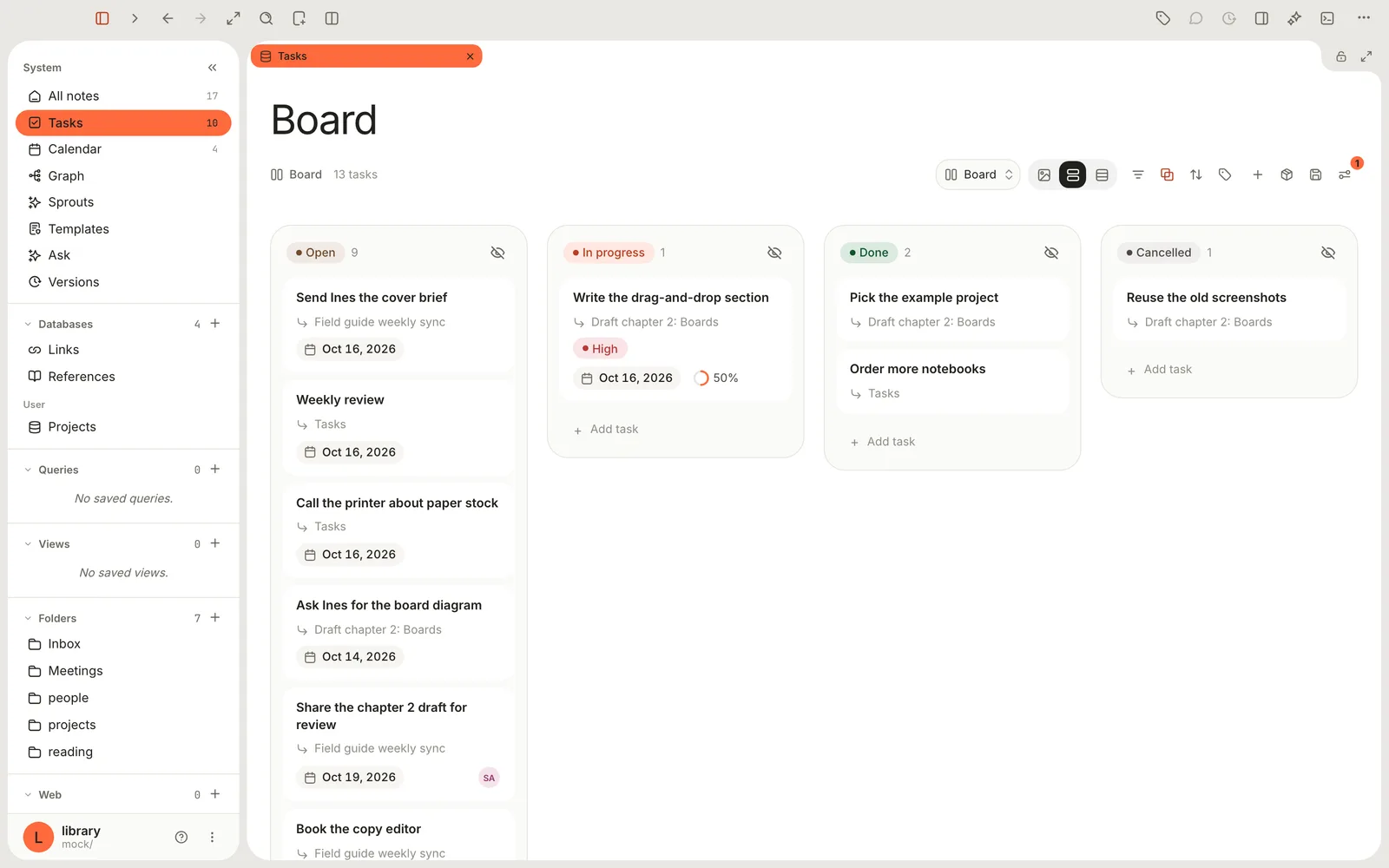
A task is a checkbox line in any note. Terra gathers every task into Tasks, a board where you set due dates, change status and track progress.
A task is a checkbox line in a note: - [ ] Book the copy editor. There's no separate to-do list to keep in sync. You write a task wherever it comes up, in a meeting note, a project plan or a quick list, and Terra gathers every task from every note into Tasks, a built-in database that opens as a board. Change a task on the board and the line in its note changes too.
Write a task
Start a line with [ ] and a space, and it becomes a checkbox. You can also type /todo and choose To-do, click Task in the editor toolbar, or choose Turn into › Task list. Press Return for the next task and Tab to indent it under the one above as a subtask.
This is what the note holds on disk:
- [/] Write the drag-and-drop section ::: due=2026-10-16 priority=high
  - [x] Outline the steps
  - [ ] Capture the screenshots
- [ ] Ask Ines for the board diagram ::: due=2026-10-14
- [x] Pick the example project
- [-] Reuse the old screenshots
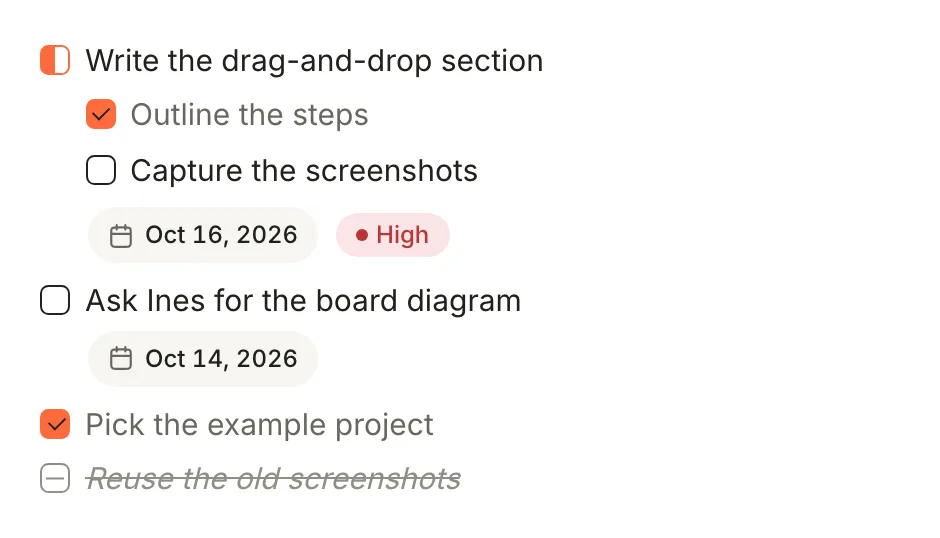
A task has to be a bulleted list item (-, * or +). Numbered items such as 1. [ ] Call Ana and checkboxes inside code blocks aren't tasks. Task syntax has every rule.
Statuses
The character between the brackets is the task's status. Clicking a checkbox in a note steps through all four in turn: Open, In progress, Done, Cancelled, then Open again. So from Open, click twice to tick a task off.
| Type | Status | Use it for |
|---|---|---|
- [ ] | Open | Not started |
- [/] | In progress | Started |
- [x] | Done | Finished. [X] works too. |
- [-] | Cancelled | Dropped. It stays in the note, struck through. |
Custom statuses
Add your own statuses when four aren't enough, such as [?] for Needs review.
- Open Settings (⌘,), click Editor and scroll to Task statuses. (In Tasks, the same list is under View preferences › Statuses.)
- Click + (Add status). The new status gets a free marker, such as
*. - Click its chip and use Rename, Set color, Set icon, Set marker and Set status (which built-in status it belongs with). Delete removes it. Changes save on their own.

A marker is 1 to 4 characters: letters, digits or punctuation, with no spaces or brackets. Two limits: clicking the checkbox of a custom-status task in a note sets it back to Open, and a custom status doesn't create the next copy of a recurring task.
Add properties
Properties are extra details on a task: a due date, a priority, who it's for. They live on the same line, after a space, three colons and a space (:::).
- Type them. At the end of the task, type
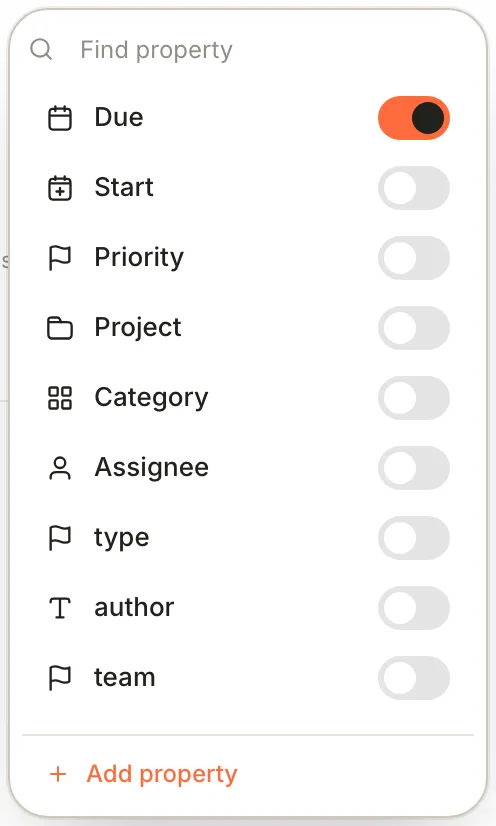
::: due=2026-10-20. When you type a space after it, it becomes a pill. Type:::again before each further property. - Pick them. Click in the task, then click ⋯ at the right end of its line and choose Properties. Switch on what you need and fill in the pill that appears under the task. Click × on a pill to remove it.
| Property | Type this | What it's for |
|---|---|---|
| Due | due=2026-10-20 or due=2026-10-20T14:30 | Puts the task on the Calendar and makes it overdue after that day |
| Start | start=2026-10-19 | When work should begin |
| Priority | priority=high, priority=med or priority=low | Shows as High, Medium or Low |
| Project | project=field-guide | Groups related tasks |
| Category | category=admin | Any label you like |
| Assignee | assignee=Sam | Shows as a person on board cards |
You can invent other keys too, such as effort=2. Values can't contain spaces: write assignee=Sam or project=field-guide.
The Tasks board
Click Tasks in the sidebar. The number beside it counts the tasks that aren't done or cancelled. The board has a column for each status, and each card shows the task, the note it lives in, and its due date, priority, assignee and subtask progress.
- Change status: drag a card to another column. Terra rewrites the checkbox in the note.
- Add a task: click Add task at the foot of a column, type and press Return. The task is written to
Inbox/tasks.mdwith that column's status. To write it into another note, click the note name under the field (or press Tab) and pick one. - Edit a task: click its card (see the next section).
- Rearrange: Filters, Show boards as (group by due date, priority, project, assignee or note instead of status), Sort, Properties (what cards show) and Add view work as in any database. Show boards as has no entry for status; to get the status columns back, use View preferences › Group › Primary group. See Filter, sort and group and Views and layouts. Add task is only in the Board layout.
Done and cancelled tasks stay on the board. To hide them, add two filters: Status › is not › done, and the same for cancelled.
Edit task
Clicking a card opens Edit task: the title, the note it's in, a status pill, its property pills and its subtasks.
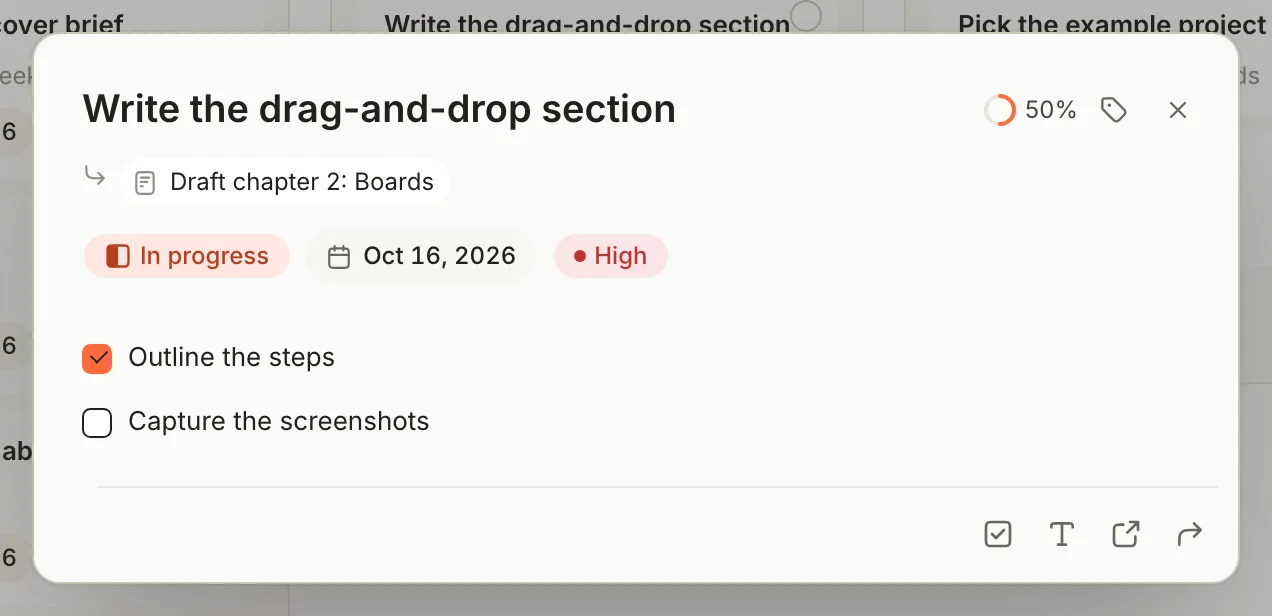
- Click the status pill to pick a status, or the tag button at the top to choose which properties the task has.
- Click the note name to jump to the task in its note. The title can't be edited here; change it in the note.
- The buttons along the bottom are Add subtask, Add description, Open task in note and Move task to note.
- Move task to note moves the task, with its subtasks and description, under a
## Tasksheading in the note you pick. New note: … at the top of the list gives the task a note of its own, inInbox.
Each new subtask goes in above the existing ones. Drag the handles to reorder them. Press Esc to close the dialog.
Recurring tasks
A task with a due date and a repeat= rule comes back after you finish it:
- [ ] Weekly review ::: due=2026-10-16 repeat=weekly
When you mark it Done or Cancelled on the board, in Edit task, on the Calendar or in the Tasks drawer, Terra updates the line and adds the next one straight below it:
- [x] Weekly review ::: due=2026-10-16 repeat=weekly
- [ ] Weekly review ::: due=2026-10-23 repeat=weekly
Rules include daily, weekly:mon,wed,fri, monthly:1 and every:2w, with optional end dates and counts; the full list is in Task syntax. There's no menu for rules yet: you type them.
The Tasks drawer
The Tasks drawer keeps a note's tasks beside it while you write. Click Properties in the toolbar (⌘R) to open the panel on the right, then click Show Tasks in the row of buttons along its bottom. See Drawers for the rest of the panel.
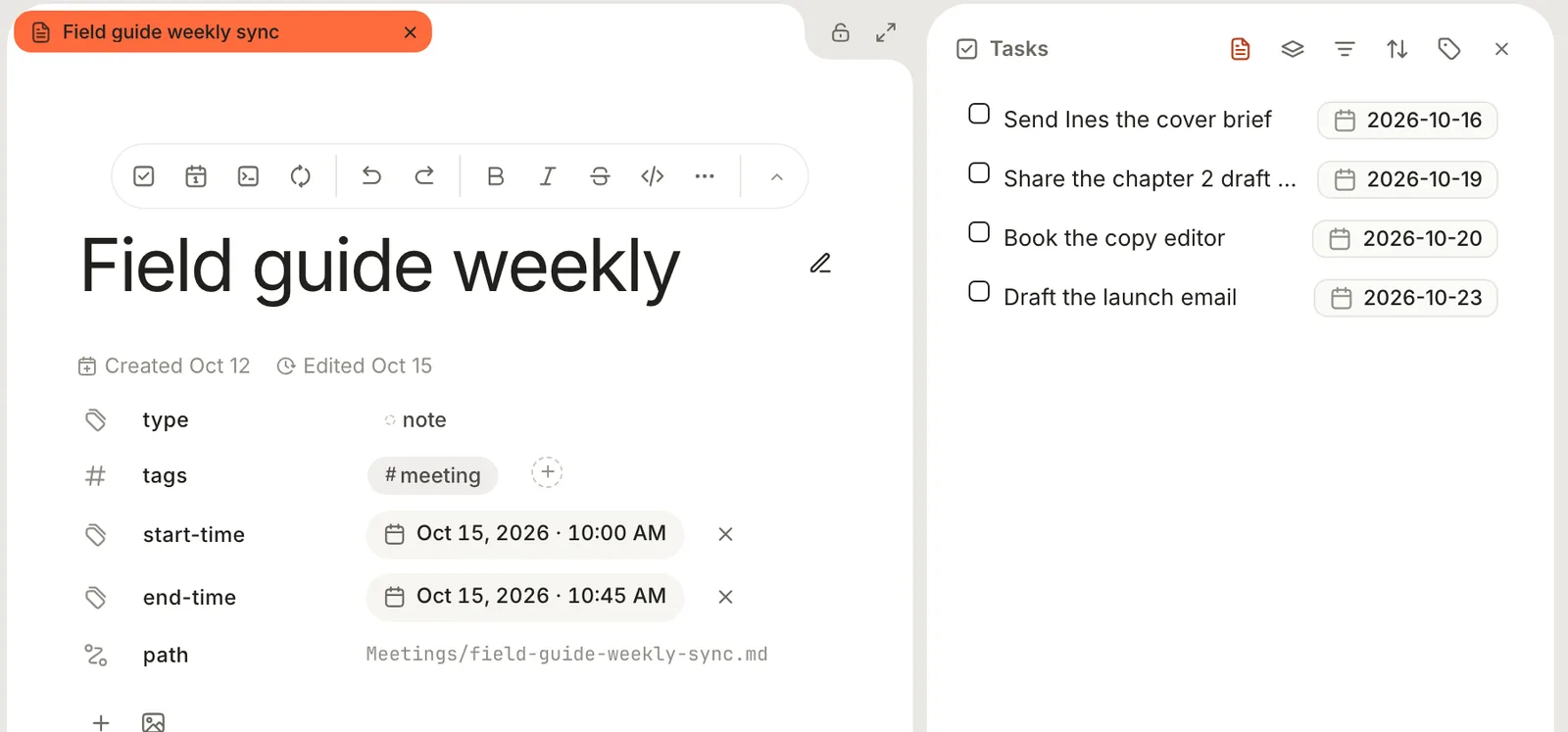
The drawer lists the open note's tasks. Switch to Library to see every task. Click a task to open its note, click its marker to move to the next status, or right-click the marker to pick one. The note's footer has a ring showing how many of its tasks are done; click it to jump to any of them.
Delete and restore a task
To delete a task, delete its line in the note, or click it on the Calendar and choose Delete. The board has no delete.
Tasks deleted from the Calendar can be brought back. In Tasks, click Sources and choose Deleted tasks, then click Restore beside the task. ⋯ › Delete permanently removes it for good. Lines you delete by editing a note aren't listed there; use undo instead.
Tasks for one project
The built-in Tasks always shows every task. For a board of one project's tasks, right-click Tasks in the sidebar, choose New task database, name it and click Create. In its header, click Sources and pick the project's folder or notes. Tasks you add on that board go into a note named after the database, inside the project's folder. Run a project builds one step by step.
Troubleshooting
A task doesn't show up in Tasks
Check that the line is a bulleted list item, not a numbered one, with a space between the - and the [. Checkboxes inside code blocks are ignored, and so are markers longer than four characters.
The properties show as plain text instead of pills
Usually a value contains a space, such as assignee=Sam Lee, and Terra then reads the whole property list as part of the title. Remove the space. The older due:2026-10-20 form without ::: is plain text too. In this version, a task with a description (indented lines under it) also shows its properties as text in the note, although Tasks still reads them.
My repeating task didn't come back
It was probably ticked in the note. Mark it done on the board or in Edit task. A repeat also needs a due= date, unless the rule includes repeat-on=completion.
Related
- Task syntax — every marker, property and repeat rule.
- Calendar — tasks by due date, beside your meetings.
- Run your week with tasks and the calendar — a weekly routine built on this page.
- Views and layouts — more ways to look at Tasks.
Was this guide helpful?