Build a research library
Gather papers, books, PDFs and web pages as notes, cite them as you write with a reference list that builds itself, and see who cites what.
A thesis chapter rests on dozens of sources: papers found through a DOI, a book you're halfway through, PDFs from a supervisor, an article you saved at midnight. The hard part isn't collecting them. It's remembering which one said what, and citing it properly when you finally write the sentence.
In Terra every source is a note, so it lives alongside your writing. Cite one with [@…] and Terra formats the citation in APA, MLA, Chicago, IEEE or Vancouver, and builds the reference list at the end of the note. Every source knows which notes cite it, and the built-in References database keeps them all in one table.
This guide follows Leah, who is writing the second chapter of her thesis, on how city noise changes birdsong.
How it fits together
Sources arrive in different ways, but each one ends up as a note:
| Source | Bring it in with | It becomes | Citable |
|---|---|---|---|
| A paper or book with a DOI or ISBN | New… › Add reference | A reference note in References/, with authors, date and a citation key | Straight away |
| An EPUB book | Drag the file into the window | A book note, with type book | Straight away |
| A PDF | Drag the file into the window | A note for the PDF, with no type | Once you set its type to paper |
| A web page | Save to Terra in Terra's browser | A link note in your Inbox, holding the page's text | Once you set its type to article |
A note can be cited when its type is paper, article, book or report, or when it already has a citation key. The first time you cite a note without a key, Terra makes one from the first author, the year and the first main word of the title (krause2012great) and writes it into the note's properties as citation_key.
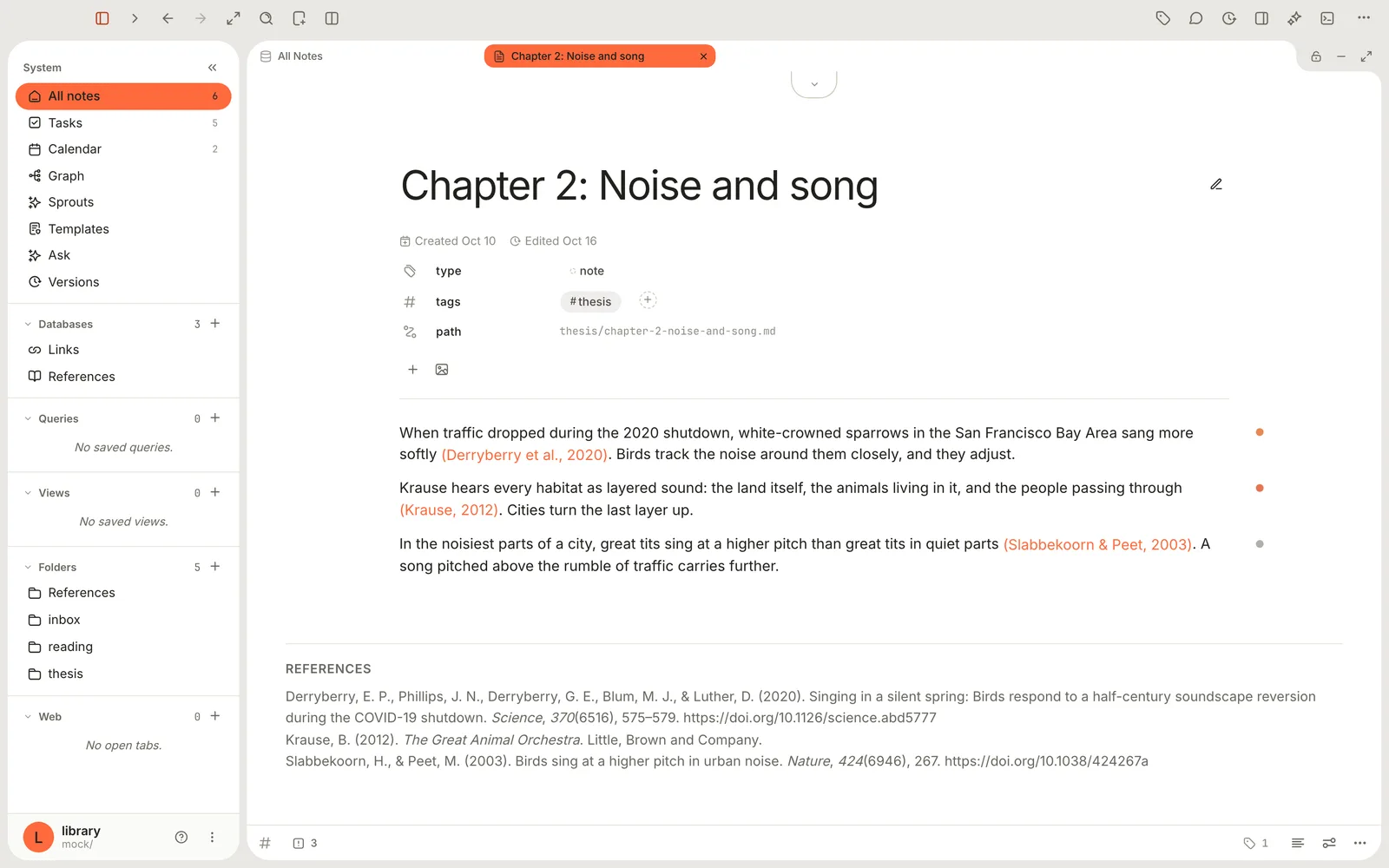
Step 1Add papers and books by DOI or ISBN
For anything with a DOI or an ISBN, let Terra fill in the details.
Click New… in the toolbar and choose Add reference.
Paste the DOI or ISBN into the field. A bare DOI (
10.1038/424267a) and adoi.orglink both work.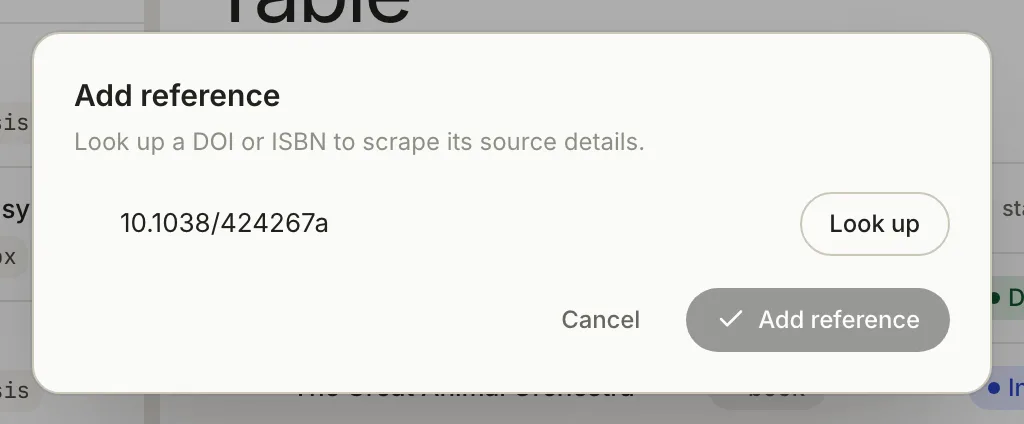
Paste a DOI or ISBN, then Look up. You see the details before anything is saved. Click Look up (or press Return). The title, authors, journal and date appear. Edit the Title if you'd like it shorter.
Click Add reference. Terra shows Reference added and opens the new note.
The note is saved in the References folder, with properties such as author, date, venue, doi and citation_key (here slabbekoorn2003birds). Each author also becomes an option of your author property, so you can filter by author later. DOIs are looked up at doi.org and ISBNs at Open Library; your notes aren't sent anywhere.
Step 2Bring in books, PDFs and web pages
- Books. Drag an
.epubinto the Terra window. Its note arrives with typebook, author, publisher and ISBN filled in, ready to cite. Add a book has the details. - PDFs. Drag the PDF in. In the PDF viewer, click Show note (the paperclip) and set type to
paperin the note's properties. Now it's citable, and the passages you highlight can be quoted with their page numbers (step 5). - Web pages. Choose View › New Webpage, open the page, then click Page options (beside the address bar) and Save to Terra. Terra saves the article's text as Markdown, with a picture of the page, in your Inbox. To cite it, set its type to
article. Anarticlenote with a web address opens as a split view: the live page on one side, your note on the other.
Step 3Cite as you write
Cite at the moment you use an idea, while you still know where it came from.
In your draft, type
[@, or type/citationand press Return. A list opens with a Cite section. It reads No matches until you type something.Type part of a title, an author or a key. Leah types
sing.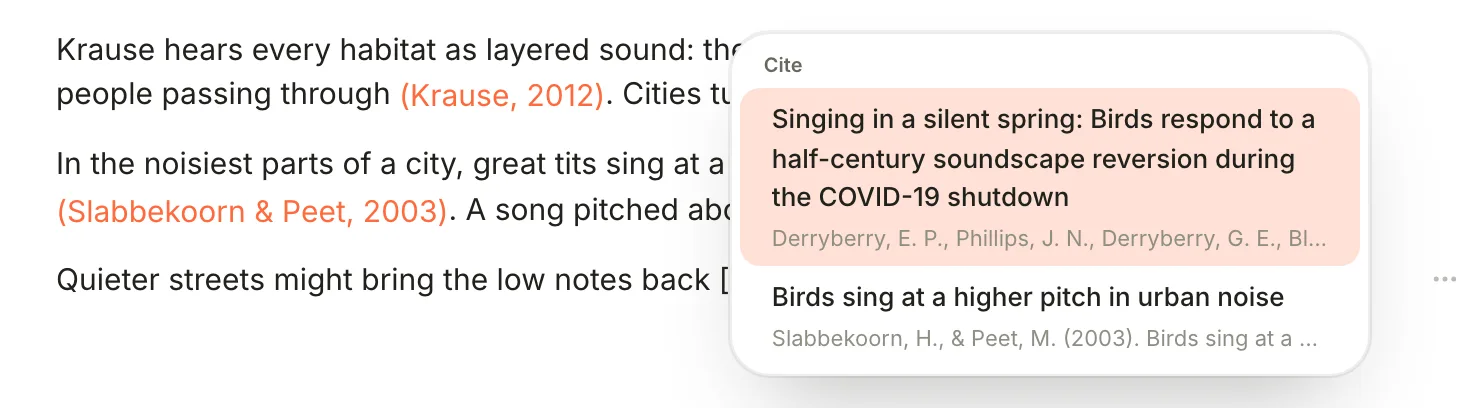
The Cite list matches titles, authors and keys. Each row shows the reference as it will appear. Press Return, or click the source. A citation chip appears, such as (Derryberry et al., 2020), and the source joins the References section at the end of the note.
Point at a chip for the source's details, or click it to open the source. The References section is rebuilt as you write and never saved into the note: the file holds only the citation itself, in the same [@key] form Pandoc uses. Terra reads all of these forms, so citations written in other editors keep working:
| Citation | In the file |
|---|---|
| A citation | [@krause2012great] |
| With a page number | [@krause2012great, p. 68] |
| With the author hidden | [-@krause2012great] |
| Several sources at once | [@slabbekoorn2003birds; @derryberry2020singing] |
| The author in your sentence | @krause2012great or @krause2012great [p. 68] |
| Brackets, parentheses or superscript | [@krause2012great]{.bracket}, {.paren}, {.super} |
Step 4Add page numbers and pick a style
Right-click a citation chip for everything you can change about it:
![A citation's menu with In-text form, Add locator…, Hide author and Open source. In-text form is open, showing Style default, Brackets [1], Parentheses (1), Superscript ¹ and Narrative.](/docs/shots/guide-research-chip-menu.webp)
- Add locator…: type a page or section, such as
p. 68, and press Return. The menu then shows it as Locator: p. 68; clear the field to remove it. - In-text form: Style default, Brackets [1], Parentheses (1), Superscript ¹, or Narrative, which puts the author in your sentence: Krause (2012, p. 68).
- Hide author: keeps only the year, for when you've already named the author: (2012).
- Open source: opens the source's note.
Choose the citation style for the whole Library in Settings › Editor › Citation style: APA 7th (the default), MLA 9th, Chicago (author-date), IEEE or Vancouver. Every citation and reference list updates to match.
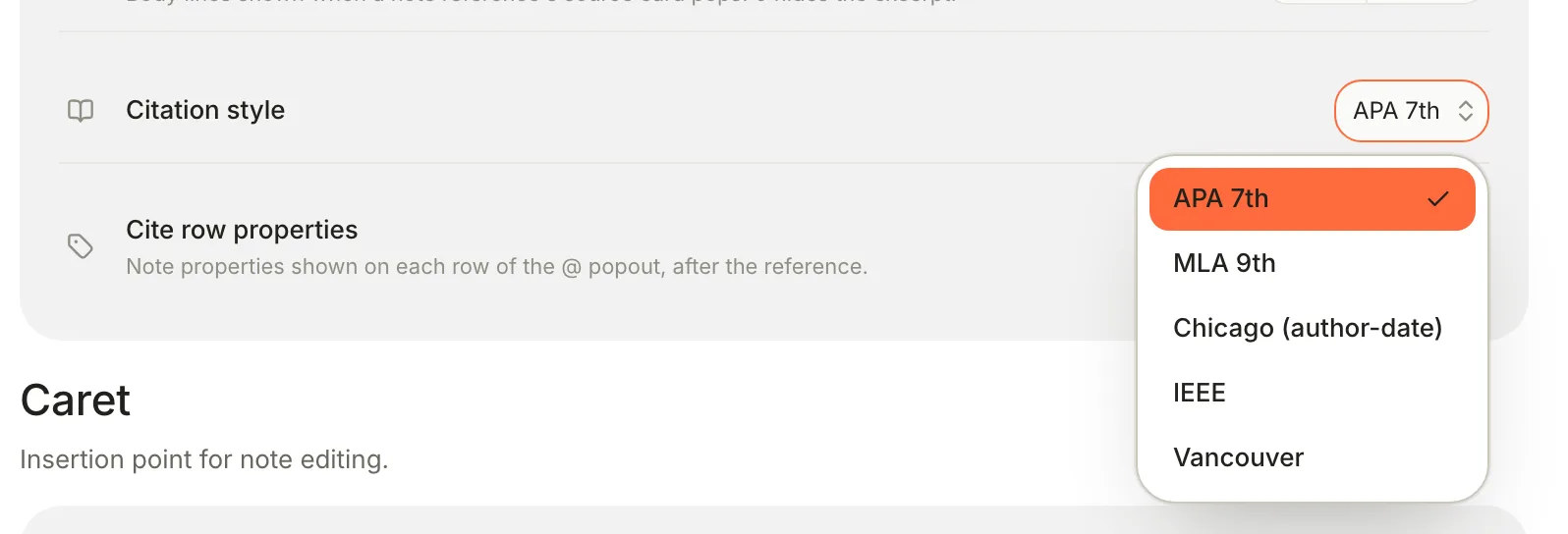
Writing one paper for a journal with a different style? Give that note a citation_style property with the value ieee, mla, chicago-author-date, vancouver or apa. It overrides the Library setting for that note only.
Step 5Quote what you highlighted
You'll usually read a source before citing it. Terra keeps your highlights with the source, so the quote and the citation stay together.
- From a PDF. Highlight passages in the PDF viewer. Then type
@and a word that appears both in the PDF's title and in the passage: matching highlights appear indented under the source, with their page numbers. Pick one to insert the quote and its citation. See Highlight and mark up PDFs. - From a book. Book highlights aren't offered in the Cite list yet. Export them as a note (Highlight options › Export › Markdown note, described in Take your highlights anywhere), copy the quote you need, and cite the book with a page number. With Reader appearance › Display › Page numbers in margin turned on in the reader, the page you cite matches the printed book.
Step 6Follow the connections
Citations are links, so each source knows where it's used.
- Open a source note. Under its properties, Backlinks shows how many notes point to it. Click it for the list.
- For more detail, click Properties in the toolbar (⌥⌘I), then the References icon (Show References) at the bottom of the panel. Cited by lists the notes that cite this source; Linked from and Embedded in list ordinary links and embeds.
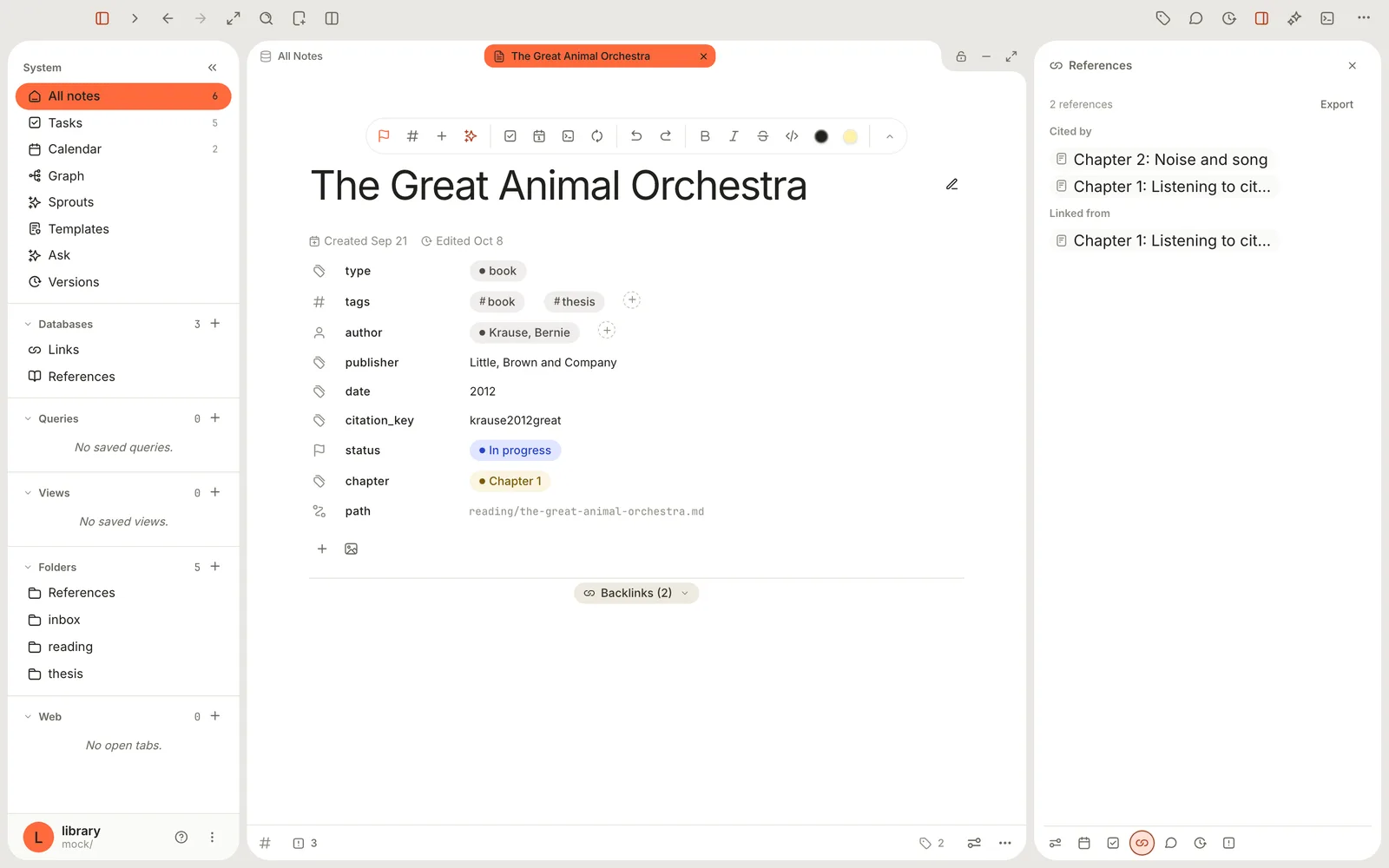
Open the same panel on a draft and it audits the draft instead: 3 cited here, with each citation and its reference. A citation whose source Terra can't find is flagged as unresolved.
Your own ideas deserve links too. Type @ and a few letters of a note's title, then pick it under Note to insert a link. Leah links each chapter to the notes that hold her arguments, so the ideas and the sources both show their connections. Links and backlinks covers linking in full.
Step 7Keep a Sources database
The built-in References database collects every note with a citation key, a DOI, an arXiv ID or a PubMed ID, sorted by date with the newest first. Find it in the sidebar under Databases.
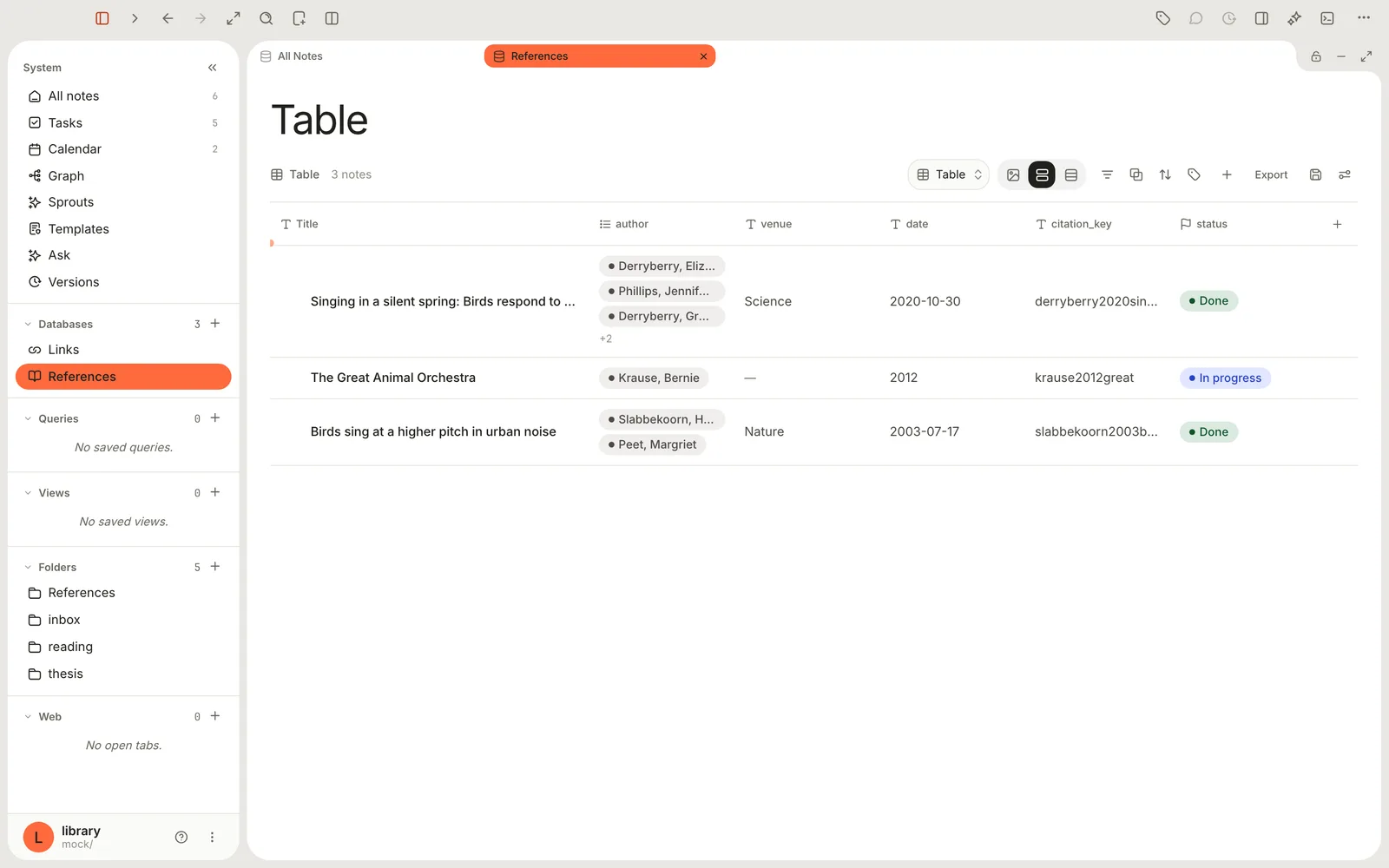
Make it work for you:
- Track your reading. Click + at the right end of the header row (Add property), choose New property, name it
statusand pick Status. Its options, Not started, In progress and Done, make a reading pipeline. Add a Select calledchapterto note where each source is used. - Make one per project. Right-click References in the sidebar and choose New reference database. Name it Thesis sources and click Create. It starts with every reference; open View preferences, click Database and add a condition such as tags · contains ·
thesisto narrow it. - See it as a board. Add a view with the Board layout and your sources sort themselves into Not started, In progress and Done columns. Views and layouts covers the rest.
A book or PDF joins References once it has a citation key, which happens the first time you cite it.
Step 8Ask your library
When you can't remember which source made a point, ask. Terra Agent searches your notes, reads the relevant ones and answers with links back to them. It needs an AI provider; Get answers from your own notes sets one up.
Features you might have missed
Show your own properties in the Cite list
Settings › Editor › Cite row properties adds properties of your choosing to every row in the Cite list, after the reference. Add chapter or status and you'll see at a glance whether you've read a source before citing it.
Search inside your books
Press ⇧⌘F and search: Terra searches the text of your EPUBs as well as your notes, so a half-remembered phrase finds the book it came from.
See citations in the graph
Citations are drawn as lines in Terra's graph, alongside ordinary links. Right-click a source in the note list and choose Graph of this note to see every draft around it. See See a note's connections in the graph.
Captured links land in Links
Every web page you save, and every reference with a web address, also appears in the built-in Links database, newest first.
Troubleshooting
A source doesn't appear in the Cite list
Check its type: only paper, article, book and report notes are offered, plus notes that already have a citation_key. PDFs and saved web pages start without a citable type. And type at least one letter after [@; the list stays empty until you do.
The References panel says a citation is unresolved
Terra can't find a note with that citation key, usually because the source was deleted or its citation_key was changed. Restore the source, or delete the citation and cite the source again from the Cite list.
Look up fails
Look up needs an internet connection. For books, Terra wants a 10- or 13-digit ISBN and says Enter a valid ISBN-10 or ISBN-13 otherwise, or No book found for ISBN … when Open Library doesn't know it. A DOI must look like 10.1000/xyz123.
The reference list isn't in my Markdown file
That's by design. The References section is drawn from your citations every time the note opens, so it's always complete and in the current style. Other apps see the [@key] citations.
One note uses a different style from the rest
It has a citation_style property. Delete the property's value, or change it, to bring the note back in line with Settings › Editor › Citation style.
Add reference and citations are missing
They can be switched off for a Library. Check Settings › Features and turn References back on.
What's next
- Read comfortably in the e-reader: add your books and read them in Terra.
- Highlight, annotate and keep every mark: mark up books and PDFs as you read.
- Get answers from your own notes: ask questions across everything you've collected.
- Links and backlinks: connect your own ideas.
Was this guide helpful?