Advanced formatting
Tables that add themselves up, math, code you can run, Mermaid diagrams, embeds, columns, tabs, toggles, comments and dates, plus everything in the slash menu.
Beyond the basics, a Terra note can hold tables that add themselves up, math, code that runs, diagrams, live views of other notes and databases, and layouts with columns and tabs. Most of it is plain Markdown that other apps can read. Where Markdown has no syntax, Terra writes an HTML comment, which other apps hide, or keeps the details in the note's sidecar file, <note>.terra.json.
Insert a block
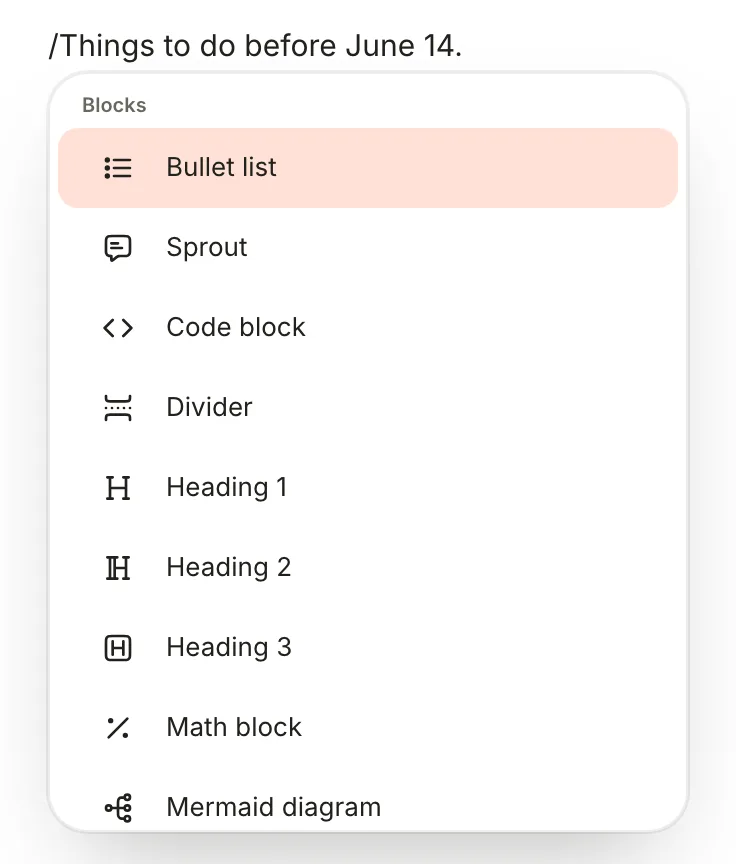
Type / at the start of a line or after a space, then a few letters to narrow the list: /table, /mer, /sprout. Press Return or click. The Insert block button in the editor toolbar types the / for you, and Esc closes the menu. Every entry is listed in the slash menu reference at the end of this page.
Tables
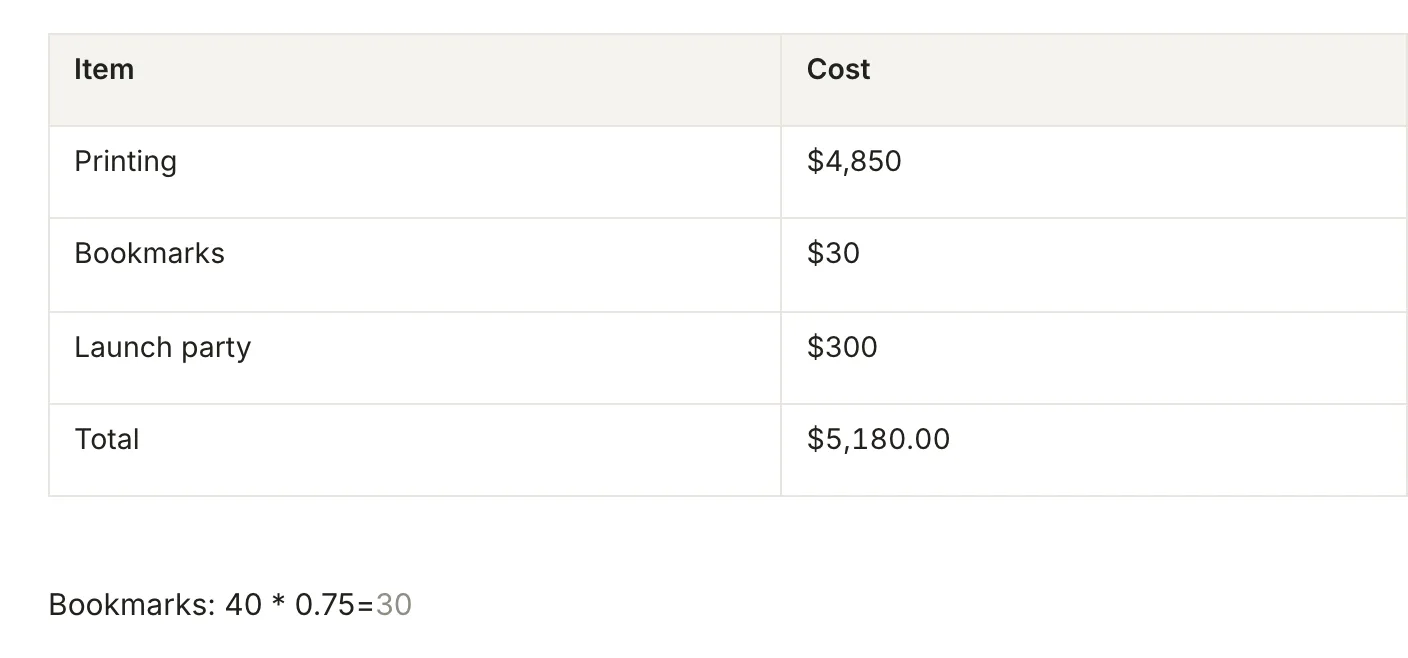
Type /table and pick a size in the grid (up to 8 by 8). The first row is the header. In Markdown, a table is rows of cells between pipes:
| Item | Cost |
| --- | --- |
| Printing | $4,850 |
| Bookmarks | $30 |
| Launch party | $300 |
| Total | $5,180.00 |
- Tab moves to the next cell; in the last cell it adds a row.
- Hover the table for its handles: grips select a column or row, dots between cells insert one, and the dashed edges add one at the end. Drag the dot at a cell's corner to fill the cells beside it, holding ⇧ to continue a series.
- Right-click a cell to add or delete rows and columns, Rename column or Delete table.
- Alignment (
:---:) isn't kept: Terra writes---. Cells can't be merged.
Formulas
Start a cell with = to calculate. =SUM(above) adds up the numbers above the cell; below, left and right work too, and so do references such as =B2*C2 or =SUM(B2:B4), where row 1 is the header. Click away to see the result, and click the cell again to see its formula. Functions include SUM, AVERAGE, MIN, MAX, MEDIAN, COUNT, ROUND and IF.
The Total above is =SUM(above). The file holds its result, $5,180.00, and keeps the formula in the sidecar, so other apps see plain numbers. Results take the column's format, here dollars. If someone changes the table outside Terra, Terra drops its formulas and keeps their values.
Quick sums
At the end of any line, type a sum followed by =. The answer appears in grey; press Tab to keep it.
Bookmarks: 40 * 0.75=
It converts units as well: 3 h 20 min in min= gives 200 min. Length, weight, time, data sizes and temperature work.
Math
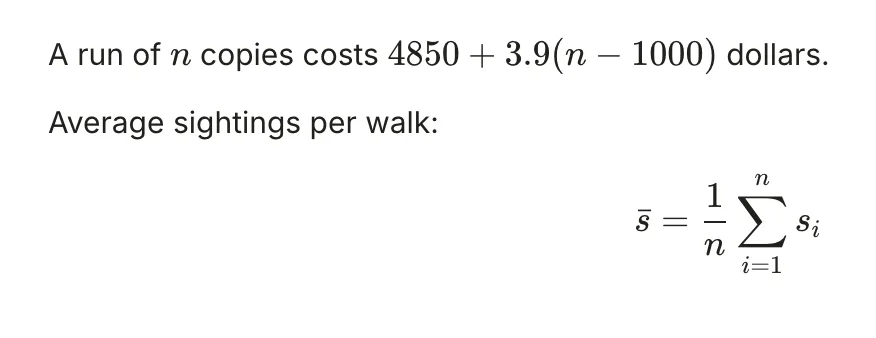
A run of $n$ copies costs $4850 + 3.9(n - 1000)$ dollars.

Average sightings per walk:

$$
\bar{s} = \frac{1}{n} \sum_{i=1}^{n} s_i
$$
- Inline: type
$, the TeX and a closing$; it turns into math as you type the closing one. Leave no space just inside the dollar signs. Prices such as$5 and $6stay text. - Block: on an empty line, type
$$and press Return. - From the menu: choose Math block or Math (inline).
- Edit: click the formula to edit its TeX in place. It renders again when the caret leaves.
Terra draws math with KaTeX.
Code blocks
Code blocks start as in Basic formatting. Click the language badge at a block's top right to set its language: Python, R, JavaScript, TypeScript, Rust, Shell, JSON, YAML, TOML, SQL, HTML, CSS, Markdown or Plain text.
| Keys, inside a code block | What they do |
|---|---|
| ⌘; | Show or hide line numbers |
| ⇧⌘I | Format the code, with a formatter installed on your Mac such as ruff or Prettier |
| ⌘/ | Comment out the line |
| ⌥↑or⌥↓ | Move the line up or down |
| ⌘E | Turn the block back into text, one paragraph per line |
| ⇧Returnor⌘Return | Leave the block |
Run code
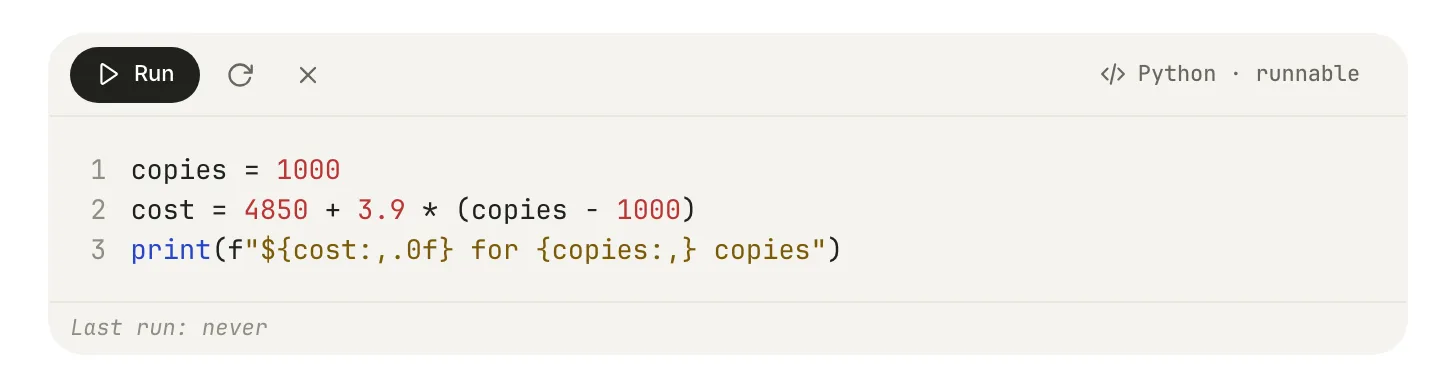
Python and R blocks can run, notebook-style, and show their output under the code.
- Click the language badge and choose Python · runnable or R · runnable. Terra rewrites the fence as
```{python, label=blk_…}so it can keep track of the cell. - Click Run. Terra saves the note, and the first time a cell runs, or after you change it, macOS asks Run this exact saved code?. Click Allow.
- The output appears under the cell: text, plots and tables. Stop halts a run, and the buttons beside Run restart Python or R and clear the output. Run all, at the top of the note, runs every cell in order.
- Python needs
ipykernelinstalled; R needs IRkernel. The notes in a Library share one Python and one R session, so variables carry over between them. - Options go after the label, as in Quarto:
echo=falsehides the code in Read mode,eval=falsenever runs the cell, andoutput=falseruns it without showing output. - Settings › Code › Runnable code can turn Run off, run code in an isolated sandbox (on by default) and stop asking before new code runs.
Mermaid diagrams
```mermaid
graph LR
  Draft --> Proof --> Print --> Launch
```

Type /mermaid for a starter diagram, or write the diagram as a paragraph and choose Turn into › Mermaid diagram. To change it, hover and click the pencil (Edit diagram source) or double-click; ⌘Return saves and Esc cancels. Drag its corner to resize it: Terra saves the width on the fence, as in ```mermaid width=480. A diagram with a mistake shows Mermaid's message, with View source.
Embeds
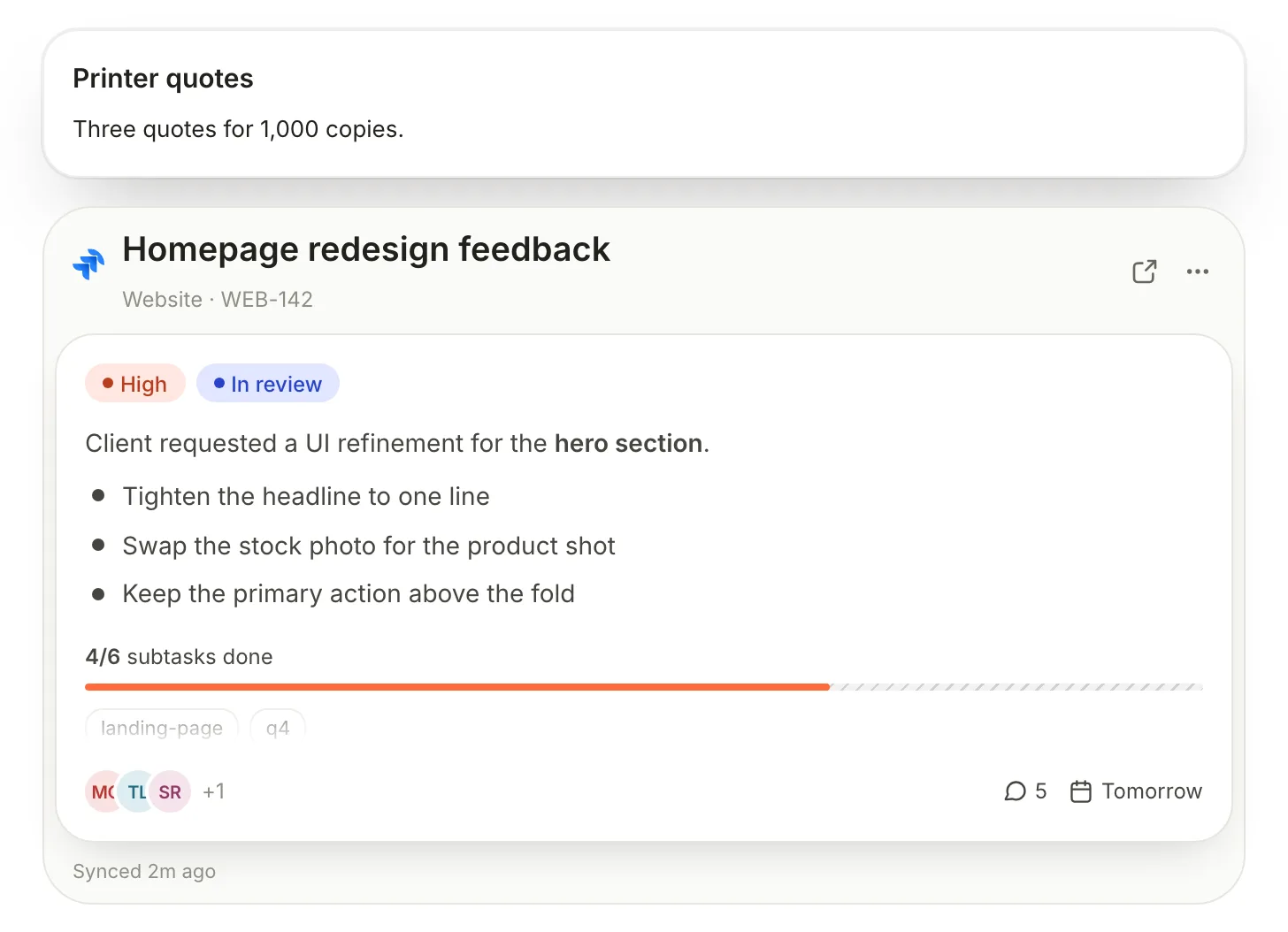
An embed shows another note, a database or an item from a connected app inside your note.
![[Printer quotes]]

![[jira:https://example.atlassian.net/browse/WEB-142]]
- Another note: in Markdown source, put
![[Note title]]on a line of its own. Back in Edit, it shows as a card with the note's title and opening lines; click it to open the note. Typing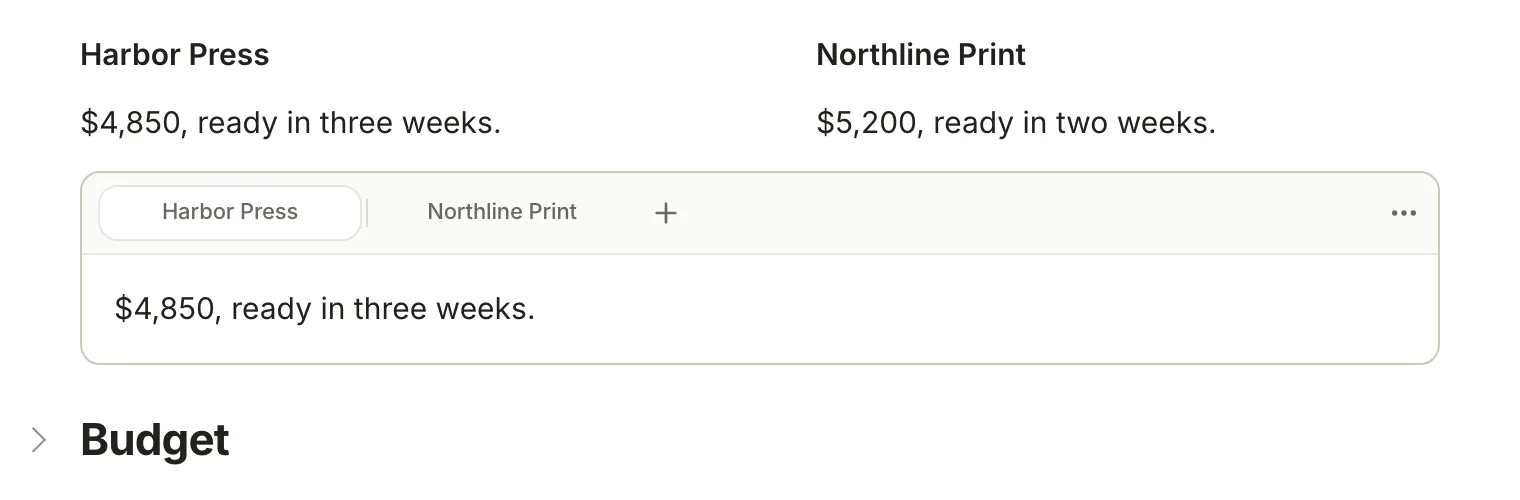
Columns
Drag a block by its ⠿ handle onto the left or right edge of another block. When a vertical line appears, let go: the two sit side by side. Drop more blocks on a column's edge for up to four columns. Drag the gap between columns to resize them, or double-click it to even them out. Drag a column's last block out and the column goes away. Columns sit at the top level of a note, not inside a Sprout or a tab, and they stack in a narrow window.
<!-- terra:columns -->
<!-- terra:column width=0.5 -->
**Harbor Press**

$4,850, ready in three weeks.

<!-- terra:column width=0.5 -->
**Northline Print**

$5,200, ready in two weeks.

<!-- terra:columns:end -->
Tabs
A tab group shows one section at a time: two printers' quotes, or the same code in two languages. Type /tabs for a group with Tab 1 and Tab 2, or select a run of headings with their text and choose Turn into › Tabs from sections in the toolbar. Click + (Add tab) to add one, and Tab actions (⋯) to rename, duplicate, move or Dissolve group to sections. Right-click a tab for its Color and Glyph. A group needs two tabs: removing one of two turns the group back into sections.
<!-- terra:tabs v="1" -->
<!-- terra:tab -->
### Harbor Press
$4,850, ready in three weeks.

<!-- terra:tab -->
### Northline Print
$5,200, ready in two weeks.

<!-- terra:tabs:end -->
Each tab is a heading and its text, so other apps show the tabs one after another.
Toggles
A paragraph, heading, list item, quote, code block or Sprout can be a toggle that folds away what belongs to it. A heading folds its whole section. Put the caret in the block and press ⌥⌘7, or switch on Toggle in its ⠿ menu. Click the chevron to fold or unfold it; ⌘Return does the same for the toggle you're in, and ⌥⌘T folds or unfolds every toggle in the note.
<!-- terra:toggle collapsed -->

## Budget

Printing, bookmarks and the launch party.
Comments
Comments sit beside a note, never in its text. Click Comments in the window toolbar, or press ⇧⌘M, to comment on the whole note: type in Add comment… and press Return. To comment on one paragraph, heading or list item, hover it, click the faint ⋯ in the right margin and choose Comment. A speech-bubble mark then shows the block has a thread.
Terra keeps comments in the note's sidecar file and marks the block with a ^ID at the end of its line. You can't comment on part of a paragraph yet.
Dates
Type @ and pick Today, Tomorrow or Yesterday under Date, or type a date such as @2026-06-14 and pick it there. The toolbar's Insert date opens a calendar instead. Terra shows a date chip, and saves plain text:
Launch day is @2026-06-14.
Click a chip to pick another date.
Images
Hover an image to resize it: drag the round handle at its bottom-right corner. Terra keeps its proportions and saves the width in the alt text, as in .
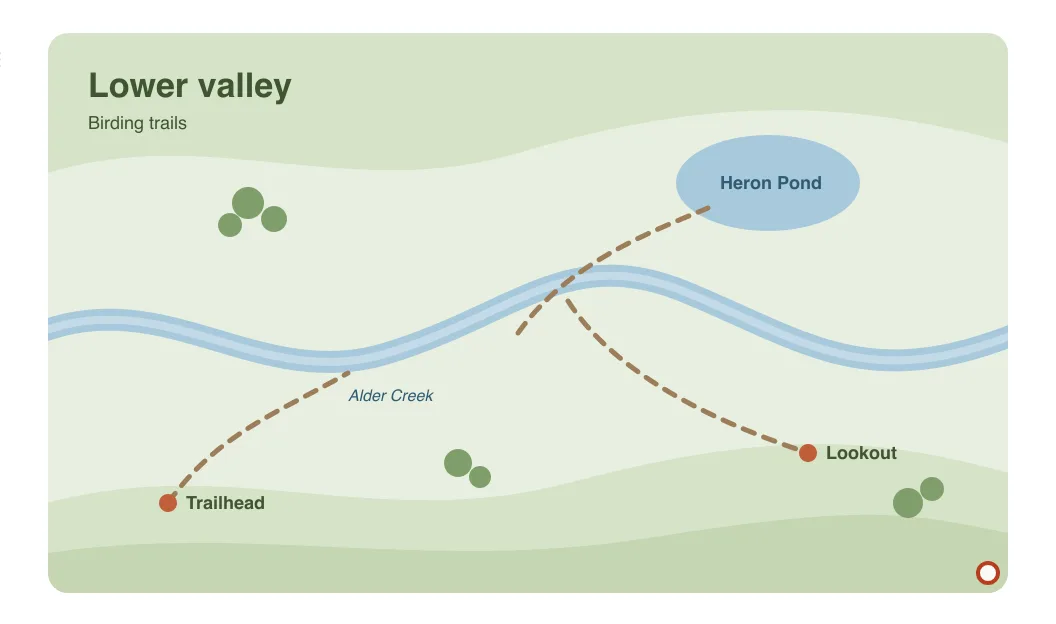
Insert image (/image) has three tabs: Library for images already in your Library, Upload for a file on your Mac, and Link for a web address, which you can Save to library (a copy in the note's attachments) or Keep as link.
For a cover across the top of a note, click the picture icon (Banner image) under the title, then Upload cover or Import cover from web. Reposition cover lets you drag it into place; Apply cover position keeps it. The cover is saved as the note's cover property.
Not yet in Terra
Footnotes: [^1] stays plain text.
Everything in the slash menu
| Entry | Type | What you get |
|---|---|---|
| Heading 1, Heading 2, Heading 3 | /h1, /h2, /h3 | A heading. On a heading of that level, back to text. |
| Bullet list | /list | A bulleted list |
| Numbered list | /num | A numbered list |
| To-do | /todo | A to-do |
| Quote | /quote | A quote |
| Sprout | /sprout | A Note Sprout |
| Code block | /code | A code block |
| Divider | /hr | A horizontal rule |
| Math block | /math | A block of math |
| Mermaid diagram | /mermaid | A starter diagram |
| Table | /table | A size picker, then a table |
| Tabs | /tabs | A tab group with two tabs |
| Database | /database | A live view of a database |
| Bold, Italic, Strikethrough, Highlight, Inline code | /bold, /italic, /strike, /highlight, /inline | That style for what you type next |
| Math (inline) | /tex | Inline math, with a placeholder x to type over |
| Citation | /cite | A citation picker; see Build a research library |
| Image | /image | Insert image |
| Jira issue, GitHub pull request and others | /jira, /github, … | An embed, for apps you've connected |
The menu doesn't open in the middle of a word, or inside code or math. Image appears once you type a few letters of it.
Related
- Basic formatting syntax: headings, emphasis, links, lists and code.
- Sprouts: coloured blocks with properties.
- Databases: the views you can embed in a note.
- Links and backlinks: linking to notes, headings and single paragraphs.
Was this guide helpful?