Keyboard shortcuts
Every default shortcut in Terra, grouped the way Settings › Hotkeys groups them, and how to change, reset or remove one.
These are Terra's default shortcuts. To see them in the app, and to change them, open Settings › Hotkeys: press ⌘, and click Hotkeys, or choose Help › Keyboard Shortcuts. The groups below follow the same order.
Keys are shown in the order macOS uses: ⌃ Control, ⌥ Option, ⇧ Shift, ⌘ Command. Where a command has more than one shortcut, any of them works.
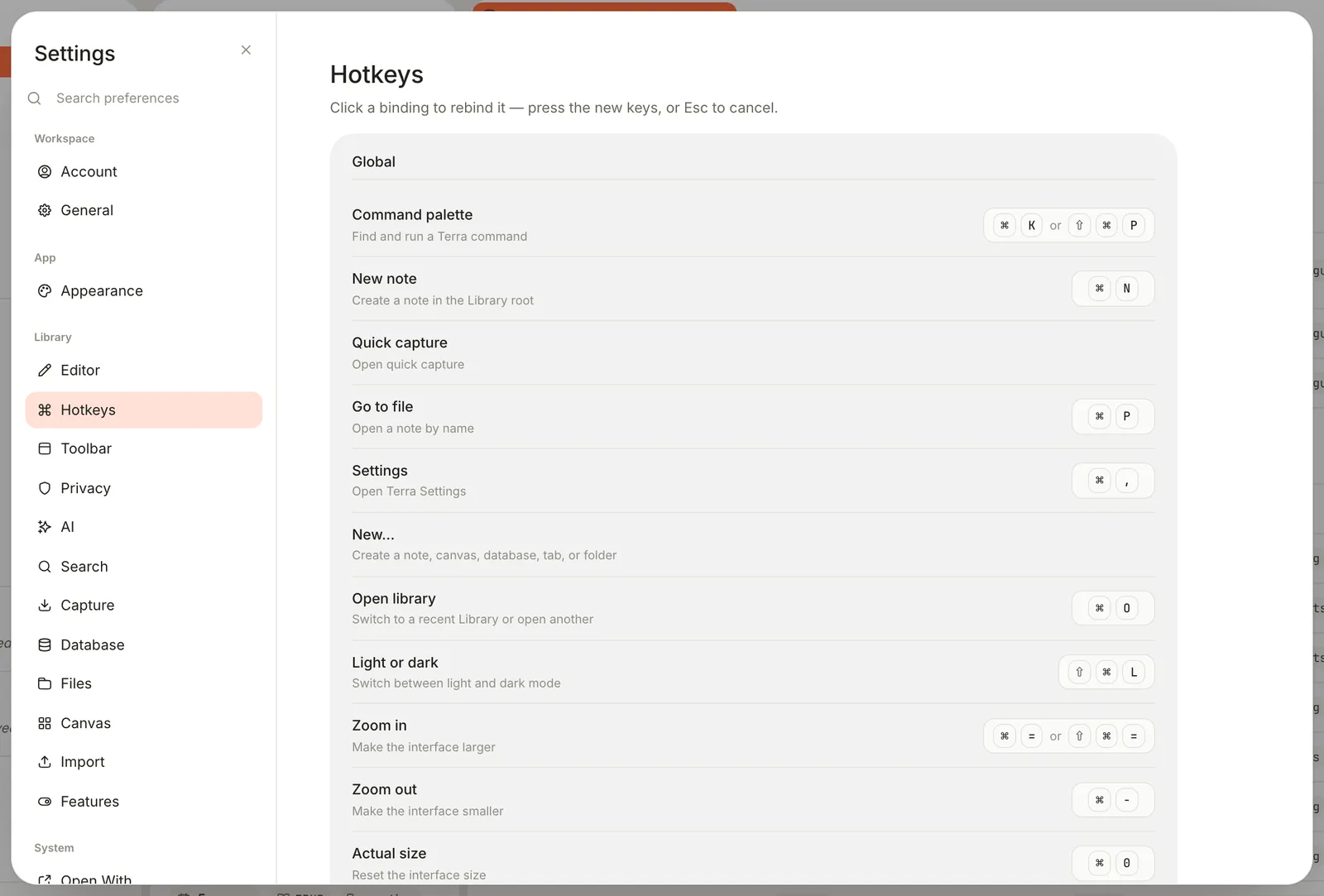
Global
| Action | Shortcut |
|---|---|
| Command palette | ⌘Kor⇧⌘P |
| New note | ⌘N |
| Go to file (open a note by name) | ⌘P |
| Settings | ⌘, |
| Open library (switch to another Library) | ⌘O |
| Light or dark | ⇧⌘L |
| Zoom in (make the interface larger) | ⌘=or⇧⌘= |
| Zoom out | ⌘- |
| Actual size | ⌘0 |
| Close window | ⇧⌘W |
No keys by default: Quick capture and New…. Separately, ⌃⌥⌘N opens quick capture from any app, even when Terra is in the background. That one isn't listed in Settings › Hotkeys.
Navigation
| Action | Shortcut |
|---|---|
| Sidebar (show or hide) | ⌘B |
| Properties (show or hide the panel on the right) | ⌘Ror⌥⌘B |
| Search | ⇧⌘F |
| Toggle view mode (Edit or Read) | ⌥⌘E |
| Cycle database layout | ⇧⌘V |
| Zen mode | ⌥⌘Z |
| Terminal | ⌘J |
| Back | ⌘[ |
| Forward | ⌘] |
| Reveal in sidebar (show the open note's folder) | ⇧⌘E |
No keys by default: Database drawer, Comments, Versions, AI conversations, Source mode and Reader mode.
With text selected in a note, ⌘B makes it bold instead of hiding the sidebar.
Panes and tabs
| Action | Shortcut |
|---|---|
| Split (open a second pane to the right) | ⌘\ |
| Previous pane | ⌃⌥← |
| Next pane | ⌃⌥→ |
| Close tab | ⌘W |
| Reopen closed tab | ⇧⌘T |
| Next tab | ⇧⌘]or⌥⌘→or⌃Tab |
| Previous tab | ⇧⌘[or⌥⌘←or⌃⇧Tab |
| Focus pane 1 to 9, in reading order | ⌘1 to ⌘9 |
| Tab 1 to 9 of the focused pane | ⌃1 to ⌃9 |
| Last tab of the focused pane | ⌃0 |
- ⌘W closes the tab you're in, and a pane closes with its last tab. With only one tab left in the window, it closes the window.
- A window holds up to four panes, so only ⌘1 to ⌘4 ever have a pane to go to. Previous pane and Next pane stop at the first and last pane rather than wrapping around.
- ⇧⌘T remembers the last 20 tabs you closed, until you quit.
Editor
| Action | Shortcut |
|---|---|
| Save (Terra also saves as you type) | ⌘S |
| Duplicate (the selected block, or the open note) | ⌘D |
| Find in page | ⌘F |
| Redo | ⌘Y |
Copy link to note (a terra:// link to the open note) | ⌘L |
| Comment (opens the note's comments) | ⇧⌘M |
No keys by default: Slash commands and Reload theme.
Other
| Action | Shortcut |
|---|---|
| Side by side (two panes) | ⌃⌥1 |
| 60 / 40 (two panes, the first wider) | ⌃⌥2 |
| Stacked (two panes, one above the other) | ⌃⌥3 |
| Three columns | ⌃⌥4 |
| Main + two (one main pane, two stacked beside it) | ⌃⌥5 |
| 2 × 2 (four panes) | ⌃⌥6 |
A layout rearranges the panes you already have, so each one works only with that many panes open. No keys by default: Tag manager, Property manager and Help.
Reader
These work while a book is open in the e-reader and the page has focus. Click the page first.
| Action | Shortcut |
|---|---|
| Previous page | ←orPage Upor⇧Space |
| Next page | →orPage DownorSpace |
| Previous chapter | ⇧⌘←or⌘Page Up |
| Next chapter | ⇧⌘→or⌘Page Down |
| Beginning of book | ⌘Home |
| End of book | ⌘End |
| Back (to where you were reading) | ⌘⌫ |
| Forward | ⇧⌘⌫ |
| Bookmark page | ⌘B |
| Named bookmark | ⌥⇧B |
| Highlight with note | ⌥⇧A |
| Quick highlight | ⌥⇧Q |
| Annotations in margin | ⌥⇧⌘Z |
| Go to page | ⇧⌘P |
| Zoom in | ⌘9 |
| Zoom out | ⌘8 |
| Fit page | ⌘0 |
Zoom in, Zoom out and Fit page apply to fixed-layout books, whose pages are laid out like a PDF. Go to page needs a book that lists its print pages.
Keys in notes, code, sheets and the sidebar
Settings › Hotkeys lists these too, as a reference. They belong to the part of the window you're working in, so you can't change them.
Undo
| Action | Shortcut |
|---|---|
| Undo | ⌘Z |
| Redo | ⇧⌘Z |
Outside a text field, ⌘Z also brings back the last note you moved to the Trash.
Text
While you're writing in a note:
| Action | Shortcut |
|---|---|
| Bold (with text selected) | ⌘B |
| Italic | ⌘I |
| Underline, while you edit only: Markdown has no underline, so it isn't saved to the file | ⌘U |
| Strikethrough | ⇧⌘S |
| Inline code | ⌘E |
| Add a link (with text selected) | ⌘K |
| Turn into… (choose a new block type) | ⌘/ |
| Turn into text | ⌥⌘0 |
| Turn into heading 1 | ⌥⌘1 |
| Turn into heading 2 | ⌥⌘2 |
| Turn into heading 3 | ⌥⌘3 |
| Turn into to-do | ⌥⌘4 |
| Turn into bulleted list | ⌥⌘5 |
| Turn into numbered list | ⌥⌘6 |
| Turn into toggle (a block you can fold) | ⌥⌘7 |
| Turn into code | ⌥⌘8 |
| Turn into page (move the block to a new note, and link to it) | ⌥⌘9 |
| Indent a list item or to-do | Tab |
| Outdent a list item or to-do | ⇧Tab |
| Move block up | ⌥↑ |
| Move block down | ⌥↓ |
| Duplicate block up | ⌥⇧↑ |
| Duplicate block down | ⌥⇧↓ |
| Duplicate block | ⌘D |
| Delete block | ⇧⌘K |
| Check a to-do, or open or close a toggle | ⌘Return |
| Expand or collapse all toggles | ⌥⌘T |
| Select the current block | Esc |
| Show or hide the outline beside the note | ⇧⌘O |
Code
With the cursor in a code block:
| Action | Shortcut |
|---|---|
| Comment line | ⌘/ |
| Indent line | ⌘] |
| Outdent line | ⌘[ |
| Select line | ⌘L |
| Select next match | ⌘D |
| Move line up | ⌥↑ |
| Move line down | ⌥↓ |
| Delete line | ⇧⌘K |
| Toggle line numbers | ⌘; |
| Format (needs a formatter installed on your Mac) | ⇧⌘I |
| Convert code block to text | ⌘E |
Sheets and databases
In a sheet, with several cells selected:
| Action | Shortcut |
|---|---|
| Fill down | ⌘D |
| Fill right | ⌘R |
Peek
While a note is open in a peek:
| Action | Shortcut |
|---|---|
| Previous row of the list it came from | ⌃⇧K |
| Next row | ⌃⇧J |
Sidebar
With a folder selected in the sidebar:
| Action | Shortcut |
|---|---|
| Rename | F2 |
| New folder | ⌥⌘N |
| Copy absolute path | ⌥⌘C |
| Copy relative path (from the Library folder) | ⌥⇧⌘C |
| Reveal in Finder | ⌥⌘R |
| Move to Trash | ⌘⌫ |
More keys
A few keys aren't in Settings at all:
| Action | Shortcut |
|---|---|
| Flip a split between side by side and stacked | ⇧⌘\ |
| Open a note in a new tab | ⌘-click it in any list |
| Restore a maximized pane, close a peek, or close a menu or dialog | Esc |
| Nest or un-nest the selected blocks | ⌥⇧→or⌥⇧← |
| Back and forward | swipe left or right with two fingers, or use your mouse's back and forward buttons |
| Move a toolbar button earlier or later, while customizing the toolbar | ⌥←or⌥→ |
| Hide a toolbar button, while customizing the toolbar | ⌫ |
Markdown as you type
In a note, typing Markdown marks formats the text straight away. A few of the most used:
| Type | To get |
|---|---|
# to ######, then a space, at the start of a line | Heading 1 to 6 |
- or *, then a space | Bullet list |
1., then a space | Numbered list |
[ ], then a space | To-do |
>, then a space | Quote |
``` (with an optional language, such as ```python), then a space | Code block |
--- | Divider |
**bold**, *italic*, ~~struck~~, `code`, ==highlighted== | Bold, italic, strikethrough, inline code, highlight |
/ | The menu of blocks to insert |
@ | A menu to link a note or cite a source; on a to-do line, to add a date too |
Basic formatting syntax shows each one with what it saves in the file, and Advanced formatting covers tables, math and the rest.
Change a shortcut
You can give any command in the Global, Navigation, Panes and tabs, Editor, Other and Reader groups new keys, including commands that have none.
Press ⌘, to open Settings, then click Hotkeys. (Help › Keyboard Shortcuts goes straight there.)
Click the keys beside a command. They change to Press keys….
Press the new keys. To back out, press Esc.

Go to file has been changed to ⌘T. Settings is waiting for new keys.
To undo a change, hover over the command and click Reset to default (the curved arrow). To remove a shortcut without replacing it, hover and click Unbind (×).
Good to know:
- New keys replace all of a command's shortcuts. Command palette has two by default, ⌘K and ⇧⌘P; after a change it has only the one you pressed. Reset to default brings both back.
- Terra doesn't warn you when two commands share the same keys, and only one of them will run. Check the list for the keys before you use them.
- Shortcuts belong to the Library that's open, so each Library can have its own.
- The menu bar keeps showing the default keys, and its items still respond to them.
- A shortcut without ⌘or⌃ doesn't fire while you're typing in a note or a text field.
Related
- Make Terra yours: the toolbar, themes and the rest of Settings.
- Find your way around: what each pane, panel and drawer is.
- Basic formatting syntax: what to type for each kind of formatting.
- Search syntax: what you can type in the search window.
Was this guide helpful?