Find anything in your Library
Track down a decision, a phrase or a whole quarter's notes. Learn the three ways to look, build precise searches and get answers from ⌘K.
It's the week before your quarterly review. You need the pricing decision from a meeting in August, every launch note your team wrote last quarter, and the line where someone moved the launch date. It's all in Terra somewhere. The question is how quickly you can get to it.
Terra gives you three ways to look, each suited to a different kind of memory. If you remember a note's name, Go to file opens it. If you remember what it said, Search reads every note and lets you narrow by tag, folder, date and property. And if you're after something to do — a command, a Settings page, a how-to answer — the command palette has it.
How it fits together
| You remember… | Use | Shortcut |
|---|---|---|
| The note's name | Go to file | ⌘O |
| Words in the note | Search | ⇧⌘F |
| What you want to do | Command palette | ⌘K |
Search also has a button in the toolbar (the magnifying glass), and the command palette can open Search or Go to file for you. None of the three lives in the menu bar. Edit › Find… (⌘F) is something else: it finds text inside the note you have open.
This guide follows one Library throughout: a small team launching a printed field guide, with meeting notes in a meetings folder, project notes in projects, and tags like #launch and #draft.
Step 1Open a note by name
When you know what a note is called, skip searching altogether. Go to file matches names only, so it's instant and never surprises you.
Press ⌘O. A short list opens near the top of the window with your most recently edited notes, each with its folder underneath.
Type part of the name, for example
launch.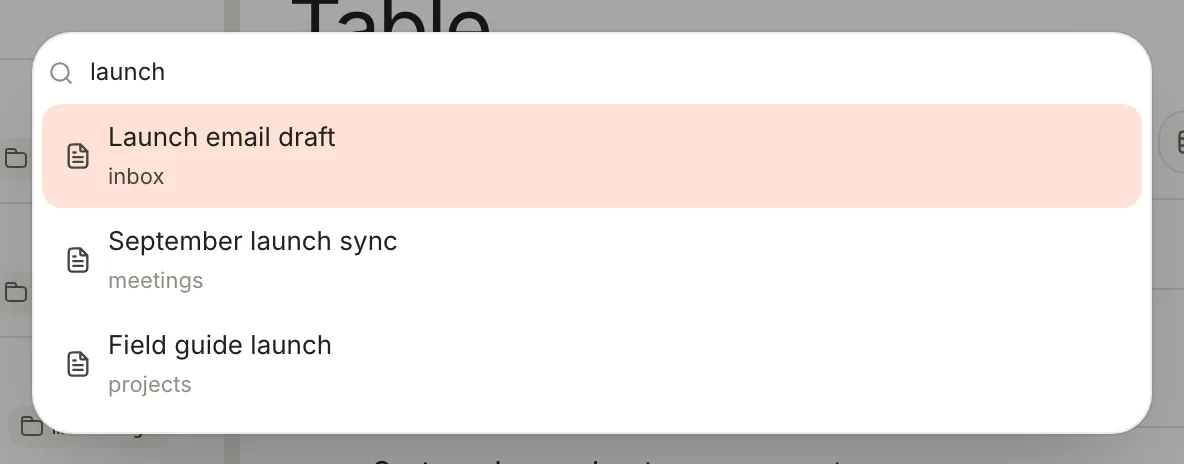
Go to file matches note names. The folder under each title tells same-named notes apart. Press ↓ and ↑ to pick a note, then press Return. The highlight wraps from the last row back to the first.
You don't have to type whole words. Once you've typed three or more letters, letters in order match too: fgl finds Field guide launch. Folder names count as well, ranked below title matches, so meet lists everything in meetings. Notes in Trash never appear here.
Step 2Search the text of every note
Now the harder case: you remember what was decided, not where it was written down. Search looks through the title, text and tags of every note.
Press ⇧⌘F, or click Search (the magnifying glass) in the toolbar. A search box opens over the window with the hint Search the library.
Type
pricing decision. Results appear as you type, a moment after you pause.Read the results. Each row shows the note's title, the line from the note that holds the most of your words, and the note's folder on the right. Your words are highlighted.
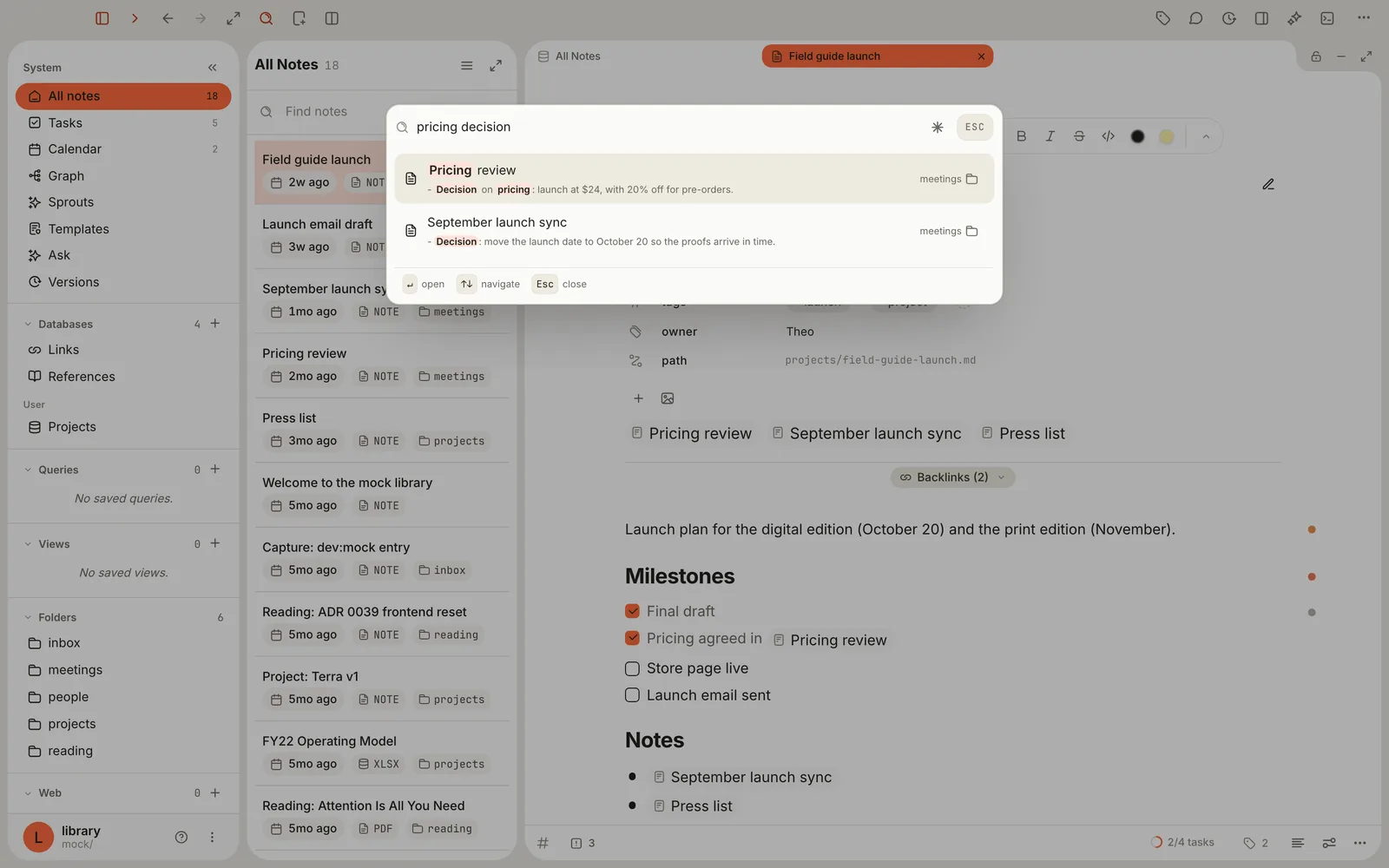
Each result shows the line that best matches your words. The decision you were after is the first line of the first result. Press ↓ and ↑ to move through the results and Return to open one. Esc closes the window.
Three rules explain almost every result:
- Every word must match.
pricing decisionfinds notes that contain both words anywhere in the note. They don't have to sit next to each other. - Words match from their start.
budgfinds "budget", butportdoesn't find "report". Step 5 shows how to match inside words. - Capitals and accents don't matter.
cafefinds "Café".
Search shows up to 25 notes, with no "show more". If what you want isn't there, add a word or a filter rather than scrolling. The window also remembers your last search and reopens with it until you quit Terra; press ⌘A then Delete to start fresh.
Step 3Narrow down with tags, dates and exclusions
Next question: what did the team write about the launch last quarter? Searching launch alone finds every note that mentions the word. Build the query up a piece at a time and watch the list shrink.
Type
tag:launch. Now you only see notes tagged #launch, not every note that happens to say "launch".Add a date range:
tag:launch updated>=2026-07-01 updated<2026-10-01. Spaces mean and, so a note has to pass every part.Leave out drafts by adding
-tag:draft. A minus sign in front of anything excludes it.To check the dates, click the folder name at the right of any result and choose Updated. Every row switches to the date the note was last edited.
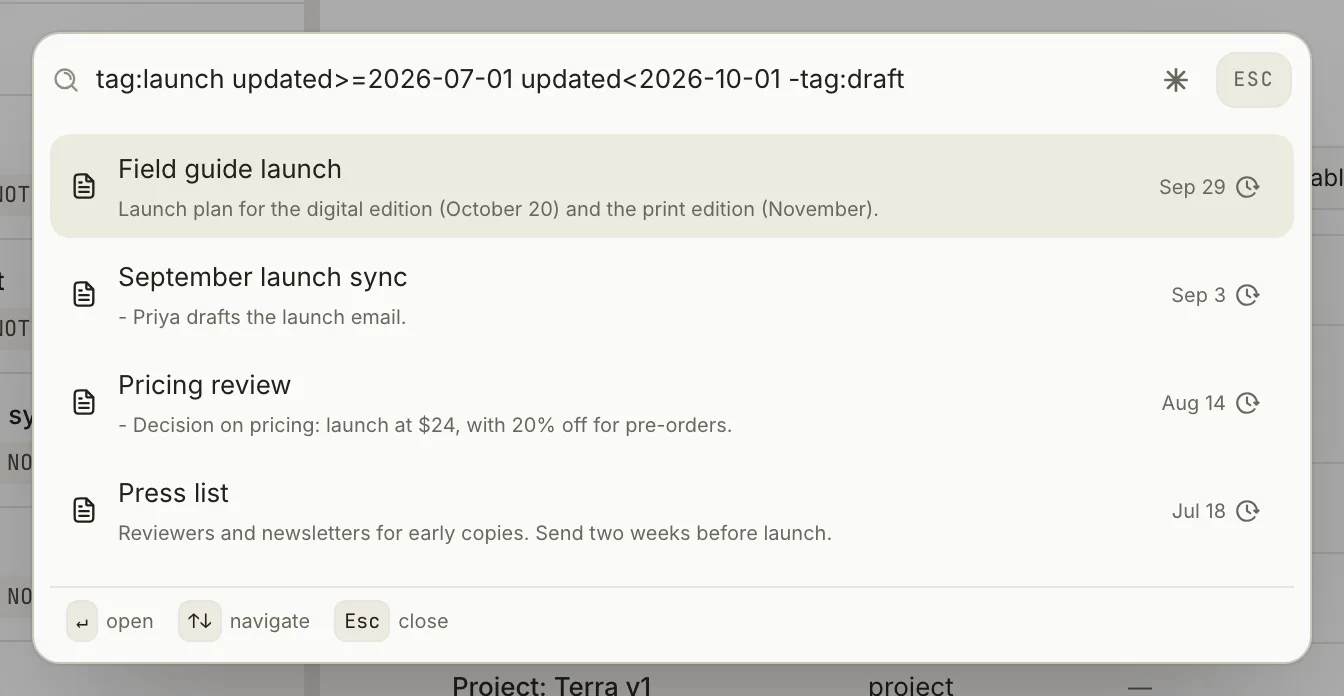
Four launch notes edited between July and September, newest first. The right-hand column now shows Updated instead of Folder.
The other building blocks work the same way, and you can mix them freely:
| To find | Type | Example |
|---|---|---|
| An exact phrase | Quotes | "launch date" |
| Either of two things | OR, in capitals | pricing OR budget |
| Anything except | - right before it | -draft, -tag:draft, -"to do" |
| A combination | Parentheses | (tag:press OR tag:launch) review |
| A tag | tag: | tag:launch |
| A type or status | type:, status: | type:meeting |
| Everything in a folder | path:Folder/** | path:meetings/** |
| Last edited before or after a day | before:, after: | after:2026-06-30 |
| Created or edited in a range | created or updated with >, >=, <, <= | created>=2026-10-01 |
A few details trip people up:
tag:,type:andstatus:are exact and case-sensitive.tag:Launchdoesn't find #launch,tag:projectsdoesn't include nested tags such asprojects/terra, and the#stays out.before:andafter:leave out the day you name:after:2026-06-30starts on July 1. Dates are always writtenYYYY-MM-DD; words like "yesterday" aren't understood.ORonly works in capitals. A lowercaseoris searched as an ordinary word.
The search syntax reference lists every operator, filter and error message.
Step 4Search your own properties, lines and sections
Tags and folders cover most searches. Sometimes, though, the answer lives in a property you made up, or you only remember two words that sat close together.
Properties go in brackets. Your team records an owner on each meeting and project note. To see what Theo owns:
Type
owner:Theo. Instead of results, a red line appears: invalid query: unknown field: owner. Search only understands a handful of filter names before a colon, andownerisn't one of them.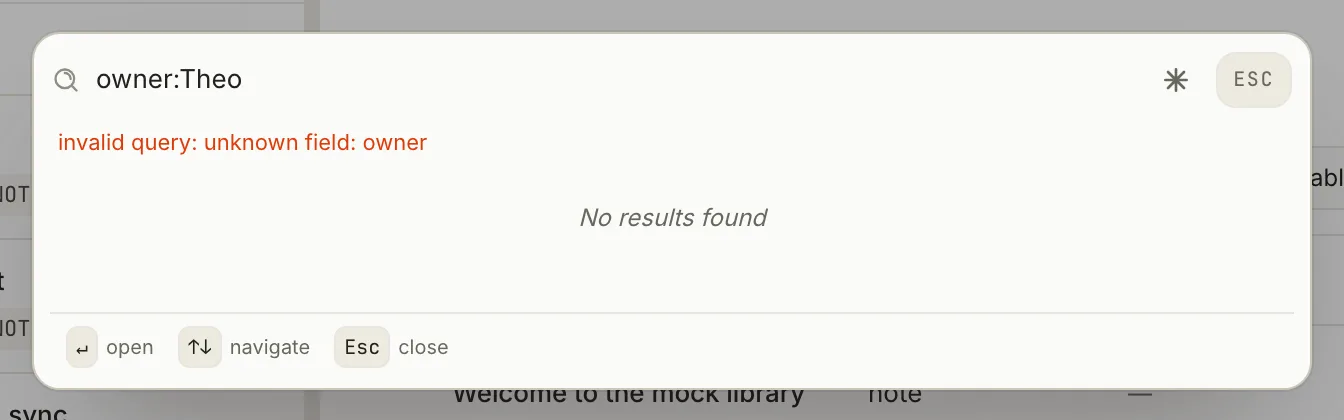
A word followed by a colon has to be a filter Terra knows. Anything else shows this error instead of results. Wrap it in brackets instead:
[owner:Theo]. Now it finds every note whoseownerproperty is Theo.
Bracket filters ignore capitals in the value but must match the whole value, so [owner:Theo] doesn't find "Theo Grant". Leave out the value to find every note that has the property at all: [owner]. The property name must be spelled exactly as it appears in your notes.
Words on one line, or under one heading. Your meeting notes are long, and "proofs" and "late" turn up all over them. You want the line where they appear together:
line:(proofs late)finds notes where both words are on the same line.section:(decision pricing)finds notes where both words fall under the same heading.
Both need the parentheses. Put a phrase in quotes to keep it together: line:("launch date" october).
Step 5Match a pattern with Regex
A regular expression describes a pattern rather than exact words — "launch, followed by either date or day". Reach for one when plain words can't say what you mean, or when you need to match part of a word.
In the search window, click the asterisk at the right end of the box (Regex). It turns highlighted, and its tooltip changes from Regex off to Regex on.
Type a pattern, without slashes:
launch (date|day).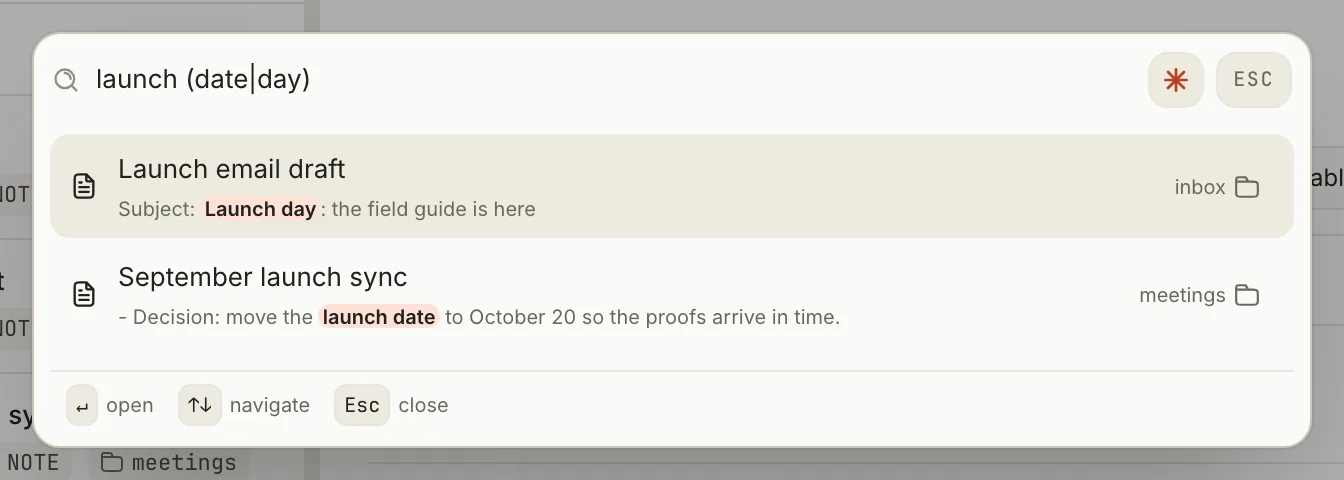
With Regex on, the whole box is one pattern. Matches are highlighted in each result.
With Regex on:
- The pattern is matched against each note's title and text, ignoring capitals. Tags and properties aren't searched.
- Results are ranked by keyword alone, and matches by meaning are left out. Help and canvas results don't appear.
- The switch stays on until you click it again or quit Terra.
You can also mix a pattern into an ordinary search by putting it between slashes. tag:launch /\$\d+/ finds launch notes that mention a dollar amount.
Step 6Run commands and get answers with ⌘K
The command palette searches what Terra can do, not what your notes say. It's the quickest route to anything whose shortcut you don't remember.
Press ⌘K. With nothing typed, the palette lists the commands you can run right now, each with its shortcut.
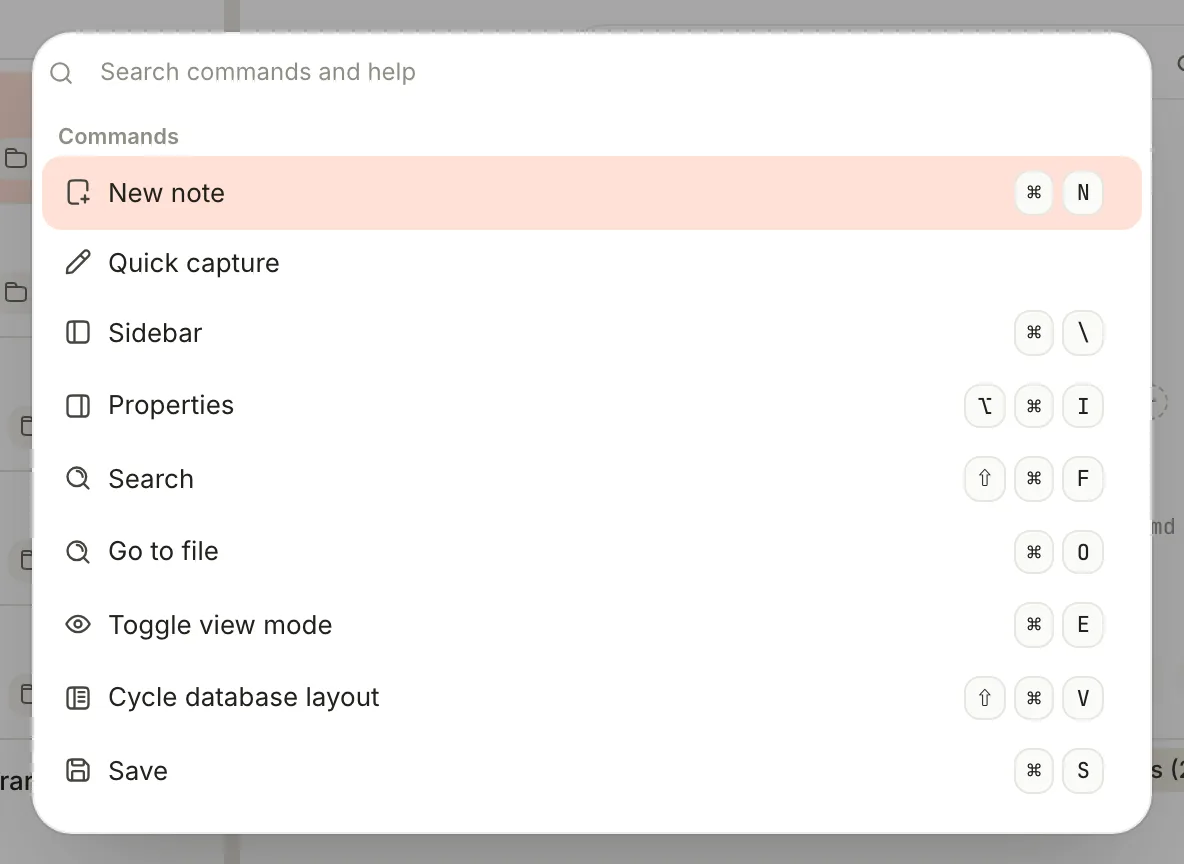
With nothing typed, the palette lists the commands you can run now. Shortcuts sit at the end of each row. Type part of what you want. The palette finds more than commands:
- notes and databases by name: type
pricingto open Pricing review; - Terra's own views: Tasks, Calendar, Graph, Sprouts, Query and Versions;
- Settings pages: type
hotkeyfor Hotkey settings.
- notes and databases by name: type
Press ↓ and ↑ to pick a row, then Return. The palette closes and runs it. Esc, or ⌘K again, closes it without running anything.
Once you type, commands that can't run right now appear too, dimmed, with the reason underneath. Back, for example, reads No previous location until you've moved around. The arrow keys skip over dimmed rows.
Ask it how. Type a few words about a task, or a whole question, and answers from Terra's built-in Help appear under Help, below the commands.
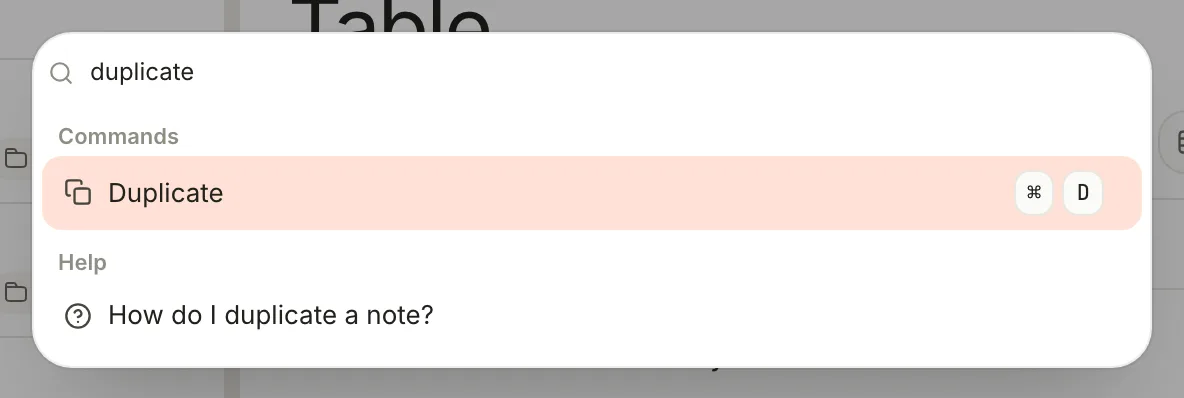
Choosing a Help row opens the article in a Help tab. The search window shows Help answers too, up to three, after your notes.
Step 7Understand and tune the ranking
Search doesn't sort by a single score. It blends several signals, which is why a note with your words in its title usually comes first, and why a note you edited this morning can edge out an older one:
- Keyword match — how well your words match. A match in the title counts most, then the tags, then the text.
- Fuzzy match — how close the note's title is to everything you typed.
- Recent edits — recently edited notes get a small lift.
- Graph proximity — notes within three links of the note you have open get a small lift.
- Semantic similarity — how close a note is in meaning. This only counts once your Library has a semantic index. Until then it adds nothing.
You can change how much each one counts:
Open Settings (⌘,) and click Search in the Library group.
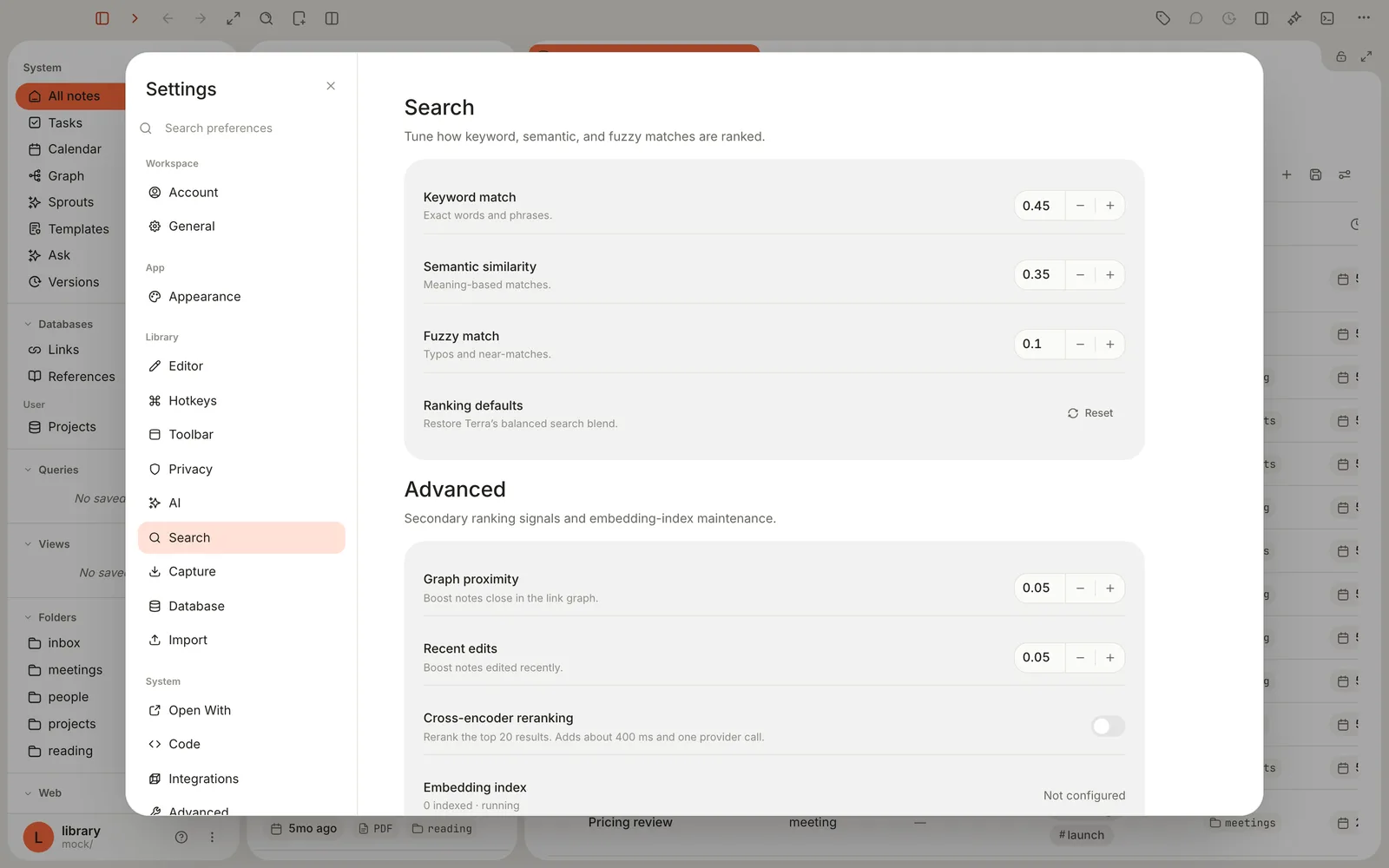
Each weight runs from 0 to 1. Changes save at once and apply to your next search. Click − or + beside a weight, or click its number to choose a value from a list. Changes save at once and apply to your next search.
To go back to Terra's balance, click Reset in the Ranking defaults row.
Here's what each setting does in this version. A few of the descriptions in the pane promise more than they deliver:
| Setting | Default | What it does |
|---|---|---|
| Keyword match | 0.45 | How much matching your words counts. |
| Semantic similarity | 0.35 | How much closeness in meaning counts. No effect until Embedding index names a model. |
| Fuzzy match | 0.1 | How much a title's closeness to your whole query counts. Despite the description, it doesn't find misspelled words: it only reorders notes that already matched. |
| Graph proximity | 0.05 | Lift for notes linked to the note you have open. |
| Recent edits | 0.05 | Lift for recently edited notes. |
| Cross-encoder reranking | Off | Doesn't call a provider or add any time. It gives matches by meaning a small boost, then re-sorts. |
| Embedding index | Shows the embedding model, or Not configured, and how much is indexed. | |
| Rebuild embedding index | Reindex changes catches up on edits; Force rebuild starts over. Both stay greyed out until a model is set up. |
With Regex on, none of these weights apply: results are ranked by keyword match alone.
Features you might have missed
Search a tag from anywhere
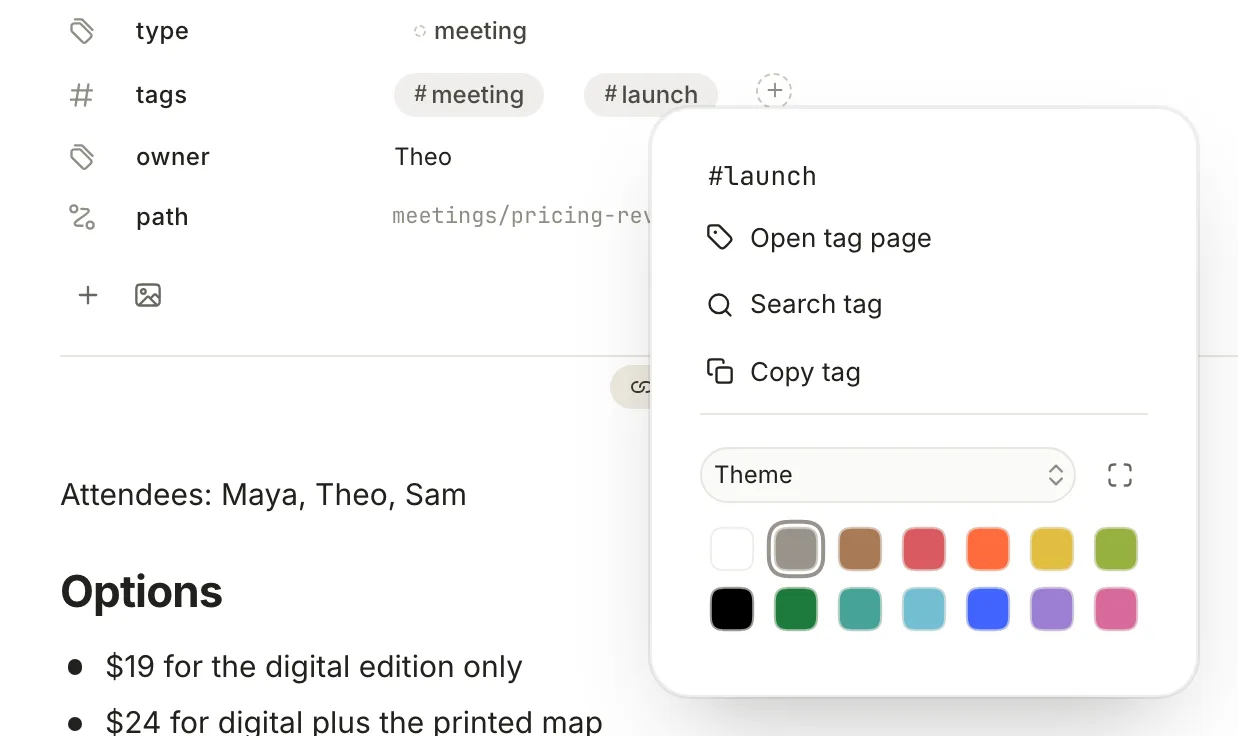
Right-click a tag pill, in a note's properties or a database table, and choose Search tag. The search window opens with tag:launch already typed. In a note's text, ⌘-click an inline #tag to do the same; a plain click opens the tag's page instead.
Words inside books and spreadsheets
Search reads the text of EPUB books in your Library and the cells of your spreadsheets, not only the notes about them. Type a phrase you remember from a book and the book comes up. Opening it takes you to where you stopped reading rather than to the phrase; there's no search inside a book yet.
Text on your canvases
Sticky notes, text boxes, group and swimlane labels, diagram source and connector labels are searchable too. They appear after your notes, marked Canvas · and the kind of item, and opening one shows the canvas centered on it. Canvas text has to contain your whole query as one phrase, so operators don't apply to it. See Canvas, mind maps and the graph.
How a note connects
When Search finds the note but you want to see what surrounds it, right-click it in the note list beside the sidebar and choose Graph of this note. You'll see the note and everything linked to it. See the graph section of the canvas guide.
Filter one list without searching
The Find notes box at the top of the note list filters only that list. It keeps notes whose title, or any value shown in the list, contains what you type. It doesn't understand operators.
Your own shortcuts and toolbar buttons
To change ⌘Kor⌘Oor⇧⌘F, open Settings › Hotkeys: Command palette and Go to file are under Global, Search under Navigation. To put the palette on the toolbar, right-click any toolbar button, choose Customize toolbar…, type palette in the Command library search, drag Command palette onto the toolbar and click Apply.
Troubleshooting
"invalid query: unknown field: …"
A word followed by a colon has to be a filter Terra knows, such as tag:, type:, status: or path: (the full list is in the reference). For your own properties, use brackets: [owner:Theo]. Pasted web addresses trigger the error too, because https: looks like a filter. Put the address in quotes.
Results include notes that don't contain my words
Those are matches by meaning from your semantic index. They don't have to contain your words or pass your filters. Turn on Regex for strictly literal results.
A note I deleted still shows up
Notes in Trash stay searchable. Add -path:Trash/** to your search to leave them out. Go to file already skips them.
Search keeps opening with a tag: query
After you use Search tag, the search window reopens with that tag's query each time, until you quit Terra. Press ⌘A and Delete to clear it.
tag: finds nothing, but the note is tagged
Tag filters are exact and case-sensitive. Check the capitals, leave out the #, and for a nested tag search for the whole name in quotes: tag:"projects/terra". If capitals are the problem, [tags:Launch] ignores them, but it only sees tags set in the note's properties, not #tags written in the text.
The highlight moved off the bottom of the list
The results list doesn't scroll to follow the arrow keys. Scroll it with your trackpad or mouse, or add a word to shorten the list.
Return opened the wrong note
Results refresh a moment after you stop typing. If you press Return straight away, you can open the top result of your previous search. Wait until the list settles.
Can I save a search, or see recent searches?
Not yet. You can't save a search or turn it into a database, and Terra doesn't keep a search history. The window only remembers your last search and the Regex switch until you quit. For a list you come back to often, make a database with filters instead; see Create the project's database.
What's next
- Search syntax — every operator, filter and error message in one place.
- Get answers from your own notes — ask in plain language when you don't know the exact words.
- Canvas, mind maps and the graph — lay out what you found and see how it connects.
- Keyboard shortcuts — every other key worth knowing.
Was this guide helpful?