# Templates
> Start notes with your headings, tags and properties already in place, fill in placeholders like the date, and make templates of your own.
Source: https://terramd.io/docs/templates
A template is a note you start other notes from: the headings you always write, the tags and [properties](https://terramd.io/docs/properties) you always add, and placeholders such as `{{ date }}` that Terra fills in when you use it. Terra comes with a few, and you can make your own from scratch or from any note.
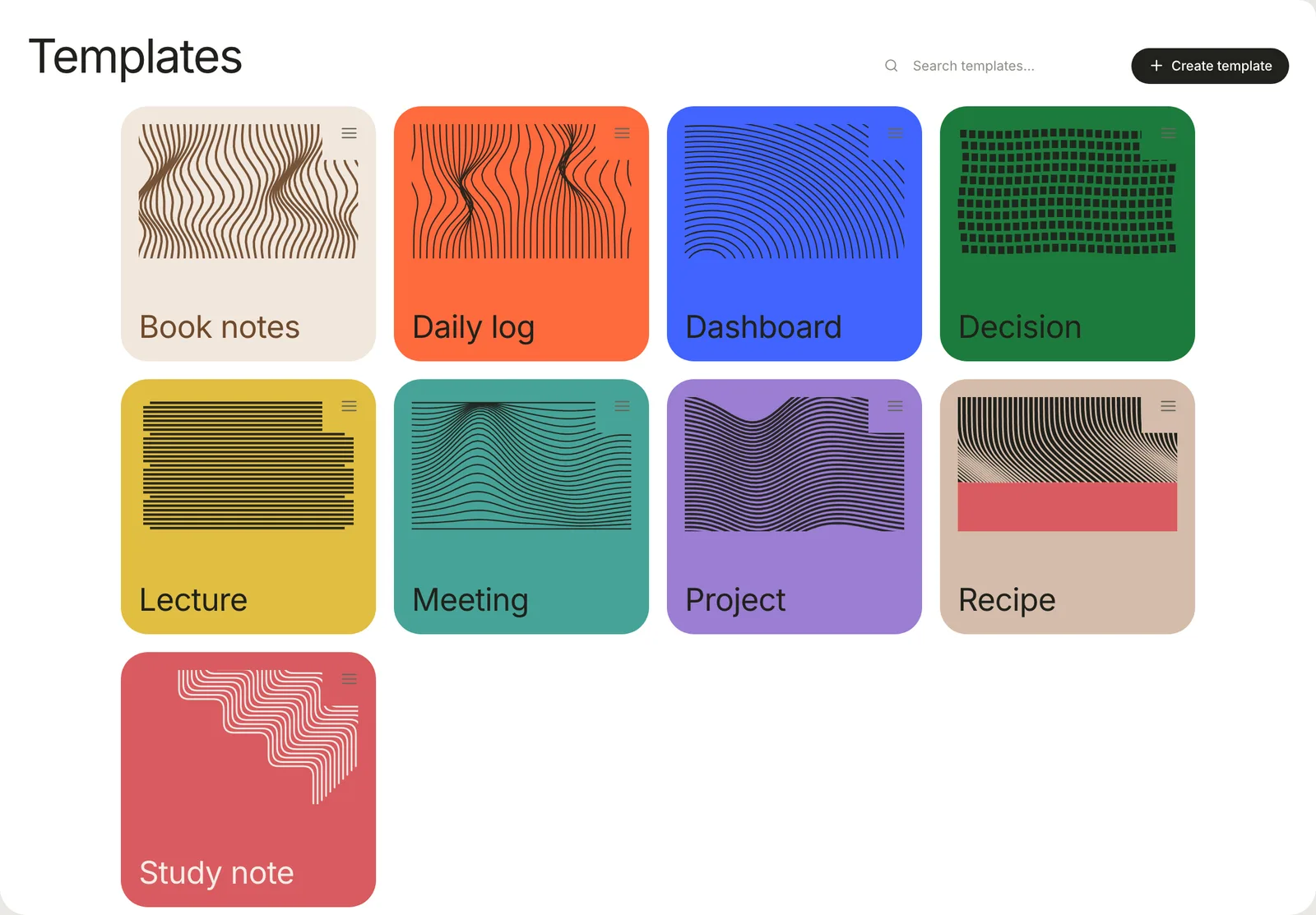
Templates belong to the [Library](https://terramd.io/docs/libraries). Click **Templates** in the sidebar to see them all.
## Start a note from a template
1. Choose **File › New from Template…** (⇧ ⌘ N), or click **New…** in the toolbar and choose **New from template…**.
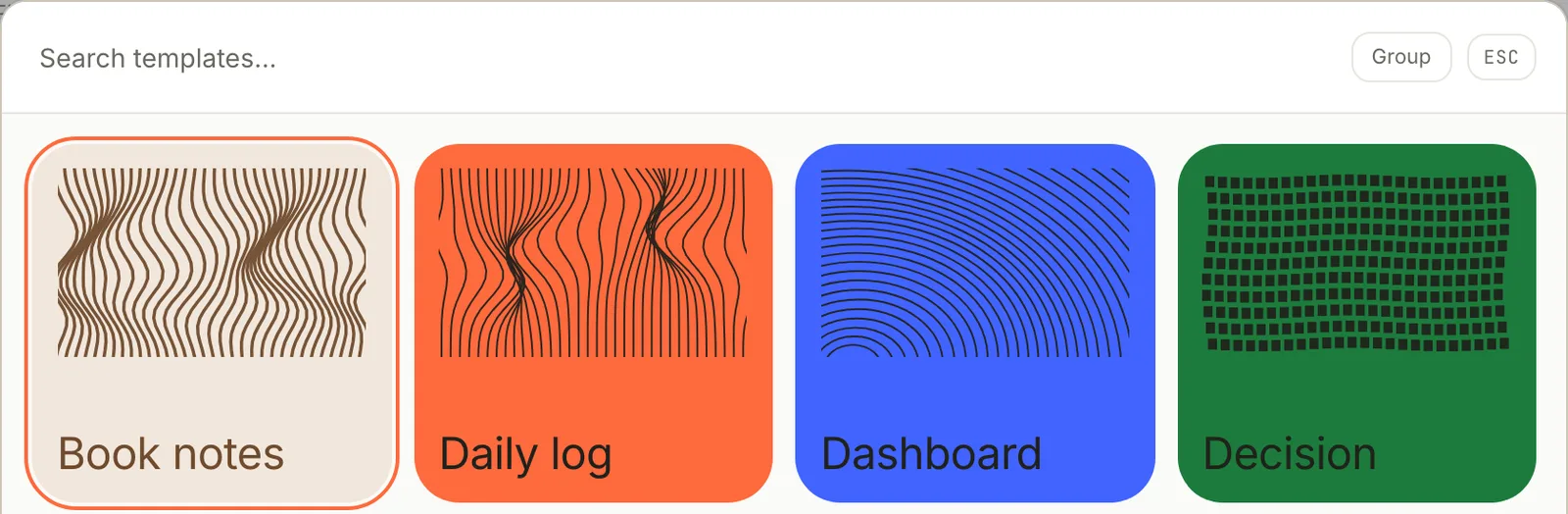
2. Click a template. To find one, type in **Search templates…**, or use the arrow keys and Return. **Group** sorts the cards by category.
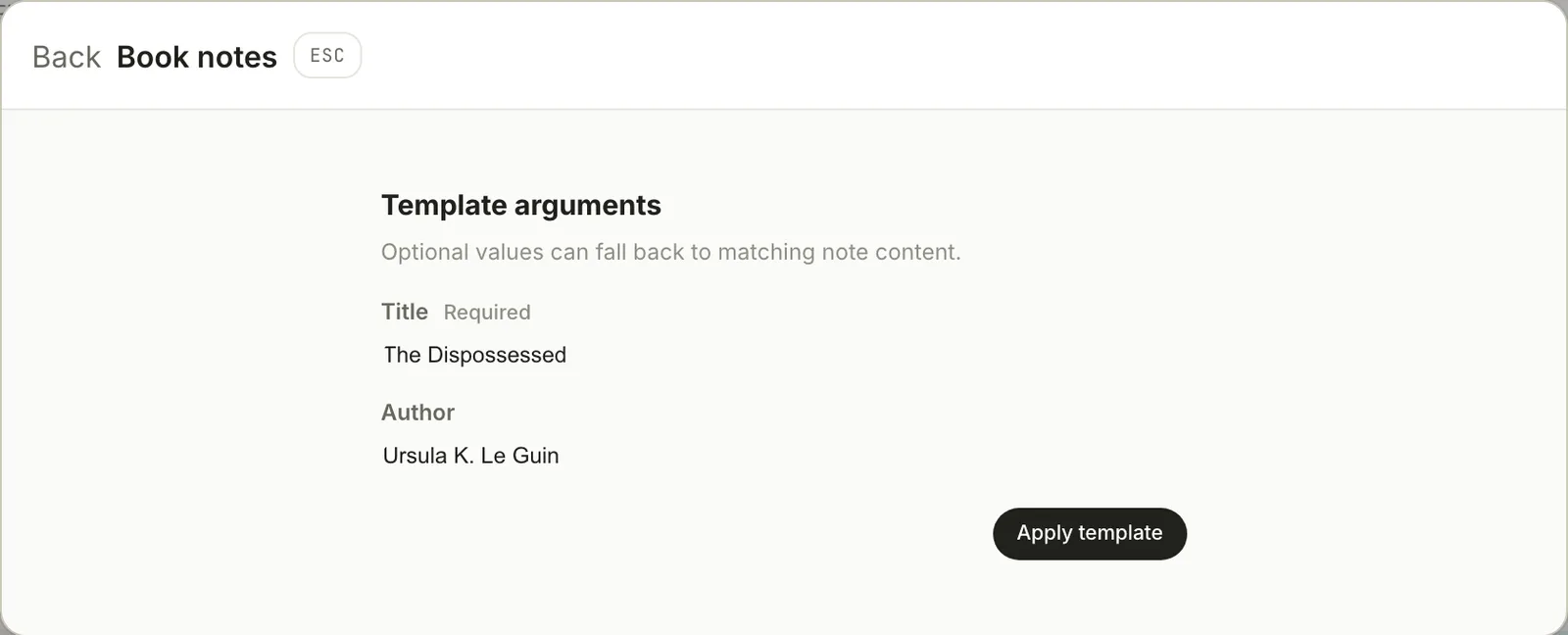
3. If the template asks for values, fill in **Template arguments** and click **Apply template**. A field marked **Required** must be filled in first.
4. The new note opens.
Where the note goes depends on where you started:
| Started from | The note goes in |
| --- | --- |
| **File › New from Template…** | The folder of the note you have open, or the top of the Library |
| **New…** › **New from template…** | Inbox |
| Right-click a folder in the sidebar › **New from template…** | That folder |
| Right-click a database in the sidebar › **New from template…** | The database's folder, if it collects one folder; otherwise Inbox |
If the template asks for a value named `title`, that becomes the note's title; otherwise the note is named after the template, so a note from **Meeting** starts out called "Meeting". Click the title to rename it.
## Make a template
To start from scratch:
1. Click **Templates** in the sidebar, then **Create template**.
2. Type a **Name**. **Path**, the template's file name, fills itself in; add a folder to it, such as `reading/book-notes`, to keep templates in folders. **Description**, **Category** and **Aliases** (other names to search by, separated by commas) are optional.
3. Click **Create**. The template starts as a heading, `# {{title}}`, and `{{cursor}}`.
4. Click the menu button (**≡**) in the corner of the template's card and choose **Edit template** to write the rest.
To turn a note you've already written into a template, right-click it in the note list and choose **Save as template…**. Type a file name in **Slug or path**, click **Next**, then type a **Template name** and click **Save**. The template keeps the note's text and properties, except its `id`, `created` and `updated`.
## Placeholders
Anything in double braces is filled in when the note is made. Spaces inside the braces are optional.
| Write | You get |
| --- | --- |
| `{{ title }}` | The new note's title |
| `{{ date }}` | Today's date: `2026-10-16` |
| `{{ time }}` | The time: `14:30` |
| `{{ datetime }}` | Both: `2026-10-16T14:30` |
| `{{ "now" \| date:"dddd, MMMM D, YYYY" }}` | Today in your own format: Friday, October 16, 2026 |
| `{{ folder }}` | The folder the note is made in |
| `{{ file }}` | The note's file name, such as `the-dispossessed` |
| `{{ uuid }}` | A new unique ID |
| `{{ cursor }}` | Nothing. It marks where you'll start writing. |
| `{{ author }}` | The value of a [template property](#ask-for-values-template-properties) named `author` |
The `date` format is made of these codes, shown here for Friday, March 6, 2026 at 14:30. Put other words in square brackets, as in `"D MMM [at] h:mm A"`.
| Code | Gives | Code | Gives |
| --- | --- | --- | --- |
| `YYYY` | 2026 | `D`, `DD`, `Do` | 6, 06, 6th |
| `M`, `MM` | 3, 03 | `ddd`, `dddd` | Fri, Friday |
| `MMM`, `MMMM` | Mar, March | `HH:mm`, `h:mm A` | 14:30, 2:30 PM |
To include text only when a value is filled in, wrap it in `{% if %}` and `{% endif %}`; `{% else %}` gives the alternative:
```md
{% if author %}By {{ author }}. {% endif %}Started {{ date }}.
```
If a template has a mistake, **Edit template** marks it, and using the template shows a message such as **This template has an error on line 3:** with what's wrong.
## Ask for values: template properties
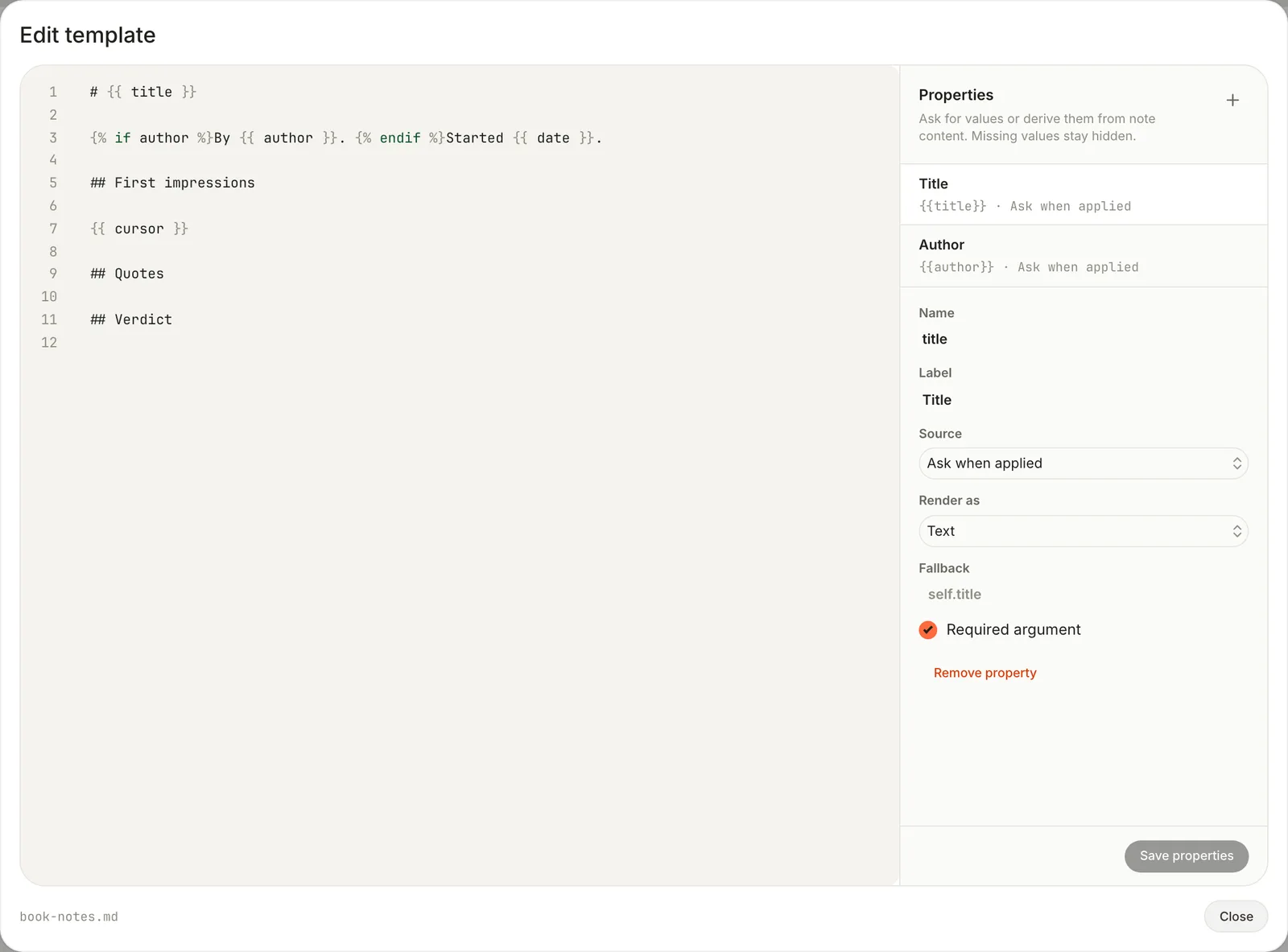
A template can declare template properties: named values that fill its placeholders, separate from the properties a note shows under its title. Edit them in the **Properties** panel of **Edit template**. Click **+** (**Add template property**), fill in its fields, then click **Save properties**.
| Field | What it does |
| --- | --- |
| **Name** | The placeholder it fills: `author` fills `{{ author }}` |
| **Label** | What Terra calls it when asking |
| **Source** | Where the value comes from: see below |
| **Render as** | How it's written: **Text** as it is, **Link** as a Markdown link, **Callout** as a [Sprout](https://terramd.io/docs/sprouts) titled with the label, **Numbered section** as a heading over a numbered list, **Centered image** |
| **Fallback** | What to use when it's empty: another property, or `self.title` for the note's title |
| **Required argument** | The note can't be made until it's filled in |
| Source | The value comes from |
| --- | --- |
| **Ask when applied** | You, under **Template arguments**, when you start a note |
| **Note property** | A property of the note being tidied, under the property's name or one of the **Names to try** |
| **Body section** | A section of that note whose heading matches one of the **Section words** |
| **First image** | That note's first image |
**Note property**, **Body section** and **First image** read an existing note, so they fill in only when Terra tidies a capture into the template (see [below](#templates-in-captures)). When you start a new note, only **Ask when applied** values and fallbacks are filled, and an empty property leaves nothing behind.
Here is the **Book notes** template's file, `.terra/templates/notes/book-notes.md` in the Library folder:
```md
---
title: Book notes
description: One page per book, from first impressions to a verdict.
category: Reading
tags:
- books
template:
properties:
- name: title
label: Title
source: argument
render: text
required: true
- name: author
label: Author
source: argument
render: text
---
# {{ title }}
{% if author %}By {{ author }}. {% endif %}Started {{ date }}.
## First impressions
{{ cursor }}
## Quotes
## Verdict
```
With the arguments in the screenshot above, it makes this note (with its `id`, `created` and `updated` left out here):
```md
---
title: The Dispossessed
tags:
- books
category: Reading
description: One page per book, from first impressions to a verdict.
---
# The Dispossessed
By Ursula K. Le Guin. Started 2026-10-16.
## First impressions
## Quotes
## Verdict
```
Everything else in the template's frontmatter is copied into the note, tags included, except `title`, `type` and the `template:` block. That means a template's own `description` and `category` land in each note too, and a note's type has to be set by hand.
## Templates in captures
Quick capture can shape a capture with a template: choose one under **Template** in the Quick capture card and switch **Enrich** on. Terra fills the template from what you captured (an AI model writes the **Body section** parts), adds the template's tags, and appends the result to the note. See [Capture and classify](https://terramd.io/docs/capture-and-classify).
## Starter templates
Terra adds these to a Library the first time it opens one that has no templates.
| Template | What's in it |
| --- | --- |
| **Daily log** | Today's date as a heading, then Wins, Blockers and Tomorrow |
| **Dashboard** | Four database blocks to point at your data: a count, a chart, a table and a board. See [Dashboards](https://terramd.io/docs/dashboards). |
| **Decision** | Date, a Proposed status, Context, Options considered, Decision, Rationale and Follow-ups |
| **Lecture** | A source link, Summary and Highlights, filled in from a capture |
| **Meeting** | Date and time, Attendees, Agenda, Discussion, Decisions and Action items |
| **Project** | Start date, an Active status, Goals, Milestones, Risks and Links |
| **Recipe** | A picture, a source link, Ingredients and Directions, filled in from a capture |
| **Study note** | Source, date, Key concepts, Important details, Examples, Questions, Summary and Related |
They're yours to change or delete. If you delete every template, Terra adds the starter set again the next time you open the Library.
## Edit or delete a template
On the **Templates** page, click the menu button (**≡**) in the corner of a template's card:
- **Edit template** opens the template's text, with the **Properties** panel beside it. Changes save as you type; click **Close** when you're done.
- **Edit details** changes its name, description, category and aliases.
- **Change cover** picks the card's pattern or a photo.
- **Delete** asks **Delete Book notes?** Click **Delete**. This can't be undone, and version history doesn't cover templates.
**Edit template** shows the template's text, not its frontmatter. To change the properties a template copies into notes, edit its file in another app, or save a new template from a note that has the properties you want.
Below your own templates, **Connectors and imports** lists the templates Terra uses for notes it makes for you, such as **Saved article** for pages saved from the web and **Granola meeting** for meetings from Granola. **Edit template** changes them, and **Reset to default** appears once you have.
## Troubleshooting
> [!NOTE]- The caret doesn't start where `{{ cursor }}` was
> Terra removes `{{ cursor }}` but doesn't move the caret there yet. Click where you want to write.
> [!NOTE]- Inserting a template with /template adds one plain paragraph
> Adding a template to a note you've already started doesn't work yet: the template's Markdown arrives as one paragraph of plain text. Start a new note from the template instead.
> [!NOTE]- New notes in a folder ignore its default template
> **Set default template…** on a folder's right-click menu is saved, but **New note** doesn't use it yet. Terra Agent does when it makes notes in that folder. Right-click the folder and choose **New from template…** instead.
## Related
- [Properties](https://terramd.io/docs/properties): the fields a template can set up for each note.
- [Capture and classify](https://terramd.io/docs/capture-and-classify): tidy captures into a template.
- [Dashboards](https://terramd.io/docs/dashboards): build on the Dashboard template.
- [Meeting notes](https://terramd.io/docs/meeting-notes): a guide to running meetings from a template.