# Tasks
> A task is a checkbox line in any note. Terra gathers every task into Tasks, a board where you set due dates, change status and track progress.
Source: https://terramd.io/docs/tasks
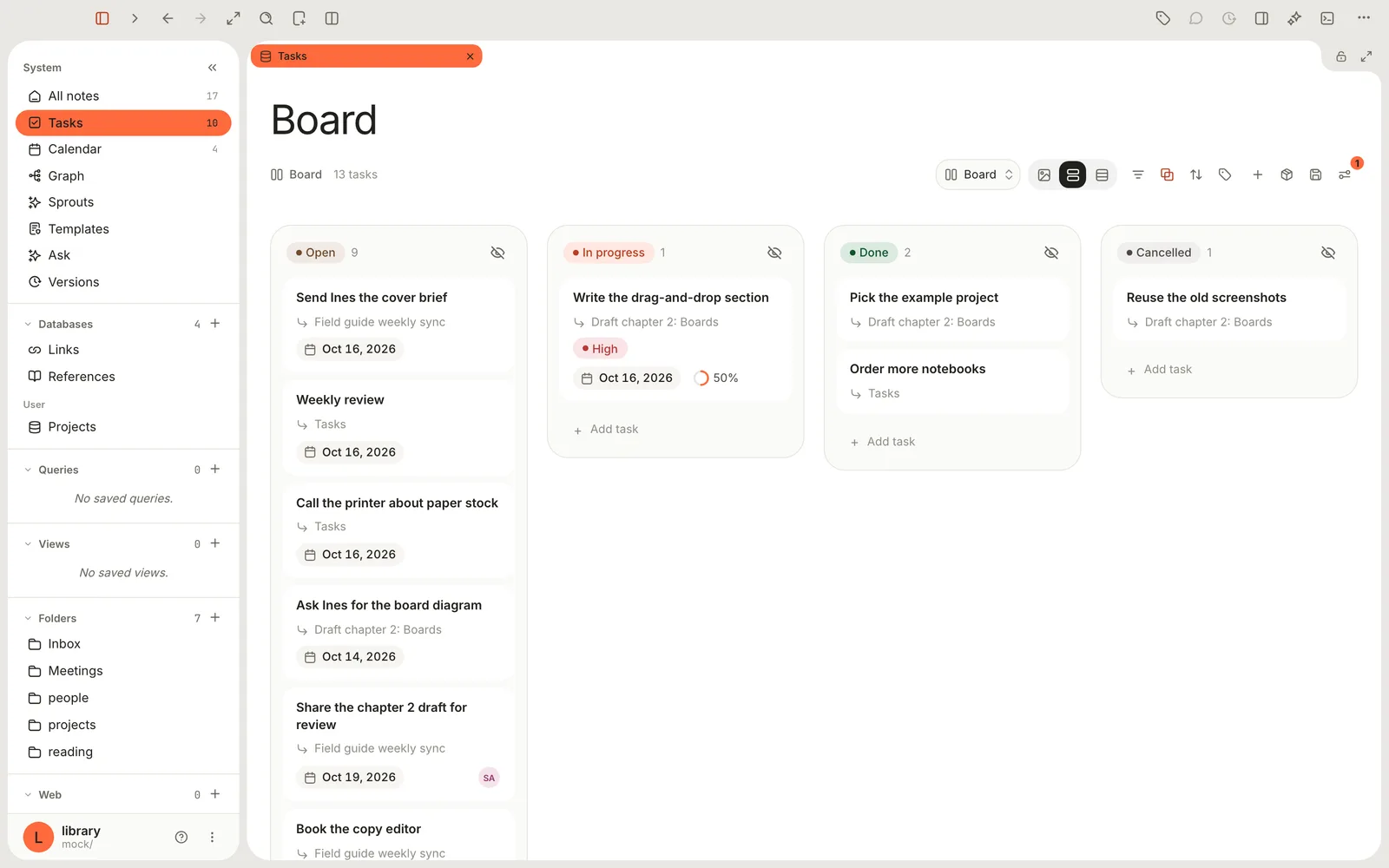
A [task](https://terramd.io/docs/glossary#task) is a checkbox line in a note: `- [ ] Book the copy editor`. There's no separate to-do list to keep in sync. You write a task wherever it comes up, in a meeting note, a project plan or a quick list, and Terra gathers every task from every note into **Tasks**, a built-in [database](https://terramd.io/docs/databases) that opens as a board. Change a task on the board and the line in its note changes too.
## Write a task
Start a line with `[ ]` and a space, and it becomes a checkbox. You can also type `/todo` and choose **To-do**, click **Task** in the editor toolbar, or choose **Turn into › Task list**. Press Return for the next task and Tab to indent it under the one above as a subtask.
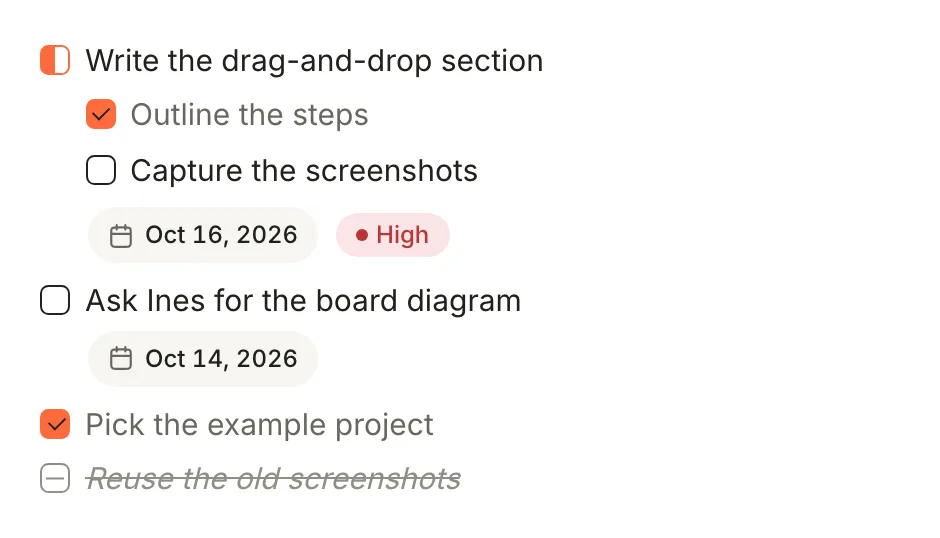
This is what the note holds on disk:
```md
- [/] Write the drag-and-drop section ::: due=2026-10-16 priority=high
- [x] Outline the steps
- [ ] Capture the screenshots
- [ ] Ask Ines for the board diagram ::: due=2026-10-14
- [x] Pick the example project
- [-] Reuse the old screenshots
```
A task has to be a bulleted list item (`-`, `*` or `+`). Numbered items such as `1. [ ] Call Ana` and checkboxes inside code blocks aren't tasks. [Task syntax](https://terramd.io/docs/task-syntax) has every rule.
## Statuses
The character between the brackets is the task's [status](https://terramd.io/docs/glossary#status). Clicking a checkbox in a note steps through all four in turn: Open, In progress, Done, Cancelled, then Open again. So from Open, click twice to tick a task off.
| Type | Status | Use it for |
| --- | --- | --- |
| `- [ ]` | `Open`{gray} | Not started |
| `- [/]` | `In progress`{orange} | Started |
| `- [x]` | `Done`{green} | Finished. `[X]` works too. |
| `- [-]` | `Cancelled`{sky} | Dropped. It stays in the note, struck through. |
### Custom statuses
Add your own statuses when four aren't enough, such as `[?]` for *Needs review*.
1. Open **Settings** (⌘ ,), click **Editor** and scroll to **Task statuses**. (In **Tasks**, the same list is under **View preferences › Statuses**.)
2. Click **+** (**Add status**). The new status gets a free marker, such as `*`.
3. Click its chip and use **Rename**, **Set color**, **Set icon**, **Set marker** and **Set status** (which built-in status it belongs with). **Delete** removes it. Changes save on their own.

A marker is 1 to 4 characters: letters, digits or punctuation, with no spaces or brackets. Two limits: clicking the checkbox of a custom-status task in a note sets it back to Open, and a custom status doesn't create the next copy of a [recurring task](#recurring-tasks).
## Add properties
Properties are extra details on a task: a due date, a priority, who it's for. They live on the same line, after a space, three colons and a space (` ::: `).
- **Type them.** At the end of the task, type ` ::: due=2026-10-20`. When you type a space after it, it becomes a pill. Type ` ::: ` again before each further property.
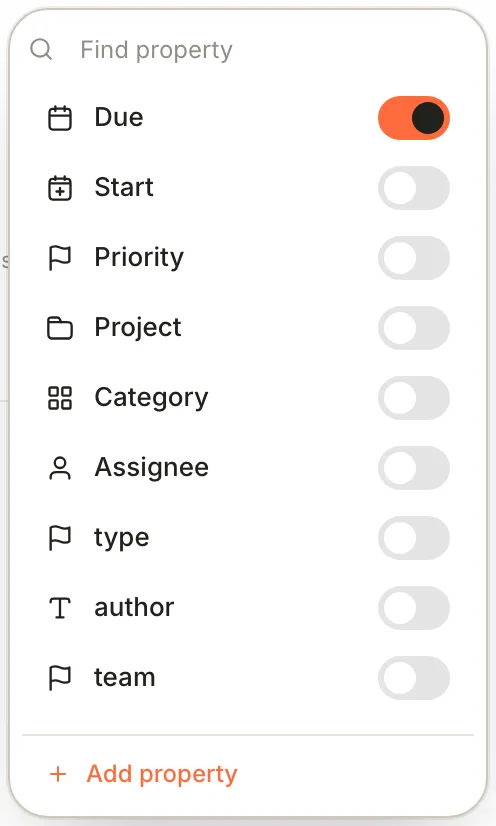
- **Pick them.** Click in the task, then click **⋯** at the right end of its line and choose **Properties**. Switch on what you need and fill in the pill that appears under the task. Click **×** on a pill to remove it.
| Property | Type this | What it's for |
| --- | --- | --- |
| **Due** | `due=2026-10-20` or `due=2026-10-20T14:30` | Puts the task on the [Calendar](https://terramd.io/docs/calendar) and makes it overdue after that day |
| **Start** | `start=2026-10-19` | When work should begin |
| **Priority** | `priority=high`, `priority=med` or `priority=low` | Shows as `High`{red}, `Medium`{yellow} or `Low`{sky} |
| **Project** | `project=field-guide` | Groups related tasks |
| **Category** | `category=admin` | Any label you like |
| **Assignee** | `assignee=Sam` | Shows as a person on board cards |
You can invent other keys too, such as `effort=2`. Values can't contain spaces: write `assignee=Sam` or `project=field-guide`.
## The Tasks board
Click **Tasks** in the sidebar. The number beside it counts the tasks that aren't done or cancelled. The board has a column for each status, and each card shows the task, the note it lives in, and its due date, priority, assignee and subtask progress.
- **Change status:** drag a card to another column. Terra rewrites the checkbox in the note.
- **Add a task:** click **Add task** at the foot of a column, type and press Return. The task is written to `Inbox/tasks.md` with that column's status. To write it into another note, click the note name under the field (or press Tab) and pick one.
- **Edit a task:** click its card (see the next section).
- **Rearrange:** **Filters**, **Show boards as** (group by due date, priority, project, assignee or note instead of status), **Sort**, **Properties** (what cards show) and **Add view** work as in any database. **Show boards as** has no entry for status; to get the status columns back, use **View preferences › Group › Primary group**. See [Filter, sort and group](https://terramd.io/docs/filter-sort-and-group) and [Views and layouts](https://terramd.io/docs/views-and-layouts). **Add task** is only in the Board layout.
Done and cancelled tasks stay on the board. To hide them, add two filters: **Status** › **is not** › **done**, and the same for **cancelled**.
## Edit task
Clicking a card opens **Edit task**: the title, the note it's in, a status pill, its property pills and its subtasks.
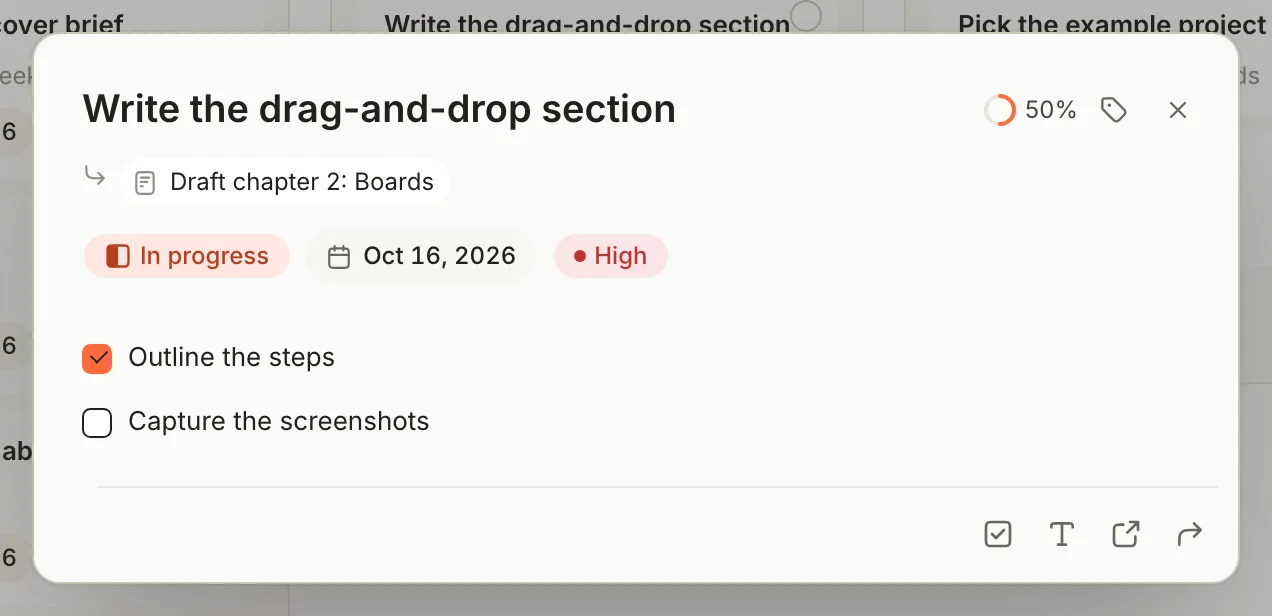
- Click the status pill to pick a status, or the tag button at the top to choose which properties the task has.
- Click the note name to jump to the task in its note. The title can't be edited here; change it in the note.
- The buttons along the bottom are **Add subtask**, **Add description**, **Open task in note** and **Move task to note**.
- **Move task to note** moves the task, with its subtasks and description, under a `## Tasks` heading in the note you pick. **New note: …** at the top of the list gives the task a note of its own, in `Inbox`.
Each new subtask goes in above the existing ones. Drag the handles to reorder them. Press Esc to close the dialog.
## Recurring tasks
A task with a due date and a `repeat=` rule comes back after you finish it:
```md
- [ ] Weekly review ::: due=2026-10-16 repeat=weekly
```
When you mark it **Done** or **Cancelled** on the board, in **Edit task**, on the Calendar or in the Tasks drawer, Terra updates the line and adds the next one straight below it:
```md
- [x] Weekly review ::: due=2026-10-16 repeat=weekly
- [ ] Weekly review ::: due=2026-10-23 repeat=weekly
```
Rules include `daily`, `weekly:mon,wed,fri`, `monthly:1` and `every:2w`, with optional end dates and counts; the full list is in [Task syntax](https://terramd.io/docs/task-syntax#repeating-tasks). There's no menu for rules yet: you type them.
> [!IMPORTANT] Ticking the box in the note doesn't repeat
> Clicking the checkbox in a note changes the status but doesn't add the next copy. Finish repeating tasks on the board, in Edit task, on the Calendar or in the Tasks drawer.
## The Tasks drawer
The Tasks drawer keeps a note's tasks beside it while you write. Click **Properties** in the toolbar (⌘ R) to open the panel on the right, then click **Show Tasks** in the row of buttons along its bottom. See [Drawers](https://terramd.io/docs/find-your-way-around#drawers) for the rest of the panel.
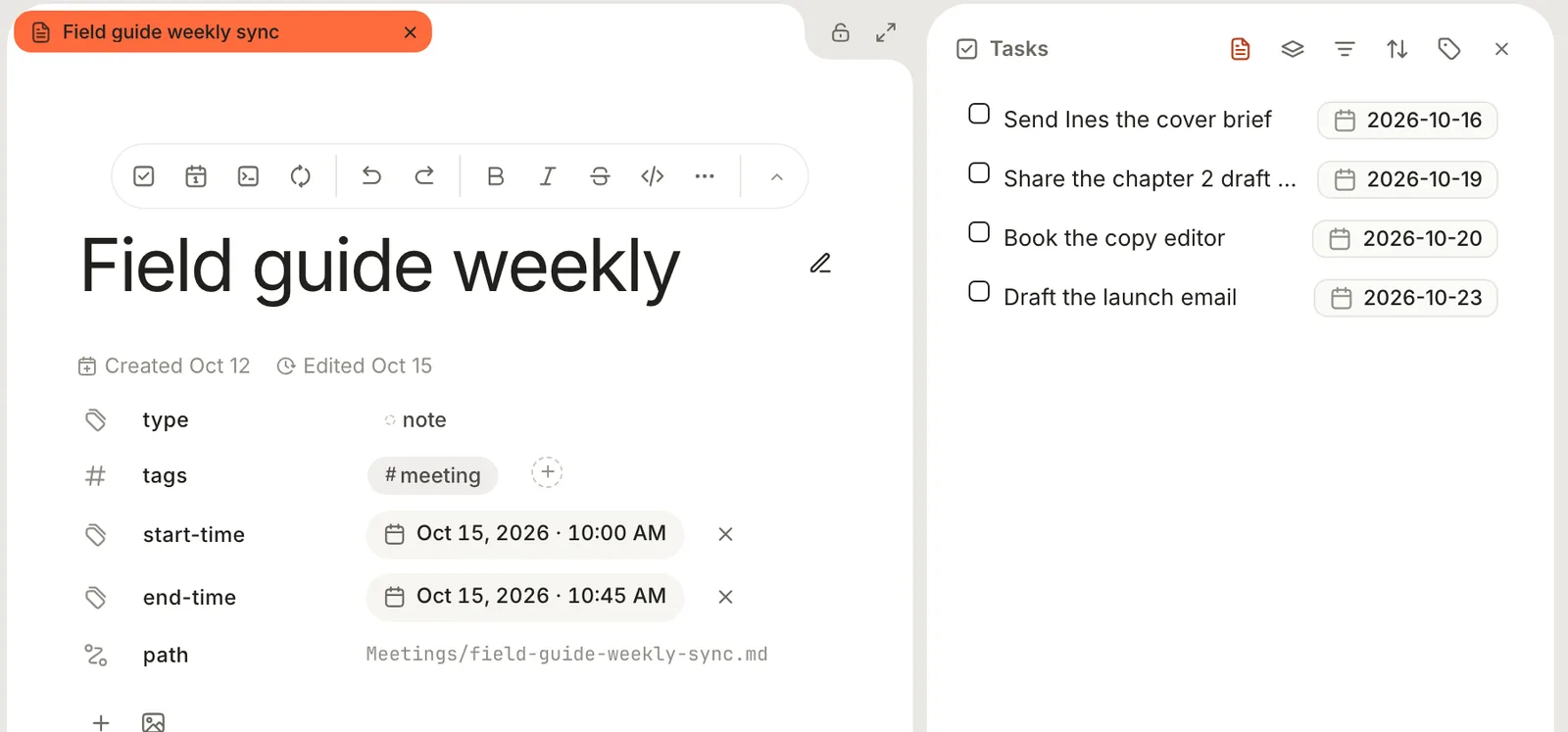
The drawer lists the open note's tasks. Switch to **Library** to see every task. Click a task to open its note, click its marker to move to the next status, or right-click the marker to pick one. The note's footer has a ring showing how many of its tasks are done; click it to jump to any of them.
## Delete and restore a task
To delete a task, delete its line in the note, or click it on the [Calendar](https://terramd.io/docs/calendar) and choose **Delete**. The board has no delete.
Tasks deleted from the Calendar can be brought back. In **Tasks**, click **Sources** and choose **Deleted tasks**, then click **Restore** beside the task. **⋯** › **Delete permanently** removes it for good. Lines you delete by editing a note aren't listed there; use undo instead.
## Tasks for one project
The built-in **Tasks** always shows every task. For a board of one project's tasks, right-click **Tasks** in the sidebar, choose **New task database**, name it and click **Create**. In its header, click **Sources** and pick the project's folder or notes. Tasks you add on that board go into a note named after the database, inside the project's folder. [Run a project](https://terramd.io/docs/project-suite) builds one step by step.
## Troubleshooting
> [!NOTE]- A task doesn't show up in Tasks
> Check that the line is a bulleted list item, not a numbered one, with a space between the `-` and the `[`. Checkboxes inside code blocks are ignored, and so are markers longer than four characters.
> [!NOTE]- The properties show as plain text instead of pills
> Usually a value contains a space, such as `assignee=Sam Lee`, and Terra then reads the whole property list as part of the title. Remove the space. The older `due:2026-10-20` form without ` ::: ` is plain text too. In this version, a task with a description (indented lines under it) also shows its properties as text in the note, although Tasks still reads them.
> [!NOTE]- My repeating task didn't come back
> It was probably ticked in the note. Mark it done on the board or in **Edit task**. A repeat also needs a `due=` date, unless the rule includes `repeat-on=completion`.
## Related
- [Task syntax](https://terramd.io/docs/task-syntax) — every marker, property and repeat rule.
- [Calendar](https://terramd.io/docs/calendar) — tasks by due date, beside your meetings.
- [Run your week with tasks and the calendar](https://terramd.io/docs/run-your-week-with-tasks) — a weekly routine built on this page.
- [Views and layouts](https://terramd.io/docs/views-and-layouts) — more ways to look at Tasks.