# Queries
> Ask your Library questions in SQL. Write a read-only SELECT over Terra's public views, see the answer as a table, a sheet or a chart, and save it.
Source: https://terramd.io/docs/queries
A *query* asks your Library a question in SQL: how many notes have each status, which notes nobody links to, how much work each person has open. Terra keeps an index of your notes in a small SQLite database, and a query reads it through a few public views. Queries only read; they can't change a note. For questions you can answer with conditions, a [database](https://terramd.io/docs/databases) is simpler; reach for a query when you need counts, sums, joins or a chart over time.
## Write and run a query
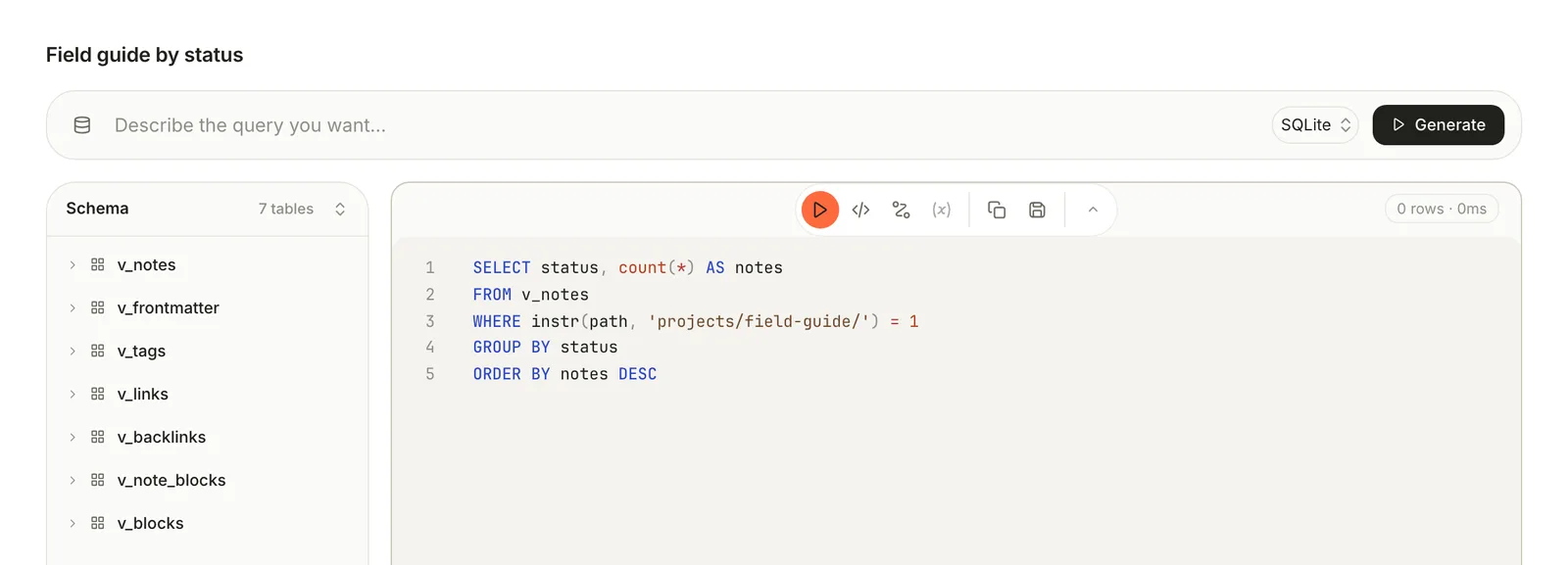
1. Choose **File › New Query**, or click **+** (**New query**) beside **Queries** in the sidebar.
2. Type a name over **Untitled query**.
3. Write a `SELECT` in the editor. The **Schema** list shows the views and their columns; click a view to see its columns.
4. Press ⌘ Return, or click **Run query** in the tools above the editor.
```sql
SELECT status, count(*) AS notes
FROM v_notes
WHERE instr(path, 'projects/field-guide/') = 1
GROUP BY status
ORDER BY notes DESC
```
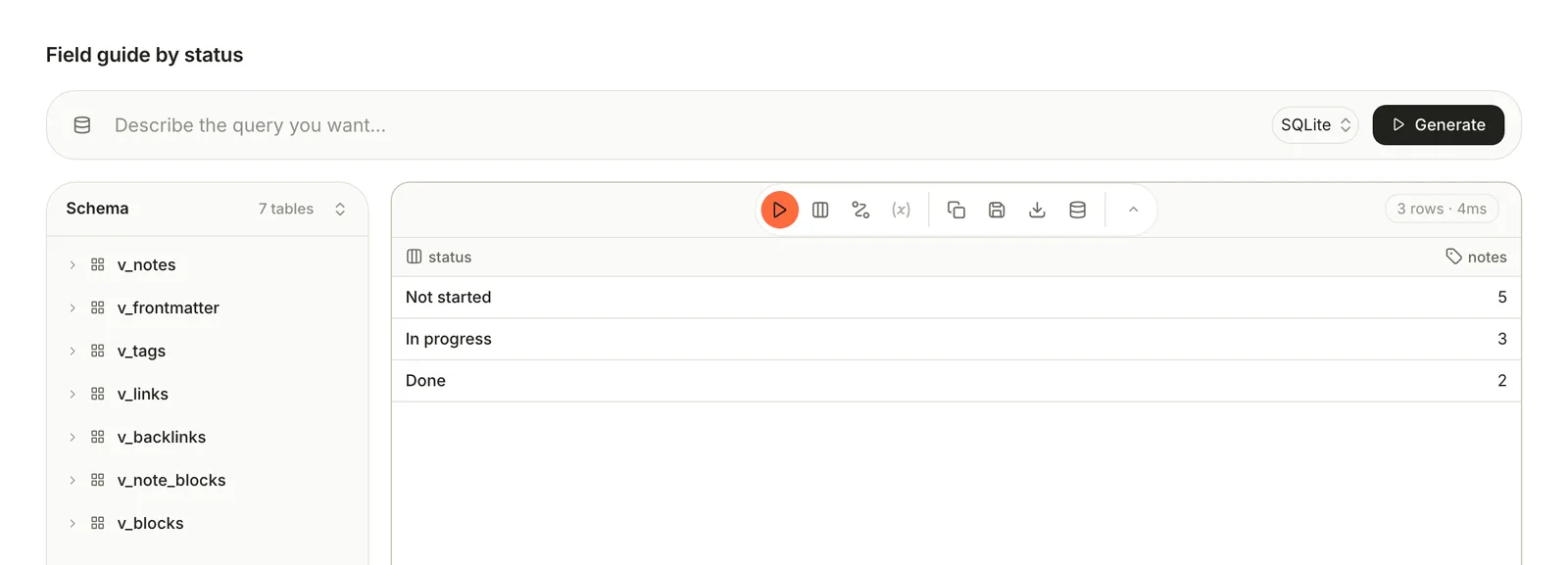
**Tools › Run Query** runs the query in the focused pane. If a result has an `id`, `note_id` or `note` column, click a row to open that note.
To have the SQL written for you, describe what you want in **Describe the query you want…** and click **Generate**, or press ⌘ Return in that line. It needs an AI provider (see [Ask your Library](https://terramd.io/docs/ask-your-library)), sends only the list of views and columns, and checks the statement before it reaches the editor. Read it before you run it. Queries are always SQLite; the dialect menu beside **Generate** doesn't change that.
## What you can read
| View | One row per | Columns |
| --- | --- | --- |
| `v_notes` | Note | `id`, `path`, `title`, `type`, `status`, `created`, `updated`, `word_count`, `has_sidecar` |
| `v_frontmatter` | Property on a note | `note_id`, `key`, `value_text`, `value_number`, `value_bool`, `value_json` |
| `v_tags` | Tag on a note, written in its properties or as `#tag` in its text | `note_id`, `tag` |
| `v_links` | Link from a note | `src_id`, `dst_id`, `dst_raw`, `resolved` |
| `v_backlinks` | Link into a note | `note_id`, `source_id`, `source_title` |
| `v_note_blocks` | Kind of block in a note's [Sidecar](https://terramd.io/docs/annotate-in-the-sidecar), such as its highlights, with a count | `note_id`, `block_type`, `block_count` |
| `v_blocks` | Block in a note: heading, paragraph, list item, Sprout… | `note_id`, `block_id`, `anchor`, `parent_id`, `kind`, `level`, `callout_kind`, `title`, `ordinal`, `text`, `char_start`, `char_end`, `child_count` |
- `created` and `updated` are timestamps such as `2026-10-16T09:00:00Z`; wrap them in `date()` to group by day.
- In `v_frontmatter`, text and dates are in `value_text`, numbers in `value_number`, checkboxes in `value_bool` (1 or 0), and lists such as tags in `value_json`.
- `word_count` is always 0 for now.
- In `v_blocks`, `kind` is `heading`, `paragraph`, `callout`, `list`, `listItem`, `quote`, `codeBlock`, `table`, `embed`, `image` or `hr`. For a Sprout, `callout_kind` holds its kind, such as `tip`.
## The rules
A query is one SQLite `SELECT`, optionally starting with `WITH`. Everything else is refused before it runs:
- Only the views above. Notes' own files and Terra's other tables are out of reach.
- One statement, with no `INSERT`, `UPDATE`, `DELETE`, `CREATE` or `PRAGMA`.
- Functions from this list only:
| Kind | Allowed |
| --- | --- |
| Text | `lower`, `upper`, `length`, `substr`, `substring`, `trim`, `ltrim`, `rtrim`, `replace`, `instr`, `printf`, `format`, `quote`, `char`, `unicode`, `hex` |
| Numbers and totals | `abs`, `round`, `ceil`, `ceiling`, `floor`, `min`, `max`, `sum`, `avg`, `count`, `total`, `group_concat`, `coalesce`, `nullif`, `ifnull`, `iif`, `cast` |
| Dates | `date`, `time`, `datetime`, `julianday`, `strftime`, `unixepoch` |
| JSON | `json`, `json_array`, `json_array_length`, `json_extract`, `json_insert`, `json_object`, `json_patch`, `json_quote`, `json_remove`, `json_replace`, `json_set`, `json_type`, `json_valid` |
| Rankings | `row_number`, `rank`, `dense_rank`, `ntile`, `lag`, `lead`, `first_value`, `last_value`, `cume_dist`, `percent_rank`, `nth_value` |
| Other | `typeof`, `likelihood`, `likely`, `unlikely` |
`LIKE` and `GLOB` count as functions and aren't on the list, so they fail with an error such as *not authorized to use function: like*. Match text with `instr()` instead:
```sql
SELECT id, title
FROM v_notes
WHERE instr(lower(title), 'pricing') > 0
```
A query in the Query surface stops after 3 seconds and returns at most 10,000 rows.
## See the results as a table, sheet or chart
Click **View: Results** in the tools and choose **Query** (the SQL), **Results**, **Sheet** or **Chart**.
- **Sheet** opens the results as a spreadsheet, with **Save sheet to Library** and **Download sheet as XLSX**.
- **Chart** draws a **Line**, **Bar**, **Area**, **Scatter** or **Heatmap** chart. It starts with the first text column across and the first number column up; change them with **Chart settings** (the gear). **Cumulative** turns each value into a running total, which is how you draw a burndown: see [Chart a burndown](https://terramd.io/docs/project-suite#chart-a-burndown).
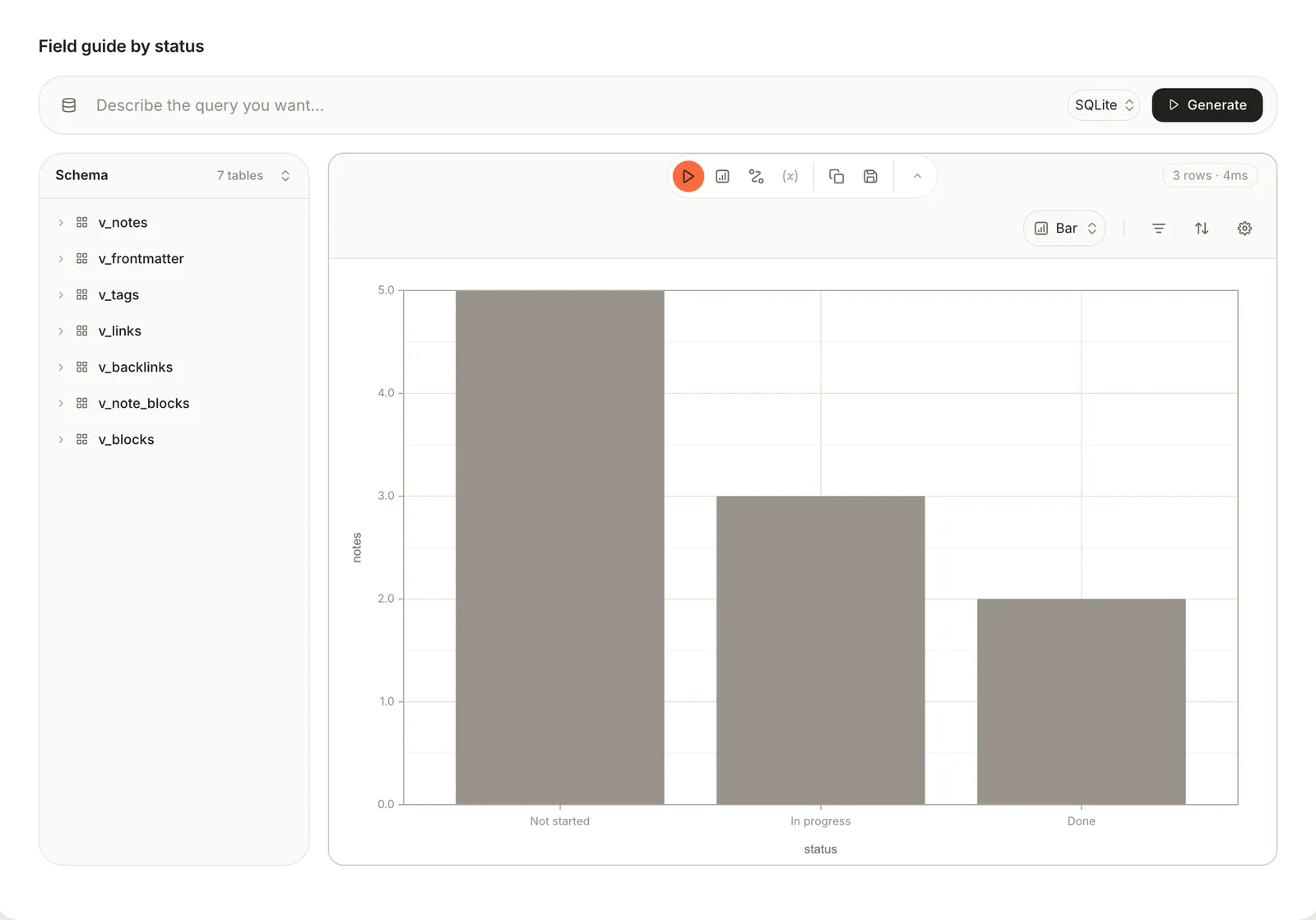
The chart's type and settings aren't saved with the query yet, so set them again after you reopen it.
## Save and reuse queries
Click **Save query** in the tools. Terra checks the statement first, then lists the query under **Queries** in the sidebar and stores it in your Library as `.terra/queries/.json`. To rename it, change the name at the top and save again. The sidebar can change a query's icon and copy its id, but can't rename or delete it yet.
The other tools:
| Tool | What it does |
| --- | --- |
| **Copy SQL** | Copies the statement |
| **Export results as Markdown** | Copies the results as a Markdown table, ready to paste into a note |
| **Open as Database** | Makes a database of the notes the query found, named *Query:* plus the query's name. Save the query first; the results need an `id` or `note_id` column. |
| **Steps** | Splits a long query into steps. A new step starts as `SELECT * FROM {{prev}}`; `{{prev}}` is the step before, and `{{step:}}` any earlier one. |
| **Variables** | Values you can change without editing the SQL. Click **Add variable**, give it a name, a type and a **Value**, and write `:name` in the SQL. |
**Open as Database** captures the notes as they are now; the database doesn't follow the query afterwards. A live query in a note isn't possible yet: export the results, or embed the database. Every variable you add must appear in the SQL, or the run stops with *Invalid parameter name*.
## Make a database from SQL
A database can collect its notes with SQL instead of conditions, and stays live. Open the database's **View preferences**, choose the **Database** tab, and switch **Match by** to **SQL** (the `<>` button). Write a `SELECT` that returns an `id` or `note_id` column:
```sql
SELECT n.id
FROM v_notes n
JOIN v_tags t ON t.note_id = n.id
WHERE t.tag = 'field-guide'
```
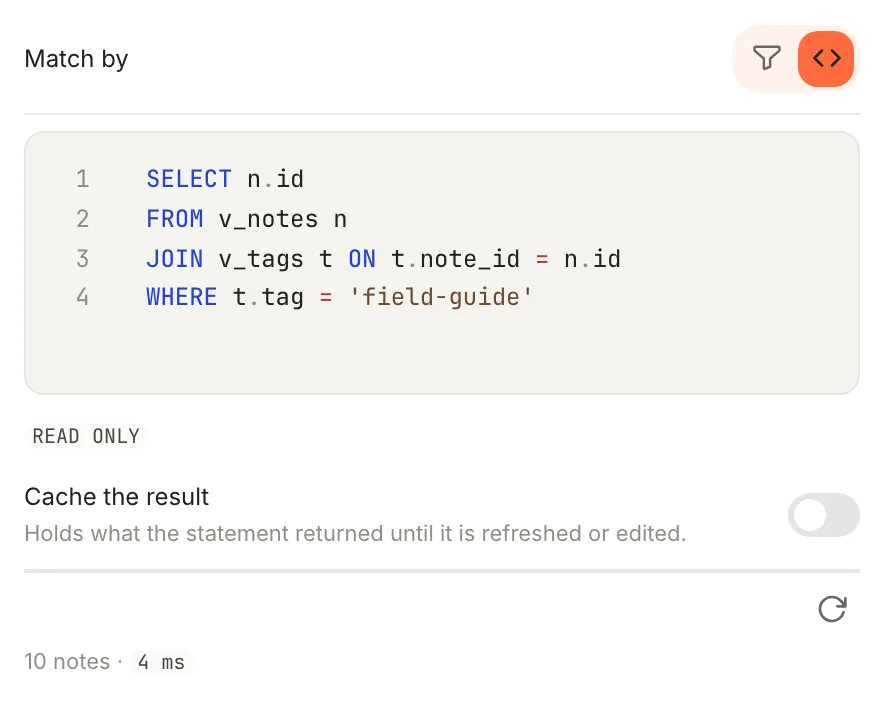
Any other columns the statement returns show up as columns in the database. The same rules apply, with a 5-second limit. Turn on **Cache the result** to keep the last answer until you click **Refresh now** or edit the statement, which helps when the line under it says the query is slow.
## Examples
Notes edited this month, newest first:
```sql
SELECT id, title, updated
FROM v_notes
WHERE updated >= date('now', 'start of month')
ORDER BY updated DESC
```
The 20 most used tags:
```sql
SELECT tag, count(*) AS notes
FROM v_tags
GROUP BY tag
ORDER BY notes DESC
LIMIT 20
```
Notes nothing links to:
```sql
SELECT n.id, n.title
FROM v_notes n
WHERE NOT EXISTS (SELECT 1 FROM v_backlinks b WHERE b.note_id = n.id)
```
Open effort per owner, from three properties:
```sql
SELECT o.value_text AS owner, sum(e.value_number) AS effort
FROM v_frontmatter o
JOIN v_frontmatter e ON e.note_id = o.note_id AND e.key = 'effort'
JOIN v_frontmatter s ON s.note_id = o.note_id AND s.key = 'status'
WHERE o.key = 'owner' AND s.value_text != 'Done'
GROUP BY owner
```
Sprouts by kind:
```sql
SELECT callout_kind, count(*) AS sprouts
FROM v_blocks
WHERE kind = 'callout'
GROUP BY callout_kind
```
## Related
- [Databases](https://terramd.io/docs/databases) — live collections built from conditions, or from SQL.
- [Run a project](https://terramd.io/docs/project-suite#chart-a-burndown) — a burndown chart from a query.
- [Search syntax](https://terramd.io/docs/search-syntax) — find notes without writing SQL.
- [Build a personal dashboard](https://terramd.io/docs/dashboards) — counts and charts on one page.