# Views and layouts
> A view is a saved way to look at a database, with its own layout, filters, sort, grouping and visible properties. Terra has twelve layouts.
Source: https://terramd.io/docs/views-and-layouts
A *view* is a saved way to look at a [database](https://terramd.io/docs/databases): a layout, such as a table or a board, plus the filters, sort, grouping and visible properties that go with it. One database can have many views, and they all show the same notes. Drag a card to **Done** on the board and the table and the calendar say *Done* too, because the value lives in the note.
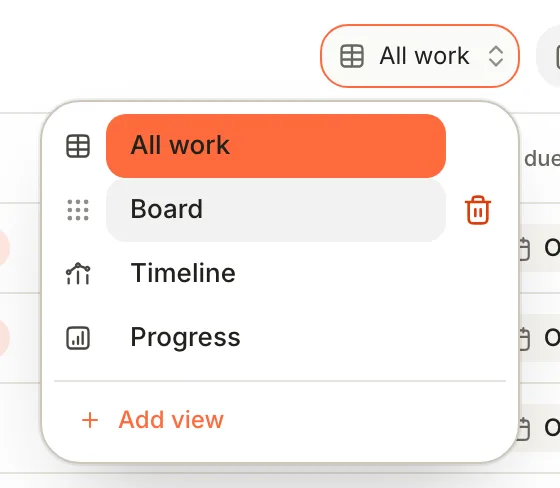
## Switch and add views
The view menu at the left of the database's header shows the current view. Click it to switch to another.
1. Open the view menu and choose **Add view**, or click **+** (**Add view**) in the header.
2. Terra adds a table called *New view* and opens **View preferences** on the **Layout** tab.
3. Pick a **Layout**, type a **Name**, and click **Save view**.
A new view starts clean, with no filters, sort or grouping. To start from a view you already have, click **Duplicate view** in **View preferences**; the copy is named after it, with "copy" on the end.
- **Rename a view:** change its **Name** on the **Layout** tab and click **Save view**.
- **Reorder views:** drag a view by its icon in the view menu.
- **Delete a view:** point at it in the view menu and click the trash (Terra asks *Delete view “Board”?* first), or click **Delete view** in **View preferences**. Either way, the message that follows offers **Undo**. The menu won't delete a database's last view; **View preferences** will, and that deletes the whole database, after asking.
- **Change layout fast:** ⇧ ⌘ V moves the current view to the next layout and saves it.
A view keeps its settings for each layout, so switching a view to a board and back to a table brings the table's settings back.
## Layouts
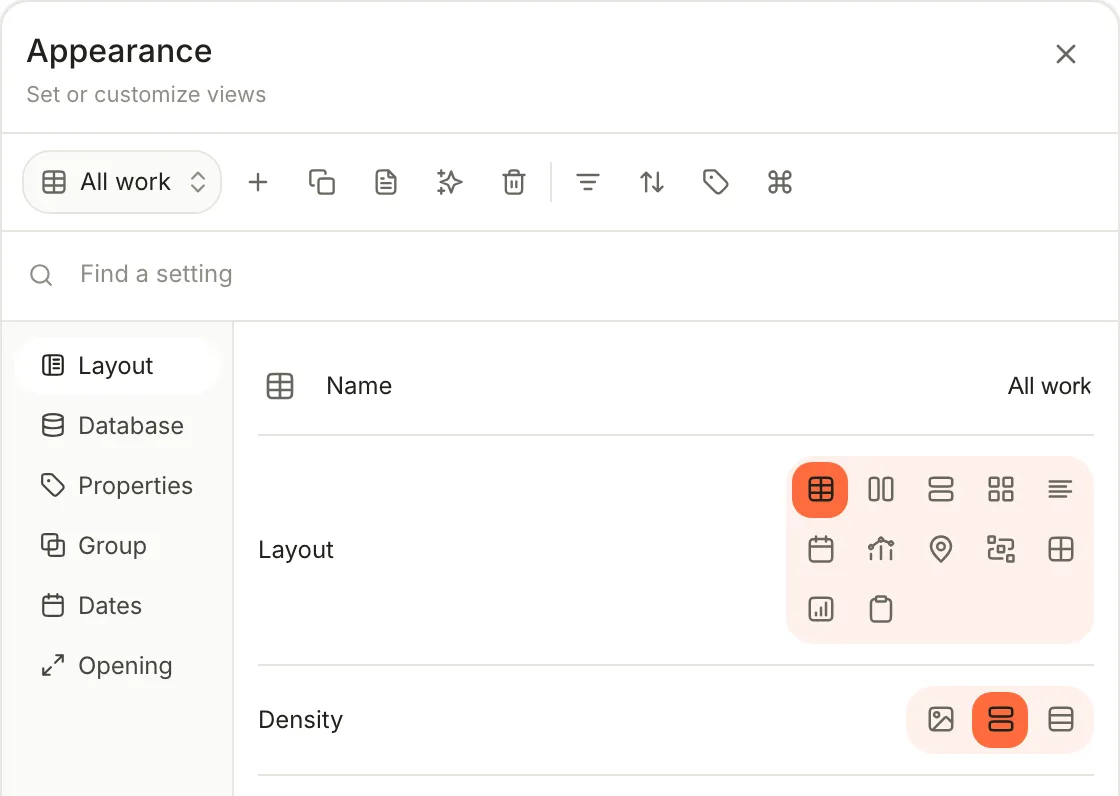
| Layout | Shows notes as | What it needs |
| --- | --- | --- |
| **Table** | Rows and columns you can edit in place | Nothing |
| **Board** | Cards in columns, one per value. Drag a card to change the value. | A property to group by. Terra starts with your first **Status** property. |
| **List** | Compact rows with a few properties | Nothing |
| **Cards** | A grid of cards, with cover images when notes have them | Nothing |
| **Feed** | A column of larger cards with a preview of each note | Nothing |
| **Calendar** | Notes on a month, week, day or agenda | A **Start** date on the **Dates** tab. Add an **End** for ranges. |
| **Timeline** | Bars across time, Gantt-style | **Start** and **End** dates on the **Dates** tab |
| **Map** | Pins on a map | **Map** turned on, then a **Location** property or **Latitude** and **Longitude** numbers. Fetches map tiles from the internet. |
| **Graph** | Dots joined by lines | Sources for the lines on the **Relationships** tab. New graphs start with wiki-links, embeds and citations. |
| **Canvas** | Cards you arrange freely, with connections between them | Nothing |
| **Chart** | A bar, horizontal bar, line or donut chart, or one big number | An **X axis** and a **Y axis** on the **Chart** tab |
| **Form** | An entry form; each submission becomes a new note | The fields to ask for, on the **Form** tab |
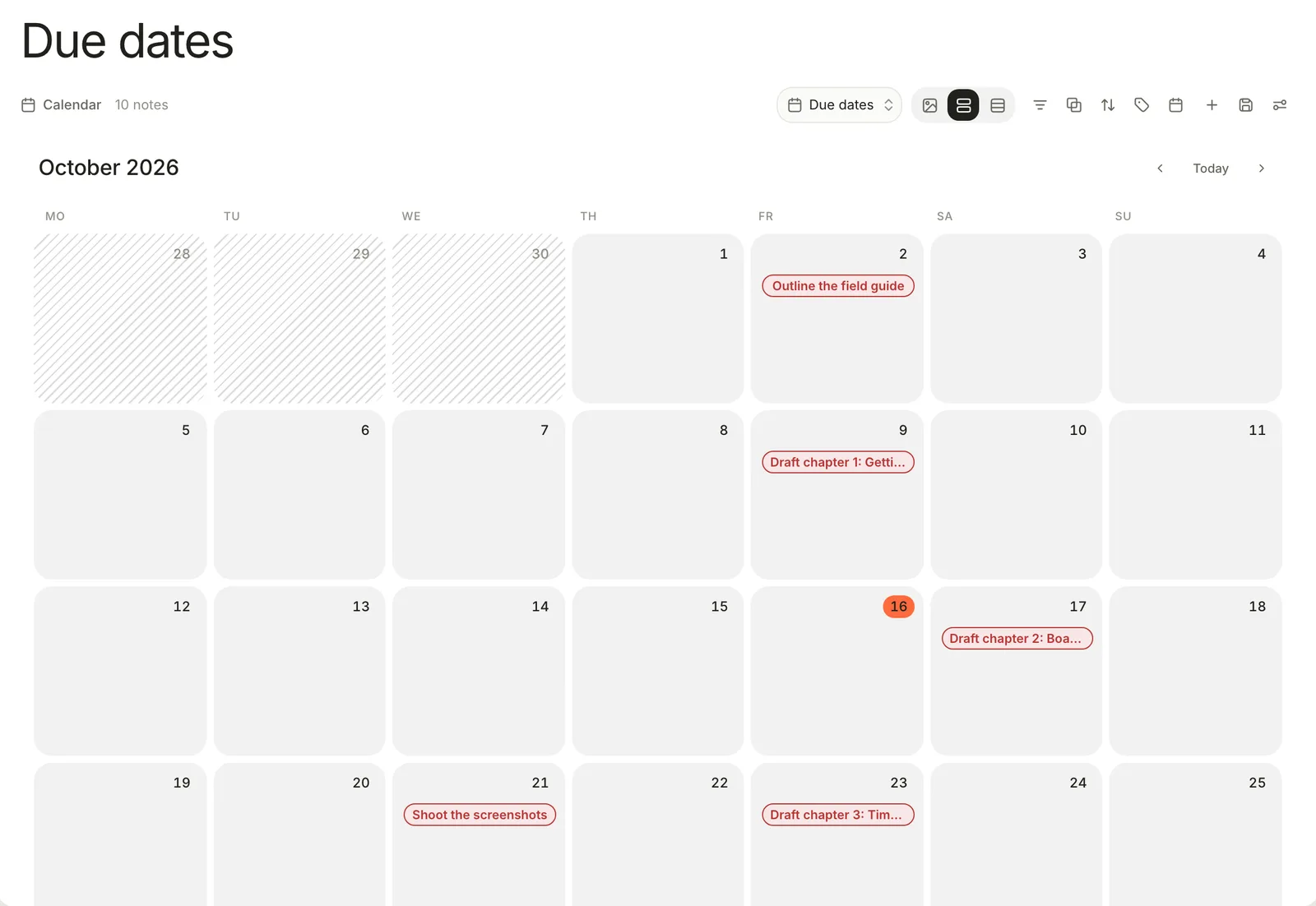
On [task databases](https://terramd.io/docs/tasks), **Calendar** and **Timeline** can't place tasks by their due or start dates; the built-in **Calendar** shows task due dates instead. For boards, timelines and charts built step by step, see [Run a project](https://terramd.io/docs/project-suite).
## View preferences
Click **View preferences** at the right end of a database's header. The panel, titled **Appearance**, holds everything about the current view:
- **Top row:** the view switcher, **Add view from** (pick a layout first), **Duplicate view**, **Save as Markdown note**, **Classify notes** (see [Capture and classify](https://terramd.io/docs/capture-and-classify)), **Delete view**, then **Filters**, **Sort**, **Properties** and **Arrange header actions**.
- **Find a setting** searches every tab at once.
- **Footer:** **Reset**, **Save as view** and **Save view**.
| Tab | What's on it | Shown |
| --- | --- | --- |
| **Layout** | **Name** and icon, **Layout**, **Density**, **Show note glyph**, and the layout's own options, such as **Row lines** for tables or **Column width** for boards | Always |
| **Database** | What the database collects. See [Databases](https://terramd.io/docs/databases#change-what-a-database-collects). | Databases you made |
| **Properties** | **Wrapping** and **Freeze header** for tables; **Property labels** for boards, cards and feeds | When the layout has them |
| **Group** | **Primary group**, **Subgroup**, date periods, **Group status by**, **Show empty groups**, **Hidden groups** | Always |
| **Dates** | **Start** and **End** for calendars and timelines, timeline progress settings, **Date labels** | Always |
| **Relationships** | What draws the lines between notes | Graph and Canvas |
| **Chart**, **Form**, **Map**, **Graph**, **Canvas** | That layout's own settings | On that layout |
| **Opening** | **Open notes** as a **Peek**, a **Pane**, **Full** page or just their **Properties**, and where a peek or pane appears | Always |
| **Sources**, **Statuses** | Where tasks come from, and task statuses | Task databases |
While the panel is open, your changes are a draft. A dot marks the view, and nothing is saved until you click **Save view**. **Reset** throws the draft away; **Save as view** keeps the original and saves the draft as a new view named after it, with "copy" on the end. Leave with a draft unsaved and Terra asks **Unsaved database views**, with **Save**, **Discard** and **Cancel**. With the panel closed, the header's controls save as soon as you use them.
**Arrange header actions** decides which controls sit in the header, which go in its **More menu**, and which stay in the panel. It can also put one of your saved views in the header as a one-click button.
## Save a view as a note
To keep a record of where things stood, such as for a status report, freeze a view into a note.
1. Open the view and click **View preferences**.
2. Save any changes first. While the view has unsaved changes, the button is greyed out and labelled **Save the view to snapshot it**.
3. Click **Save as Markdown note**. Terra says **Saved “All work” as a note**; click **Open** to see it.
The note lands in your `Inbox` folder, titled with the database, the view and the day, such as *Field guide launch · All work · 2026-10-16*. Its body is a Markdown table of the view's rows in their order, with the view's visible columns. The first rows look like this:
```markdown
| Title | Status | Owner | Start | Due | Effort |
| - | - | - | - | - | - |
| [[Outline the field guide]] | Done | Maya | 2026-09-28 | 2026-10-02 | 2 |
| [[Draft chapter 1: Getting started]] | Done | Maya | 2026-10-01 | 2026-10-09 | 5 |
| [[Draft chapter 2: Boards]] | In progress | Sam | 2026-10-07 | 2026-10-17 | 5 |
```
Each title is a [link](https://terramd.io/docs/links-and-backlinks) to its note. The table holds up to 1,000 rows; past that, a line above it says how many of the total it shows. The note doesn't change when the database does.
## Put a view in a note
Type `/database` on an empty line to place a live database in any note, with its view menu and controls. See [Put a database in a note](https://terramd.io/docs/databases#put-a-database-in-a-note), and [Build a personal dashboard](https://terramd.io/docs/dashboards) for a page of counts, charts and boards.
## Related
- [Databases](https://terramd.io/docs/databases) — what a database collects, and the built-in ones.
- [Filter, sort and group](https://terramd.io/docs/filter-sort-and-group) — narrow and arrange the rows in a view.
- [Formulas, threads and gathers](https://terramd.io/docs/formulas-threads-and-gathers) — computed columns for any view.
- [Run a project](https://terramd.io/docs/project-suite) — boards, timelines and charts, step by step.