# Tags
> Label notes with #tags in the text or in the tags property, nest and colour them, and find every note that carries one.
Source: https://terramd.io/docs/tags
A tag is a short label, like `#reading`, that you can put on any note to gather it with others. You can write a tag in the text, right where it applies, or add it to the note's **tags** [property](https://terramd.io/docs/properties). Either way the note appears on the tag's page and in tag searches. The one exception is a [database](https://terramd.io/docs/databases) filter on **Tags**, which only reads the **tags** property.
## Write a tag in the text
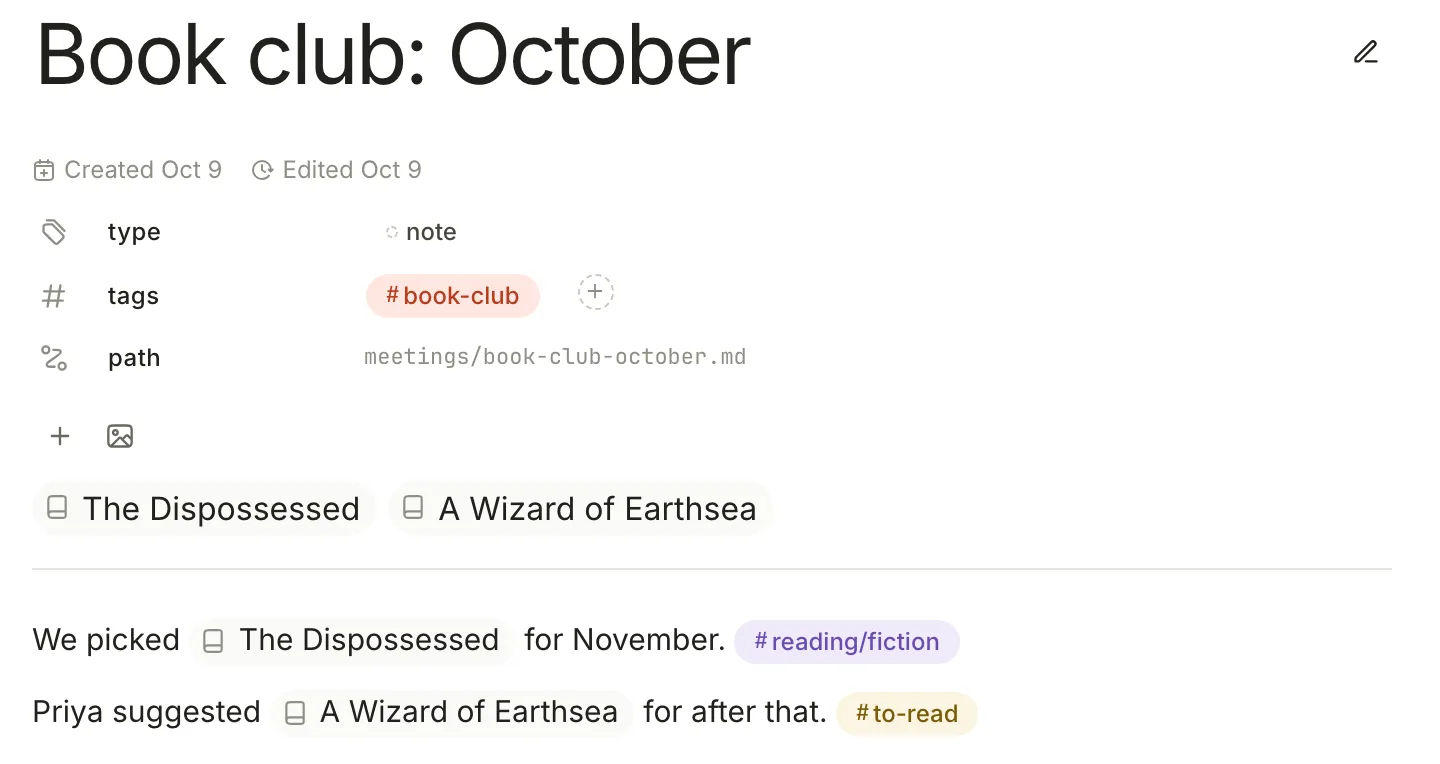
Type `#`, the tag's name and a space. Terra turns it into a tag, and a list of matching tags appears as you type, so you can pick an existing one with the arrow keys and Return.
```md
We picked The Dispossessed for November. #reading/fiction
```
We picked The Dispossessed for November. `#reading/fiction`
| Rule | Example |
| --- | --- |
| Letters, digits, `_`, `-` and `/` are allowed | `#to-read`, `#q4_goals` |
| A tag needs at least one letter | `#books-2026` is a tag; #2026 on its own isn't |
| A tag ends at a space or any other character | in `#reading, #books` the comma isn't part of the tag |
| `#` stuck to the end of a word isn't a tag | `C#`, `issue#4` |
| Capitals count | `#Reading` and `#reading` are two tags |
A `#` followed by a space at the start of a line makes a heading, not a tag, and text in code isn't read for tags.
## Add tags with the tags property
The **tags** row under a note's title is a list of tags that belong to the note as a whole, without appearing in its text.
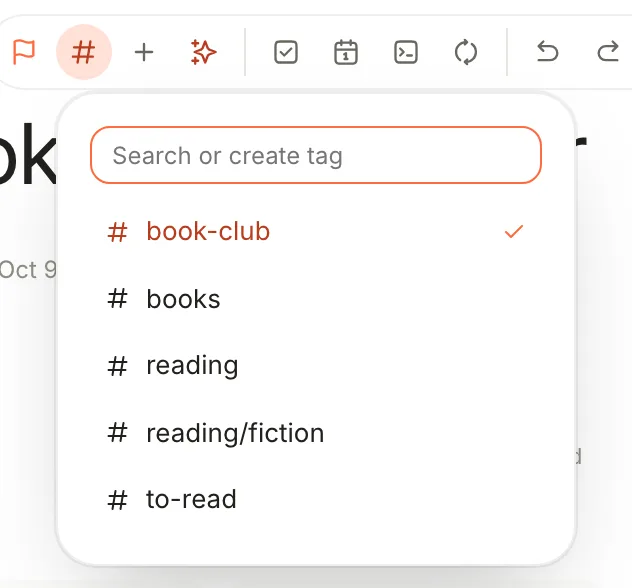
- Click **+** at the end of the **tags** row. Pick tags from the list, or type a new one in **Add option...** and press Return. Click **×** on a tag to remove it.
- Or click **Tag note** (**#**) in the editor toolbar, then click a tag in the list. To make a new one, type it in **Search or create tag** and click **Create tag** with its name; pressing Return doesn't create it. Terra confirms with **Tagged: #reading**. This list only adds tags; remove them in the **tags** row.
In the file, the property is a list of names without the `#`, while tags in the text stay exactly where you wrote them (other properties left out here):
```md
---
title: The Dispossessed
tags:
- books
- reading
---
## First impressions
Two worlds that keep arguing with each other. #reading/fiction
```
A tag in the text isn't copied into the **tags** property, or the other way round. Terra also reads a list written on one line, such as `tags: [books, reading]`.
## Nested tags
Put a `/` in a tag to file it under another: `#reading/fiction` and `#reading/nonfiction` sit under `#reading` in the Tag Manager, as long as `#reading` is a tag too. Nesting is only for organising the list. A note tagged `#reading/fiction` isn't on the `#reading` page and doesn't match a search for `tag:reading`; search for the full name, `tag:"reading/fiction"`.
## Colour a tag
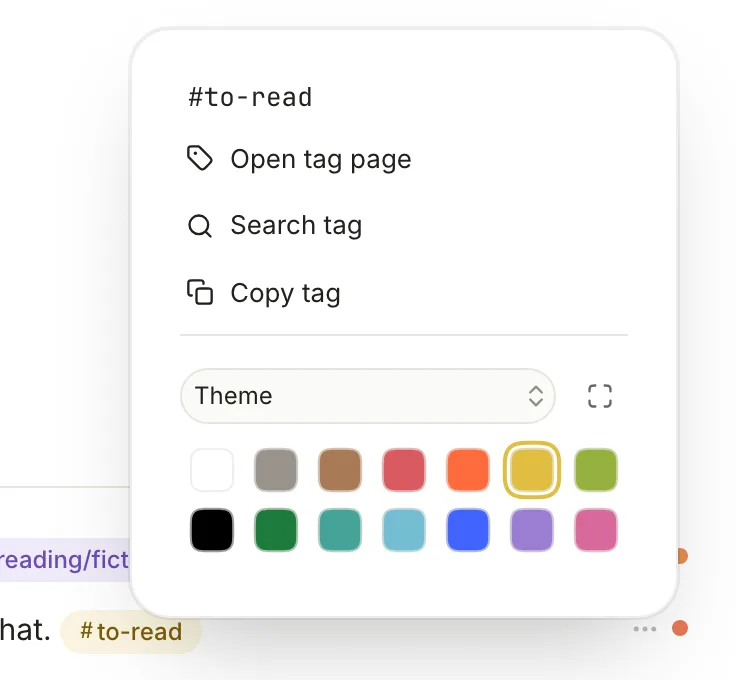
Right-click a tag, in the text or in the **tags** row, and click a colour. The menu also has **Open tag page**, **Search tag** and **Copy tag**. A tag's colour is the same everywhere in the Library.
## Find notes with a tag
- **Click a tag in the text** to open its page: every note with that tag, listed like a database.
- **⌘-click it**, or right-click it and choose **Search tag**, to open the search window with `tag:to-read` filled in.
- **Search** with `tag:` yourself to combine tags and other filters: `tag:reading -tag:abandoned` finds notes tagged `#reading` but not `#abandoned`. The tag must match exactly, capitals included. See [Search syntax](https://terramd.io/docs/search-syntax#filters).
- **In a database**, filter or group on **Tags**. This reads the **tags** property only, not tags in the text. See [Filter, sort and group](https://terramd.io/docs/filter-sort-and-group).
## Manage tags
The Tag Manager lists every tag in the Library and whether it's in use. Open it with the **Tag manager** button in the toolbar, or **Tools › Tag Manager…**. Nested tags appear under their parent.
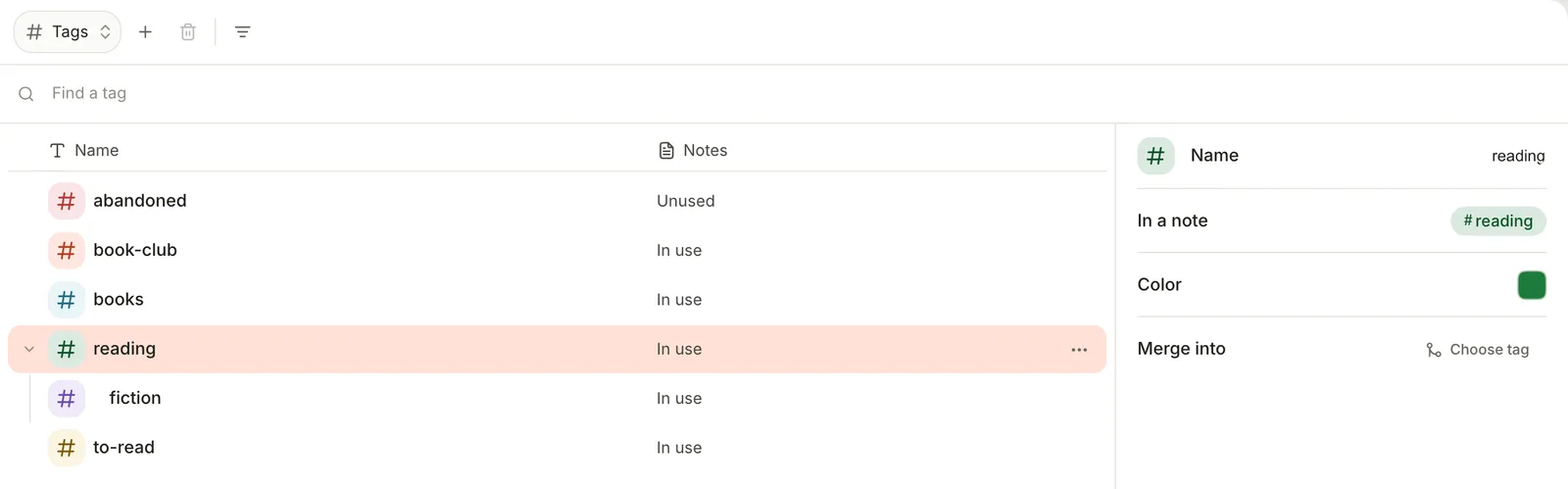
Select a tag, or click **⋯** on its row, to:
- **Rename** it: choose **Rename** from the **⋯** menu, type the new name and press Return. There's no confirmation.
- **Merge into** another tag. Terra asks **Merge options?**, says how many notes will change and warns that it can't be undone. Click **Merge**. Renaming a tag to a name that already exists merges the two the same way.
- Change its **Color** or **Glyph**.
- **Open tag page** to see its notes.
- **Delete tag**, for tags no note uses. To find them, click the filter button and choose **Unused**.
> [!WARNING] Renaming and merging skip tags in the text
> Rename and merge change the **tags** property of every note, but not tags written in the text. A note with `#reading` in a sentence keeps it, so after renaming `reading` the old tag still shows as in use. Find those notes with a `tag:` search and edit them by hand.
## Related
- [Properties](https://terramd.io/docs/properties): the **tags** row is one of a note's properties.
- [Search syntax](https://terramd.io/docs/search-syntax): `tag:` and every other filter.
- [Databases](https://terramd.io/docs/databases): collect every note with a tag in one view.