# Sprouts
> Coloured blocks that hold other blocks, like tips, warnings and decisions, with their own properties, and every one in your Library on a single board.
Source: https://terramd.io/docs/sprouts
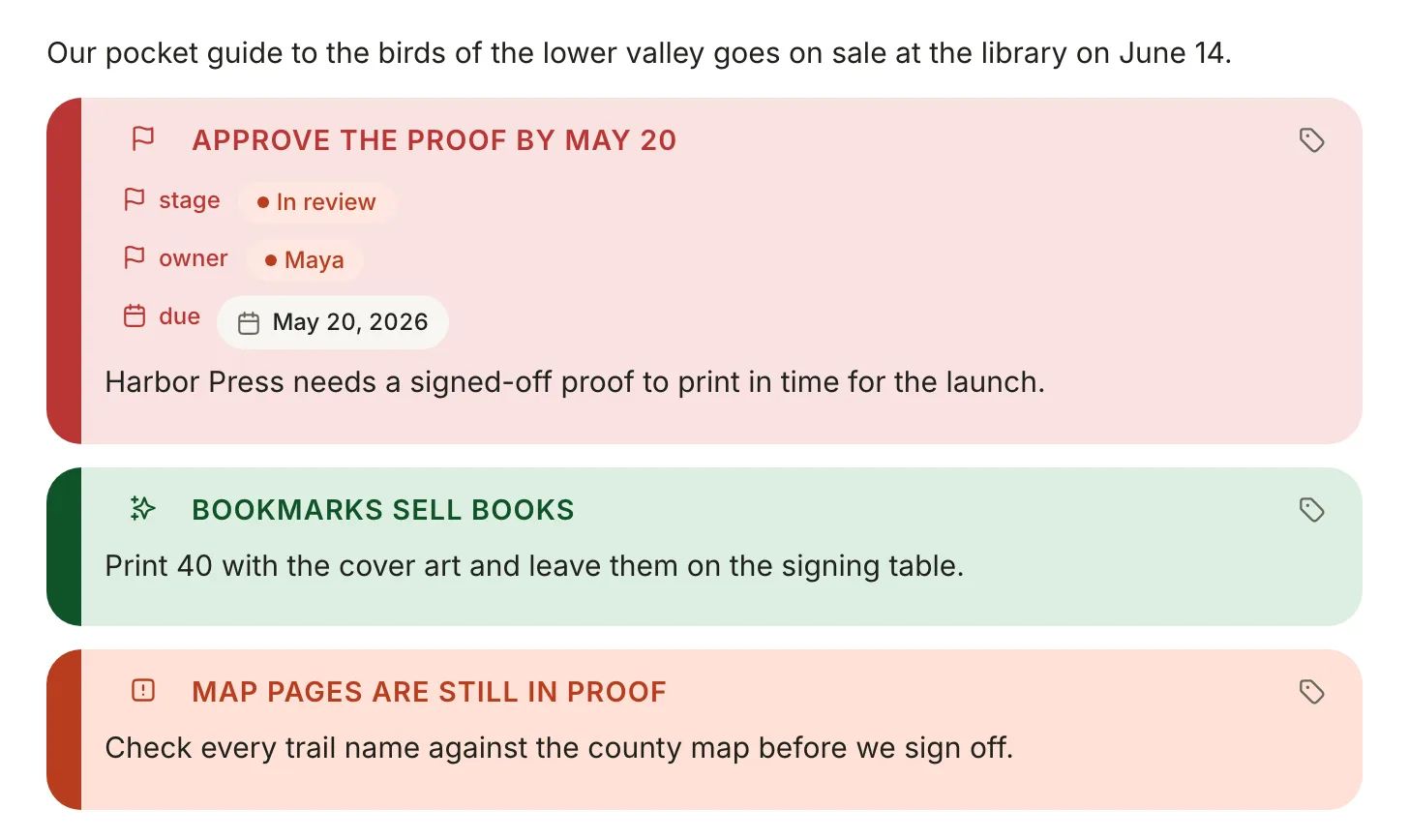
A *Sprout* is a coloured block that holds other blocks: a tip beside the steps it explains, a warning above a risky change, a decision you'll want to find again. If you've used Obsidian, it's a callout, and it's written the same way. Unlike a callout, a Sprout can carry its own [properties](https://terramd.io/docs/properties) and attachments, and every Sprout in your [Library](https://terramd.io/docs/libraries) shows up on one board, the **Sprouts** [database](https://terramd.io/docs/databases).
## Create a Sprout
On an empty line, type `/sprout` and press Return. A **Note** Sprout appears with the caret inside it, ready for its text. If the line already has text, `/sprout` wraps that line in a Sprout. Typing `/callout` finds it too. There's no keyboard shortcut.
In Markdown, a Sprout is a quote whose first line names its kind in brackets, followed by an optional title. Every line of the body starts with `>`:
```md
> [!tip] Bookmarks sell books
> Print 40 with the cover art and leave them on the signing table.
```
> [!tip] Bookmarks sell books
> Print 40 with the cover art and leave them on the signing table.
Write the kind in lowercase. Terra matches kinds exactly, so `[!TIP]` opens as a plain grey Sprout. To write a Sprout as Markdown, switch the note to **Markdown source** with the switcher beside its title: typing `> [!tip]` in the editor gives you an ordinary quote.
## Kinds
Every Library starts with six kinds. They can't be deleted, and you can [add your own](#make-your-own-kinds).
| Kind | Write | Colour | Use it for |
| --- | --- | --- | --- |
| `Note`{gray} | `[!note]` | Grey | Background and context. The kind `/sprout` makes. |
| `Tip`{green} | `[!tip]` | Green | Shortcuts and good ideas |
| `Warning`{orange} | `[!warning]` | Orange | Something that could go wrong |
| `Important`{red} | `[!important]` | Red | Deadlines and must-dos |
| `Quote`{sky} | `[!quote]` | Blue | Something someone said |
| `Info`{sky} | `[!info]` | Blue | Facts and reference details |
```md
> [!note] Print run
> 1,000 copies, 96 pages, full colour.
> [!tip] Bookmarks sell books
> Print 40 with the cover art for the signing table.
> [!warning] Map pages are still in proof
> Check every trail name against the county map.
> [!important] Approve the proof by May 20
> Harbor Press needs it to make the June 14 launch.
> [!quote] From the birding club
> Small enough for a coat pocket, which is the whole point.
> [!info] Launch day
> Saturday June 14, 2 pm, in the library's community room.
```
> [!note] Print run
> 1,000 copies, 96 pages, full colour.
> [!tip] Bookmarks sell books
> Print 40 with the cover art for the signing table.
> [!warning] Map pages are still in proof
> Check every trail name against the county map.
> [!important] Approve the proof by May 20
> Harbor Press needs it to make the June 14 launch.
> [!quote] From the birding club
> Small enough for a coat pocket, which is the whole point.
> [!info] Launch day
> Saturday June 14, 2 pm, in the library's community room.
A Sprout's body can hold lists, to-dos, tables, code, images, even another Sprout (`> > [!tip]`).
## Change the kind or the title
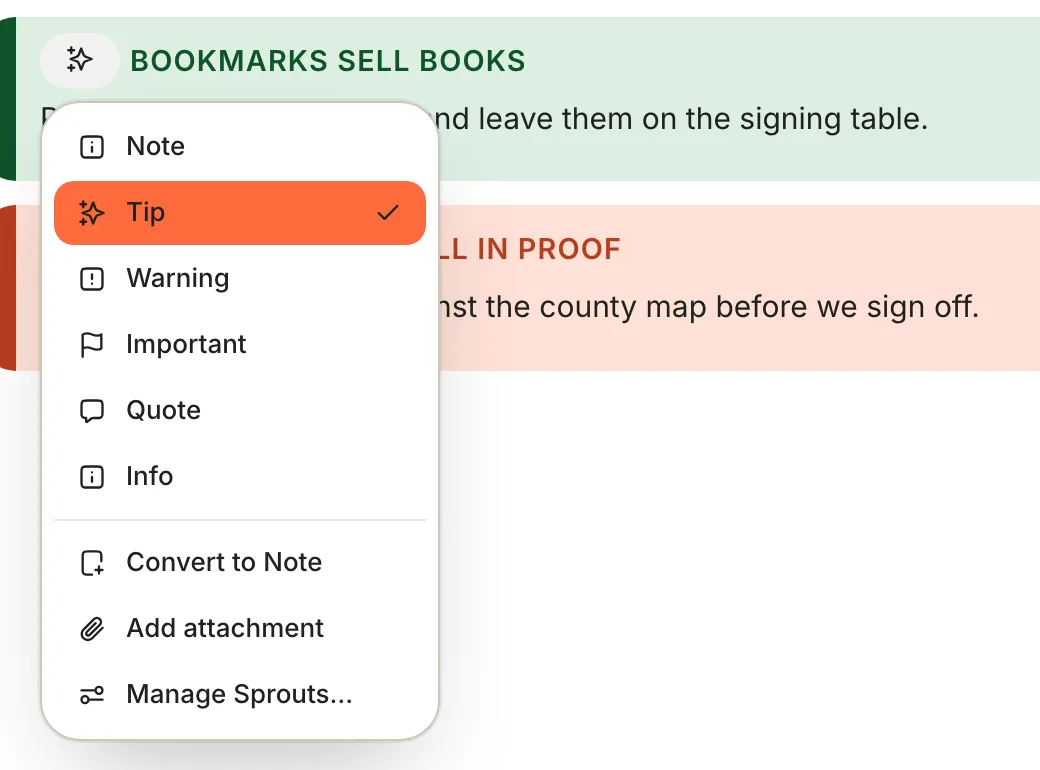
Click the icon at the Sprout's top left. The menu lists every kind, with a check beside the current one. Pick another and the colour and icon change at once.
The title is the text beside the icon: click it and type. Terra shows titles in capitals but saves them as you typed them. With no title, the kind's name shows in its place and nothing is saved. Titles are plain text, so `**bold**` in a title shows its asterisks.
## Fold a Sprout
Any block can be a *toggle* that folds away, a Sprout included. Hover the Sprout, click the ⠿ handle to its left and switch on **Toggle**, then click the chevron that appears to fold the Sprout down to its title. ⌥ ⌘ T folds every toggle in the note, or unfolds them all once all are folded.
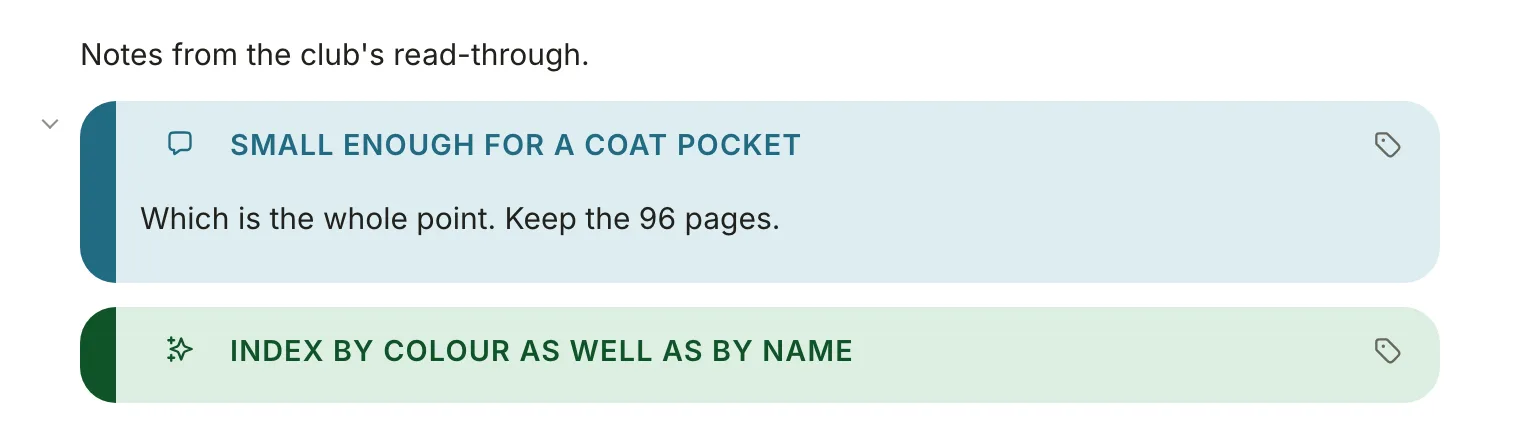
> [!NOTE] A folded Sprout hides its chevron
> In this version the chevron disappears while a Sprout is folded. Unfold it with ⌥ ⌘ T, or switch **Toggle** off in its ⠿ menu.
## Make your own kinds
Add kinds of your own, such as a *Decision* for choices you've made, each with its own icon and colour.
1. Click any Sprout's icon and choose **Manage Sprouts…** to open the list of Sprout types, one chip per kind.
2. Click **+** (**Add Sprout type**). A new chip appears, named `sprout`.
3. Click the chip, choose **Rename**, type a name such as `Decision` and press Return.
4. Click the chip again for **Set icon** and **Set color**.
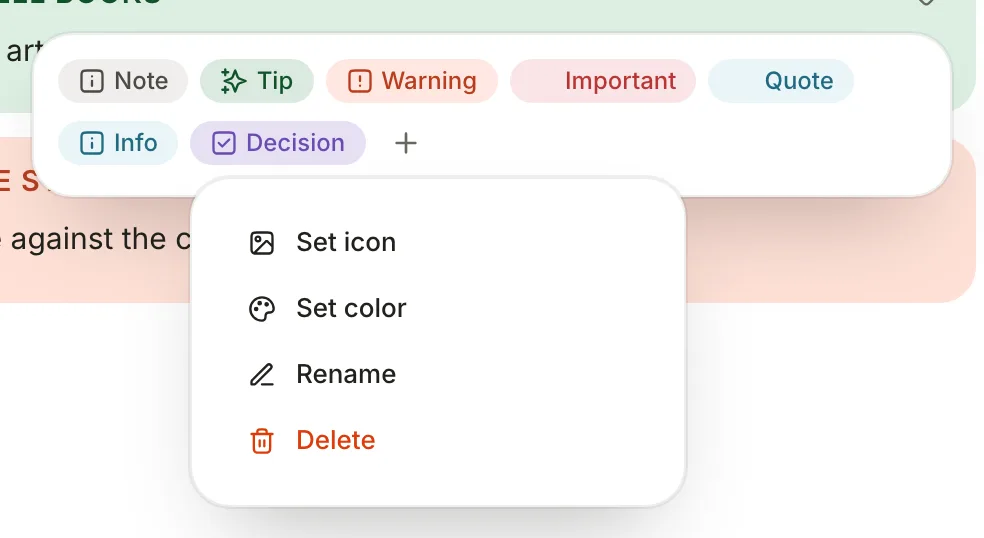
Changes save as you go, and the new kind joins every Sprout's icon menu. In Markdown it's the name in lowercase, with spaces turned into hyphens: `> [!decision]`. The same list is in **Settings › Editor › Sprouts** and in the Sprouts database's **View preferences**. Types belong to the Library and are saved in `.terra/callout_types.toml`.
> [!WARNING] Renaming a custom type changes its kind
> A custom kind follows its name. Rename **Decision** to **Choice** and Sprouts already written `[!decision]` turn plain grey, as they do when you delete a type, though they keep their text. The six built-in kinds keep their kind when renamed.
## Give a Sprout properties
A Sprout can carry the same [properties](https://terramd.io/docs/properties) as a note, such as an owner, a due date or a stage, so you can filter and group Sprouts across your Library.
1. Hover the Sprout and click the tag icon (**Properties**) at its top right.
2. Switch on a property. Type in **Find property** to narrow the list, which holds your Library's existing properties.
3. The property appears under the title. Click its value to set it.
Switch a property off in the same list to take it off the Sprout.
The first time you add a property, Terra writes a permanent ID at the end of the Sprout's first line:
```md
> [!important] Approve the proof by May 20 ^01JFGPR00F7M3K9QWXYZ2ABCDE
> Harbor Press needs a signed-off proof to print in time for the launch.
```
The values live in the note's sidecar file, `.terra.json`, under that ID. Leave the `^…` in place: it ties the Sprout to its properties and attachments.
## Attach files
Click the Sprout's icon and choose **Add attachment**, then pick a file in the **Attach a file to this sprout** dialog. Terra copies it into the note's attachments folder (`attachments//`, next to the note) and shows it as a chip under the title. Click **×** on the chip to detach it; the file stays in the folder.
## Turn a Sprout into a note
When a Sprout outgrows its note, like a tip that turned into a whole checklist, promote it.
1. Click the Sprout's icon and choose **Convert to Note**.
2. Terra creates a note in the same folder, titled after the Sprout (or its first line), with the Sprout's body as its text and its properties as the note's properties. A message confirms: **Converted to "Bookmarks sell books"**.
3. In the original note, `![[Bookmarks sell books]] ^…` takes the Sprout's place and keeps its ID, so links to the Sprout still lead somewhere.
The kind and the attachment chips don't carry over. In this version the leftover line shows as `!` and a link to the new note, not as a preview.
## Find every Sprout
Click **Sprouts** in the sidebar. The Sprouts database puts every Sprout in your Library on a board, in columns by kind. Each card shows the Sprout's title (or first line) and its note, plus any properties you pick in **View preferences**.
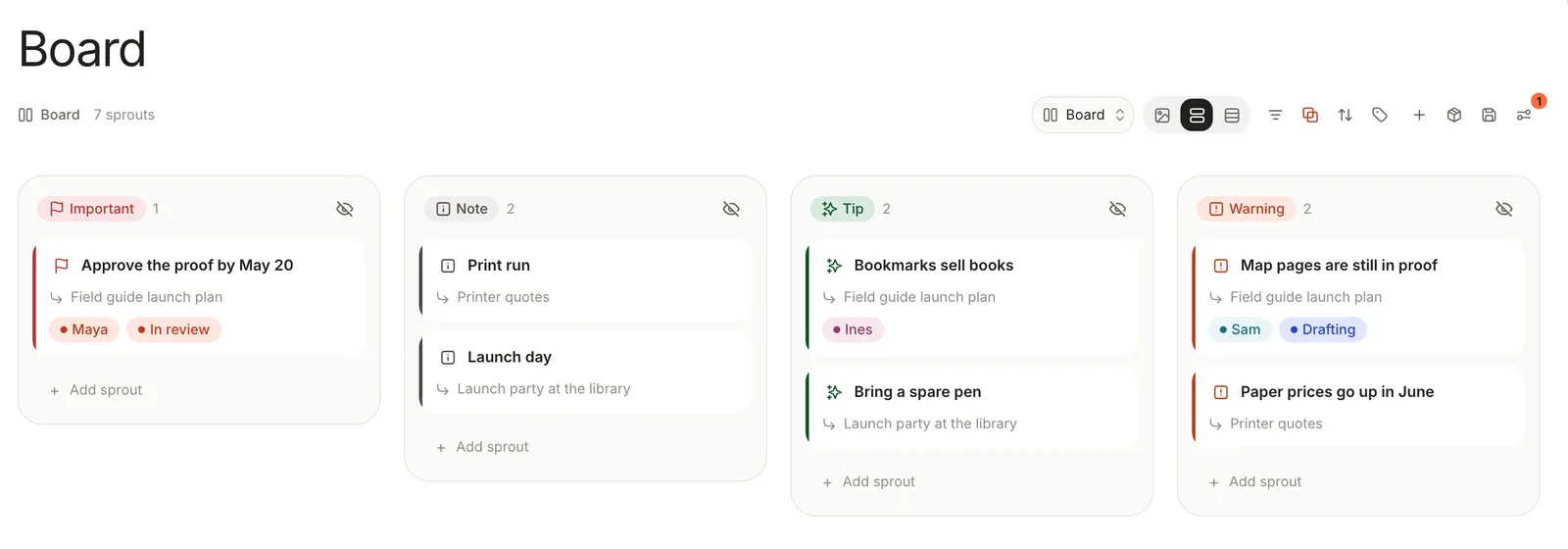
- **Open a Sprout:** click its card. The note opens at that Sprout.
- **Add one from the board:** click **Add sprout** at the foot of a column and type a title. Terra writes `> [!kind] Title` at the end of `Inbox/sprouts`, or of the note you pick with the button beside the title.
- **Narrow it down:** filter, sort, group and save views as in any [database](https://terramd.io/docs/databases), say only the Sprouts Maya owns. **View preferences › Sources** keeps Sprouts from chosen folders, databases or notes only.
- **Start another board:** right-click **Sprouts** in the sidebar, choose **New sprout database**, name it and set its **Sources**, such as the `Field guide` folder. It's listed under **Sprouts**.
## How a Sprout is saved
A Sprout is plain Markdown in the note's file, so other apps show it as a quote or a callout.
- Every line starts with `>`. The first holds `[!kind]`, the title and, once the Sprout has properties or attachments, its `^ID`.
- Properties and attachment chips live in the note's sidecar file, which other apps don't read.
- A toggle Sprout has `` on the line above it (`` when folded). Other apps hide HTML comments.
## Coming from Obsidian or GitHub
- **Kinds are case-sensitive.** `[!TIP]` and GitHub's alerts (`> [!NOTE]`, `> [!WARNING]`) open as plain grey Sprouts. Lowercase the kind in Markdown source.
- **No fold markers.** `> [!tip]-` and `> [!tip]+` open as ordinary quotes; make the Sprout a [toggle](#fold-a-sprout) instead.
- **Six kinds, not Obsidian's set.** Kinds Terra doesn't know, such as `[!question]`, keep their name and show grey. Add a type called *Question* and they take its colour.
- **Titles are plain text**, with no Markdown formatting.
- **Start at the beginning of a line.** A callout indented inside a list item opens as an ordinary quote.
- **Custom types need no CSS.** Add them in **Manage Sprouts…**, with an icon and a colour each.
## Related
- [Basic formatting syntax](https://terramd.io/docs/formatting-syntax): everything else you can type in a note.
- [Advanced formatting](https://terramd.io/docs/advanced-formatting): toggles, columns, tables and the full slash menu.
- [Properties](https://terramd.io/docs/properties): the property types a Sprout can carry.
- [Databases](https://terramd.io/docs/databases): filtering, grouping and views, for the Sprouts board too.