# Run your week with tasks and the calendar
> A weekly routine in Terra: capture tasks in your notes, triage them on one board, plan the week on the Calendar and close it out on Friday.
Source: https://terramd.io/docs/run-your-week-with-tasks
By Friday, the week's to-dos are everywhere. Two came out of Thursday's meeting, one is buried in a project note, three are in a list you started on Monday, and you can't remember whether you ever booked the boiler service. A separate to-do app helps until the tasks in it drift away from the notes that explain them.
Terra keeps each task where it was born, as a checkbox line in a note, and gathers every one of them into a single board and onto the Calendar. This guide builds a weekly routine around that: write tasks down as they come up, sort them once a week, plan the coming days on the Calendar, and close the week out. The example is the field-guide launch from [Run a project](https://terramd.io/docs/project-suite): you're working with Sam and Ines, and it's Friday 16 October.
> [!SUMMARY]
> - Capture tasks in the notes where they come up, with due dates and owners
> - Triage everything on the Tasks board in one sitting
> - Keep an Overdue view that shows what's slipping
> - Plan the coming week on the Calendar by moving tasks between days
> - Work through each day from the Tasks drawer, then close the week out
> [!BEFORE]
> - A Library open in Terra. New to Terra? Start with the [Quickstart](https://terramd.io/docs/quickstart).
> - A few notes with to-dos in them, or the meeting note from [Take meeting notes that turn into tasks](https://terramd.io/docs/meeting-notes).
> - About 20 minutes the first time, 10 to 15 minutes each week after that.
## How it fits together
A [task](https://terramd.io/docs/tasks) is a line like `- [ ] Book the copy editor` in any note. Terra reads every one and shows it in three places, each suited to a different moment in the week:
| Where | What it shows | Use it to |
| --- | --- | --- |
| A note | The task in context, with its properties as pills | Write tasks down as they come up |
| **Tasks**, in the sidebar | Every task in the Library on a board, one column per status | Triage, change status, set dates |
| **Calendar**, in the sidebar | Tasks on their due dates, next to your meetings | See the week, move work between days |
Change a task in any of them and the line in the note changes too. There is nothing to sync.
## Step 1: Capture tasks where they come up
A task is most useful next to the note that explains it: the meeting where it was agreed, the chapter it belongs to. So the first habit is to write tasks straight into whatever note you're in, and to keep one list for odds and ends that don't belong anywhere.
1. In any note, start a new line with `[ ]` and a space, then type the task. (You can also type `/todo` and choose **To-do**.)
2. To give it a due date, type a space, three colons and a space at the end, then the date: ` ::: due=2026-10-21`. When you type the next space, the date turns into a pill under the task.
3. To add more, type ` ::: ` again before each one: ` ::: priority=high`, ` ::: assignee=Sam`. Or click **⋯** at the end of the line, choose **Properties** and switch on **Due**, **Priority** or **Assignee**.
4. Press Tab on a new line to make it a subtask of the one above.
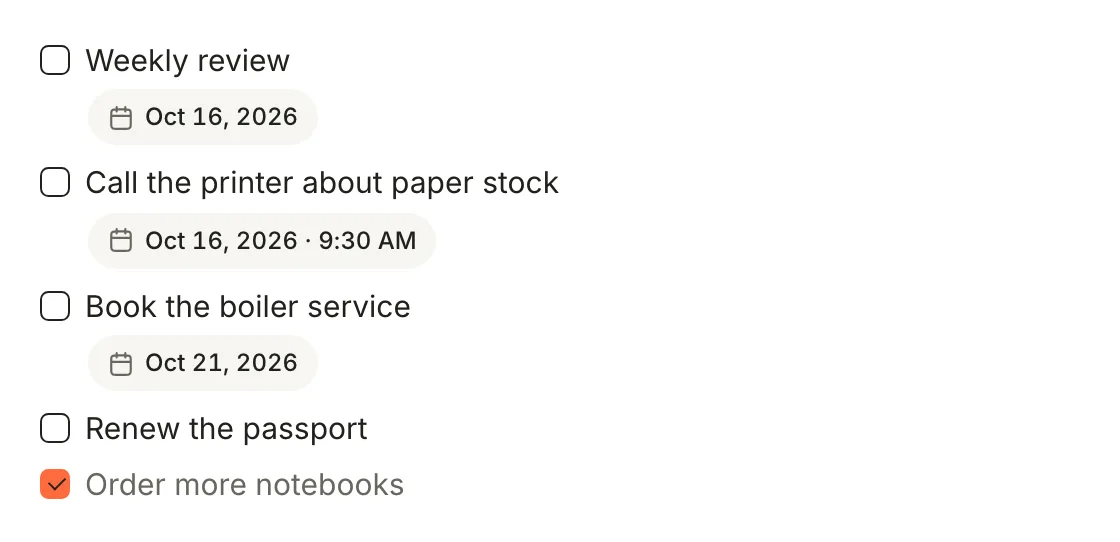
Here's a personal list kept in `Inbox/tasks.md`, as it's stored:
```md
- [ ] Weekly review ::: due=2026-10-16 repeat=weekly
- [ ] Call the printer about paper stock ::: due=2026-10-16T09:30
- [ ] Book the boiler service ::: due=2026-10-21
- [ ] Renew the passport
- [x] Order more notebooks
```
> [!TIP] Not every task needs a date
> Give dates to things that really are due. A list where everything is due today is no better than one where nothing is. Undated tasks still show up on the board, under **Open**.
## Step 2: Triage everything on the Tasks board
Once a week, look at all of it in one place. The board shows every task from every note, so nothing hides in a note you haven't opened for a while.
1. Click **Tasks** in the sidebar. The board opens with four columns: **Open**, **In progress**, **Done** and **Cancelled**. The number beside **Tasks** in the sidebar counts the ones that aren't done or cancelled.
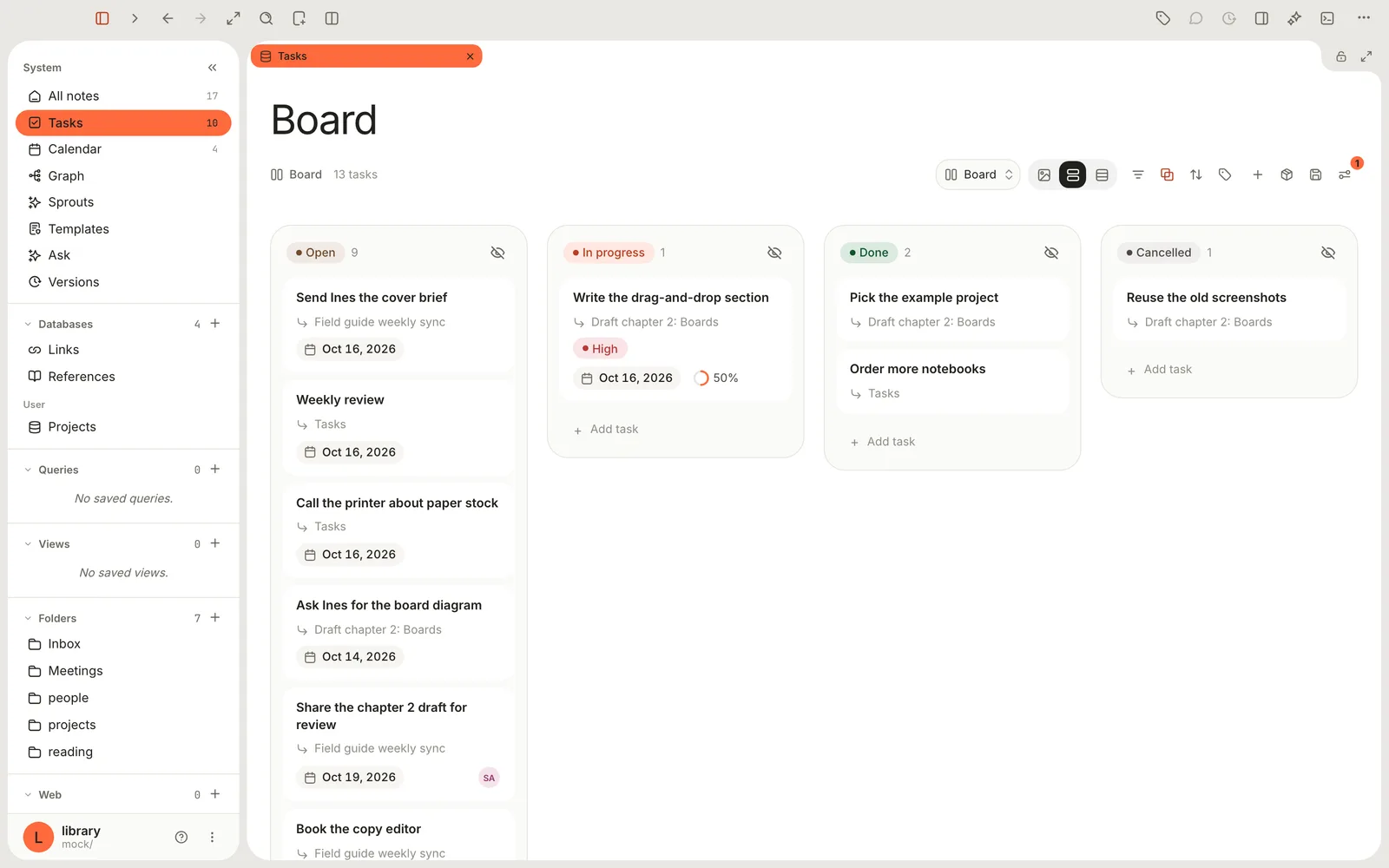
2. Read down **Open**. For each card, decide: is it this week's, later, or not at all?
3. Drag the ones you're starting into **In progress**, and anything you've decided against into **Cancelled**. Terra rewrites the checkbox in the note: `[ ]` becomes `[/]` or `[-]`.
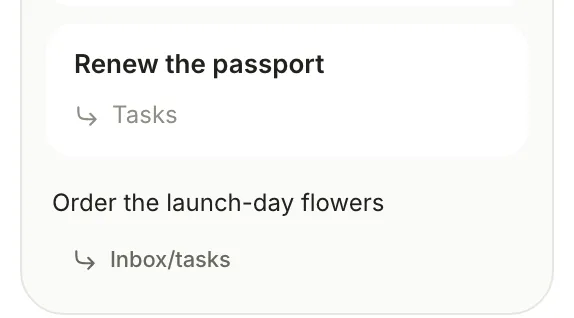
4. To add a task that came to mind, click **Add task** at the foot of a column, type it and press Return. It's written to `Inbox/tasks.md`. Click the note name under the field to send it to another note.
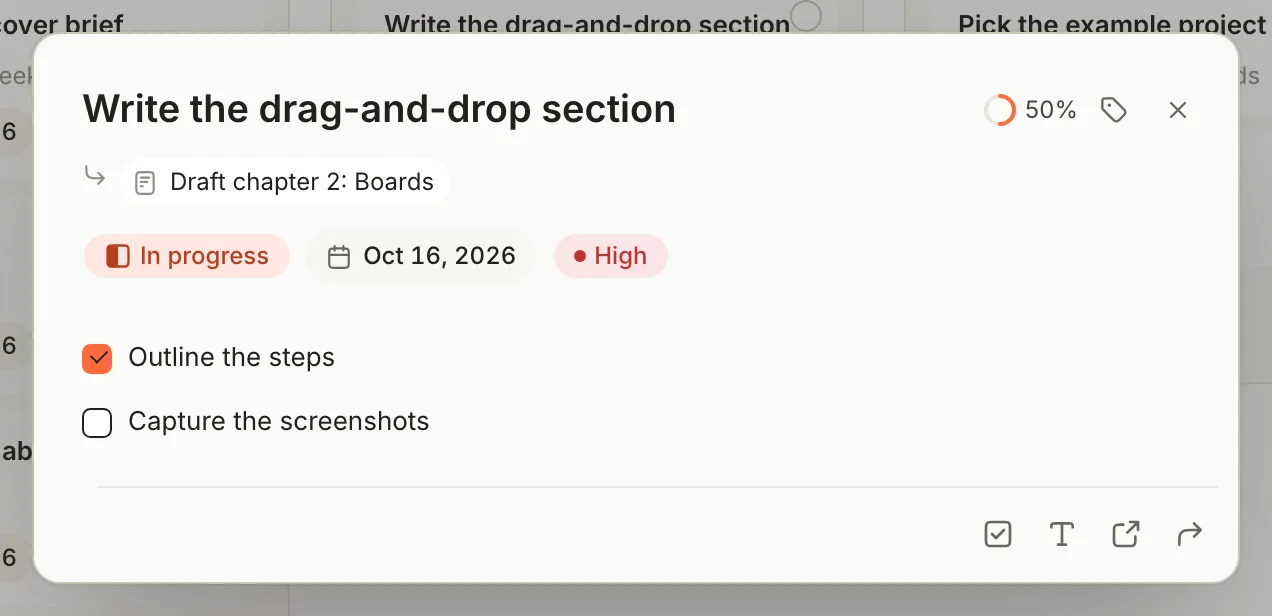
5. Click a card to open **Edit task**. Click the status pill to change status, click the tag button at the top to add a due date or priority, and use **Add subtask** to break a big task down.
> [!NOTE] Two ways to tick a task
> Clicking a checkbox in a note steps through every status: Open, In progress, Done, Cancelled. On the board, drag the card to the column you want.
## Step 3: Keep an Overdue view
Tasks that slip past their date are the ones worth catching early. A saved view that shows only overdue tasks takes a few seconds to set up and turns the weekly check into one click.
1. In **Tasks**, click **+** (**Add view**) in the header. **View preferences** opens on the **Layout** tab with a new table view.
2. Type `Overdue` in **Name** and click **Save view**, then close the panel with **×**.
3. Click **Filters**, then **+** (**Add condition**). A condition appears that reads **Title is**.
4. Click **Title** and choose **Due**. Click **is** and choose **overdue**.
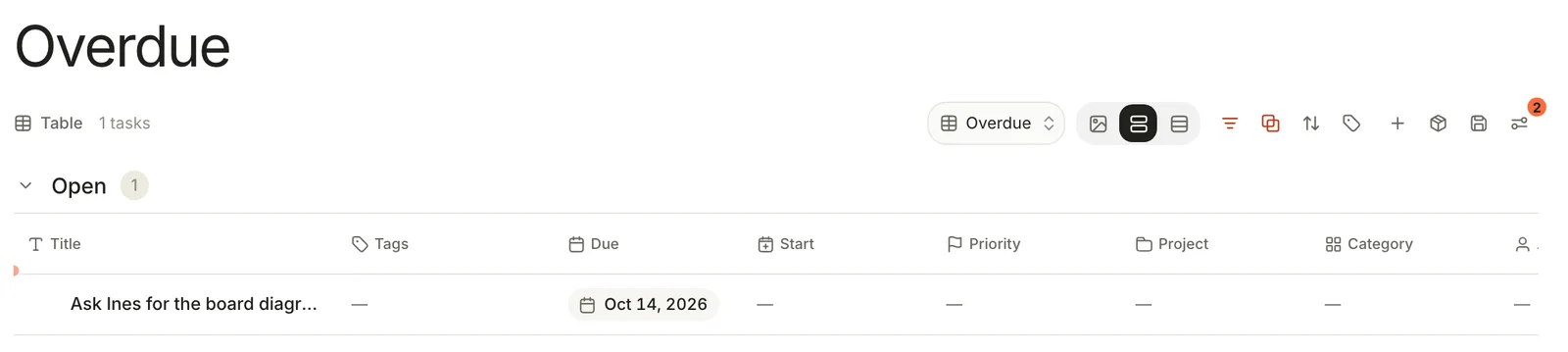
For each task in the view, do one of three things: do it now, give it a realistic new date in **Edit task**, or drag it to **Cancelled** on the board. To switch between **Board** and **Overdue** later, use the view menu at the top right of the header.
For a quicker glance, hover the number beside **Tasks** in the sidebar. A **Closest due** list opens with the unfinished tasks, soonest first. Its filter button narrows the list to **Today**, **This week**, **Overdue** or **No date**.
## Step 4: Plan the coming week on the Calendar
The board tells you what's open; the Calendar tells you whether it fits. Meetings and due dates side by side show which days are already full.
1. Click **Calendar** in the sidebar. It opens on the current month. Tasks sit on their due dates, outlined in their status colour; meetings show their start time.
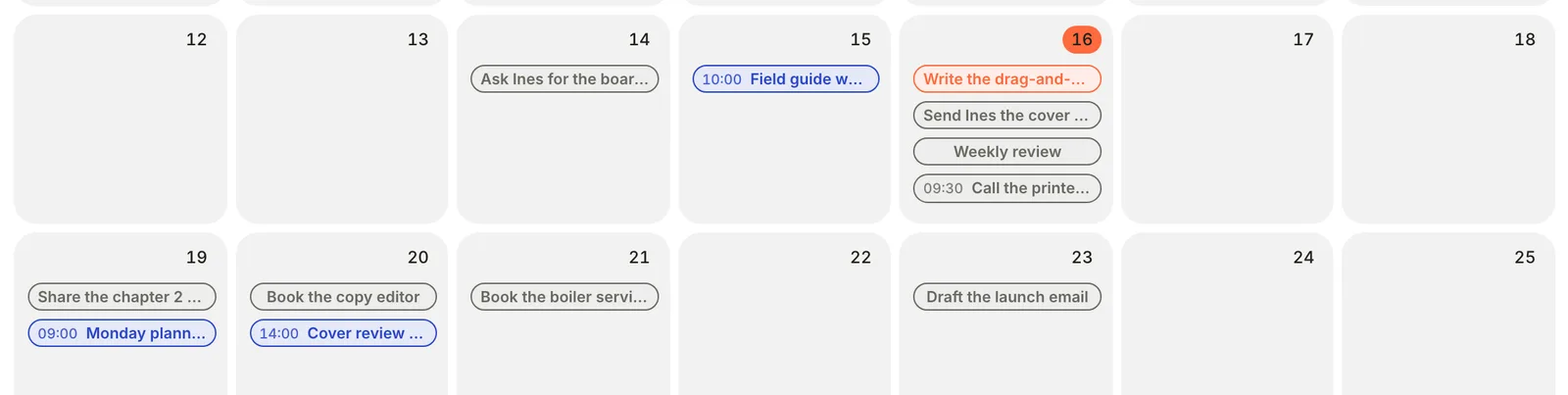
2. Look for crowded days and empty ones. Here Friday holds four tasks, while Thursday 22 October is clear.
3. Drag a task to another day to move its due date. Terra rewrites `due=` in the task's note and keeps the time, if it had one.
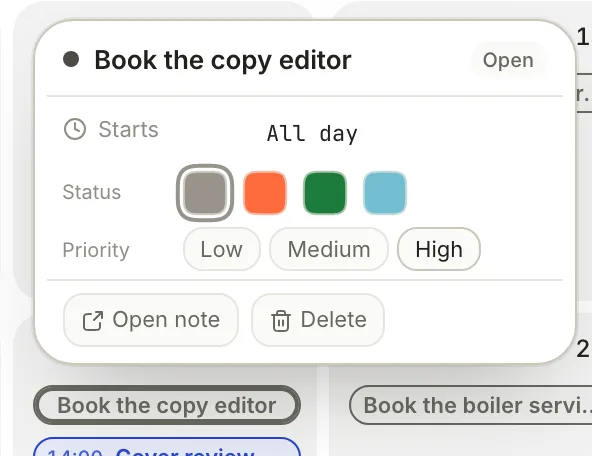
4. Click a task to change its status or priority without leaving the Calendar. **Open note** takes you to the line.
5. To put a meeting on the Calendar, give its note a `start-time`; see [Calendar](https://terramd.io/docs/calendar#put-a-note-on-the-calendar).
> [!WARNING] The Calendar stays on the month grid
> In this version, the built-in Calendar always shows a month, whatever you pick under **Display mode**. The month view still shows each week as a row, so planning works the same. For a single day, use the Calendar drawer in the next step.
## Step 5: Work through each day
During the week, keep the day's tasks beside your work instead of switching back to the board.
1. Open the note you're working in.
2. Click **Properties** in the toolbar (⌘ R) to open the panel on the right, then click **Show Tasks** in the row of buttons along its bottom.
3. The Tasks drawer lists the open note's tasks. Hover its header and click the **Library** button to see every task instead.
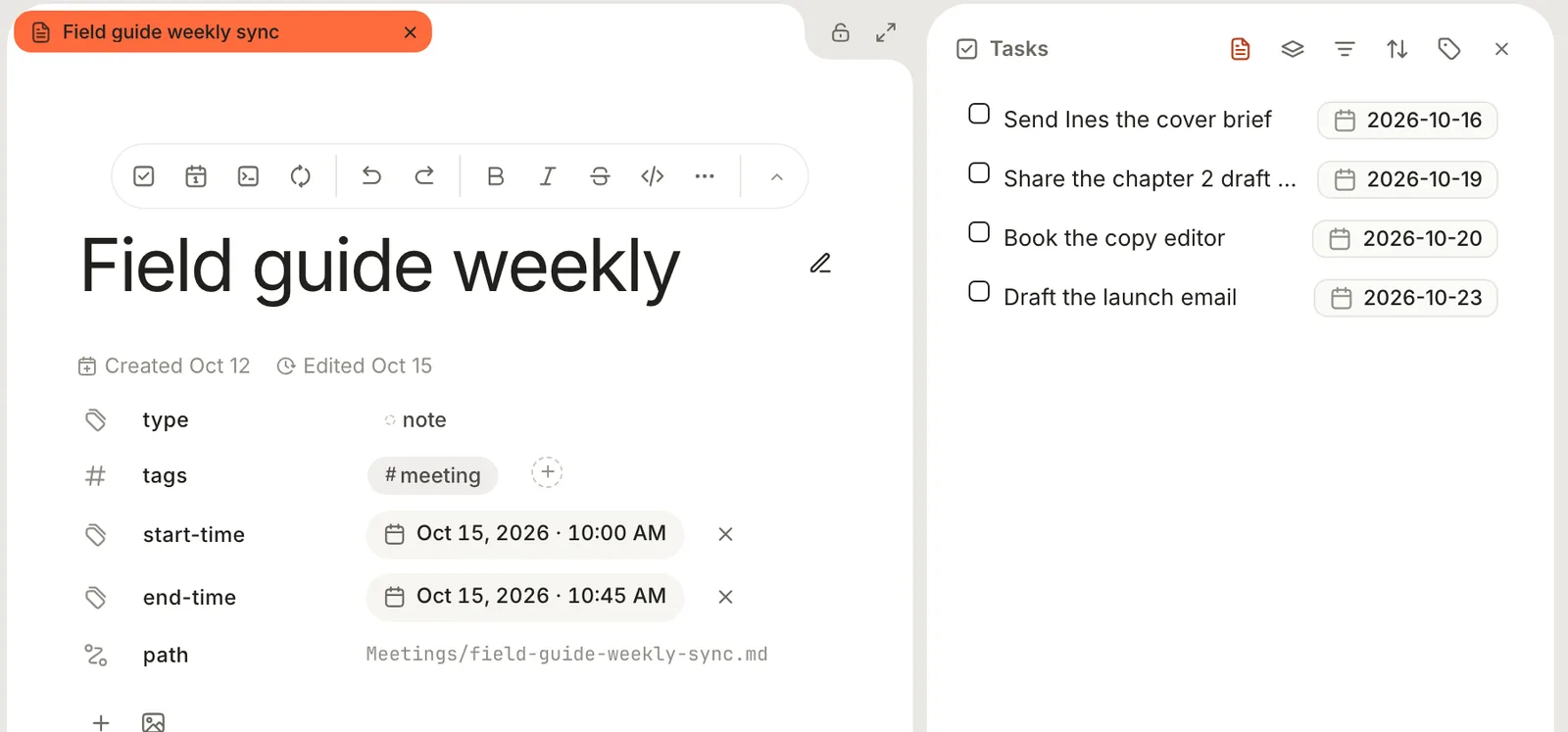
4. Click a task's marker to move it to the next status, or right-click the marker to pick one. Click the task itself to jump to its note.
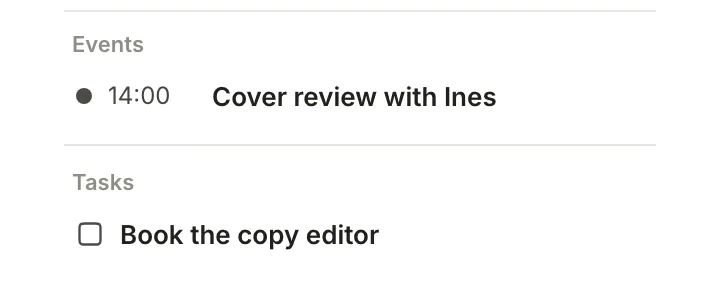
5. For the day's plan, click **Show Calendar** in the same row. Click a day in the small month to list its meetings and tasks.
The ring at the bottom of each note counts how many of its tasks are done. Click it for a list of them.
## Step 6: Close out the week
On Friday, finish the loop: mark what's done, decide about what isn't, and let the repeating tasks roll over.
1. Open **Tasks** and drag finished cards to **Done**.
2. Drag anything you've dropped to **Cancelled**. It stays in its note, struck through, as a record.
3. Finish your repeating tasks the same way. The weekly review in `Inbox/tasks.md` has `repeat=weekly`, so marking it **Done** on the board changes the note to:
```md
- [x] Weekly review ::: due=2026-10-16 repeat=weekly
- [ ] Weekly review ::: due=2026-10-23 repeat=weekly
```
Next week's copy is waiting on Friday the 23rd.
4. Check the **Overdue** view one last time and give every task in it a new date or a decision.
> [!IMPORTANT] Repeat from the board, not the note
> Ticking a repeating task's checkbox in the note marks it done but doesn't create the next copy. Mark repeating tasks done on the board, in **Edit task**, on the Calendar or in the Tasks drawer.
Done and cancelled tasks stay on the board, which keeps a record but adds clutter. To hide them in your main view, add a filter: **Status** › **is not** › **done**, and another for **cancelled**.
## Features you might have missed
### A board for one project
The built-in **Tasks** board always shows every task. Right-click **Tasks** in the sidebar, choose **New task database** and name it *Field guide*. In its header, click **Sources** and pick the `projects/field-guide` folder. That board shows only the project's tasks, and **Add task** writes into the project folder.
### Group the board another way
**Show boards as** in a board's header groups cards by **Due**, **Start**, **Priority**, **Project**, **Category**, **Assignee** or **Note** instead of status. Grouped by **Assignee**, it shows what Sam and Ines owe you; dragging a card to another column rewrites that property. The menu has no way back to status columns, so try it in a second board view (**+** › **Board** layout) rather than on **Board** itself.
### A page for each day
There's no daily-note button, but the **Daily log** template (**File › New from Template…**, ⇧ ⌘ N) starts a page titled with today's date, with **Wins**, **Blockers** and **Tomorrow** sections. Tasks you write in it join the board like any others.
### Give a big task its own note
When a task grows into a project, open it in **Edit task**, click **Move task to note** and choose **New note: …** at the top. The task, its subtasks and its description move into a new note in `Inbox`.
### Bring in Jira issues
If your team uses Jira, Terra can show issues on the board too. Connect an Atlassian account under **Settings › Integrations › Jira** (**Configure**, then **Connect an Atlassian account**). Then, in **Tasks**, click **Sources** and pick a project under **Jira projects**. Dragging a Jira card to another column moves the issue in Jira once you've turned on **Write access** for the site.
## Troubleshooting
> [!NOTE]- A task I wrote isn't on the board
> The line has to be a bulleted list item with a checkbox: `- [ ] Book the venue`. Numbered items (`1. [ ]`) and checkboxes inside code blocks aren't tasks. See [Task syntax](https://terramd.io/docs/task-syntax#how-a-line-is-read).
> [!NOTE]- The due date shows as text instead of a pill
> Check for a space inside a value, such as `assignee=Sam Lee`: Terra then reads the whole property list as part of the title. Also check for the older `due:2026-10-21` form, which needs to be ` ::: due=2026-10-21`.
> [!NOTE]- The weekly review didn't come back
> It was probably ticked in the note. Mark it done on the board instead; the next copy appears straight under it.
> [!NOTE]- The board is full of finished tasks
> Done and cancelled tasks stay until you delete their lines. Filter them out of your main view, or keep a separate view that shows only **Open** and **In progress**.
## What's next
- [Take meeting notes that turn into tasks](https://terramd.io/docs/meeting-notes) — action items that land on this board automatically.
- [Tasks](https://terramd.io/docs/tasks) — statuses, custom statuses, the Edit task dialog and more.
- [Calendar](https://terramd.io/docs/calendar) — what appears on it and how to choose the dates it uses.
- [Task syntax](https://terramd.io/docs/task-syntax) — every property and repeat rule you can type.