# Read comfortably in the e-reader
> Add EPUBs, PDFs and images to your Library, then read with your own theme, font and layout. Terra remembers your place in every book.
Source: https://terramd.io/docs/read-in-the-e-reader
Most of us read in one app and think in another. The book lives in an ebook app, the ideas it sparks end up in a notes app, and the two never meet again.
In Terra, a book is part of your Library. You drop in an EPUB and it opens in Terra's own reader — your theme, your font, one column or two — with a note of its own for your thoughts. Close it mid-sentence and it reopens on the same paragraph, weeks later.
> [!SUMMARY]
> - Add books, PDFs and images to your Library
> - Find your way around the reader and move through a book quickly
> - Make the page comfortable: theme, font, size, spacing, columns
> - Read with your notes open beside the book
> - Use the keyboard for everything
> [!BEFORE]
> - Terra open with a Library. New to Terra? Start with the [Quickstart](https://terramd.io/docs/quickstart).
> - An `.epub` file without DRM. Books from stores that lock their files (copy protection) won't open; publishers and libraries that sell DRM-free EPUBs work fine.
> - About 10 minutes.
## How it fits together
When you add a book, Terra keeps three things together in the folder you chose:
- **The book itself** — the `.epub` file. Terra never changes it.
- **The book's note** — an ordinary note with the title, author, publisher and cover filled in for you. Its body is empty and yours to write in.
- **A small data file** — where Terra keeps your place, your highlights and bookmarks, and this book's display settings. You never have to touch it. [Annotate and keep every mark](https://terramd.io/docs/annotate-in-the-sidecar) explains what's inside.
In your note list you see a single item: the book's note, with an **EPUB** label. Open it and the reader appears.
| File | Opens in | What you can do |
| --- | --- | --- |
| EPUB | The book reader | Read, change the look, highlight, bookmark, export notes |
| PDF | The PDF viewer | Read, zoom, highlight text, draw markup |
| Images (PNG, JPEG, GIF, WebP, SVG, HEIC, AVIF) | The image viewer | View, copy |
Every other kind of file Terra understands is listed in [Accepted file formats](https://terramd.io/docs/file-formats).
## Step 1: Add a book
1. In Finder, find the `.epub` file.
2. Drag it into the Terra window:
- drop it anywhere in the window to put it in your **Inbox**, or
- drop it on a folder under **Folders** in the sidebar to file it there — a `Reading` folder, say.
3. A single book opens straight away. If you dropped several files, Terra shows **Added 3 of 3 files**; click **Show** to see them.
The book appears in the note list with an **EPUB** label beside its folder.
> [!WARNING] Drag books in — don't copy them into the folder
> Terra picks up PDFs and images that you copy into your Library folder in Finder the next time the Library opens, but not EPUBs. Always drag books into the Terra window. Dropping the same book twice makes a second copy.
## Step 2: Find your way around the reader
Open the book by clicking it in the note list.
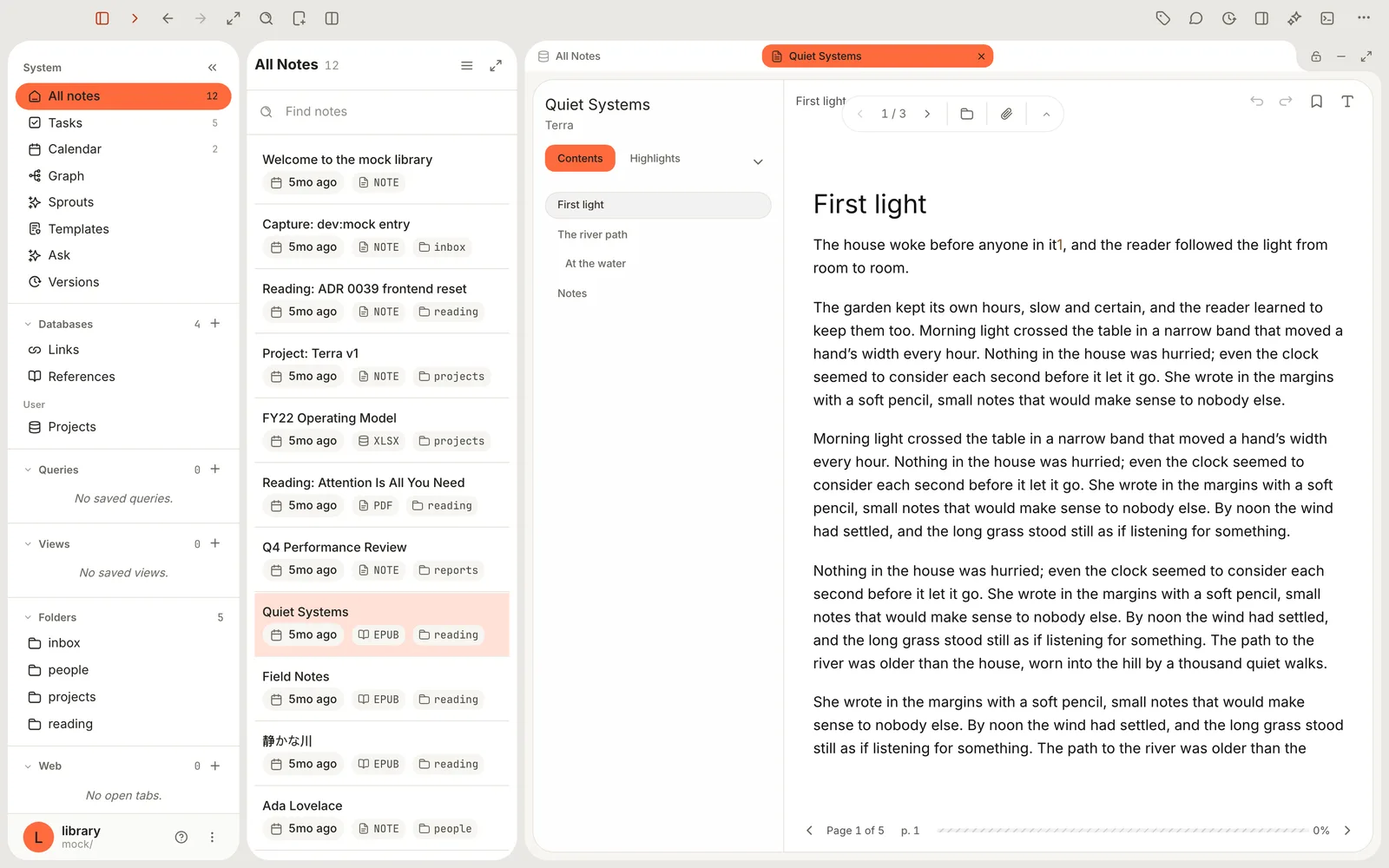
Here's what you're looking at:
- **Left column.** The title and author, then three tabs: **Contents** (the table of contents), **Highlights** and **Bookmarks**. In a narrow pane, **Bookmarks** hides behind the small arrow beside the tabs.
- **Top of the page.** The chapter you're in, **Back** and **Forward** (for jumps within the book), **Bookmark this page**, and **Reader appearance** — the **T** icon at the top right, where every display setting lives.
- **Floating tools.** The pill near the top steps from chapter to chapter (it reads **1 / 3** in a three-chapter book). Beside it are **Reveal in Finder**, **Show note** (the paperclip) and **Hide tools**. Drag the pill to move it out of your way.
- **Bottom of the page.** **Page 1 of 5** is your page *within this chapter*. The bar and the percentage at the right are your progress through the whole book.
## Step 3: Move through the book
Click once on the page first, so the reader has your keyboard. Then:
| To | Press | Or |
| --- | --- | --- |
| Turn to the next page | →, Space or Page Down | Click **Next page** at the bottom right |
| Turn back a page | ←, ⇧ Space or Page Up | Click **Previous page** at the bottom left |
| Go to the next or previous chapter | ⇧ ⌘ → / ⇧ ⌘ ← | Use the arrows in the floating pill |
| Jump to the start or end of the book | ⌘ Home / ⌘ End | |
| Go to a printed page number | ⇧ ⌘ P | Click **Go to page** at the bottom |
| Return to where you were before a jump | ⌘ ⌫ | Click **Back** at the top of the page |
Turning past the last page of a chapter takes you into the next one, so you can read straight through with the arrow keys.
### Jump with the table of contents
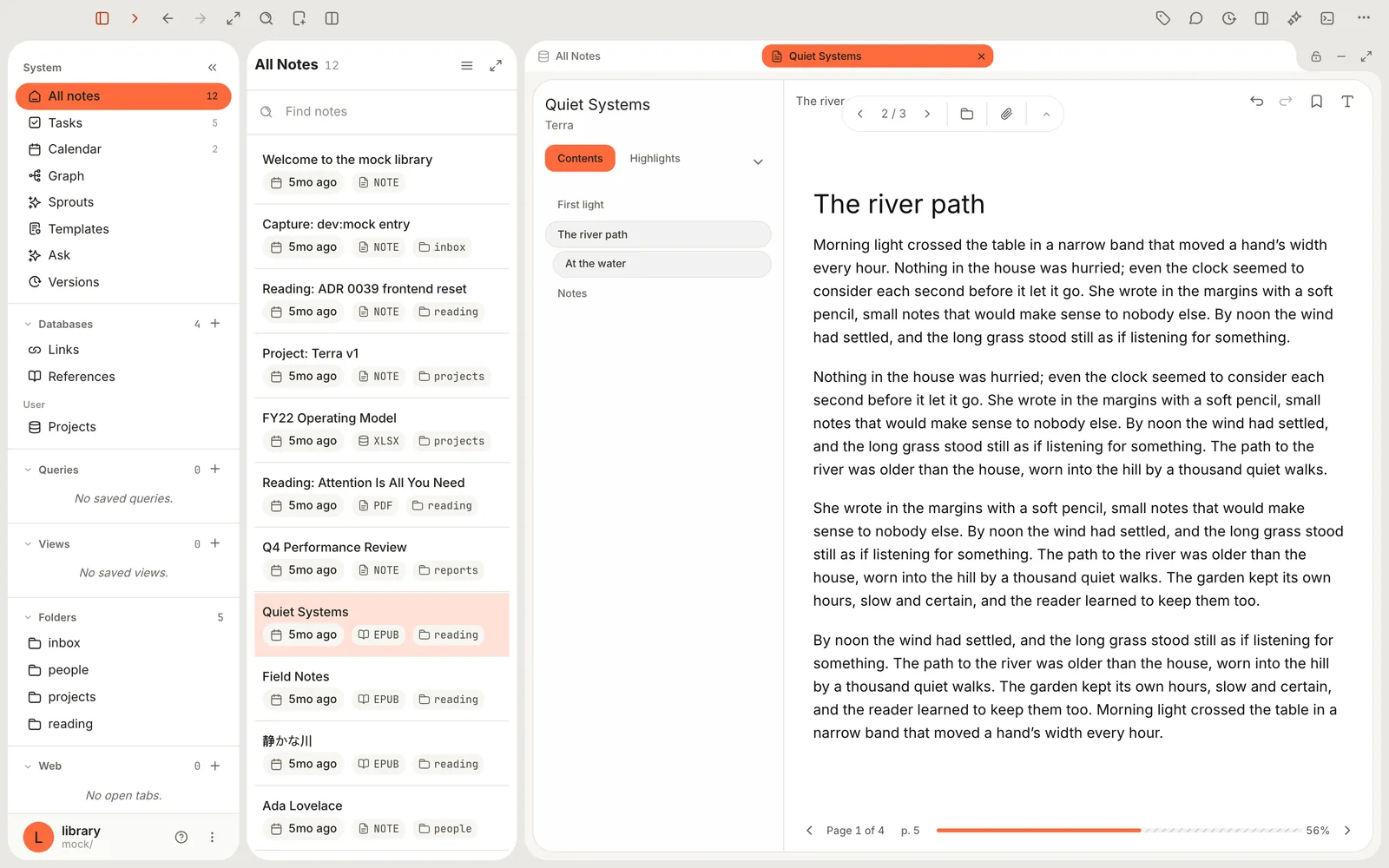
Click a chapter in **Contents**. The reader jumps there and briefly outlines where you landed, and the progress bar catches up.
### Go to a page number from the printed edition
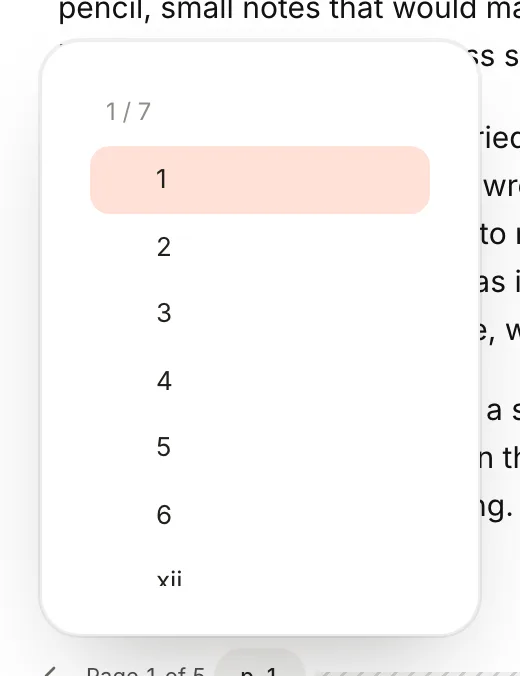
Many EPUBs carry the page numbers of the printed book, which is handy when a class or a citation says "see page 112". Click **Go to page** (it shows **p. 1** once Terra knows where you are) or press ⇧ ⌘ P, then type a page label and press Return, or click one in the list. Roman numerals like `xii` work.
### Read footnotes without losing your place
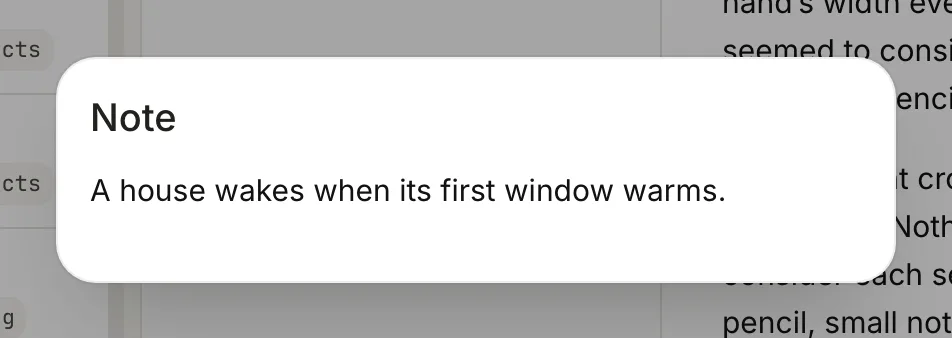
Click a footnote number and the note opens in a small window over the page. Press Esc to close it. If you followed a link somewhere else in the book instead, ⌘ ⌫ brings you back.
### Pick up where you left off
You don't need to do anything. Close the book, quit Terra, come back next month — the book reopens on the paragraph you were reading.
## Step 4: Make the page comfortable
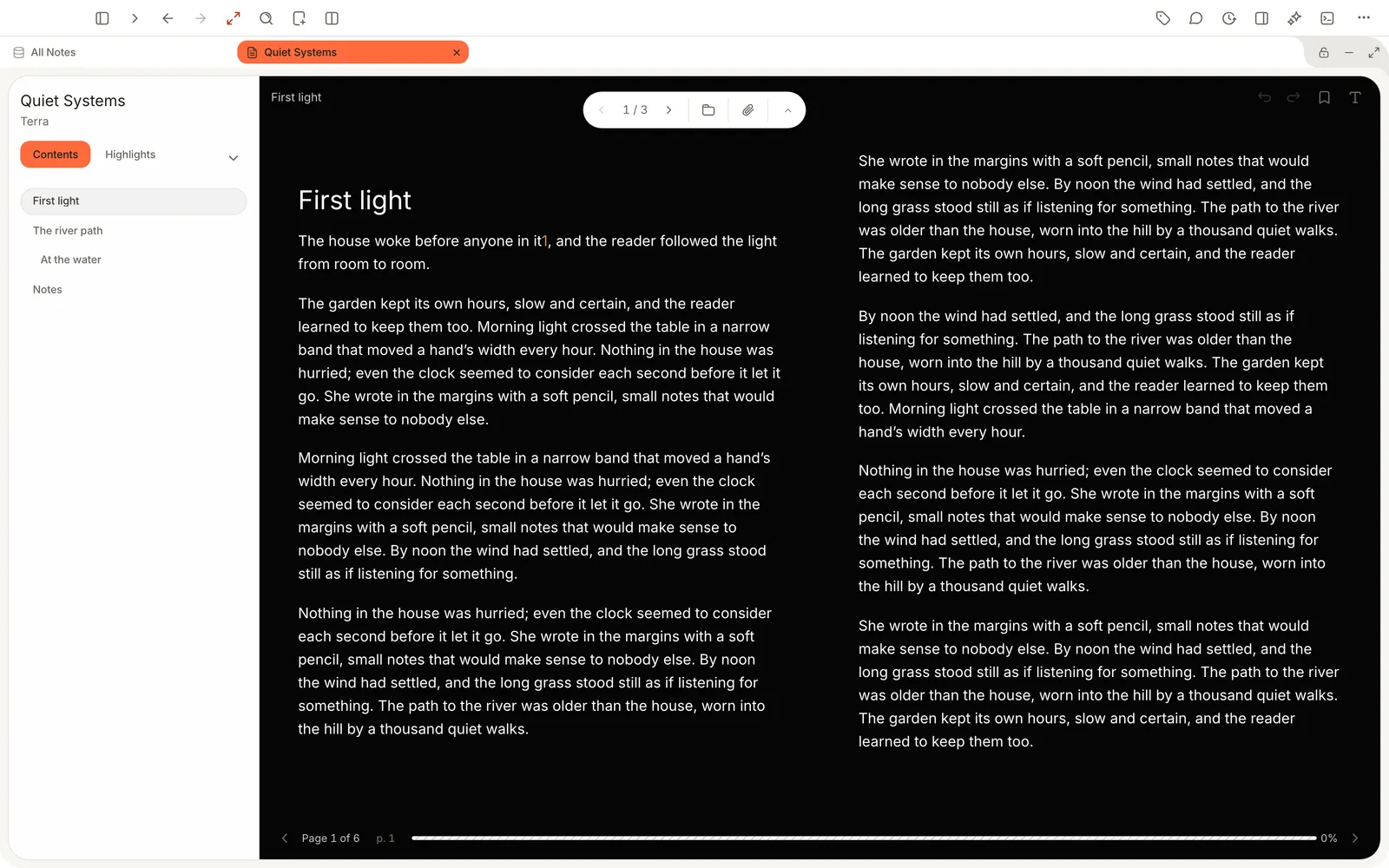
Every display choice lives in one menu, and each book remembers its own settings. Changing them never loses your place.
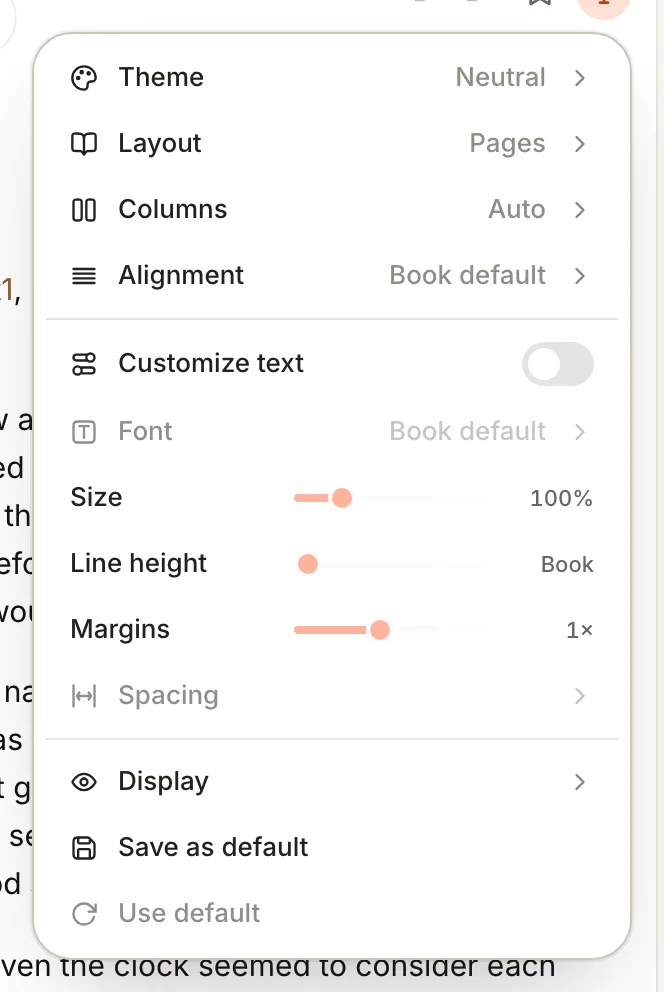
1. Click **Reader appearance** (the **T** at the top right of the page).
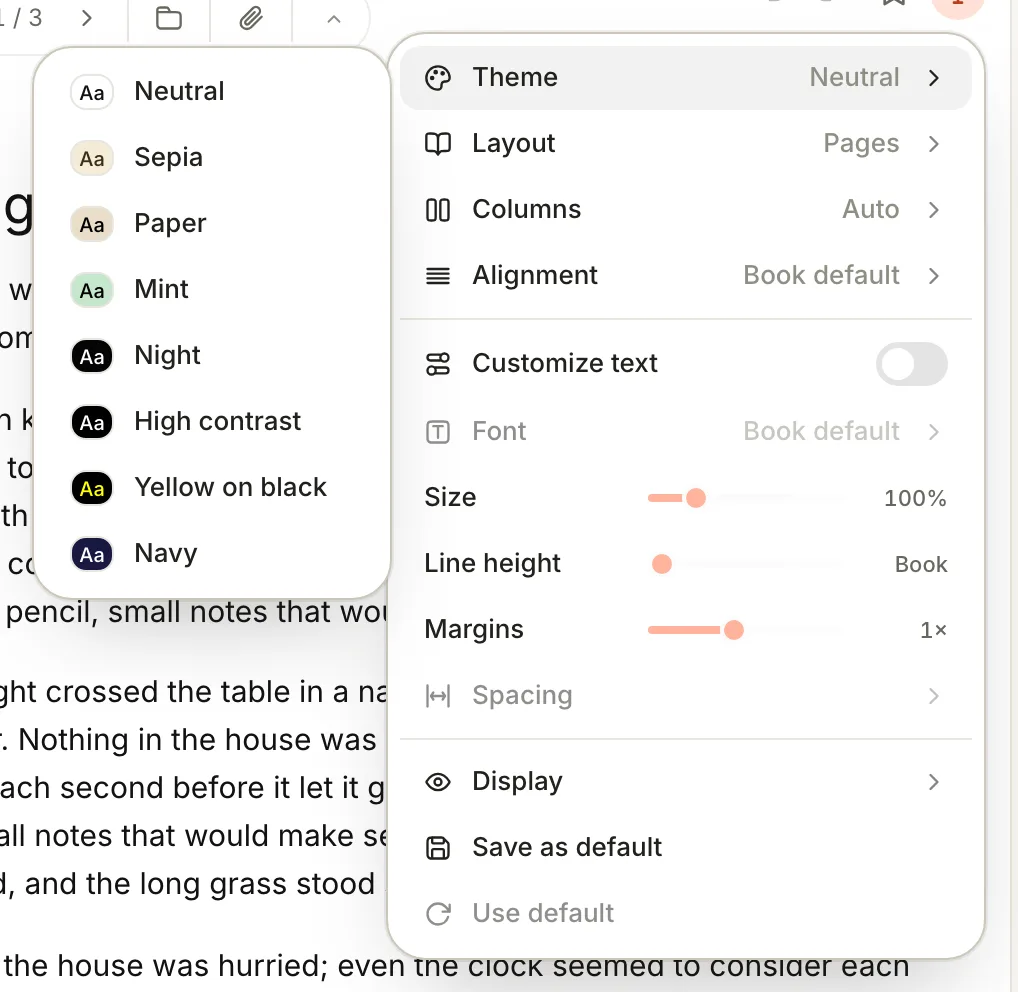
2. Choose a **Theme**: **Neutral**, **Sepia**, **Paper**, **Mint**, **Night**, **High contrast**, **Yellow on black** or **Navy**.
3. Choose a **Layout**: **Pages** turns pages like a book; **Scroll** gives you one long column per chapter.
4. Choose **Columns**: **Auto** shows two columns side by side when the window is wide enough, **One** never does, **Two** always does.
5. Choose **Alignment**: **Book default**, **Justified** (which also hyphenates long words) or **Left**.
6. To change the type, turn on **Customize text**. Now you can pick a **Font** — Open Runde, San Francisco, New York, Avenir Next, Athelas, Charter, Iowan, EB Garamond, Palatino, Georgia, Seravek or JetBrains Mono — and drag **Size**, **Line height** and **Margins**. **Spacing** adjusts the gaps between words, letters and paragraphs.
7. Under **Display**, switch extras on or off: **Footnote popups**, **Page numbers in margin**, **Outline jump targets**, **Reduce motion**, and — in dark themes — **Dim images** and **Invert images** for diagrams that glare.
Turn **Customize text** off any time to go back to the publisher's design. Terra remembers your custom values for when you switch back.
> [!TIP] Set it once for every book
> When a book looks just right, open **Reader appearance** and choose **Save as default**. Every book you open for the first time on this Mac starts that way. To bring a book you've already read in line, open it and choose **Use default**.
### Clear everything else away
Press ⌥ ⌘ Z for **Zen mode**, which hides the sidebar, the note list and the side drawers. Press it again to bring them back. For the whole screen, choose **View › Enter Full Screen**.
## Step 5: Read with your notes beside you
Reading goes further when you write as you go.
- **The book's own note.** Click **Show note** (the paperclip in the floating tools) to open the book's note next to the page. It already has the title, author and cover; add your summary, a rating, tags or a status, and it shows up in your databases like any other note.
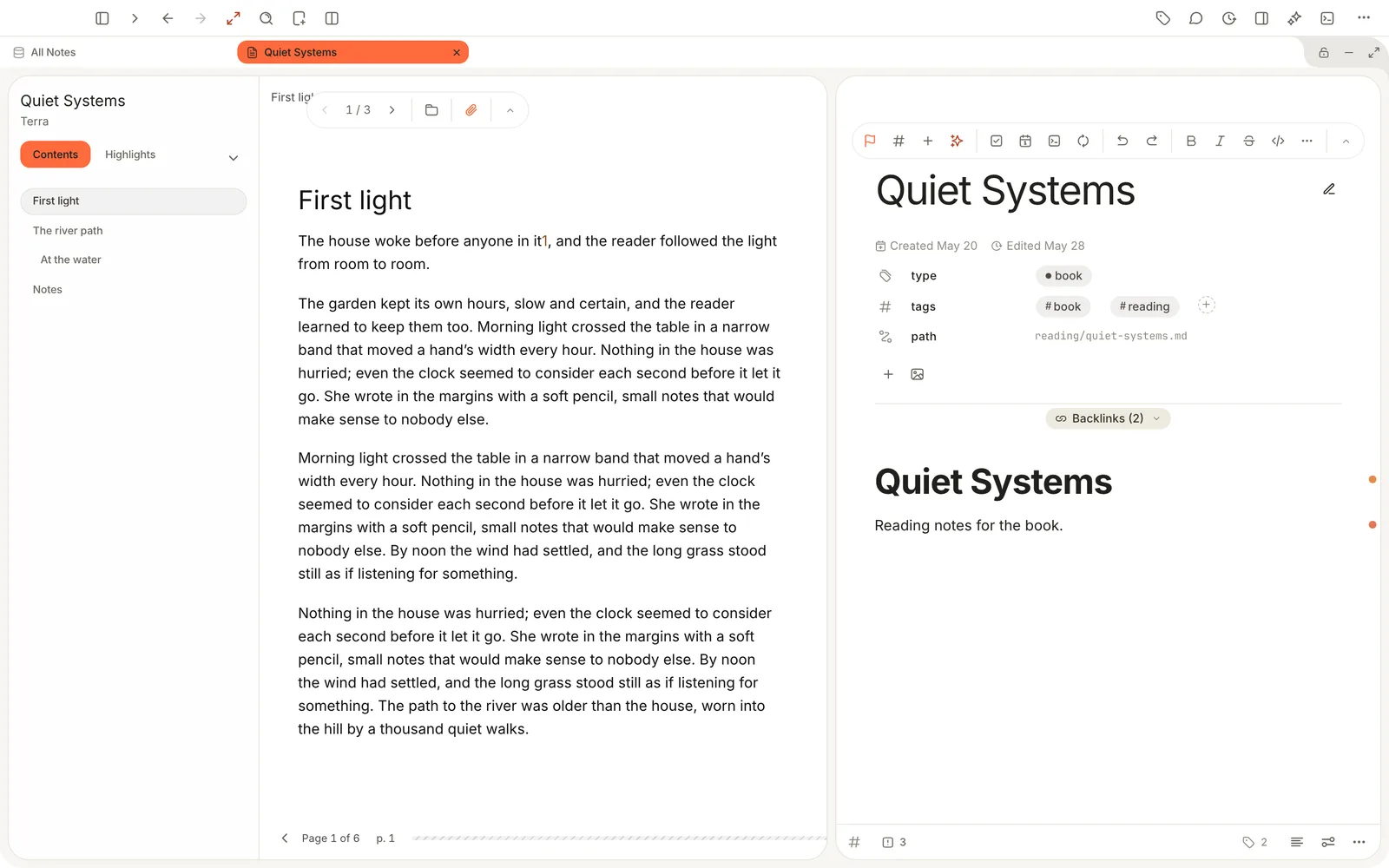
- **A separate note, side by side.** For long notes — a chapter-by-chapter summary, an essay you're drafting — open the book in one pane and your writing in another. Right-click the book in the note list and choose **Open as › Right pane** (in a database view it's **Open in side › Right**), then open your writing in the other pane. [Find your way around](https://terramd.io/docs/find-your-way-around) has more on panes.
> [!TIP] Keep long reading notes in their own note
> The book's note and the reader both save to the book's files. If you're writing a lot while also highlighting, a separate note open beside the book keeps each kind of work in its own place.
## Step 6: Bookmark your place
Press ⌘ B or click **Bookmark this page**. A small mark appears in the margin and the button changes to **Remove bookmark**. Bookmarks are listed on the **Bookmarks** tab; click one to jump back.
To give a bookmark a name — "Start of the argument", "Quote for Thursday" — press ⌥ ⇧ B instead, type a **Name** and click **Save**.
Highlights and bookmarks have a guide of their own: [Annotate and keep every mark](https://terramd.io/docs/annotate-in-the-sidecar).
## Features you might have missed
### Search inside every book at once
Press ⇧ ⌘ F and search your Library. Terra searches the text of your books too, not just their titles, so a half-remembered phrase finds the book it came from. The book opens where you last left it; there's no search within a single open book yet.
### Picture books, comics and textbooks
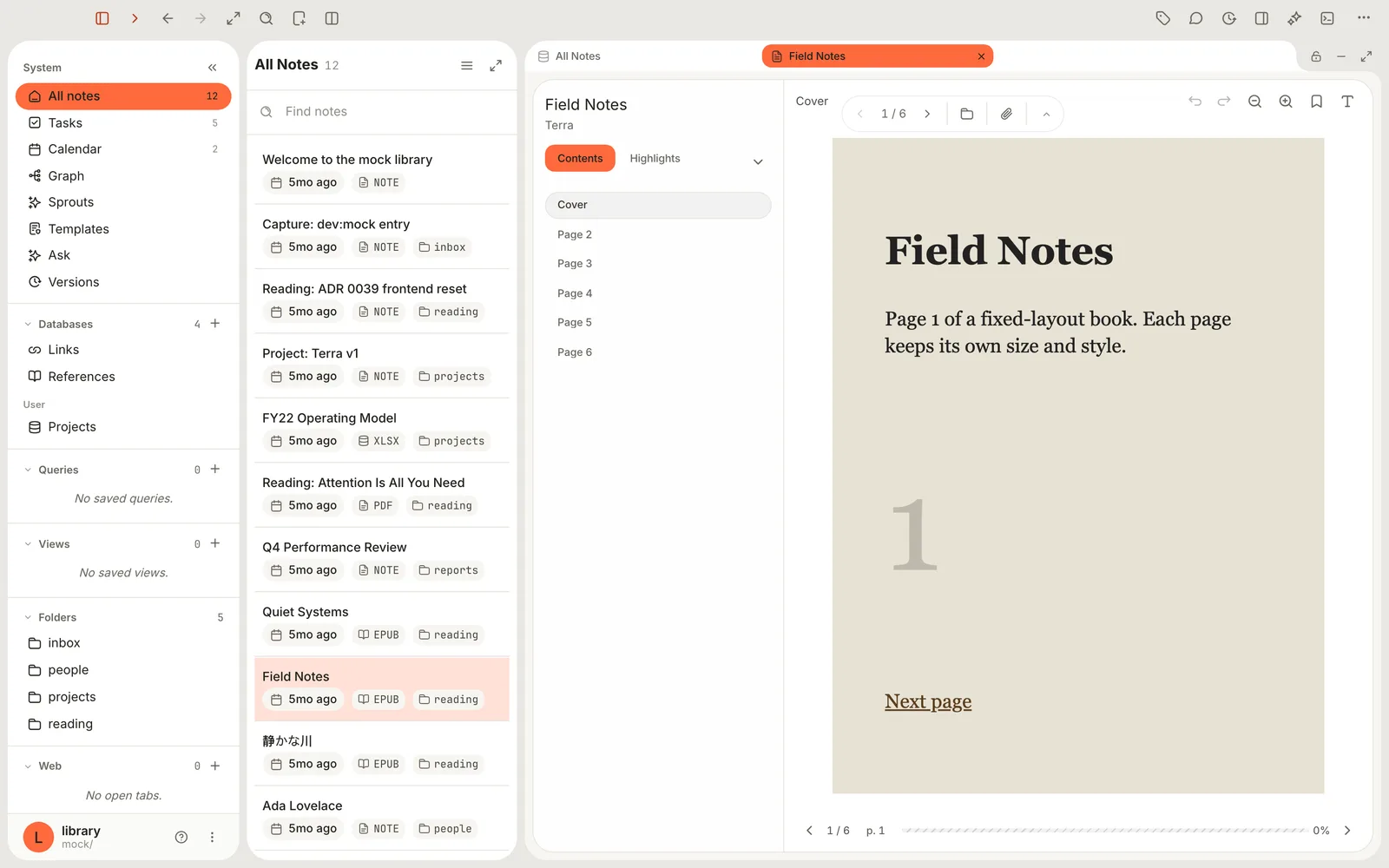
Some EPUBs are laid out page by page, like a magazine (a *fixed-layout* book). Terra shows these as real pages, with **Zoom in** and **Zoom out** at the top (⌘ 9 and ⌘ 8; ⌘ 0 fits the page to the window again), and **Spreads** instead of **Columns** in **Reader appearance**. You can bookmark these pages but not highlight them.
### Japanese, Chinese and right-to-left books
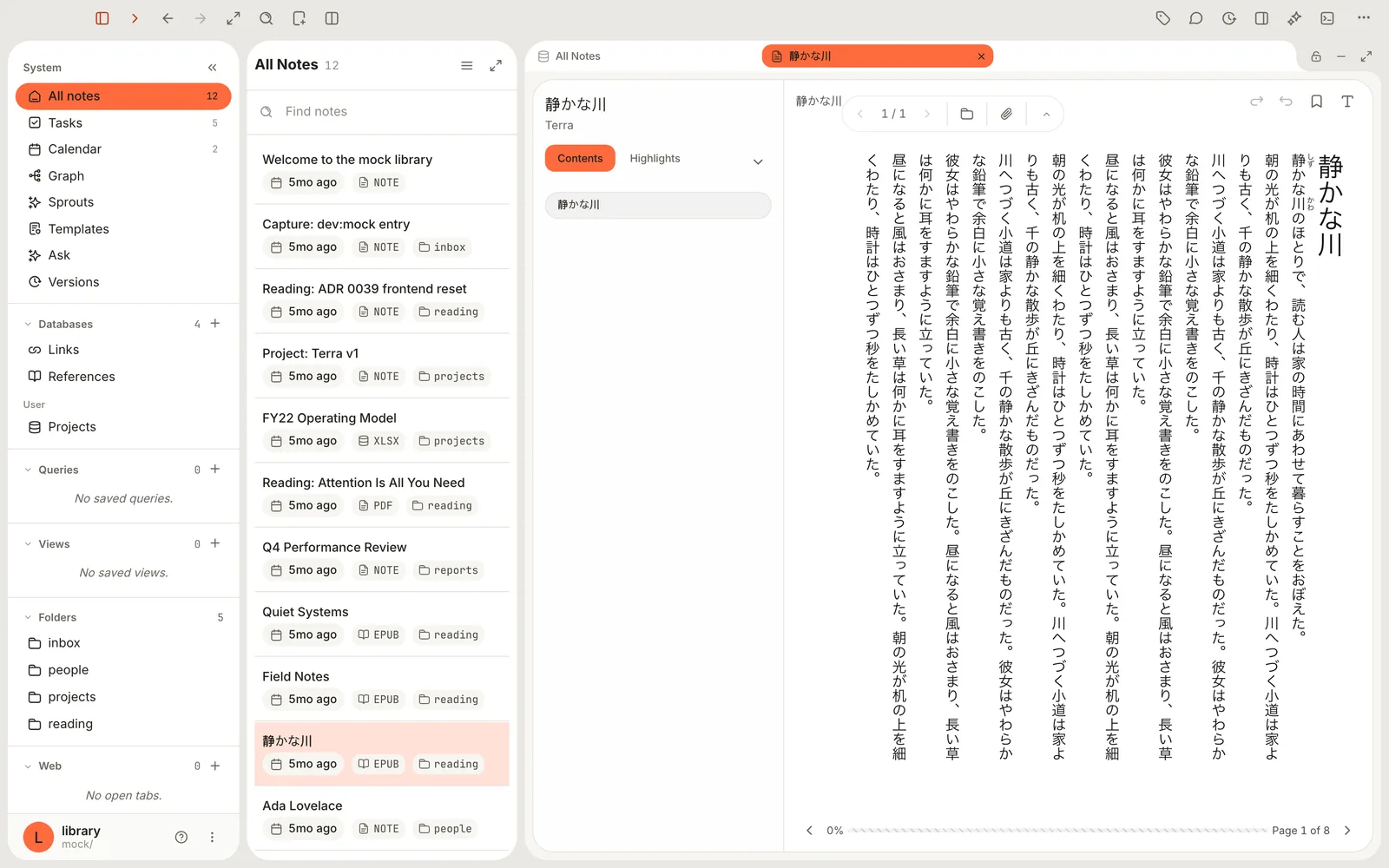
Vertical text reads top to bottom and right to left, just as printed. In right-to-left books the arrow keys follow the book's direction; turn off **Display › Mirror arrows in right-to-left books** if you'd rather they didn't. **Display › Hide ruby** hides the small reading guides above kanji.
### Cite the printed page
Turn on **Display › Page numbers in margin** to see the printed edition's page numbers as you read, then cite the book in your writing with the real page. Book notes are ready to cite; see [Build a research library](https://terramd.io/docs/research-library).
### Remap any reader key
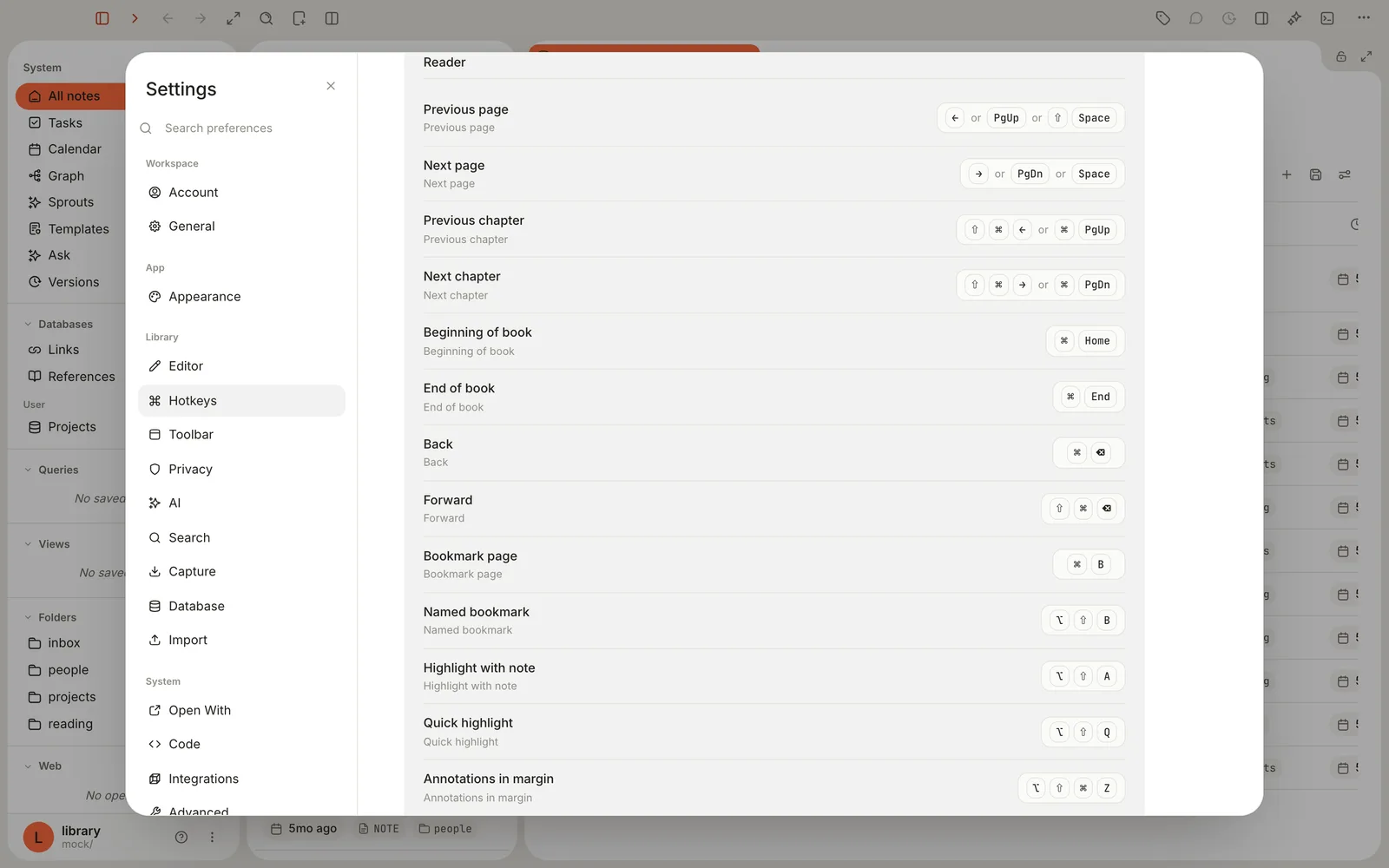
Every reader shortcut can be changed in **Settings › Hotkeys**, under **Reader**. Click a shortcut, press the new keys, and you're done; the new keys replace all of the defaults for that command. **Reset to default** puts them back.
### New books follow your reading taste
The first time you open a book, it borrows the theme and font you chose for reading web pages and notes in Read mode, so everything you read in Terra looks consistent.
## PDFs and images
PDFs open in Terra's PDF viewer. The floating tools let you turn pages, zoom (**Zoom in**, **Zoom out**), choose **Page display** — **One page**, **One page continuous**, **Two pages** or **Two pages continuous** — and switch on **Highlight text** or **Markup** to mark up the page. Unlike book highlights, PDF highlights are saved into the PDF file itself, so they also show up in Preview. [Annotate and keep every mark](https://terramd.io/docs/annotate-in-the-sidecar#highlight-and-mark-up-pdfs) covers both. A PDF opens on page 1 each time; it doesn't remember your place yet.
Images open fitted to the window. Use **Copy image to clipboard** or **Reveal in Finder** in the floating tools.
## Troubleshooting
> [!NOTE]- The arrow keys don't turn the page
> Click once on the page. The reader only listens to the keyboard when it has focus, and it ignores keys while you're typing in a field or a menu is open.
> [!NOTE]- I copied a book into my Library folder and it doesn't appear
> Terra only adds EPUBs that you drag into its window. Drag the file from Finder onto the Terra window or onto a folder in the sidebar.
> [!NOTE]- "Encrypted EPUB — This book cannot be previewed"
> The book is protected by DRM. Terra can't open protected books. Look for a DRM-free edition.
> [!NOTE]- "Page 3 of 7" doesn't match the percentage
> The page count is for the current chapter. The bar and the percentage show your progress through the whole book.
> [!NOTE]- A web link in the book does nothing
> For safety, Terra removes links to websites and remote content from books. Links within the book still work.
> [!NOTE]- "Book unavailable"
> Terra couldn't read the book's data file — it may be damaged, or it was saved by a newer version of Terra. Update Terra; if that doesn't help, see [what to do with the data file](https://terramd.io/docs/annotate-in-the-sidecar#back-up-sync-and-move-books-safely).
## What's next
- [Annotate and keep every mark](https://terramd.io/docs/annotate-in-the-sidecar) — highlights, notes, tags and exports.
- [Build a research library](https://terramd.io/docs/research-library) — cite books and papers in your writing.
- [Find your way around](https://terramd.io/docs/find-your-way-around) — split panes so the book and your writing sit side by side.