# Take meeting notes that turn into tasks
> Start meetings from the Meeting template, write action items with owners and dates, and follow them up on the Tasks board and the Calendar.
Source: https://terramd.io/docs/meeting-notes
Most meetings end with a short list of things people said they'd do. A week later half of them have quietly vanished, because the list lives in the minutes and nobody reads the minutes again.
In Terra, an action item is an ordinary [task](https://terramd.io/docs/tasks): a checkbox line in the meeting note, with an owner and a due date. The moment you write it, it's on the Tasks board, and with a date it's on the Calendar too, next to the meeting it came from. This guide follows the field-guide team's weekly sync on Thursday 15 October, from a blank page to the follow-up.
> [!SUMMARY]
> - Start a meeting note from the **Meeting** template
> - Put the meeting itself on the Calendar
> - Write action items with an owner and a due date
> - Follow them up on the Tasks board, grouped by person
> - Optionally, bring in meetings recorded with Granola
> [!BEFORE]
> - A Library open in Terra. New to Terra? Start with the [Quickstart](https://terramd.io/docs/quickstart).
> - A folder for meetings helps. This guide uses one called `Meetings`; to make one, click **+** (**New folder**) beside **Folders** in the sidebar.
> - For the Granola step only: a Granola account, and an internet connection.
> - About 10 minutes.
## How it fits together
A meeting note is a normal [note](https://terramd.io/docs/glossary#note). Three things turn it into a working record:
| Part | What it is | Where it shows up |
| --- | --- | --- |
| The **Meeting** template | Sections for attendees, agenda, discussion, decisions and action items | The note itself |
| `start-time` and `end-time` | Two [properties](https://terramd.io/docs/properties) holding the meeting's date and time | The [Calendar](https://terramd.io/docs/calendar) |
| Action items | Task lines with `assignee=` and `due=` | **Tasks**, the Calendar and the Tasks drawer |
## Step 1: Start the note from the Meeting template
A [template](https://terramd.io/docs/templates) gives every meeting the same shape, so the action items are always in the same place.
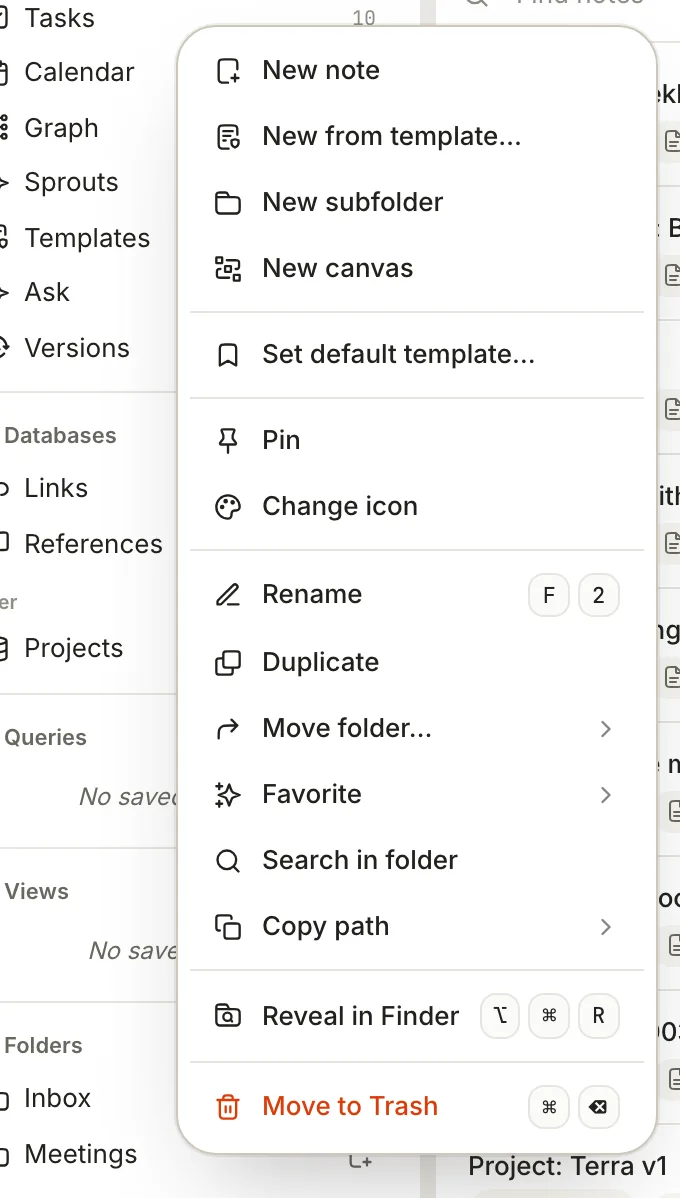
1. In the sidebar, right-click your `Meetings` folder and choose **New from template…**.
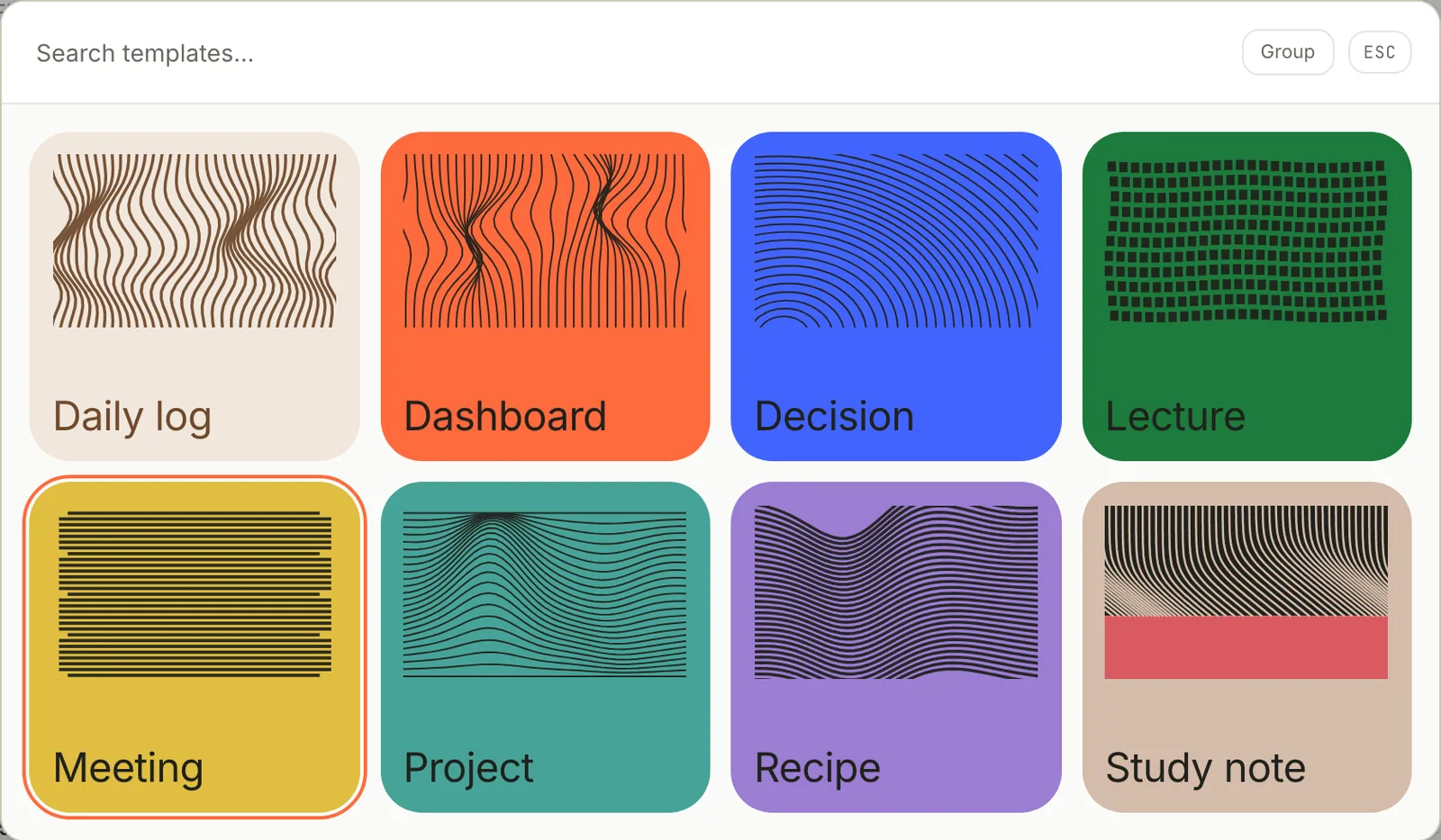
2. Click **Meeting**, or move to it with the arrow keys and press Return.
3. Terra creates a note called **Meeting** in the folder and opens it, with today's date and the current time already filled in.
4. Click the title and rename it: *Field guide weekly sync*. The template also writes the title as a heading at the top of the page; change that heading too, or delete it.
You can start a meeting note from anywhere with **File › New from Template…** (⇧ ⌘ N). The note then goes into the folder of the note you have open.
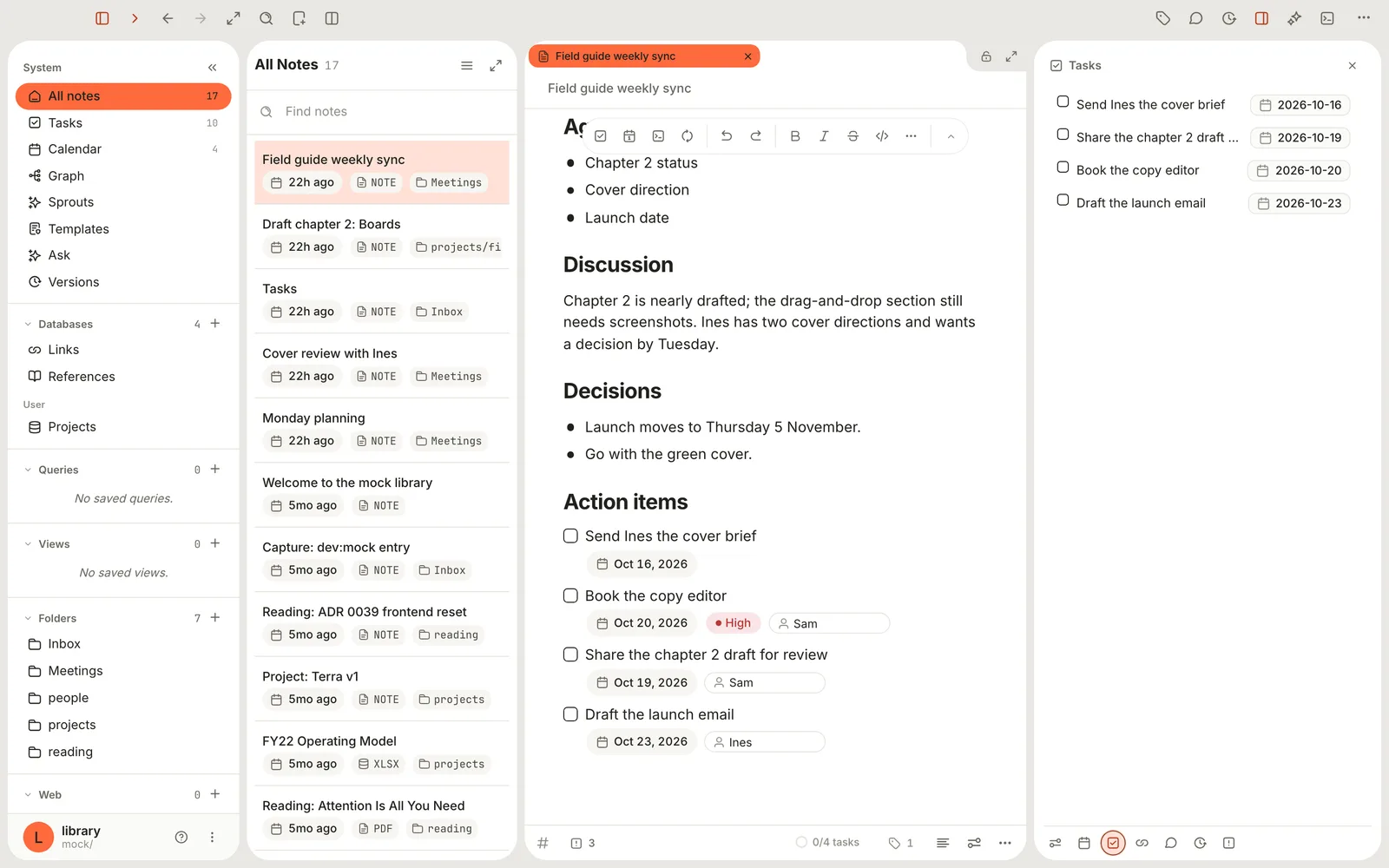
The template's sections are plain Markdown, so the note looks like this as you fill it in:
```md
**Date:** October 15, 2026
**Time:** 10:00
## Attendees
Sam, Ines
## Agenda
- Chapter 2 status
- Cover direction
- Launch date
## Discussion
Chapter 2 is nearly drafted; the drag-and-drop section still needs screenshots.
## Decisions
- Launch moves to Thursday 5 November.
- Go with the green cover.
## Action items
- [ ]
```
## Step 2: Put the meeting on the Calendar
The **Date** and **Time** lines are text for people to read; the Calendar doesn't read them. To put the meeting on the Calendar, give the note a start time.
1. Under the note's properties, click **+** (**Add property**).
2. Choose **Existing property**, type `time` and pick `start-time`.
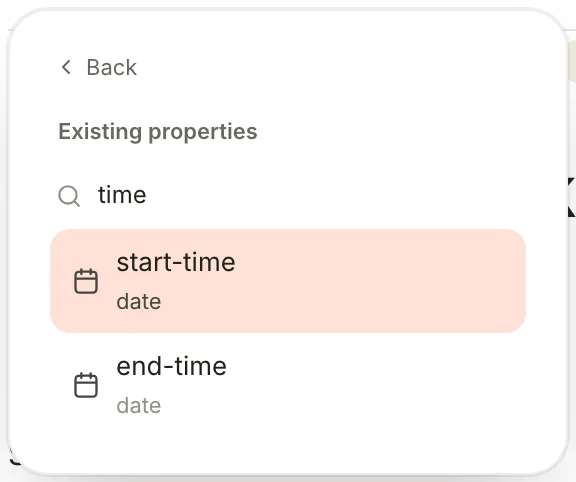
3. Click the new property's value and pick the date and time: 15 October, 10:00.
4. Add `end-time` the same way and set it to 10:45.

The meeting now appears on the Calendar on Thursday the 15th, with its start time in front of the title. To have the Calendar use the end time as well, open **Calendar**, click **View preferences** and set **Dates › End** to `end-time`. You only do that once.
## Step 3: Write the action items
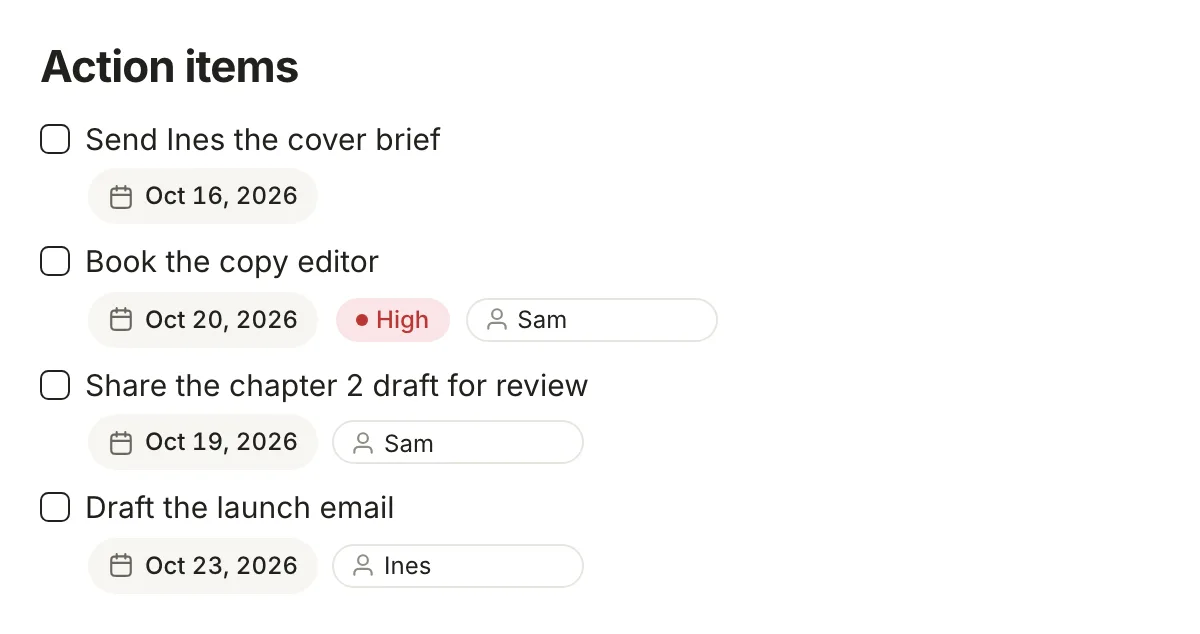
An action item needs three things: what, who and by when. Write each one as a task under **Action items**; the template leaves an empty checkbox there to start you off.
1. Click after the empty checkbox and type the first action: *Send Ines the cover brief*.
2. Add a due date at the end of the line: ` ::: due=2026-10-16`. When you type the next space, it becomes a date pill.
3. Press Return for the next action. For one that belongs to someone else, add an owner too, typing ` ::: ` before each property: ` ::: due=2026-10-20`, then ` ::: priority=high`, then ` ::: assignee=Sam`.
4. Prefer menus? Click **⋯** at the end of a task's line, choose **Properties** and switch on **Due**, **Assignee** or **Priority**.
When you're done, the section reads:
```md
## Action items
- [ ] Send Ines the cover brief ::: due=2026-10-16
- [ ] Book the copy editor ::: due=2026-10-20 priority=high assignee=Sam
- [ ] Share the chapter 2 draft for review ::: due=2026-10-19 assignee=Sam
- [ ] Draft the launch email ::: due=2026-10-23 assignee=Ines
```
> [!TIP] Names without spaces
> A property value can't contain a space. Write `assignee=Sam` or `assignee=sam-lee`, not `assignee=Sam Lee`: a space makes Terra read the whole property list as part of the title.
Keep decisions as plain bullets under **Decisions**. Only things someone has to *do* should be tasks, or the board fills up with statements.
## Step 4: Follow up on the Tasks board
The action items are already on the board; there's no import step. The line under each card's title names the meeting it came from.
1. Click **Tasks** in the sidebar.
2. Give the board a second view, so the main one keeps its status columns: click **+** (**Add view**) in the header, click the **Board** layout, type *By person* in **Name**, click **Save view** and close the panel.
3. Click **Show boards as** in the header and choose **Assignee**. The board regroups into a column per person, plus **No value** for tasks without an owner.
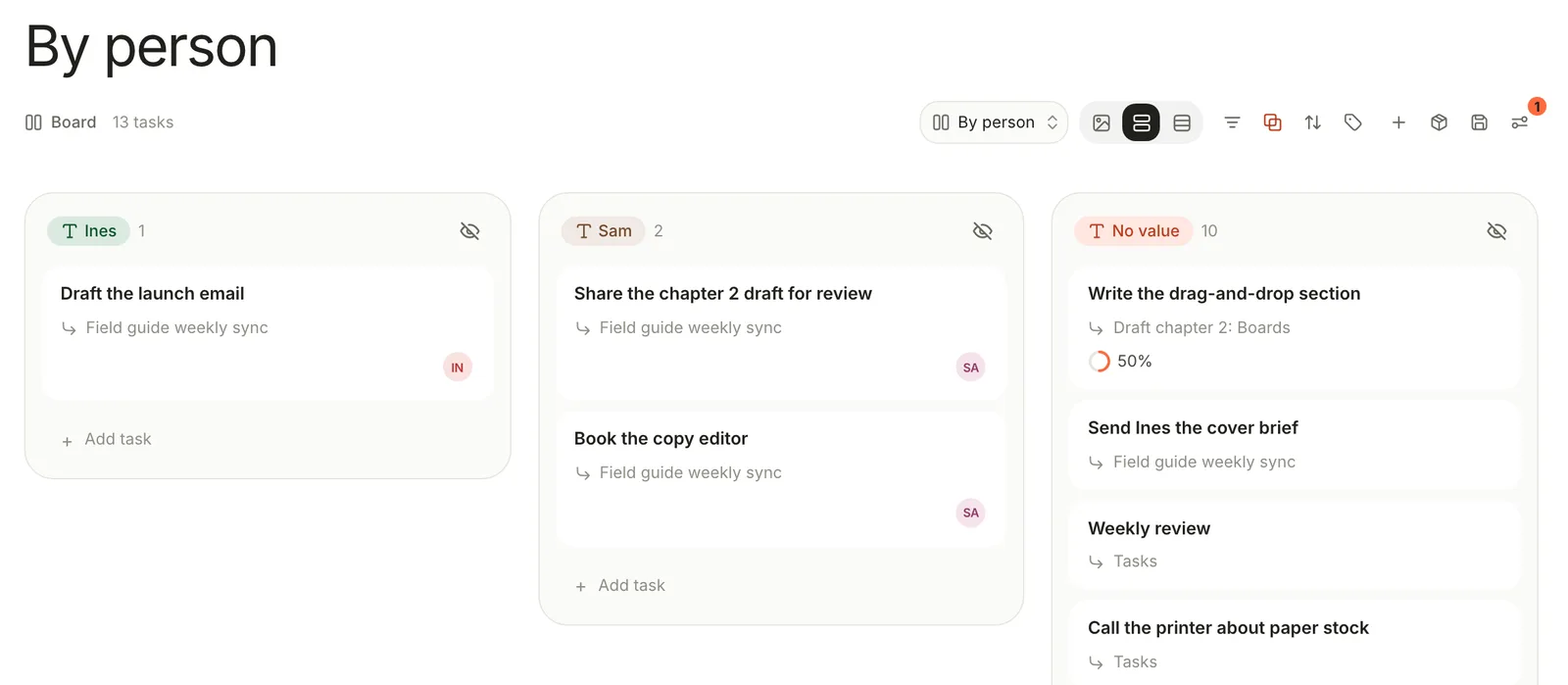
4. Drag a card to another person's column to hand the task over. Terra rewrites `assignee=` in the meeting note.
5. Switch between **Board** and **By person** with the view menu at the right of the header.
To see one meeting's items only, open **Filters** and click **+** (**Add condition**). Change **Title** to **Note** and **is** to **contains**, then type part of the meeting's title. Click **Clear all** in the same panel when you're done.
> [!NOTE] The meeting note stays the source
> Ticking an action item on the board, or in the meeting note, changes the same line. Months later, the note still shows who agreed to what and whether it got done.
## Step 5: Check in before the next meeting
Before next week's sync, look at what came out of this one.
1. Open last week's meeting note.
2. Click **Properties** in the toolbar (⌘ R), then **Show Tasks** in the row of buttons along the bottom of the panel. The Tasks drawer lists the note's action items with their dates.
3. Open **Calendar** to see the meeting and the action items' due dates side by side.
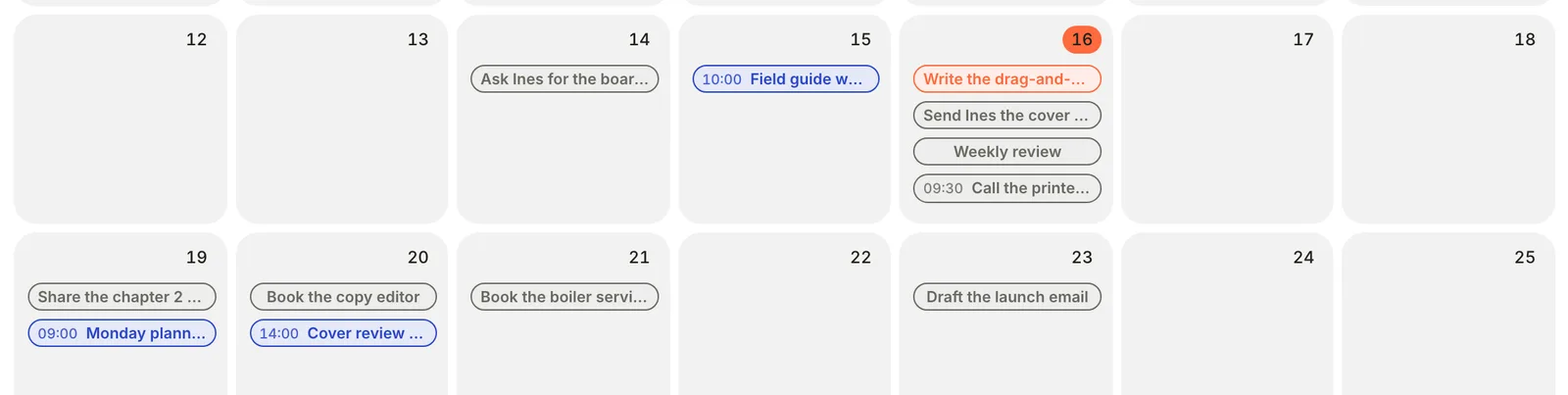
4. Carry anything unfinished into the new meeting's **Action items**, or move it: open the task in **Edit task**, click **Move task to note** and pick the new meeting. Terra moves the line under a `## Tasks` heading there.
## Step 6: Bring in meetings from Granola (optional)
If you record meetings with Granola, Terra can turn each one into a note in `Meetings/`, with Granola's summary and its action items as tasks under `## Action items`. Action items are lines under headings such as *Action items*, *Next steps*, *Follow-ups* or *To-dos* in Granola's summary, plus any checkboxes.
1. Open **Settings** (⌘ ,), click **Integrations**, then **Configure** on the **Granola** row.
2. To import one meeting, click **Import**, paste the meeting's public share link (it starts `https://notes.granola.ai/p/`) into **Share link**, and click **Import** on the **Import meeting** row.
3. To bring in your private meetings, click **Sync**, paste your Granola **Personal API key**, and click **Connect**. Then click **Sync** on the **Sync now** row. Your key is kept in the macOS Keychain.
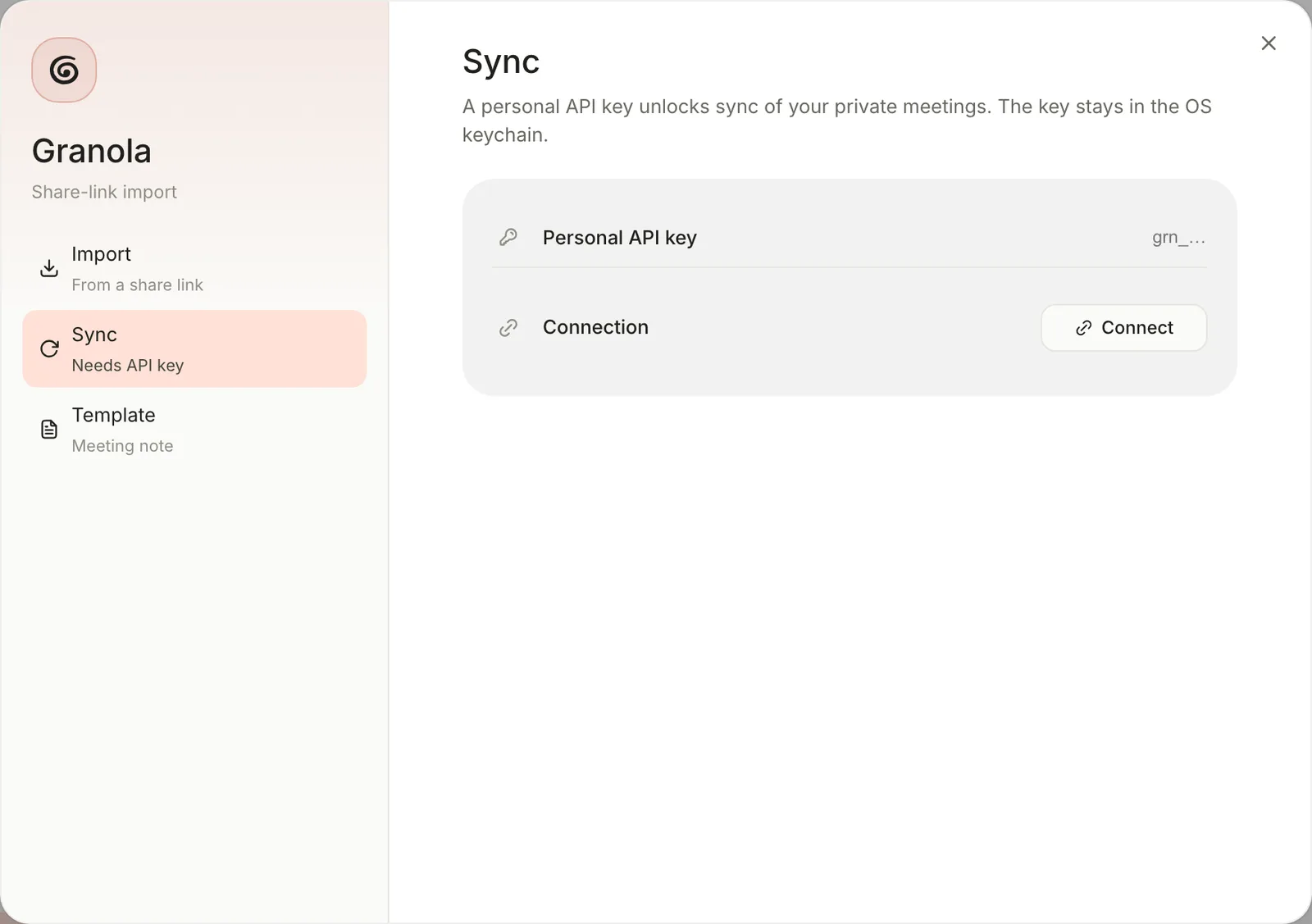
4. To keep pulling new meetings, switch on **Scheduled sync** and choose how often under **Sync every**.
The first **Sync** brings in every meeting in your Granola account, not only recent ones. **Scheduled sync** runs while Terra is open and switches off when you quit, so turn it on again next time.
> [!WARNING] Work on Granola's action items below the sync line
> In a Granola note's file, everything above the line `` belongs to Granola. If you edit anything there, including ticking an action item or adding a due date, and Granola then sends a newer version of that meeting, Terra keeps your edited copy below the line and writes a fresh copy above it, so every action item appears twice. Copy the action items below the line, or into your own meeting note, before you work on them.
## Features you might have missed
### A calendar of meetings
Right-click **Calendar** in the sidebar, choose **New calendar database** and call it *Meetings*. Use its **Filters** to keep only the `Meetings` folder. Unlike the built-in Calendar, a calendar database you make switches **Display mode** to **Week**, **Day** or **Agenda**, which lists the next two weeks of meetings.
### Live Jira and Confluence cards
If you've connected Jira or Confluence under **Settings › Integrations**, paste an issue or page link on an empty line of the meeting note and choose **Embed**. You can also type `/` and pick from **Connected apps**. The card shows the issue's details, and **Refresh** in its options fetches the latest.
### Give a big action item its own note
When an action item turns into a project, open it in **Edit task**, click **Move task to note** and choose **New note: …**. The task moves into a new note in `Inbox`, named after it.
### Daily stand-ups
For a quick daily page, use the **Daily log** template instead: it's dated for today, with **Wins**, **Blockers** and **Tomorrow** sections. Tasks you write under **Tomorrow** join the board like any others.
## Troubleshooting
> [!NOTE]- The meeting isn't on the Calendar
> The Calendar reads `start-time`, not the **Date** line the template writes. Add the property as in [step 2](#put-the-meeting-on-the-calendar).
> [!NOTE]- An action item isn't on the Tasks board
> Check that it's a checkbox in a bulleted list, `- [ ] …`, not a numbered item or plain text. See [Task syntax](https://terramd.io/docs/task-syntax).
> [!NOTE]- The owner shows as text in the title
> The assignee probably has a space in it. Use one word or hyphens: `assignee=sam-lee`.
> [!NOTE]- Granola's action items appear twice
> The meeting was edited above `` and then synced again. Delete the extra copies, and work on action items below the line from now on.
> [!NOTE]- The Granola import says "Already up to date — no changes written."
> That meeting is already in your Library and nothing has changed in Granola since.
## What's next
- [Run your week with tasks and the calendar](https://terramd.io/docs/run-your-week-with-tasks) — a weekly routine for everything these meetings produce.
- [Tasks](https://terramd.io/docs/tasks) — statuses, the board and the Edit task dialog.
- [Templates](https://terramd.io/docs/templates) — change the **Meeting** template or make your own.
- [Calendar](https://terramd.io/docs/calendar) — choose the dates it uses and make calendars of your own.