# Links and backlinks
> Link notes with wiki-links, point at one paragraph with a block link, add web links, and see every note that links back to the one you're in.
Source: https://terramd.io/docs/links-and-backlinks
A link joins two notes: write one and the other note is a click away. Open the note at the other end and its **Backlinks** list shows every note that links to it, so your reading notes, meeting notes and projects find each other without folders.
Terra saves links as [wiki-links](https://terramd.io/docs/glossary#wiki-link), the note's title in double brackets: `[[The Left Hand of Darkness]]`. Obsidian and many other Markdown apps read the same syntax.
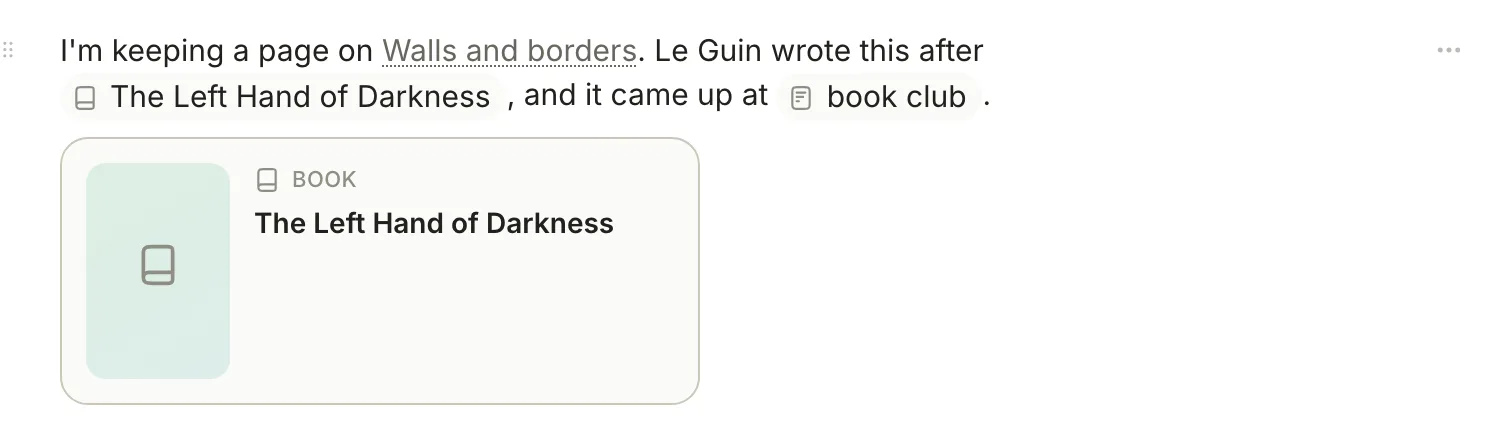
## Link to a note
The reliable way to make a link is the `@` menu:
1. Type `@` at the start of a line or after a space.
2. Type part of the note's title. Matching notes appear under **Note**, up to eight at a time.
3. Press Return or Tab, or click the note. Terra puts a link in its place.
In the file, that's:
```md
Le Guin wrote this after [[The Left Hand of Darkness]].
```
Point at a link to preview the note, and click it to open the note. A link finds its note by title, ignoring capitals; if no title matches, Terra tries file names, so `[[the-left-hand-of-darkness]]` works too.
> [!WARNING] Don't type the brackets in the editor yet
> In the editor, typing `[[The Left Hand of Darkness]]` leaves the brackets around the link and saves broken Markdown, and picking a note from the list that `[[` opens inserts plain text. Use `@` instead. Brackets typed in **Markdown source** work, as do links in files you bring in from other apps.
## Show different text
To show other words than the note's title, add `|` and the text you want. Write it in **Markdown source** (point at the icon to the right of the title and click **Markdown source**):
```md
It came up at [[Book club: October|book club]].
```
The chip reads "book club" and opens **Book club: October**.
## Link to one paragraph
A block link opens a note scrolled to one paragraph, heading or list item, and highlights it for a moment.
1. Point at the paragraph and click the ⠿ handle that appears on its left.
2. Click **Copy link to block**.
3. Paste in another note. The link shows the note's title.
To link with your own words, select some text, right-click it and choose **Copy link to selection** instead; the link shows the first words you selected.
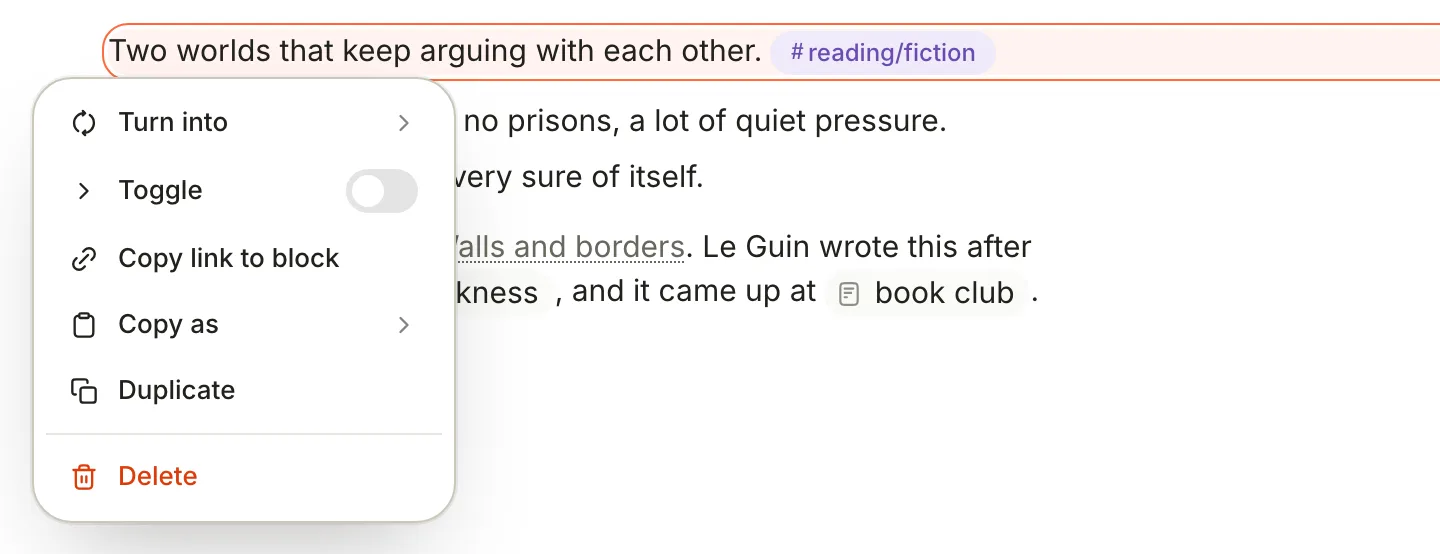
The first time you link to a block, Terra adds an ID to the end of its line, and the link points at that ID:
```md
Two worlds that keep arguing with each other. ^01K7C4M1Q8ZJ3V6T9B2N5R0WHD
[[The Dispossessed#^01K7C4M1Q8ZJ3V6T9B2N5R0WHD|The Dispossessed]]
```
The ID is hidden in the editor. Terra also reads IDs you write yourself, the way Obsidian does: end a paragraph with a space and `^shevek-quote`, then link to `[[The Dispossessed#^shevek-quote]]`. IDs can use letters, digits, `-` and `_`.
A link to a heading, `[[The Dispossessed#First impressions]]`, opens the note at the top: Terra doesn't scroll to the heading yet.
## Web links
Type or paste a web address and add a space, and it becomes a link. Paste an address on its own, empty line and Terra offers a few ways to show it; choose **Link** for a plain link.
To give a web link its own text, write it in **Markdown source**:
```md
[On Wikipedia](https://en.wikipedia.org/wiki/The_Dispossessed)
```
Click a web link to open it in Terra's browser, or ⌥-click to open it in your default browser. (**Settings › Open With › Web links** decides which one a plain click uses.) Right-click it for **Open in Terra**, **Open in system browser** and **Copy link**.
## See what links here
When other notes link to the one you're in, a **Backlinks** button with a count appears under the properties. Click it for the list, and click a note to open it.
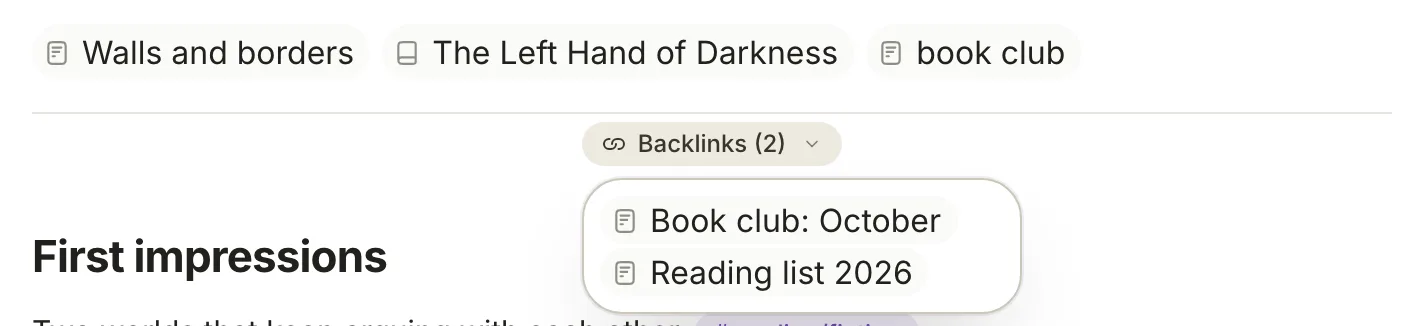
Just above it, a row of chips lists the links in this note: every note and web page it links to, and the address a captured note came from.
For a fuller view, click **Properties** in the toolbar (⌘ R), then **Show References** at the bottom of the panel. The **References** panel lists the same notes; when they reach this one in different ways, it groups them under **Cited by**, **Linked from** and **Embedded in**. **Export** › **Copy as Markdown** copies the list as links, and **Create reference note** saves it as a new note.
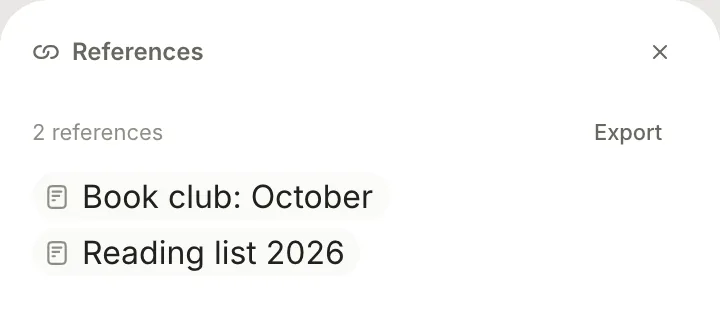
Backlinks count wiki-links, block links, [embeds](https://terramd.io/docs/glossary#embed) and citations. Mentions of a note's title in plain text aren't listed.
## Rename a note safely
Rename a note by clicking its title, typing the new one and pressing Return. Terra renames the file and rewrites every link that pointed at the old title, keeping display text and block IDs, then shows a message such as **Updated 3 links in 2 notes** with **Undo**. **Undo** changes those links back; it doesn't undo the rename.
Change the title only this way. Editing `title:` in Markdown source, or the title in the Properties panel, doesn't rename the file or update links, so links that used the old title stop finding the note.
## Change or remove a link
Right-click a link in the editor:
| Item | What it does |
| --- | --- |
| **Open** | Opens the linked note |
| **Edit link…** | Changes which note it points to, in **Link target**; the display text stays |
| **Unlink** | Turns the link back into plain text |
| **Copy link** | Copies `[[Title]]`, without any display text |
| **Copy text** | Copies the words the link shows |
## Troubleshooting
> [!NOTE]- A link is dimmed with a dotted underline
> No note has that title or file name, so clicking it does nothing. Create a note with exactly that title, or right-click the link and use **Edit link…** to point it at the right one.
> [!NOTE]- A link opens the wrong note
> Two notes share the title, and Terra opens the first it finds. Rename one of them.
> [!NOTE]- There are two Backlinks buttons
> When a note links to more than ten notes and pages, the row of link chips folds into a single button. That button is also labelled **Backlinks**, but it lists this note's own links. The **Backlinks** button below it is the one that lists notes linking here.
## Related
- [Tags](https://terramd.io/docs/tags): group notes by label instead of linking them one by one.
- [Properties](https://terramd.io/docs/properties): what's stored above the links in each note.
- [Search syntax](https://terramd.io/docs/search-syntax): find notes by words, tags and properties.
- [Basic formatting](https://terramd.io/docs/formatting-syntax): the rest of the Markdown Terra reads and writes.