# Files and folders
> Every note is a Markdown file and every folder is a real folder in your Library. Create, rename, move, duplicate, delete and restore them.
Source: https://terramd.io/docs/files-and-folders
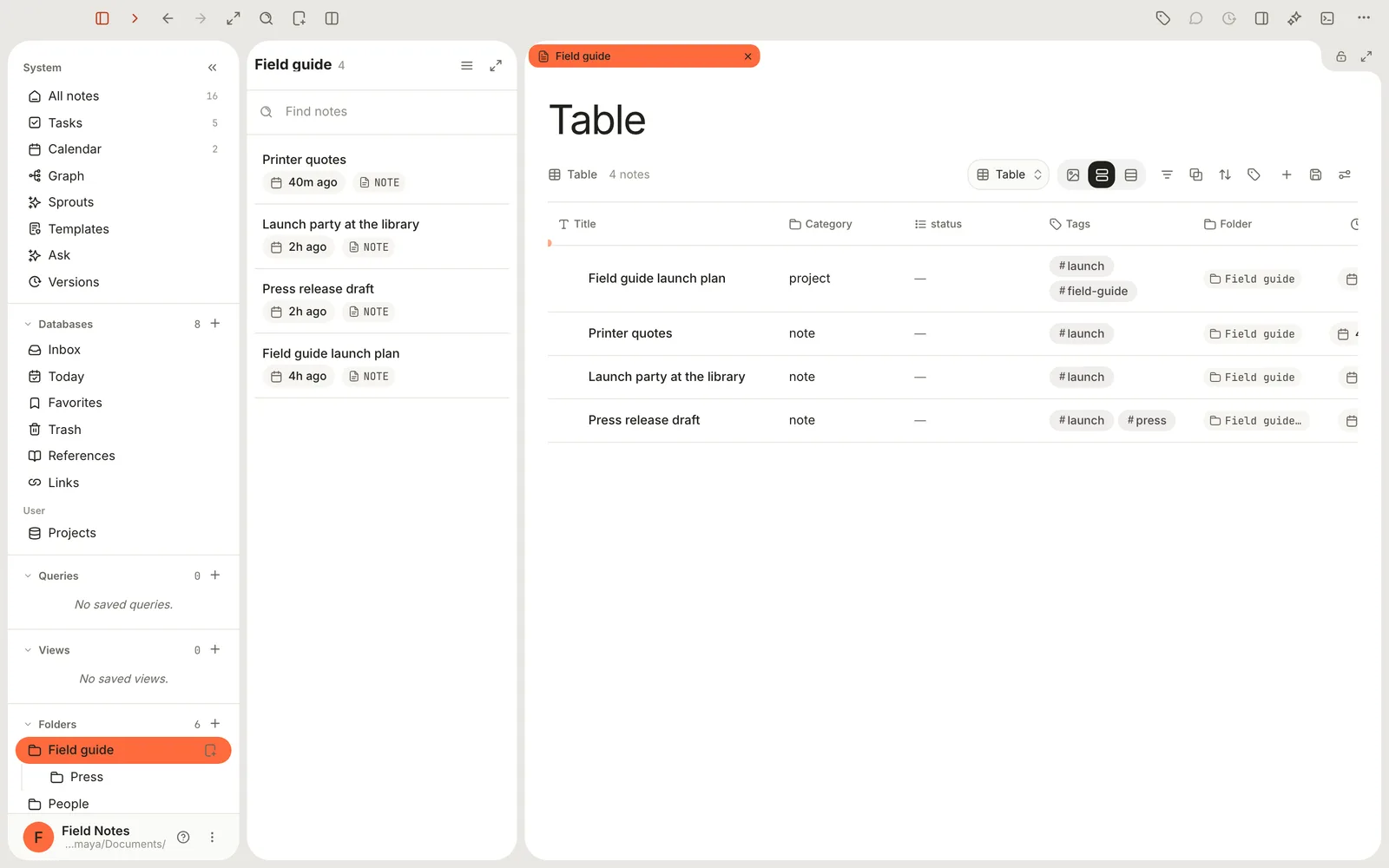
In Terra, a note is a Markdown file and a folder is a folder. Both live in your [Library](https://terramd.io/docs/libraries), an ordinary folder on your Mac, so the **Folders** list in the sidebar is the same tree you'd see in Finder. When you rename, move or delete something in Terra, the real files change; when you change them in Finder, Terra picks it up.
## Where things go
| When you… | Terra saves it in… |
| --- | --- |
| press ⌘ N, or choose **File › New Note** | `Inbox`, as `untitled.md` (then `untitled-2.md`, and so on) |
| right-click a folder and choose **New note** | that folder |
| click **+** next to **Folders** | a new folder at the top level of your Library |
| delete a note | the `Trash` folder, until you put it back or empty the Trash |
| duplicate a note | the same folder, titled "… Copy" |
| paste or drag an image into a note | an `attachments` folder beside the note |
| drop files from Finder | wherever you drop them (see [Add files from Finder](#add-files-from-finder)) |
## Create a note
- Press ⌘ N, choose **File › New Note**, or click **New…** in the toolbar and choose **New note**. An *Untitled* note opens, saved in `Inbox`.
- To start a note in a particular folder, point at the folder in the sidebar and click **New note here**, or right-click the folder and choose **New note**.
- **New from template…** sits in the same menus. See [Templates](https://terramd.io/docs/templates).
- To turn copied text into a note, right-click an empty part of the window and choose **Paste as note**.
- **New note** is also in the **Library menu** at the bottom of the sidebar, and when you right-click a sidebar heading or an empty part of the note list. [Quick capture](https://terramd.io/docs/capture-and-classify) files notes in `Inbox` too.
## Create a folder
1. Click **+** next to **Folders** in the sidebar.
2. Type a name and press Return. Esc cancels.
To put a folder inside another one, right-click the parent and choose **New subfolder**. **New folder** is also in the toolbar's **New…** menu and when you right-click the **Folders** heading or an empty part of the sidebar; with the sidebar focused, ⌥ ⌘ N does the same. Folder names can't contain a slash. Folders you make in Finder appear here too, even empty ones.
## Rename
Click a note's title, type a new one and press Return (Esc cancels). Terra renames the file to match: lowercase, with hyphens in place of spaces and punctuation, up to 80 characters. While you type, **Path preview** shows the new file name. If that name is taken, Terra adds `-2`.

Other notes that link to this one are updated for you, and a message says how many, for example **Updated 3 links in 2 notes**. Click **Undo** in the message to put the old links back.
> [!NOTE] Two renames that leave the file name alone
> Changing **title** in the Properties panel changes the title only. Renaming the file in Finder leaves the title stored inside it as it was.
To rename a folder, right-click it and choose **Rename**, or select it and press F2. Notes link to each other by title, so renaming or moving a folder doesn't break links. A folder can't be renamed `Inbox`, `Trash`, `Themes` or `Imported`, because Terra uses those names itself.
## Move
| To move | Do this |
| --- | --- |
| a note to a folder | Drag it from the note list onto the folder in the sidebar. |
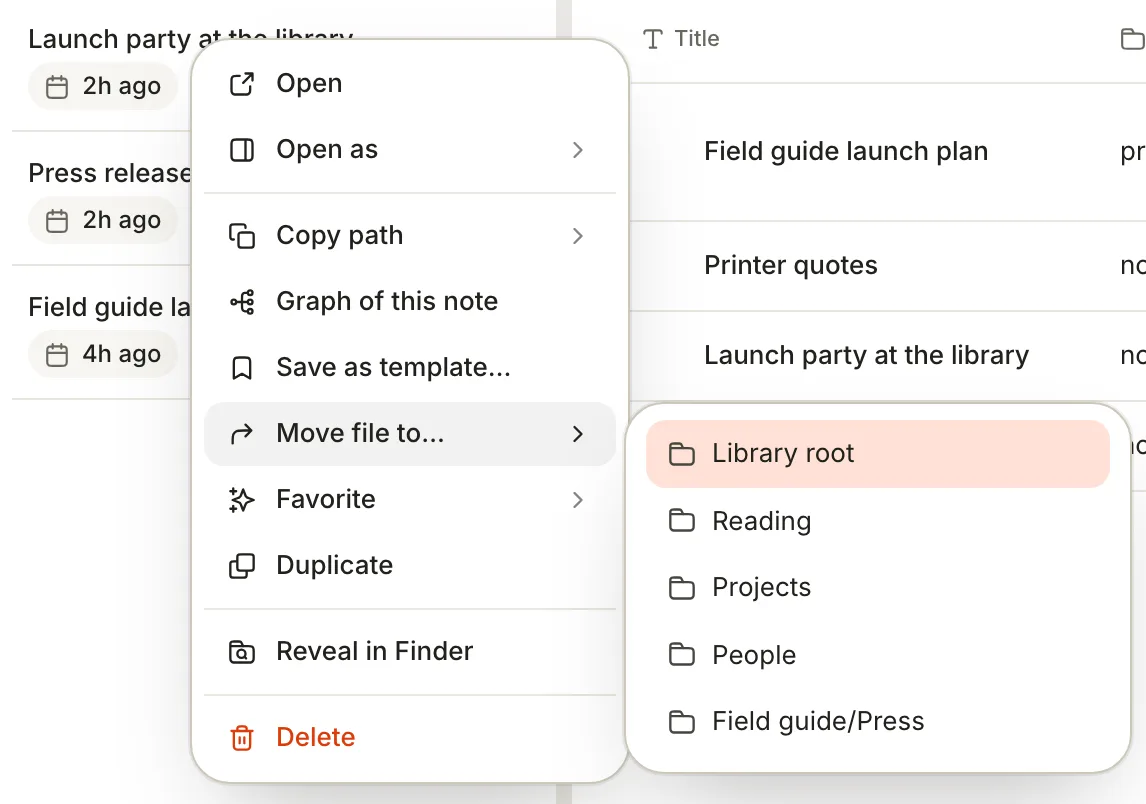
| a note, from a menu | Right-click it › **Move file to…** and pick a folder, or **Library root** for the top level. In an open note, click **⋯** (**Note actions**) at the bottom right › **Move note**. |
| several notes | Select their rows in a table, click **More actions** (**⋯**) in the bar that appears › **Move to**. |
| a folder | Drag it onto another folder, or right-click it › **Move folder…**. |
A note's attachments move with it.
## Duplicate
Right-click a note and choose **Duplicate**, or in an open note choose **Note actions › Duplicate note**. The copy lands in the same folder, titled "Printer quotes Copy", with its own copies of any attachments, and opens. **File › Duplicate** copies the open note too; if you've selected blocks in the editor, it copies those blocks instead.
To copy a folder with everything in it, right-click the folder and choose **Duplicate**. The copy sits beside it as "Field guide copy".
## Delete and restore
Deleting moves a note to the Trash; nothing is erased until the Trash is emptied.
- Right-click a note › **Delete**, or in an open note choose **Note actions › Delete note**, then click **Delete**. You can also drag a note onto **Trash** in the sidebar.
- A message says **Note moved to Trash**. Click **Undo** to bring the note back. After **Delete note**, pressing ⌘ Z while you're not typing also undoes it.
- To delete a folder, right-click it › **Move to Trash** and confirm. Each note inside can still be put back on its own.
On disk, the file moves into the `Trash` folder of your Library, and Terra writes the note's old location into it as `previous_path`.
**Put a note back.** Click **Trash** in the sidebar, under **Databases**. Right-click the note and choose **Put Back**; it returns to its old folder, which Terra recreates if it's gone. To put back several, select them and hold ⌥: **Delete** in the bar becomes **Put Back**.
**Empty the Trash.** In the Trash view, click **Empty trash** (the bin at the top) and confirm. Terra also empties notes that have been in the Trash for 30 days, whenever you open it. To change the period, open **View preferences** in the Trash view and set **Empty Trash automatically** (7 days to a year).
> [!WARNING] Emptying is permanent
> Notes erased from the Trash are deleted from your Mac, not moved to the macOS Trash. Inside the Trash view, selecting notes and clicking **Delete** erases them straight away, without asking.
## Favorites
Favorites keep the notes you use most within reach. Favoriting never moves a file.
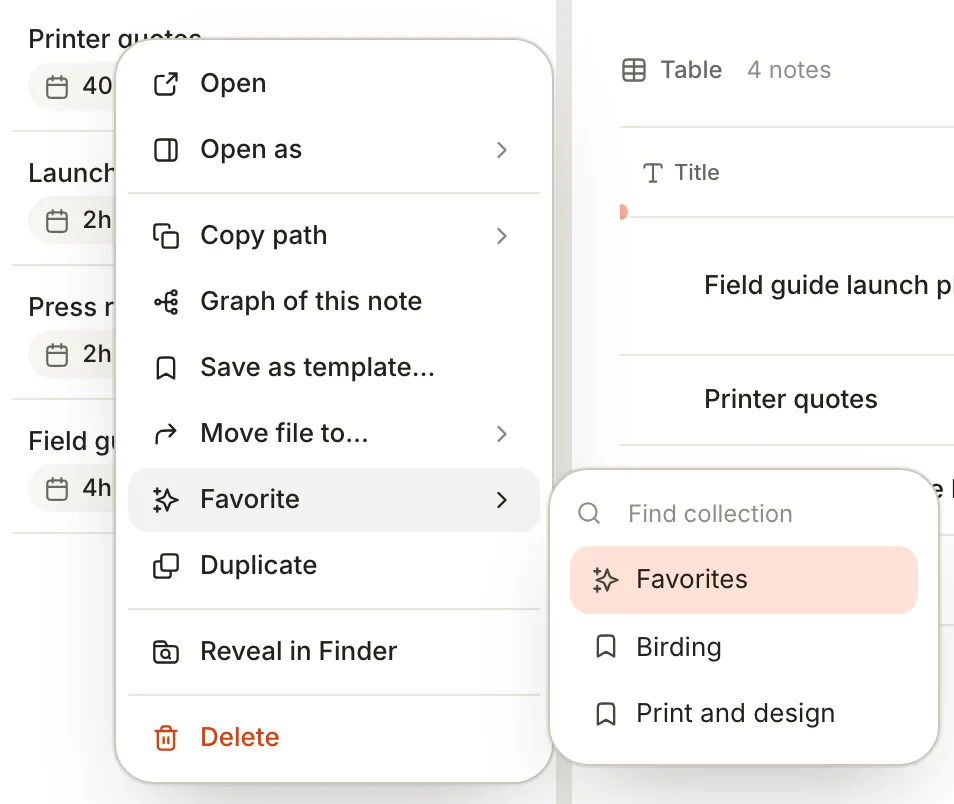
- In an open note, click **Add to Favorites** (the flag at the left of the editor toolbar) and choose **Favorites**. Or right-click a note in a list › **Favorite** › **Favorites**. Terra marks the note with the tag `#favorite`.
- Open them from **Favorites** in the sidebar, or with **View › Open Favorites**.
- For lists of your own, such as books to lend, right-click **Favorites** › **New favorites collection** and name it. Add notes from the same **Favorite** menu. A note can be in several collections, and collections can hold collections.
- To keep a whole folder handy, right-click it › **Favorite** and choose where to put it.
## Icons
Right-click a note's title and choose **Change icon** to pick an icon; **Default** removes it. The icon is saved in the note itself, as `icon` in its [properties](https://terramd.io/docs/properties). Folders and other sidebar rows have **Change icon** in their right-click menus too, but those icons are kept on this Mac only.
## The Folders list
The sidebar's **Folders** list shows every folder in your Library, subfolders nested under their parents, except `Inbox` and `Trash` (they have rows under **Databases**), `Themes` and the `attachments` folders Terra makes for notes.
Folders are listed alphabetically. To arrange them your own way, point at a folder and drag the handle that replaces its icon; the order is kept on this Mac only. Dragging the folder itself drops it into another folder instead.
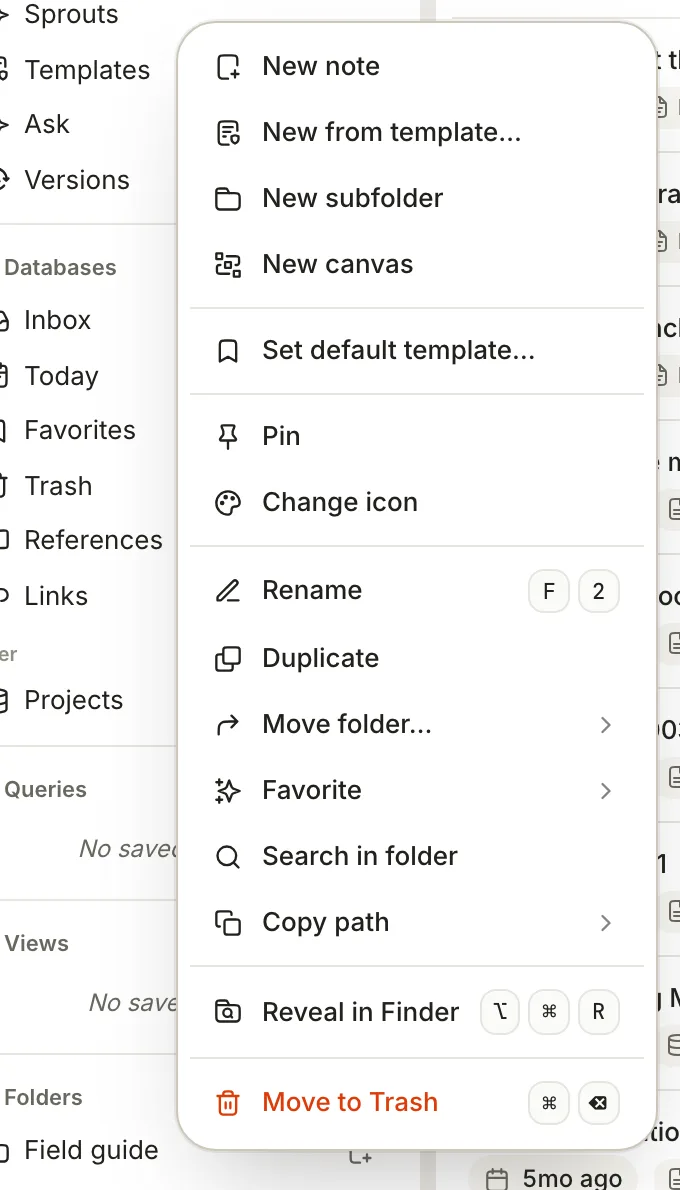
With a folder selected in the sidebar, these keys work:
| Keys | What they do |
| --- | --- |
| F2 | Rename the folder |
| ⌥ ⌘ N | Make a new folder inside it |
| ⌥ ⌘ R | Reveal it in Finder |
| ⌥ ⌘ C | Copy its full path |
| ⌥ ⇧ ⌘ C | Copy its path inside the Library |
| ⌘ ⌫ | Move it to the Trash |
To find any note's file, right-click it in a list › **Reveal in Finder**. For the whole Library, click **⋯** (**Library menu**) at the bottom of the sidebar › **Open in Finder**.
## A folder is also a database
Click a folder and it opens in the main pane as a [database](https://terramd.io/docs/databases) of the notes inside it, subfolders included. You can change its [layout](https://terramd.io/docs/views-and-layouts), filter and sort it, and save views, which stay with the folder. To search one folder, right-click it › **Search in folder**; Terra fills in a `path:` filter for you (see [Search syntax](https://terramd.io/docs/search-syntax)).
## Add files from Finder
Drag files or whole folders from Finder into the Terra window. Terra copies them into your Library, leaving the originals where they were, and gives each file a note so it appears in lists and search.
- Drop on a folder in the sidebar, or while a folder is open, to put the files in that folder.
- Drop while a database is open, or on one in the sidebar, to add the files to it. If the database collects notes of one type, tag or status, the new notes get that value.
- Anywhere else, the files go to `Inbox`. To send every drop there, set **Settings › Files › Dropped files go to** to **Always Inbox**.
Terra asks before adding when a dropped folder's name is taken (**Create new folder** or **Merge**), when some files have no viewer, or when the drop is over 200 files or 500 MB. Files over 256 MB are skipped. [Accepted file formats](https://terramd.io/docs/file-formats) lists what Terra does with each kind of file.
## Related
- [Libraries](https://terramd.io/docs/libraries) — the folder that holds all of this.
- [How Terra stores your notes](https://terramd.io/docs/how-terra-stores-your-notes) — what's inside each file, and what's safe to edit elsewhere.
- [Databases](https://terramd.io/docs/databases) — the views a folder opens in.
- [Accepted file formats](https://terramd.io/docs/file-formats) — which files Terra can show.