# Calendar
> The Calendar lays your Library out by date. Meetings appear by their start time and tasks by their due date, and dragging one reschedules it.
Source: https://terramd.io/docs/calendar
The Calendar is a built-in view of your [Library](https://terramd.io/docs/libraries) by date. A [note](https://terramd.io/docs/glossary#note) appears on the day in its `start-time` [property](https://terramd.io/docs/properties), which suits meetings and appointments, and a [task](https://terramd.io/docs/tasks) appears on its due date. Nothing is copied: each item on the Calendar *is* the note or the task line, so moving it to another day changes the date in the note.
Click **Calendar** in the sidebar to open it.
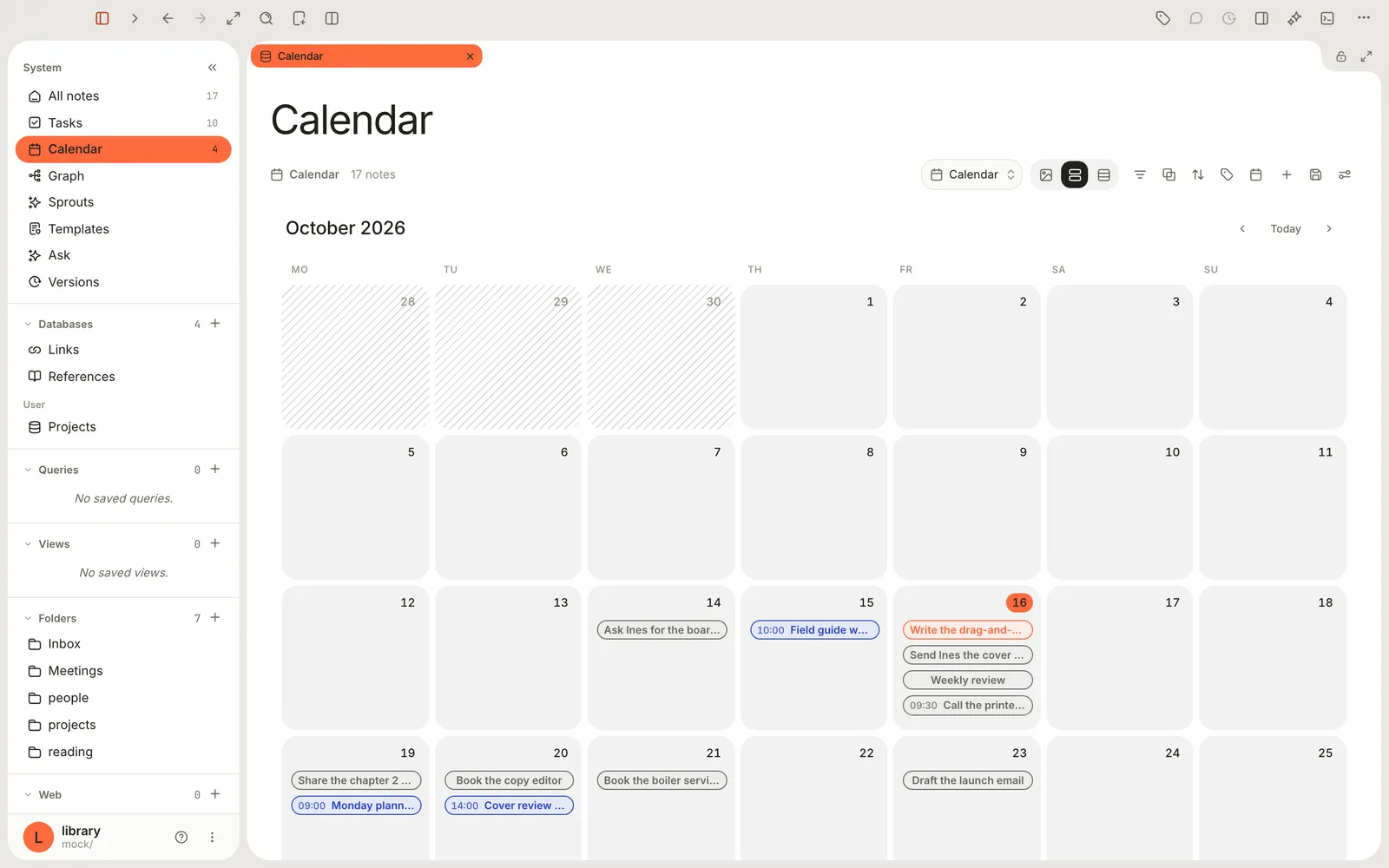
## What shows up
| Item | What puts it on the Calendar | How it looks |
| --- | --- | --- |
| A note | A date in its `start-time` property | The title, after the start time. A date with no time makes it an all-day item. |
| A task | A `due=` date on its line | The title, outlined in its [status](https://terramd.io/docs/tasks#statuses) colour, after the time if the due date has one |
Everything else stays off the Calendar: notes without `start-time`, tasks without a due date. Tasks appear whatever their status, so finished ones stay on their day as a record.
Events from Google Calendar can't be shown yet. **Settings › Integrations** lists Google Calendar as **Coming soon**.
## Put a note on the Calendar
There's no button for creating an event on the Calendar itself. A meeting is a note with a start time:
1. Open the note, or create one. The **Meeting** template is a good start (see [Take meeting notes](https://terramd.io/docs/meeting-notes)).
2. Under the note's properties, click **+** (**Add property**), choose **Existing property**, then `start-time`.
3. Pick the date and time.
4. For a meeting with a length, add `end-time` the same way, then set the Calendar's **End** as described in [Choose the dates it uses](#choose-the-dates-it-uses).
In the note's file they're ordinary properties, with values such as `2026-10-20T14:00`.
To put a task on the Calendar, give it a due date: `::: due=2026-10-20`. See [Task syntax](https://terramd.io/docs/task-syntax#dates).
## Open, change and reschedule
- **Click an item** for a small card. A task's card has its status colours, **Low**, **Medium** and **High** priority buttons, **Open note** and **Delete**. A note's card shows its start and end, a few lines of the note, **Open note** and **Delete**.
- **Drag an item to another day** to reschedule it. A task gets a new `due=`; a note gets a new `start-time` (and `end-time`, moved by the same amount). The time of day stays the same.
- **Move between months** with the arrows beside **Today**, and click **Today** to come back.
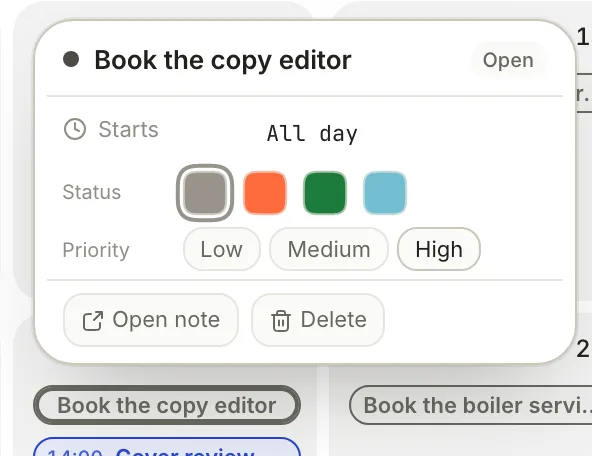
> [!WARNING] Delete on a note deletes the note
> On a task's card, **Delete** removes only that task line, and you can restore it from **Tasks › Sources › Deleted tasks**. On a note's card, **Delete** moves the whole note, meeting minutes and all, to the Trash.
A day shows up to four items. When there are more, it says **+2 more** (or however many); open the day's notes from **Tasks** or the Calendar drawer instead, because the label can't be clicked yet.
## Display modes
The **Display mode** menu in the header lists **Month**, **Week**, **Day** and **Agenda**. In this version the built-in Calendar always shows the month grid: picking another mode there doesn't change it. The other modes work in calendars you make yourself; see [Calendars of your own](#calendars-of-your-own).
## Choose the dates it uses
By default the Calendar places notes by `start-time` and gives them no end. To use other properties, or to show meeting lengths:
1. In the Calendar's header, click **View preferences** (the sliders at the far right).
2. Click **Dates**.
3. Pick a property for **Start** and one for **End**. Most people only set **End** to `end-time`.
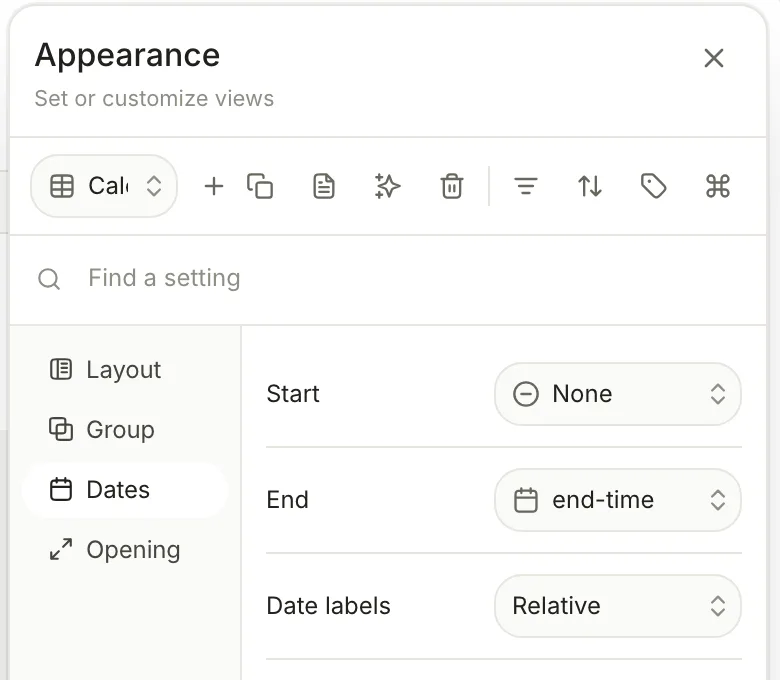
Any date property works, for example a `deadline` property on your project notes. These choices are saved for the whole Library.
## The Calendar drawer
To see one day beside whatever you're working on, click **Properties** in the toolbar (⌘ R) to open the panel on the right, then click **Show Calendar** in the row of buttons along its bottom. The drawer has a small month with a dot under each busy day. Click a day to list its **Events** (notes with both a `start-time` and an `end-time`) and its **Tasks**.
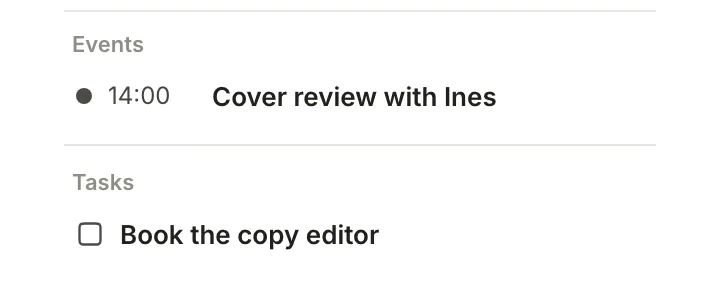
You can also hover the number beside **Calendar** in the sidebar to list the events for **Today**, **This week** or **This month**.
## Calendars of your own
The built-in Calendar shows the whole Library. For a calendar of your own, right-click **Calendar** in the sidebar, choose **New calendar database**, give it a name and click **Create**. It appears under **Calendar**, uses the same start and end properties, and starts with every note; use **Filters** in its header to narrow it, for example to the `Meetings` folder (see [Filter, sort and group](https://terramd.io/docs/filter-sort-and-group)). Here, **Display mode** switches between **Month**, **Week**, **Day** and **Agenda**, which lists the next two weeks.
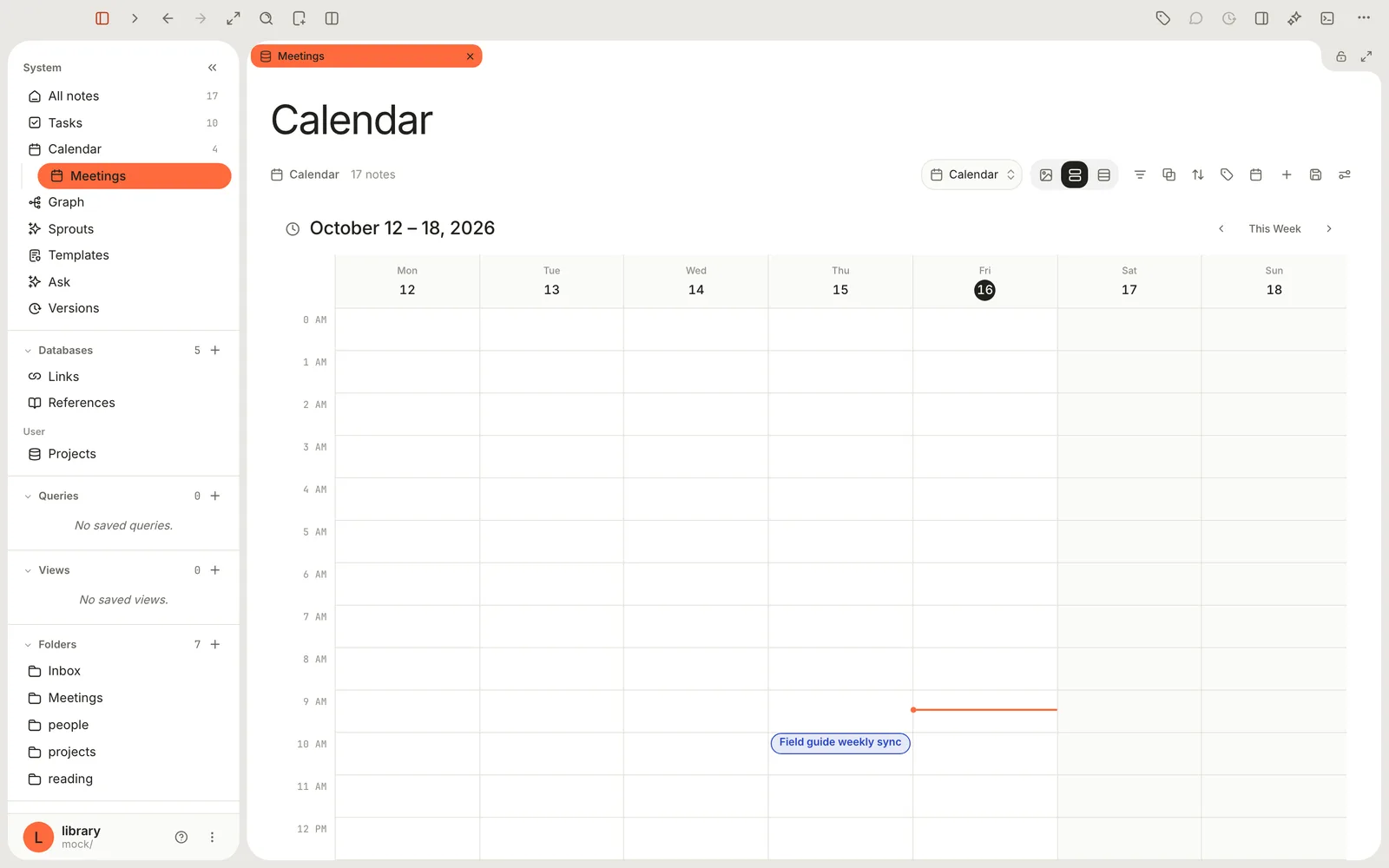
A calendar of your own shows notes only: tasks appear on the built-in Calendar. Any database can also be shown as a calendar by choosing the **Calendar** layout for one of its views; see [Views and layouts](https://terramd.io/docs/views-and-layouts).
## Week start and time zone
The Calendar's weeks always start on Monday, and times are shown in your Mac's time zone. **Settings › General** has **Week starts** and **Timezone**, but they don't change the Calendar: they're for weekly groups in databases, date pickers, scheduled reports and logs.
## Daily notes
Terra has no daily-note button that opens today's page. The **Daily log** template (**File › New from Template…**, ⇧ ⌘ N) makes a page headed with today's date, with **Wins**, **Blockers** and **Tomorrow** sections. Like any note, it appears on the Calendar only if you give it a `start-time`.
## Troubleshooting
> [!NOTE]- My meeting note isn't on the Calendar
> It needs a `start-time` property. Writing the date in the text, as the **Meeting** template does, isn't enough. If you've changed **View preferences › Dates › Start**, the note needs that property instead.
> [!NOTE]- My meetings show as a single time, not a block
> Set **End** to `end-time` under **View preferences › Dates**, and give the note an `end-time` later than its `start-time`.
> [!NOTE]- A note without a time shows up a day early
> In this version, a note whose start is a date with no time can land on the day before in time zones behind UTC, such as the Americas. Tasks aren't affected. Give the note a time, even 09:00, and it lands on the right day.
> [!NOTE]- I picked Week but still see the month
> On the built-in Calendar, **Display mode** has no effect in this version. Use the Calendar drawer for one day, or make a calendar database of your own for Week, Day and Agenda.
## Related
- [Tasks](https://terramd.io/docs/tasks) — due dates, statuses and the board.
- [Take meeting notes that turn into tasks](https://terramd.io/docs/meeting-notes) — meetings on the Calendar, action items in Tasks.
- [Run your week with tasks and the calendar](https://terramd.io/docs/run-your-week-with-tasks) — a weekly routine.
- [Views and layouts](https://terramd.io/docs/views-and-layouts) — the Calendar layout for any database.